


Did you know that a custom login page URL WordPress is about controlling and preventing illegal access to the WordPress dashboard? There are 30,000+ WordPress themes and 60,000+ plugins available today. With 80% of WordPress users getting hacked because of weak login details, using a custom WordPress login URL is a compulsory security strategy for website owners.
This article aims to equip you with the right knowledge on how to find the WordPress admin page, create a custom WordPress login, and change your WordPress password.
How to Write a Follow Up Email – Best Practices & Templates.
By Javeria Riaz on August 13, 2025We will also discuss common WordPress issues to avoid, how you can solve these issues with your WordPress, and the best WordPress security tips that can help make your login process smooth and professional.
Table of Contents
- What is the WordPress Login Page?
- Why Knowing Your WordPress Login URL Matters
- Difference Between WordPress Login Page and WordPress Admin Dashboard
- How to Find Your WordPress Login URL
- How to Change the WordPress Login Link
- Common Mistakes and Login Issues to Avoid
- Best Practices for Boosting Your WordPress Login Security
- Final Thoughts on Updating Your Default WordPress Login
- FAQs
Key Takeaways
- Default URL: Custom login page URL in WordPress increases the security of your website by hiding the login default paths, which are /wp-admin and /wp-login.php, from hackers.
- Updating login link: Changing or hiding the login URL can help prevent unauthorized access and brute-force attacks from people who may directly access your WordPress admin dashboard.
- Custom login page: To prevent trouble accessing your WordPress login, you can create a custom login screen with popular WordPress plugins like iThemes Security and WPS Hide Login.
- Differences between dashboard and URL: Understanding the difference between the WordPress admin dashboard and the login URL for your site ensures smoother troubleshooting and site management.
- Mistakes to avoid: Common issues, such as forgetting your WordPress username and password, can be prevented when you back up and configure your site properly.
- Best actionable guidelines: Following the best practices listed in this article can help protect your site and WordPress login form.
- Reliable hosting service: Using a secure hosting company like Hostonce is another way to boost the security of your admin URL because you are equipped with automatic backups, free SSL certificates, and firewalls.
What is the WordPress Login Page?
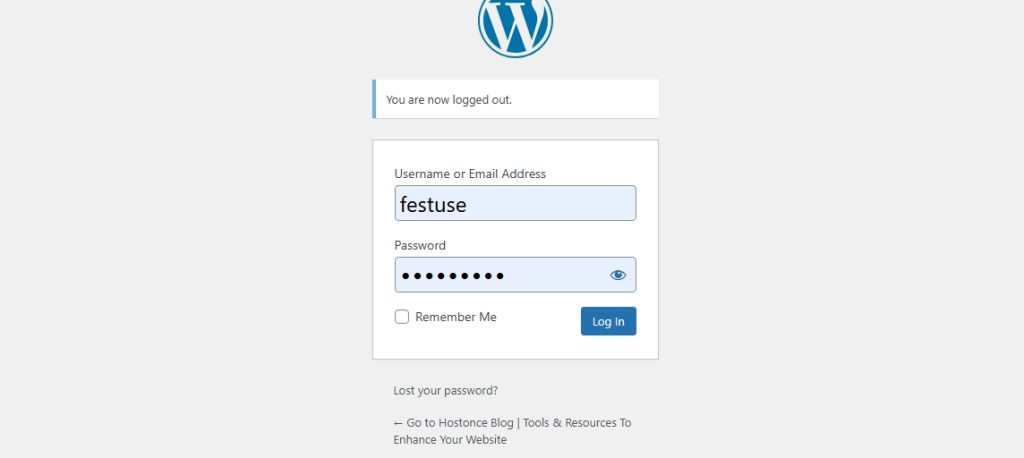
The WordPress login page is the gateway that allows you to log in to your WordPress admin area directly. When you reach the admin dashboard, you can customize site settings, manage your WordPress site, install WordPress plugins, and control all activities. By default, you can find the WordPress login page URL when you add /wp-admin or /wp-login.php to the end of your site’s URL. For more context, a login page can look like this: yourwebsite.com/wp-admin.
Why Knowing Your WordPress Login URL Matters
The importance of knowing the URL of your website’s admin dashboard can help you effectively manage your site and reset your password if there’s a breach. The following reasons outline the necessity of a WordPress login URL:
1. It’s your access to the admin dashboard
Your WordPress login URL is the gateway to the admin WordPress dashboard of your website, where you can control your site. Without this link, you cannot update plugins, manage content, or perform any website activities.
2. Prevents illegal access to your WordPress website
Many users skip the WordPress login screen or forget to protect their login link to boost security. When you bookmark your login URL or know the login path, you avoid the common issues of contacting your hosting service or resetting your password unnecessarily.
3. Increases website security
The default login URL of every WordPress site is /wp-admin or /wp-login.php, thereby leading to more brute-force attacks. By changing the admin URL, you are reducing spam on login attempts and email spoofing, adding an extra layer of security when integrating Google Analytics, and hiding the access point of your admin from attackers.

Protect your WordPress from illegal access
Choose Hostonce WordPress hosing and enjoy advanced security, free SSL, automatic backups, and everything you need to keep your login safe
4. Helps you control several websites
Owners of multiple websites can better have more control and maintain an organized workflow when they know the login URL of each site. For example, if you use reseller hosting, you can use a password manager or bookmark them for easy access without having to remember your WordPress login page.
5. Essential for troubleshooting issues with your WordPress
When you encounter problems like redirect errors or plugin conflicts, knowing your login URL can help with faster troubleshooting from DDoS attacks. You’ll learn how to determine whether your website is affected by a plugin or if it’s a server-level problem preventing you from accessing your dashboard.

Difference Between WordPress Login Page and WordPress Admin Dashboard
| Feature | WordPress Login Page | WordPress Admin Dashboard |
|---|---|---|
| Purpose | To authenticate users | To manage website content and settings |
| Default URL | /wp-login.php | /wp-admin |
| Access Type | Public (visible to anyone) | Restricted (requires login) |
| Main Function | Security gateway | Website management |
| Customization | Can change URL or design | Customizable layout via themes/plugins |
| User Roles | All roles log in here | Access level depends on role |
| Common Issues | Forgotten URL, brute-force attacks | Plugin conflicts, admin errors |
1. WordPress Login Page
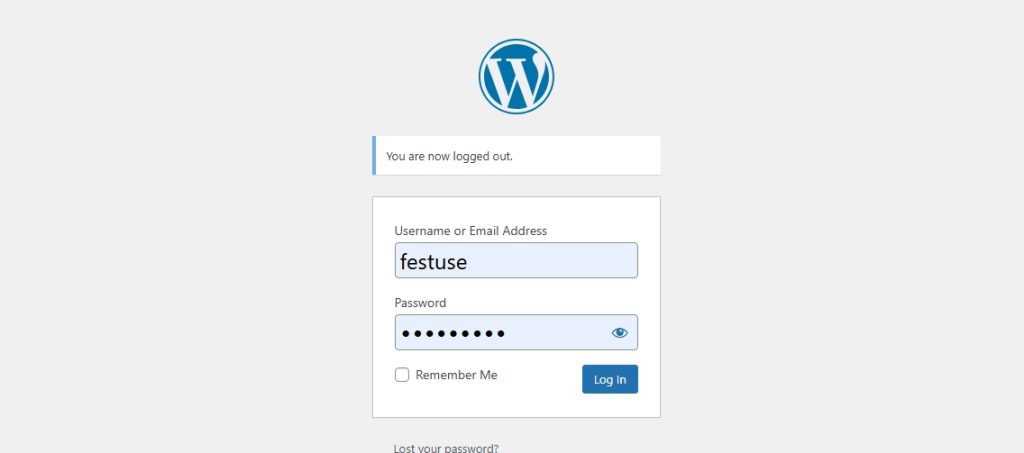
The login page is where you enter your WordPress username and password to access the site’s backend. A WordPress admin login page, like /wp-login.php, prevents illegal access and protects your website content optimization.
Key Features:
- A field where you need to enter your WordPress username and password
- Contain options like “Lost Password?” and “Remember Me”
- Can be customized with WP plugins like WPS Hide Login or LoginPress
2. WordPress Admin Dashboard
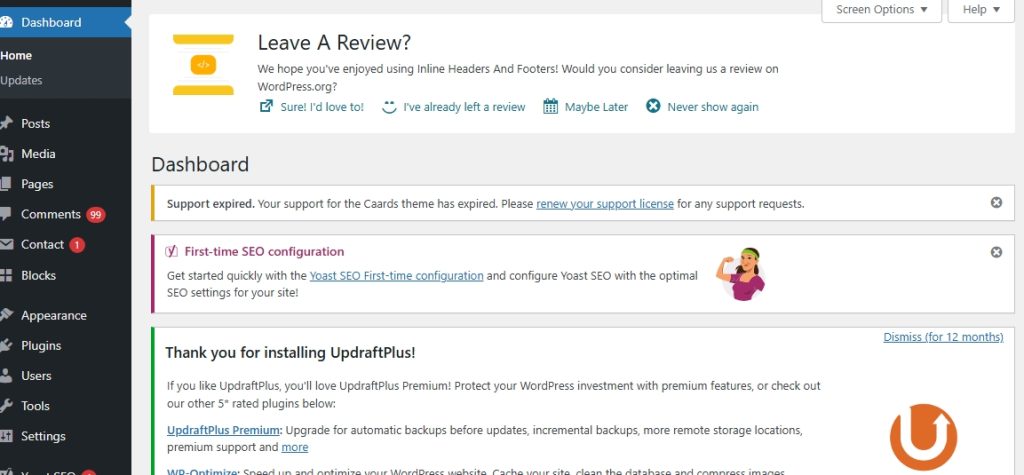
The WordPress admin dashboard is the backend of your site where you can customize and manage everything. You can only access this area after logging in successfully.
Key Features:
- Sidebar menu that shows Appearance, Posts, Media, Settings, etc.
- You can view your Site Health tools
- Customize the frontend of your website or add your WordPress to a subdirectory
How to Find Your WordPress Login URL
Without your login link, you cannot gain access to the backend of your site. Knowing how to find the WordPress login URL as a new website owner is very important. We have listed several smart ways to help you easily find your WordPress login link:
Method 1: Use the Default WordPress Admin Login URL
When you install WordPress on a subdomain data package, you are giving a default login structure like everyone else. As stated earlier in this article, this URL will grant you access to your login form, where you can enter your information to see your dashboard. A default login URL can be www.hostonce.com/wp-login.php.
Method 2: Look for the “Login” or “Admin” Link on Your Website
Some WordPress themes are known to include an “Admin” or “Login” link automatically in the header or footer. You can find your login page URL by scrolling down your page and clicking it to be redirected to your correct URL. An example of this method can look like this: Login / Register / Admin/ Dashboard
Method 3: Using Your Hosting Dashboard to Access the Login Form
If you register your website with a domain hosting provider, you are not required to remember the login link. All you have to do is sign in to your hosting dashboard, click the WordPress install button, and wait till it is completed. You’ll be redirected automatically to the login page of your website as a new user. Remember that this method is useful for people who have multiple sites under the same account, a forgotten login URL, and have used WordPress plugins to hide the login.
Method 4: Find the WordPress Login URL in Your Installation Files
To access your WordPress admin area, you will need to find your installation file through FTP. This file can be located at the root directory of your website and usually looks like wp-login.php. If your WordPress is in a subdirectory and you have created a custom login path, you can check for files such as functions.php or the .htaccess file. Hostonce makes your WordPress login session very easy in just one click. You do not need to learn how to find your URL or worry about losing your information.
Expert Tip
Losing your URL could lock you out of your WordPress admin dashboard, especially after using a plugin to rename or hide it. Before changing your WordPress login URL, create a full website backup uisng tools like UpdraftPlus or your hosting dashboard.

Method 5: Check for a Custom Login URL
Using WordPress plugins like WPS Hide Login or LoginPress can change the default login link to a custom login URL for your website. To look for a custom login URL, you will need to:
- Log in to the cPanel of your hosting
- Open your File Manager and go to the directory that shows /wp-content/plugins/
- Check the folder that contains your login customization plugin to see any configuration files.
- Inside this folder, you will see the new login URL of your site, and it can look like this: /myadmin or /secure-login
Method 6: Using a Database to Remember Your WordPress Login Page
Many users overlook tracking logging errors or failed attempts. Integrating Google Analytics on your WordPress website allows you to gain valuable insights into how users interact with your login and admin pages. If you are completely locked out of the admin area and cannot see the login link of your website with the methods listed above, you can:
- Go to your hosting dashboard and log in to phpMyAdmin
- Open the database of your WordPress
- Look for plugin entries under the wp_options table
- Search for the option name that defines the path of your new login URL.
How to Change the WordPress Login Link
By default, you cannot access your admin area without logging in to your account. Changing the login link of your WordPress site will provide an extra layer of security against unauthorized access and brute-force attacks. Here is how to change the WordPress login link of your site:
1. Use a WordPress Plugin
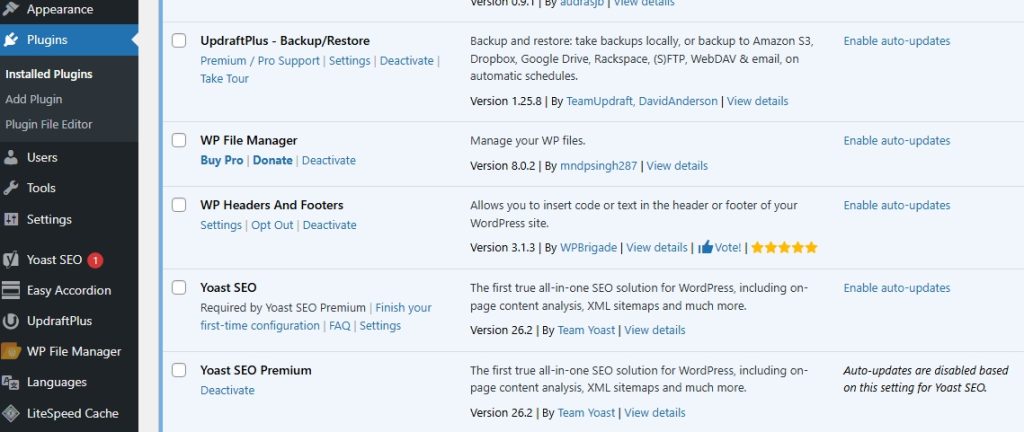
A plugin like WPS Hide Login is one of the best ways to change the login URL of your site. Some popular WordPress plugins are iThemes Security, All in One WP Security, and LoginPress. These plugins come with extra protection and features for you to monitor login attempts. You can bookmark your login page or write it down to prevent being locked out.
2. Manually Change Your WordPress Login URL (Advanced Users)
If you are a web developer or have coding knowledge of PHP versions, you can change the login URL of your site manually. This can be done by modifying and renaming the wp-login.php file. Keep in mind that this is an advanced method and will require using custom functions or rewrite rules in the functions.php file to update login requests to another page.
3. Create a Custom Login Page
Creating a custom login page with Elementor Pro or SeedProd is another way to change your login URL. This method allows you to create a login experience that looks professional for users. The custom page can have the colors of your brand, spam protection with CAPTCHA, redirect users to custom dashboards after logging in, and other options to help people who have forgotten passwords. The WordPress login page is where you access your website’s admin dashboard to make edits and updates. If you haven’t set up your website yet, start by following our step-by-step tutorial on how to create a website on WordPress
Common Mistakes and Login Issues to Avoid
Changing the login URL of your WordPress site can help boost security. Nevertheless, there are some common mistakes and login issues to avoid. We will also show you how to fix them when you encounter them.
1. Forgetting Your New Login URL
After successfully changing the login URL, most users find it difficult to remember the new login link. Without this URL, you are denied access to your dashboard, and this can be frustrating.
Solution: Ensure that your new login URL is bookmarked or saved with a password manager.
2. Plugin Conflicts
Sometimes, using several memberships or security plugins can affect the performance of your login page or prevent your new URL from loading properly.
Solution: Individually remove each plugin to know where the problem lies and make sure that your new WordPress login page is handled by a single plugin.
3. Using Unsupported Login URLs
Adding long words or symbols in the slug of your custom URL can lead to errors like redirect loops or 404 errors.
Solution: Ensure that the URL of your login page is clear and simple. For instance, you can use /admin-access/ or /my-login/
4. Caching and Redirection Errors
If you are using redirection plugins or cache, you are prone to having these kinds of errors. For example, your old login URL can be redirected incorrectly or cached after making changes.
Solution: After changing your Login page, you can clear the browser cookies and cache. Another way to solve these errors is by whitelisting the new URL in your firewall plugins or redirection.
5. Forgetting to Update Security Plugins or Themes
Outdated WordPress themes or plugins can hinder your access to the login or cause it to change back to the default page.
Solution: To enjoy smoother performance and compatibility, ensure that your security WP plugins and themes are fully updated to the latest version.
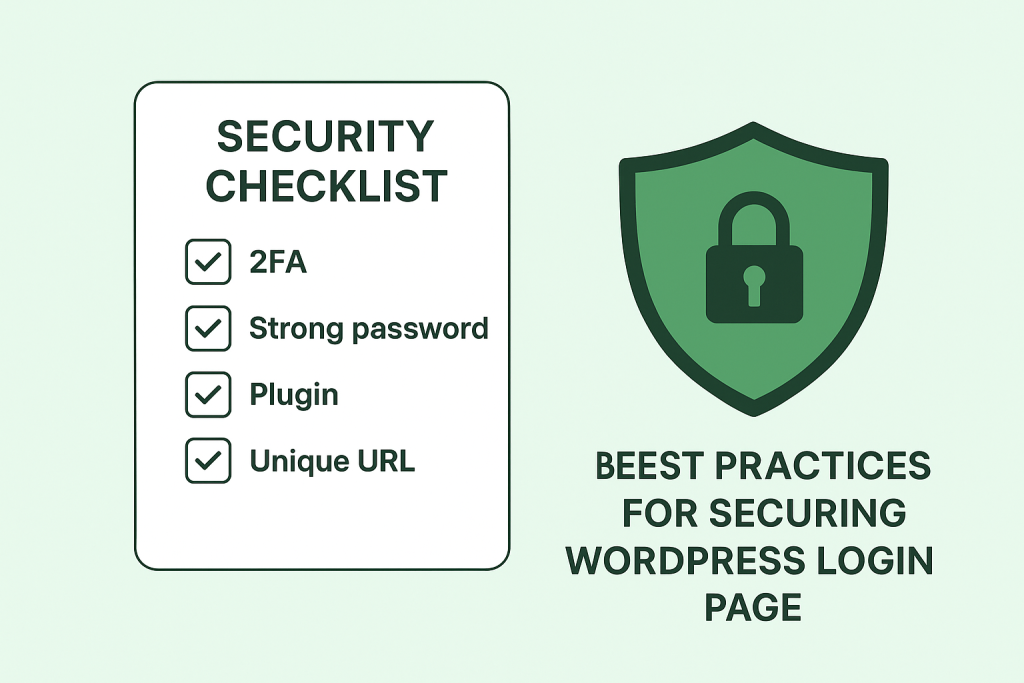
Best Practices for Boosting Your WordPress Login Security
Using the default Login address of your WordPress and weak information can leave your site open to different threats. Combine these tips with a trusted hosting provider like Hostonce, and you’ll enjoy faster performance, stronger protection, and peace of mind. For added defense, explore our in-depth guide on the 22 best WordPress security plugins to protect your site from every angle. If adhered to, the following practices can help protect and boost the security of your website:
- Create a custom URL: Change the default link of your WordPress to prevent users from guessing your information. You can create a custom URL with various WP plugins, like eCommerce plugins.
- Have a strong password: Use passwords that are unique and strong. For instance, you can have a password that contains symbols, uppercase, numbers, and lowercase letters for strength.
- 2FA authentication: Enable Two-Factor Authentication (2FA) as an extra layer of security. Popular plugins like Wordfence Login Security and Google Authenticator can be used for this purpose.
- Reduce login sessions: Limit the number of login attempts for each session. This will prevent people from trying out different password combinations.
- HTTPS certificates: Use SSL certificates (HTTPS) to encrypt data and secure your site. WordPress and VPS hosting provide free SSL certificates for protection.
- Use WordPress plugins: With plugins like WP Activity Log, you can monitor the activity of login sessions, unusual behavior, limit login attempts, and IP addresses.
Final Thoughts on Updating Your Default WordPress Login
Finding and updating the login URL of your WordPress is the first step towards protecting your website. By following the best practices listed above, you can prevent unauthorized access and threats from hackers. Another key factor to note is using a reliable hosting that ensures that your WordPress is faster and better. Learn more about WordPress security and website hosting when you follow us on Twitter (X).
FAQs
How can I create a custom login page URL in WordPress?
You can create a custom login page URL in WordPress using plugins like WPS Hide Login, iThemes Security, or SeedProd. These tools let you replace the default login link with a custom slug (e.g., /my-login/) and even design a branded login form for your site.
Why should I use a custom login page URL in WordPress?
Using a custom login page URL in WordPress protects your site from brute-force attacks, reduces spam login attempts, and allows you to add professional branding to your WordPress admin login page. It’s one of the easiest yet most effective security steps you can take.
What should I do if I forget my WordPress custom login URL?
If you forget your custom login URL, you can access your website via FTP or cPanel, deactivate the plugin that manages your login settings (like WPS Hide Login), and your site will revert to the default WordPress login page at /wp-login.php.
Can I customize my WordPress login page without a plugin?
Yes, but it requires coding knowledge. You can edit the functions.php file, use custom rewrite rules, or design a new login form template. However, most users prefer plugins for convenience and security since manual edits can cause login errors if done incorrectly.
How to Start a Blog (For Total Beginners)
By Hamza Aitizad on November 1, 2025
Hostonce is the #1 WordPress Host
Ranked by 930+ customers in G2's Best Software Awards.
