
WHM offers backup VPS and Dedicated server services to guarantee recoverability and data security, like legacy backup and simple backup. The Legacy Backup system is reportedly outdated and will be irrelevant in future updates of WHM. You should switch to the newer Backup System, which offers more options, superior performance, and a modern interface for WHM backup configuration.
Backup (New System): Recommended
1. Easier scheduling and user selection.
2. Remote location options (such as Google Drive, Amazon S3, SFTP, etc).
3. Increased retention flexibility.
Legacy Backup: Not Recommended
1. Not enough features.
2. Available on some servers.
3. Migration to the new Backup system.
User Selection for Backup
Backups must be enabled for the right cPanel accounts through WHM > Backup User Selection. This gives you the hold to exclude or include users to optimize backup efficiency and server space.

“Server Configuration of the Highest Quality!”
Easy Configuration of Back VPS and Dedicated Servers—Hostonce brings a new and comfortable experience.
Configuration of WHM Backups
The configuration of WHM backups involves a series of steps.
Step 1: Disable or Enable Backups
Step 2: Change Your Backup Schedule
Step 3: Pick between Full or Incremental Backups
Step 1: Disable or Enable Backups
- Log in to WHM.
- Type Backup into the given search bar or access the backup segment directly.
- Go to the options and select Backup User Selection. Click Account Actions to disable or enable users. Toggle Enable to Disable so you can disable or enable any individual user.
- Save the server configuration changes.
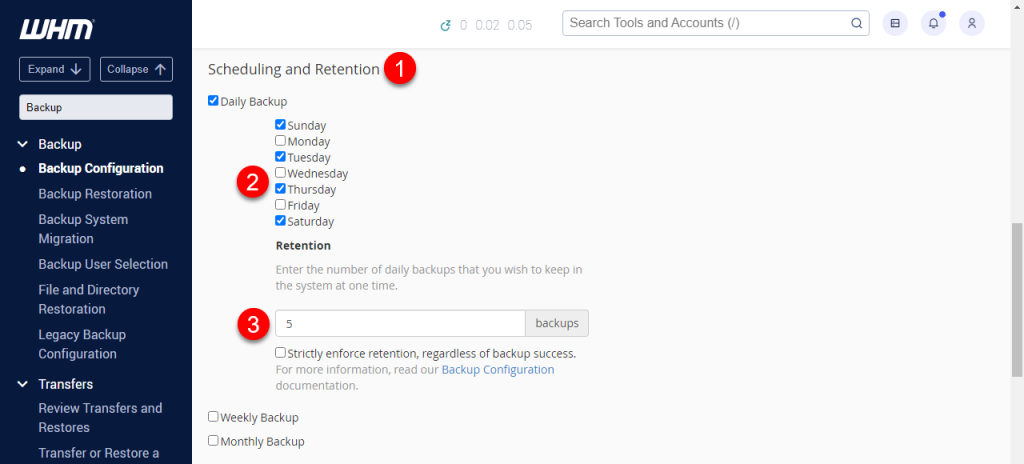
Step 2: Change Your Backup Schedule
Backup schedules are classified into:
- Daily
- Weekly
- Monthly
Each schedule has:
- The day it runs.
- Data on retained backups.
- If the backup is active or not.
A key point that you must consider is not to enable strictly enforced retention. Do it only if you are certain that incomplete backups are acceptable. Leaving it unchecked means inviting the loss of vital backups in case of an error.
Step 3: Pick between Full or Incremental Backups
Full: Uses more time and space to complete copies.
Incremental: Back up modified files to save time and space.
Your selection depends on your recovery needs and server capacity.
Sending Backups to a Remote Space
You may send backups to any external storage so that you do not face disk space issues. WHM supports:
- Amazon S3
- FTP/SFTP
- Google Drive
Choose a remote option to avoid space issues on the server.
- Choose Backup Configuration.
- Select the destination type in the Additional Destinations section.
- Select Create New Destination.
- Configure the path and required credentials.
- Make your decision if you want to keep local backups on the server.
Migration from Legacy Backup to Backup
There is the Backup System Migration tool in WHM:
- Copies your Legacy settings by default.
- Moves backup files to the new format.
- Review your post-migration new configuration.
Legacy Backup Configuration for Old Systems
- Enable/Disable
- Maintain Schedule
- Enable Compression
This system is flawed. You should move back to the Back System upon its availability. You may visit the Hostonce support team for further information.
Enable/Disable
- Log in to WHM.
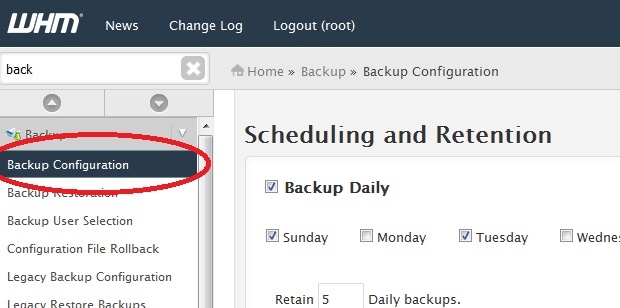
- Go to the Backup section and search for Legacy Backup Configuration.
- Toggle Backup Status.
- Click Save.
Maintain Schedule
- Change Backup Retention and Backup Interval.
- Uncheck unimportant schedules to free space. To disable monthly or weekly backups, use the Backup Retention line to uncheck them. If you want to just keep a weekly backup and disable a daily backup, just uncheck from backup detention daily and check weekly on the Backup interval.
- Select the Save button.
Enable Compression
Compressing your Dedicated or VPS backup saves you a lot of space. You should not forget that it needs time and resources to generate.
Types of Backups
There are three primary types of backups:
Compressed
A single compressed file is used to store all account information. This file consumes more time but requires less disk space. If the accounts are big, it could put a high load on the server. This type is best for small user accounts (less than 10GB).
Uncompressed
An uncompressed format is used to store all account information. This type consumes less time but needs more disk space for storage. This type is best for servers with enough storage and few large accounts. Your available free disk space shows you the limit of Daily, Weekly, and Monthly archives you can add.
Incremental
This type initially saves an uncompressed copy and afterwards saves changes to the account. This is the fastest option once the initial backup is created. This type is recommended for servers with limited storage and a few large accounts. This method is not for remote location options, and only one Daily, Weekly, or Monthly backup can be archived.
Need more knowledge on the matter? This is what the Hostonce knowledge base operates for. Visit there and collect more useful information!

Summary
When running a VPS or Dedicated server, it’s important to configure backups from WHM to ensure your data and website are secure. We suggest the use of a Backup system instead of a Legacy Backup for better automation and control. WHM allows you to check separate user backups, send copies to remote locations such as cloud storage or SFTP, and schedule automated backups. Use the aforementioned steps to configure WHM backups so that you can be protected from downtime and data loss.
Frequently Asked Questions
Do backups slow Dedicated or VPS server?
Server performance can be slowed during the backup generation, more so when there are full backups. But it is temporary, so you do not have to worry much.
What if a backup fails during the process?
If ‘strict retention’ is enabled as a result of a backup failure, WHM can remove other old backups as well, leaving no restore point in recent times.
Can WHM encrypt direct backups?
There is no native encryption with WHM. Use third-party scripts or externally handle encryption before you send backups to a remote space.
Should admins be notified if a backup fails?
Email alerts can be helpful in such a situation. You can configure them through notification preferences in Contact Manager in WHM.
