The MySQL root user in XAMPP comes without a password, leaving your database vulnerable to unauthorized access. Setting or changing the password secures your local setup and helps maintain good security habits. In this write-up, we’ll cover three easy ways to update your MySQL password in XAMPP.
Table of contents
Why You Need to Update Your MySQL Password
By default, XAMPP installs MySQL with an unprotected root user, which means anyone can access your local database without restriction. Since this account has full control over all data and configurations, adding a password is crucial for security. Updating your MySQL password not only protects your local environment from unauthorized access but also encourages better security habits, especially if you tend to reuse or forget passwords.
Update MySQL Password Through the XAMPP Shell
The XAMPP Shell is one of the quickest and simplest ways to change your MySQL password. This method is beneficial when you can’t remember your existing password and want to set a new one. Since the XAMPP Shell operates independently of your operating system, the steps are the same for both Windows and macOS.

Boost Your Website with Hostonce VPS Hosting!
Try our VPS hosting for maximum flexibility and unbeatable performance. Manage your resources efficiently to meet your requirements with 24/7 support.
First, open up the XAMPP Control Panel, then select the Shell option on the right side:
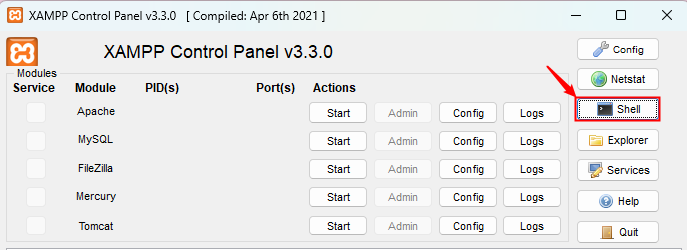
Once the CMD window opens, type the following command and hit Enter:
mysqladmin -u root password
You’ll be prompted to enter and then confirm the new password by pressing Enter once more.
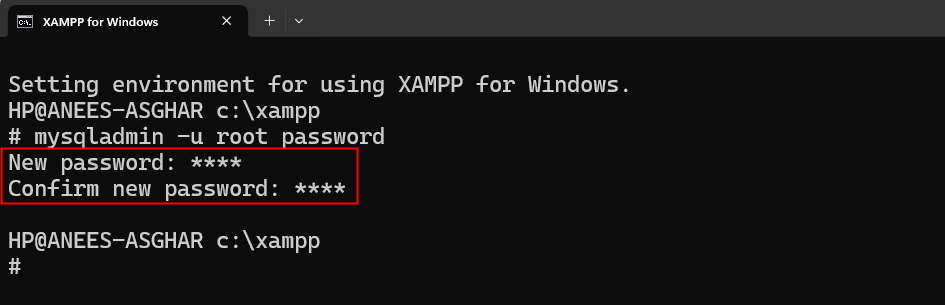
Finally, your MySQL password is now modified, and you can close the shell prompt.
Update MySQL Password in XAMPP Using phpMyAdmin
Another easy method to modify your MySQL password in XAMPP is by using phpMyAdmin. This approach is friendly to newcomers and does not require one to mess around with the command line. First, start the XAMPP Control Panel, navigate to Admin next to MySQL.
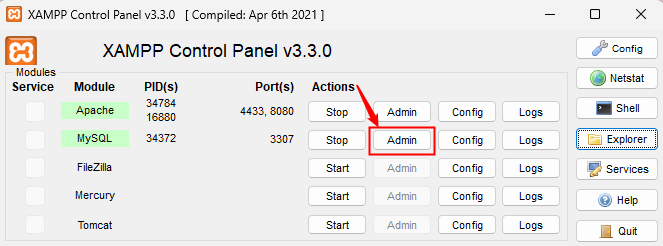
phpMyAdmin will open in your web browser. If you see a login screen, then use the username root. If there is no password yet, you can leave the password field blank and click continue.
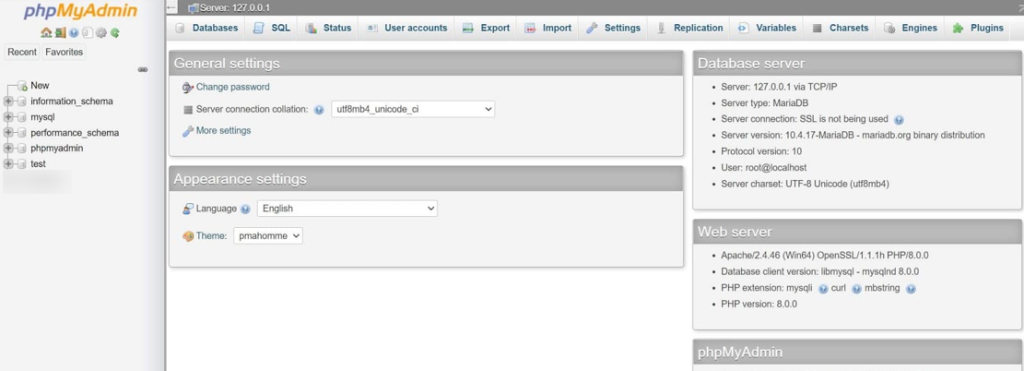
In phpMyAdmin, click on the User accounts tab at the top. Locate the root user for localhost, and click Edit privileges in its row.
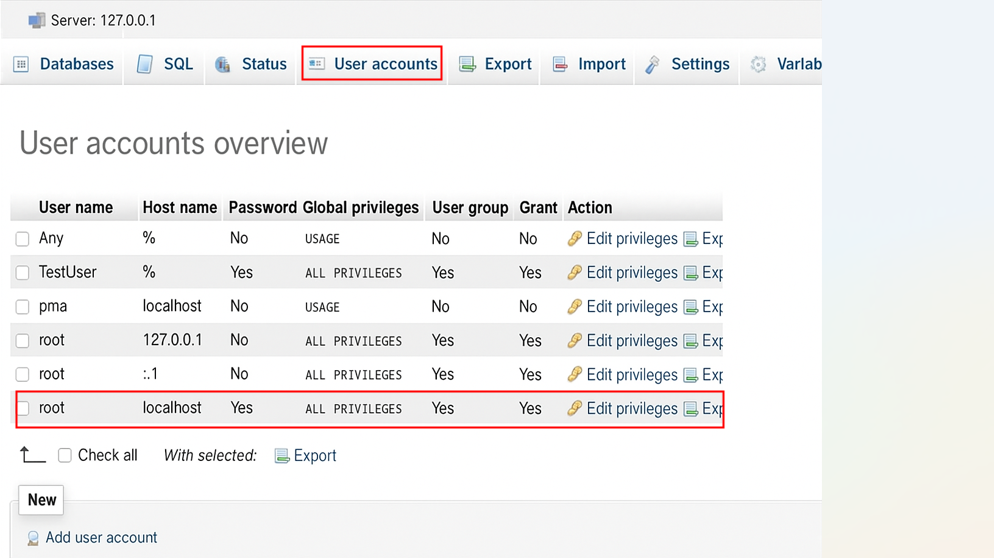
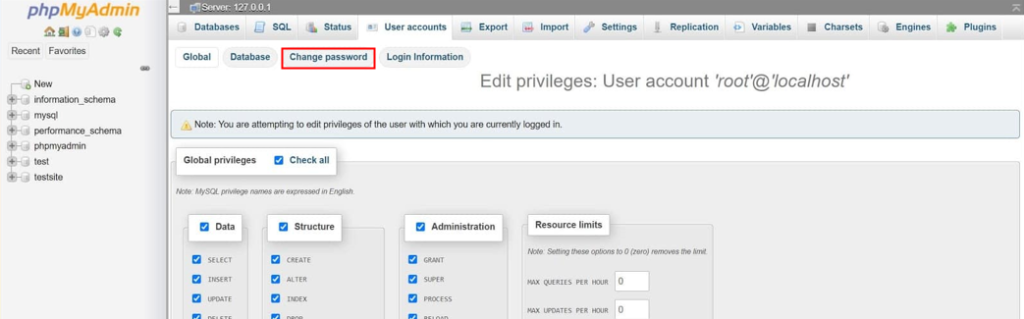
Now, tap on Change password.
On the next page, enter your new password, confirm it, and click Go at the bottom to save.
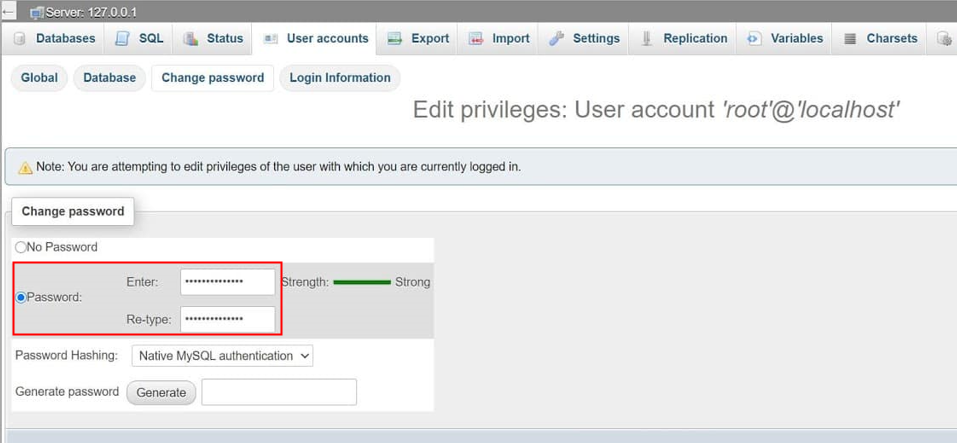
Your MySQL root password has been changed via phpMyAdmin.
Change MySQL Password Through the config.inc.php File
If the MySQL password isn’t working even though you’re certain it’s right, you can fix this by updating it directly in the config.inc.php file. This is a very simple approach and only needs to edit a single line of code.
For this purpose, you need to open XAMPP Control Panel and click Explorer at the top right.
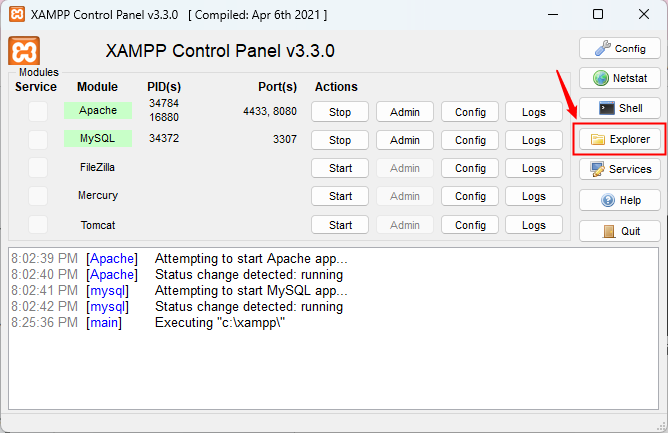
This will open up the XAMPP installation folder, navigate to the phpMyAdmin folder, and search for the “config.inc.php” file.
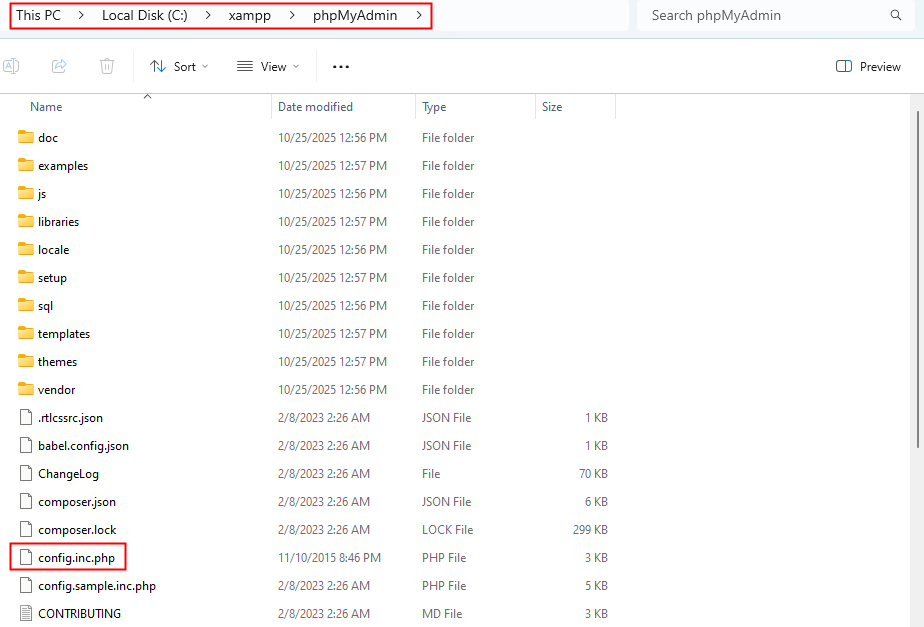
You can open the file with a text editor, or just double-click it and have the default program open it. Look for the following line:
$cfg['Servers'][$i]['password'] = 'Your_Password';
Replace ‘Your_Password’ with your new password and save the file.
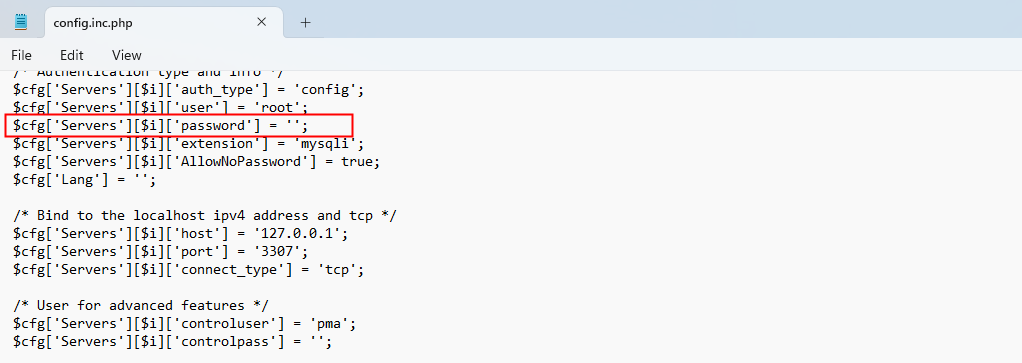
That’s all about changing your MySQL password.
Final Thoughts
Securing the MySQL root login on XAMPP is required to keep your local database safe from unauthorized access. No matter if you reset the password with the XAMPP Shell, phpMyAdmin, or the “config.inc.php” file and the methods are straightforward yet useful. Keeping your password fresh improves security and creates safer habits for subsequent projects. In this guide, we discovered three different ways for you to update your MySQL password in XAMPP, ensuring that your local development environment remains secure and free from issues.
FAQ
Does changing the MySQL port affect phpMyAdmin access?
Yes. If you change the MySQL port (for example, from 3306 to 3307), you’ll need to update the configuration in the config.inc.php file to match the new port number.
Can I change the MySQL password without using phpMyAdmin or the shell?
Yes. You can edit the config.inc.php file in the phpMyAdmin folder and manually update the password value inside the file.
Why is phpMyAdmin showing an “Access denied” error after changing my password?
This usually happens when the new password in MySQL doesn’t match the one in the config.inc.php file. Update the password in that file to fix the issue.
Is it safe to use XAMPP for production databases?
No. XAMPP is meant for local development and testing, not production environments. Always use a secure MySQL setup for live applications.
