
Git is a powerful and widely-used version control system that allows developers to track changes, collaborate efficiently, and manage source code across distributed teams. Since its initial release by Linus Torvalds in 2005, Git has become the de facto standard for version control in modern software development.
Keeping Git up to date ensures access to the latest features, performance enhancements, and security patches. This article offers a deep dive into how to check your current Git version and update it across various operating systems.
How To Check Git Version
Before updating Git, it’s essential to determine which git version command is currently installed.
Using the Terminal or Command Prompt
Open your terminal (on macOS/Linux) or Command Prompt/PowerShell (on Windows), and enter the following command:
git --versionYou should see an output like:
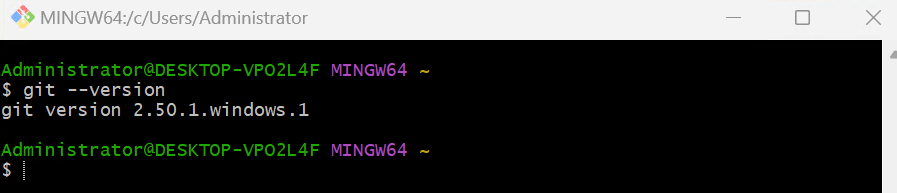
This tells you the version of Git currently installed. If the command returns an error or “command not found,” Git may not be installed on your system yet.
Why Updating Git Matters
Here are the key reasons to keep Git updated:
- Older versions may have vulnerabilities that could be exploited.
- Updates often include performance tweaks for faster operations.
- Git releases frequently introduce powerful new features like improved merge algorithms or new commands.
- Newer Git versions ensure compatibility with recent tools, IDEs, and remote repositories.

Try Hostonce’s Dedicated Servers for Ultimate Performance!
HostOnce gives you full control, powerful hardware, strong uptime, and top-level security. It’s a great choice for high-traffic websites and demanding applications.
Updating Git on Windows
The following are the steps to git version check on the Windows operating system:
Step 1: Download Latest Git
Head to the official Git website, The site will automatically suggest the right installer for your system. The site will automatically suggest the right installer for your system.
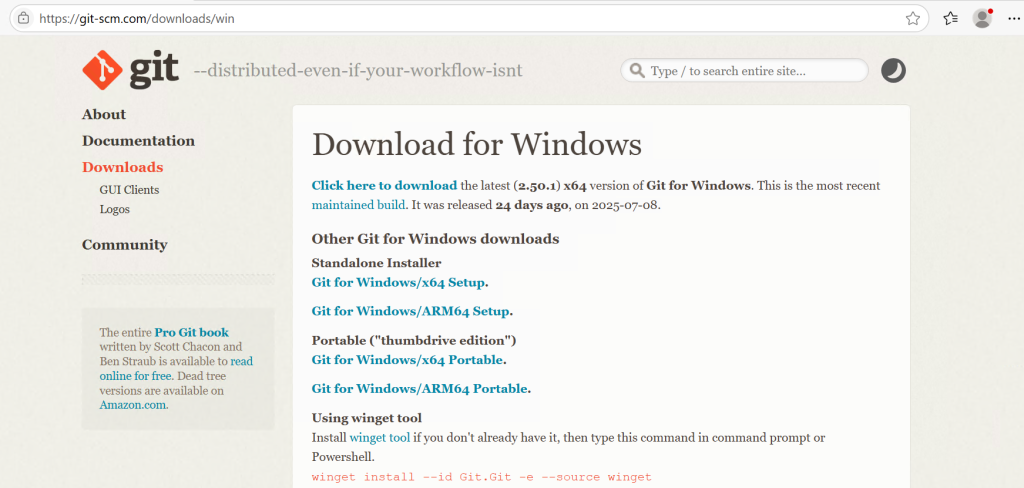
Step 2: Run the Installer
Double-click the downloaded .exe file. Follow the installation wizard. Choose default settings unless you have specific preferences. This process will install or update Git to the latest version.
Step 3: Verify Update
Once installed, reopen your Command Prompt and type:
git --versionIt should display the new version.
Updating Git on Linux
Updating Git on Linux depends on your distribution.
For Debian/Ubuntu, use the following command:
sudo apt install git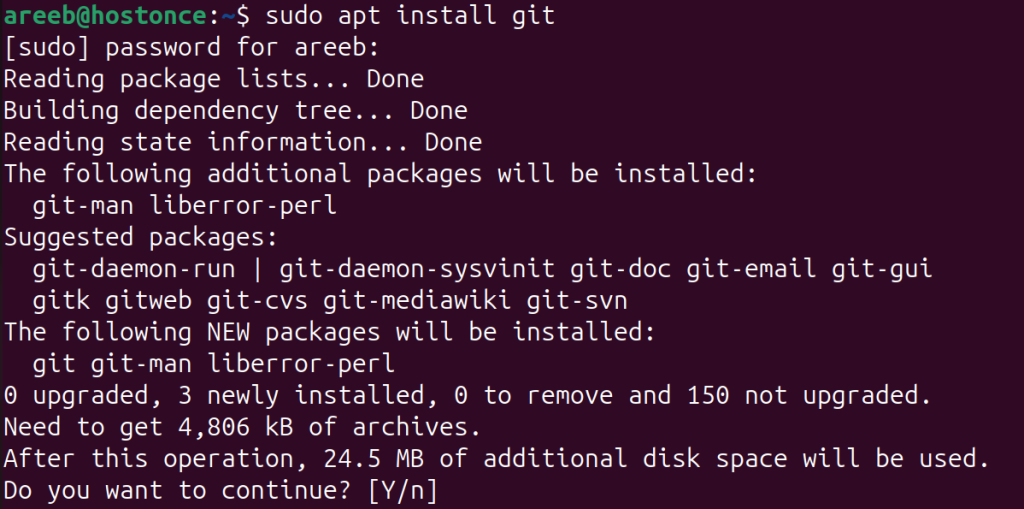
If you’re looking for the latest version (and not just the one available in your distro’s repositories), consider using a PPA:
sudo add-apt-repository ppa:git-core/ppa
sudo apt update
sudo apt install git
For Fedora, use the following command:
sudo dnf update gitFor Arch, use the following command:
sudo pacman -Syu gitYou may also compile Git from source for the absolute latest version.
Building Git from Source
Sometimes, package managers don’t offer the newest Git release. In those cases, you can build Git manually.
Step 1: Install Dependencies
On Ubuntu:
sudo apt update
sudo apt install make libssl-dev libghc-zlib-dev libcurl4-gnutls-dev libexpat1-dev gettext unzip
Step 2: Download Source Code
Visit the Git repository or use:
wget https://github.com/git/git/archive/refs/tags/v2.42.0.zip
unzip v2.42.0.zip
cd git-2.42.0
Step 3: Compile and Install
make prefix=/usr/local all
sudo make prefix=/usr/local install
Step 4: Verify
git --versionCommon Issues
If running git --version throws an error:
- Ensure Git is properly installed.
- Add Git to system path.
You may have multiple Git installations. Run which git (Linux/macOS) or where git (Windows) to locate the active executable.
Final Thoughts
Keeping Git updated is essential for modern development. Whether you’re a solo coder working on personal projects, or part of a team managing complex codebases, the reliability and features that come with the latest Git version can make a big difference.
FAQ
How do I check my current Git version?
Run git --version in your terminal or command prompt to see your installed Git version.
How can I update Git on Windows?
Download the latest Git installer from the official Git website and run it to update.
How do I update Git on macOS?
Use Homebrew with the command brew upgrade git to update Git on macOS.
How can I update Git on Linux?
Use your package manager, such as sudo apt update && sudo apt install git for Debian-based systems.