The main question to ask is: Why do I need to clear the browser cache? The matter of fact is that we do not notice browser caching much. It runs in the background and is no issue for your experience… Until it is.
Table of contents
Suppose that you made a change, but you cannot see it yet. That is because your browser still runs on the cached version of that resource. Or the cache might have become corrupted, affecting a web page’s functionality.
For these reasons, it is always good to clear the browser cache. It does not mean that taking this step will necessarily solve the issue; it is simply the first step to take rather than assuming a more complicated problem is at hand.
How to Clear Cache in Google Chrome?
You can use the hotkey combinations for cache clearance. CMD + SHIFT + DELETE (Mac) or CTRL + SHIFT + DELETE (Windows/Linux). A “Delete browsing data” window will be opened. Ensure that only the ‘Cached images and files” box is checked.
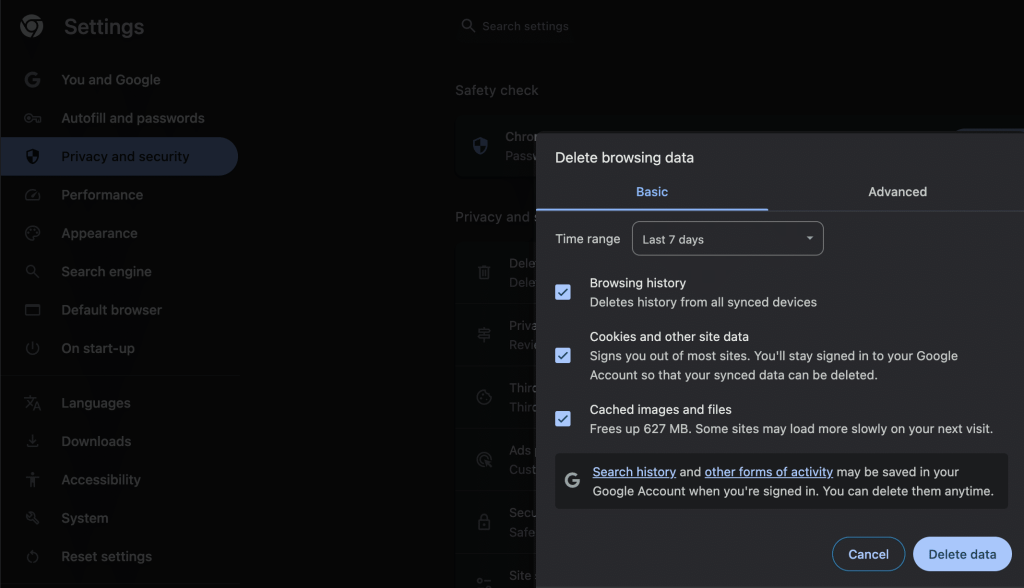
You can either clear the entire browsing history or you can include specific cookies and site data in the cache clearance.
Instead of clearing the entire browsing history, you can opt for a time frame. Scroll through the Time Range field and choose the time you want: 24 hours, last 4 weeks, you name it.
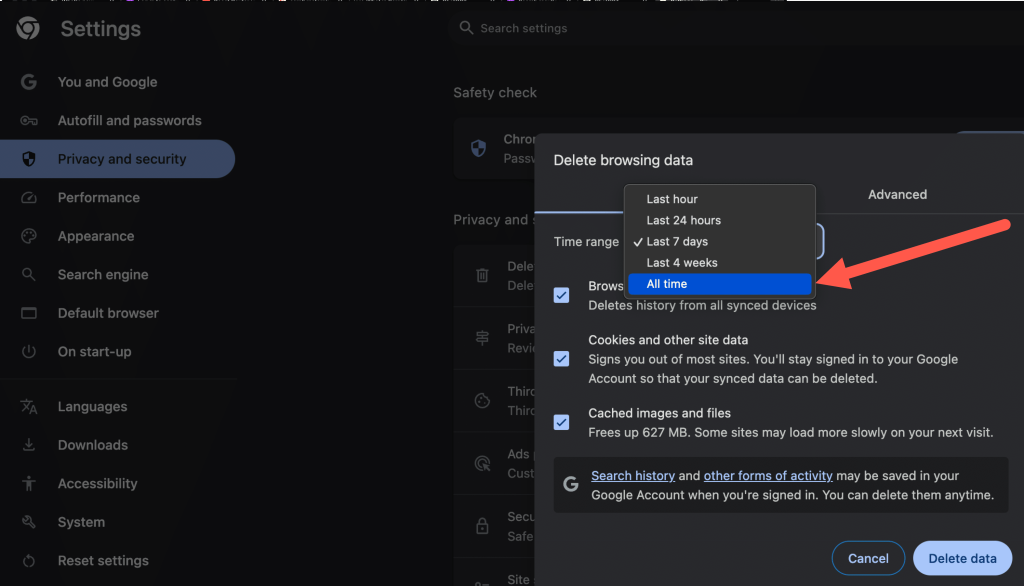
Lastly, click the “Delete data” button to complete the process. Your Chrome browser cache is now cleared. Bingo!

“Clearing the Cache Helps!”
Clear the browser cache to enhance your browser experience—follow Hostonce for similar knowledge base guides now!
How to Clear Cache for Mozilla Firefox?
Open the Mozilla Firefox browser. Click the top right icon and choose History. A menu will show up next. Click Clear Recent History.
Alternatively, use CTRL + SHIFT + DEL to access the menu. A pop-up will appear. Use the Time Range to Clear dropdown to select the option of Cache or anything else you want removed in the saved files of your browser.
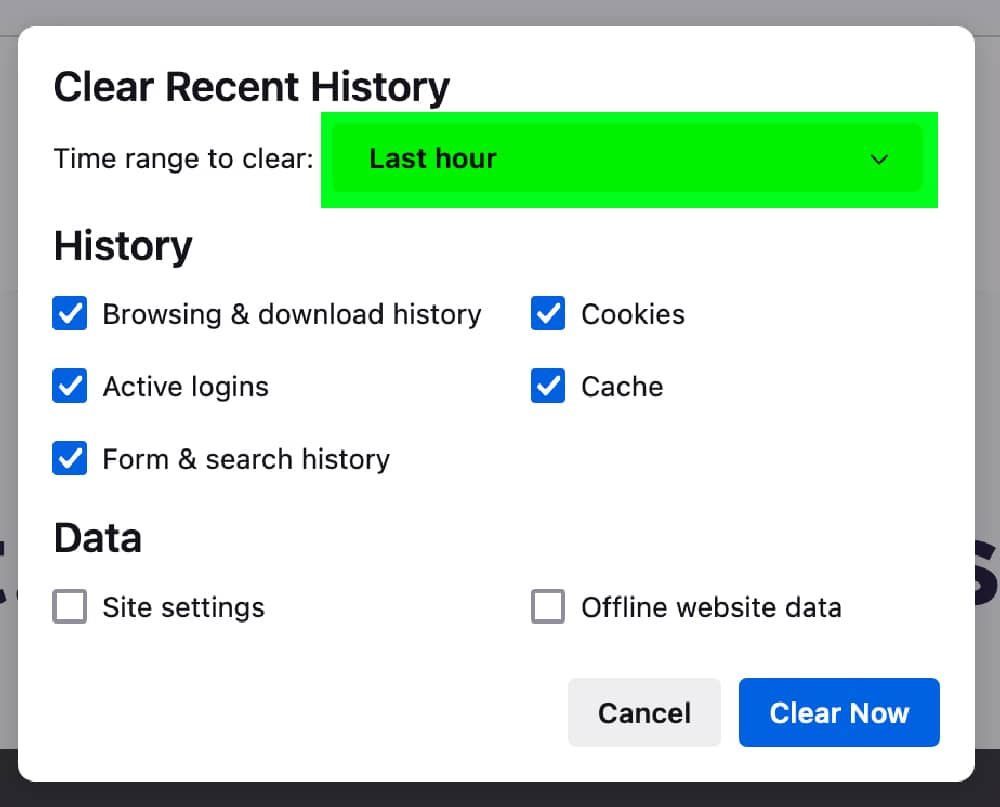
The Time Range to Clear menu allows you to specify the time you want to clear the cache. From the last hour to the entire history and in between, choose your moment.
Once the option is selected, click the “OK” button to complete the process. Congrats! The cache is cleared in Firefox.
Clearing Cache in Safari Browser
You have a few options allowing you to clear the cache in the Safari browser.
If removing the entire browser history is on the cards, adopt the straightforward approach and just go to Safari in the top right and select Clear History. This opens a pop-up window. Just like Chrome and Mozilla, you can select a timeframe and remove the cache accordingly.
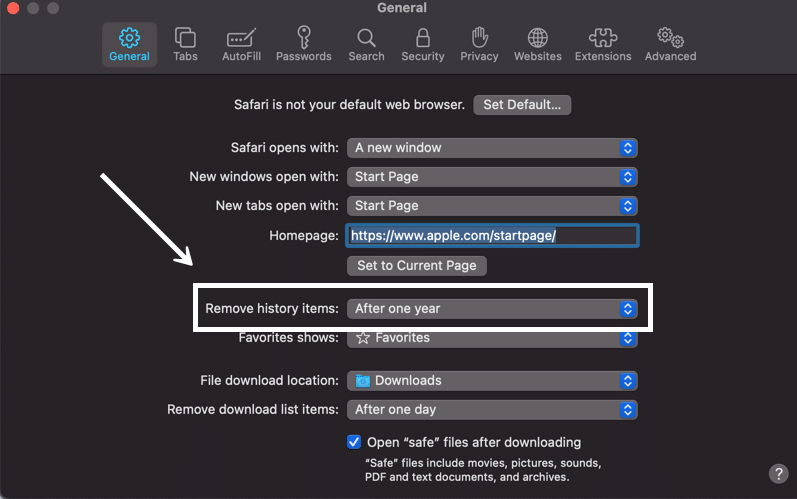
There are other autonomous ways for cache management in Safari.
Select Safari from the menu bar and select Preferences.
You can have a cache clearance in the background in Safari. Use the “Remove History Items” option. You can select a specific period (such as after one year). Safari clears the cache by default once the given time has passed.
If you just want to empty Safari’s cache rather than clearing cookies and site data along the way, there is a way. You will have to enable the “Develop” menu. Go to Preferences, then Advanced, and check the “Show Develop Menu” in the “Menu Bar” box. After that, you go to Develop and Empty Caches to clear the cache in your Safari browser.
Cache Clearance in Brave Browser
Brave Browser is a privacy-oriented browser. It offers a simplified way to clear cache with greater control over cookies.
Open the Brave Browser. Click on the upper right corner. That is the “Customize and Control Brave” button. You will be led to a menu with multiple options. Look for the “Settings” item and select it.
There are multiple ways to clear the cache in the settings of the Brave browser. We will discuss the two most common.
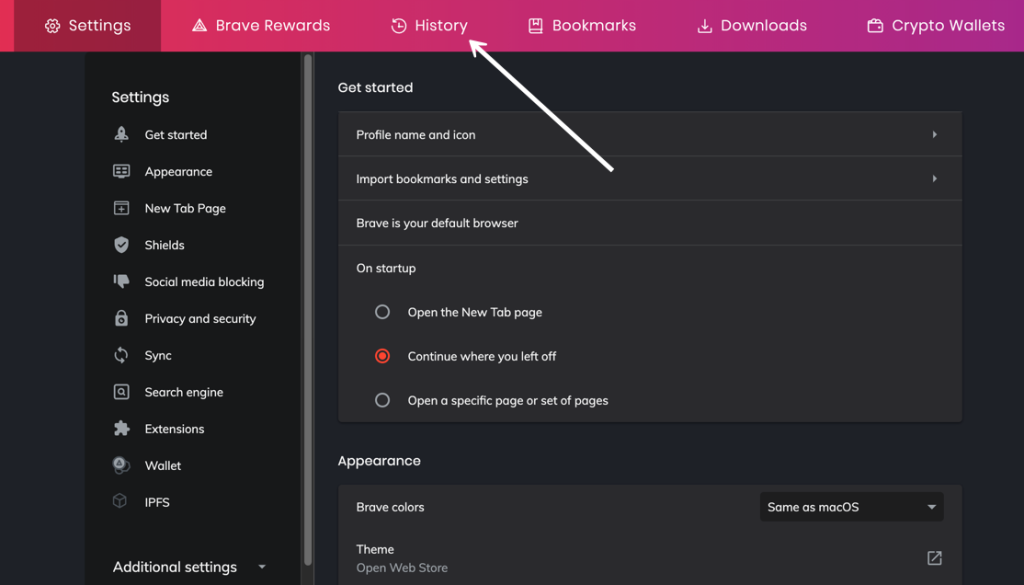
The first one is to select the “History” button from the “Settings” menu. It will show your entire browsing history. You can find the “Clear Browsing History” link on the left. Alternatively, go to the main Settings page and select the Privacy and Security item. Select Clear Browsing Data.
Both these methods bring you to three tabs: Basic, Advanced, and On Exit. Select the one you want and be done with the cache!
How to Clear Cache for Microsoft Edge
Open the Microsoft Edge browser window. Click the Three Dots in the top right corner. Select History.
A new history module shows up where your recently visited websites are recorded. Another Three-Dot icon is present in the module. It will result in a menu dropdown. Select Clear Browsing Data.
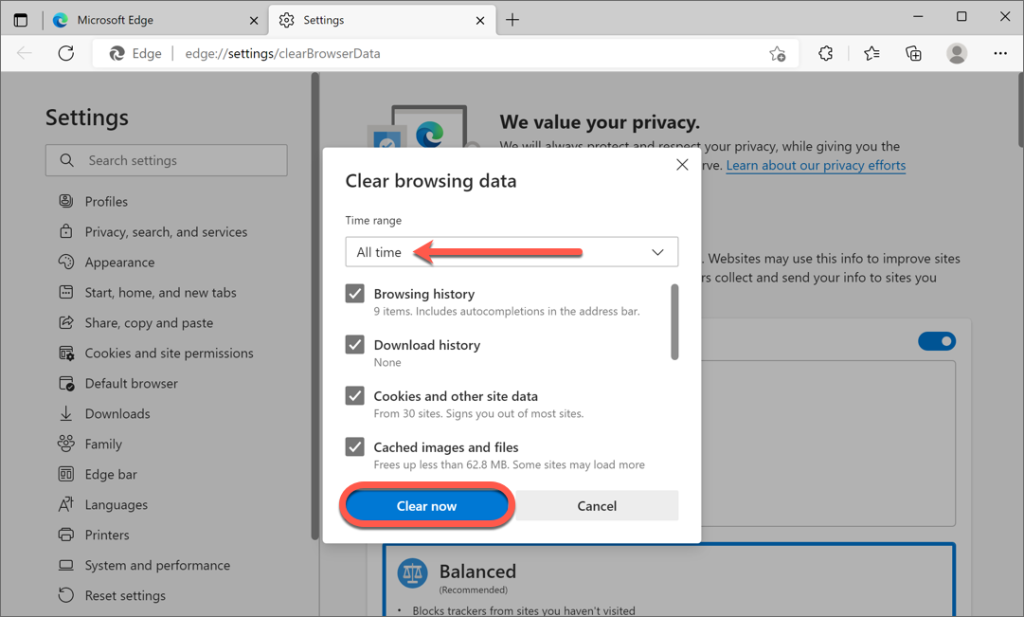
A notable feature of Microsoft Edge is that it displays quantitative information, such as the number of items in your browser history that will be deleted upon cache clearance. Go through the Time Range field and clear the cache you want.
How to Clear Cache for Opera
Open the Opera browser. Click the History icon button on the left. It opens the Clear Browsing Data module, taking you to the Basic tab.
You can check or uncheck items like cookies, cached images and files, browsing history, and other site data.
In case you want to
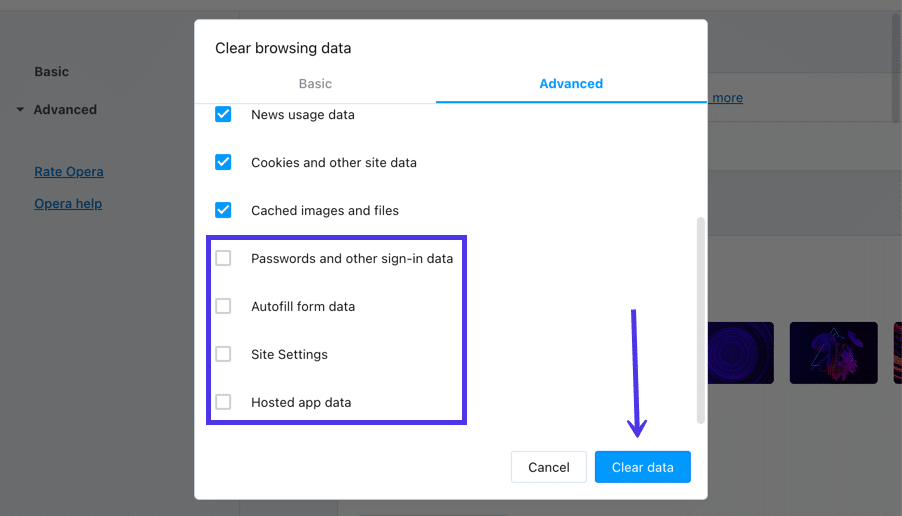
Select the time range for which you want the cache to be gone. Click on the Clear Data button and enjoy the cache clearance!
Now you know how to clear cache in the following browsers:
- Google Chrome
- Mozilla Firefox
- Opera
- Brave Browser
- Microsoft Edge
- Safari
Your browser temporarily stores files containing the contents of web documents in the browser. Cache clearance is more or less alike in all browsers. Even if you use some other browser, do not worry: you have the basic idea now. Follow Hostonce to learn more! On a side note, do check out our WordPress hosting plans.
Frequently Asked Questions
Does cache clearance delete saved bookmarks and passwords?
Clearing the cache deletes temporary files such as scripts and images. The bookmarks, passwords, and other data remain unchanged unless you select them when you clear the cache.
How often should the browser cache be cleared?
Depends on use. If your browsing is regular, then you can do it once a month. If you update websites frequently, you should clear the cache often to see real-time changes.
Are the cookies the same as the cache?
No. A cache is used to save temporary files so that web pages can load faster. Cookies save tracking information, preferences, and login sessions.
Does clearing the cache enhance browser speed?
Yes. A corrupted or overloaded cache reduces browser speed. Clearing it lessens glitches and enables your browser to run smoothly.
