In the age of the internet, website data is your valuable asset. Regular backups are essential for securing any important resource. Fortunately, cPanel includes a built-in backup wizard, allowing you to create a cPanel backup that can protect your website from unforeseen events. Regularly creating and storing backups is crucial for protecting your website data.
This article will show you how to create and download both complete and partial cPanel backups, ensuring that your online presence remains secure.
Full Backup in cPanel
A full cPanel backup protects everything, including your website files, databases, email setups, etc. It includes the custom settings and configurations for your cPanel account. This type of backup ensures you have everything necessary to restore your website and data in case of server failure, accidental deletion, or other unforeseen events.
Creating a Full Backup
Following are the steps to describe how to create full cPanel backup using the backup wizard:
- Log in to your cPanel account.
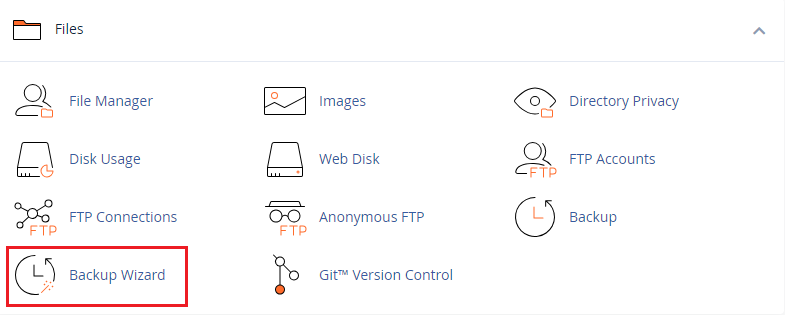
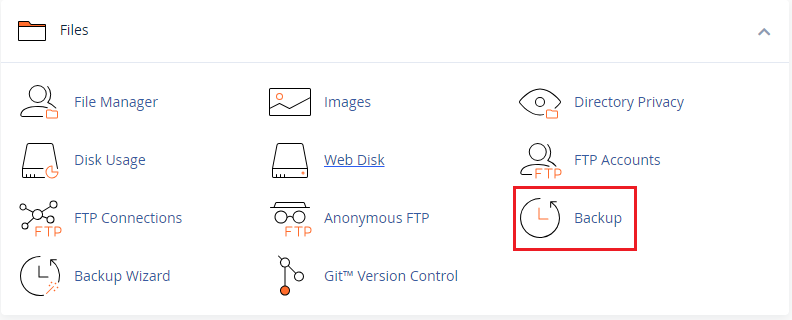
- Navigate to the “Files” section and locate the “Backup Wizard” icon.
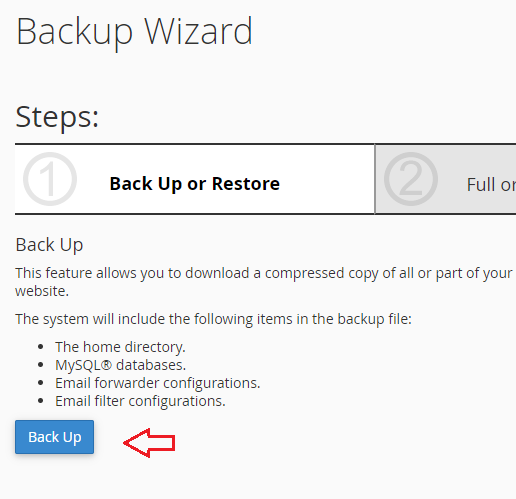
- Click the “Back Up” button.
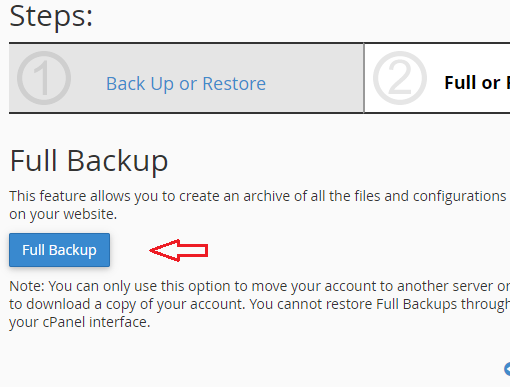
- Select “Full Backup” for comprehensive protection.
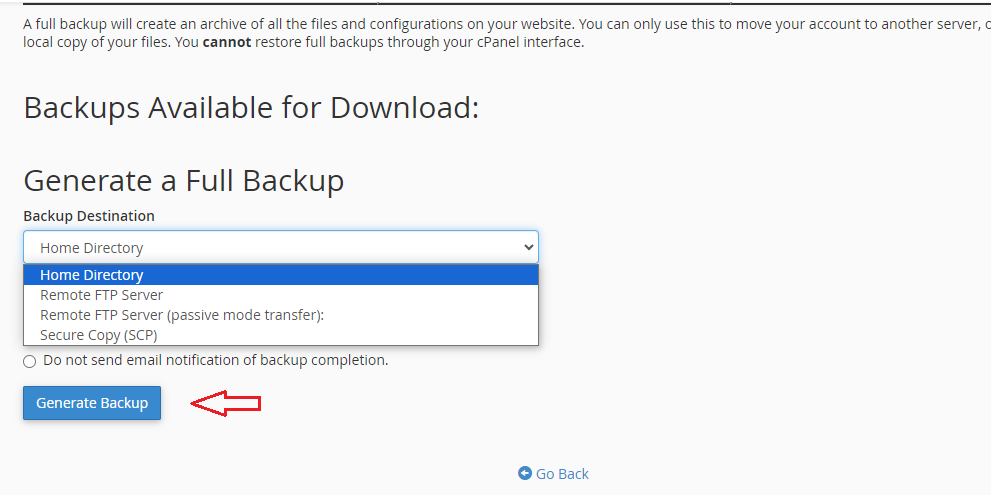
- Decide where to store the backup. For this, we have multiple options:
- Home Directory: Saves the backup on your server readily accessible but consuming server space.
- Remote FTP Server: Sends the backup to a remote server for offline site security.
- Other Options: Explore secure copy (SCP) or other advanced methods.
Choose your preference then Click “Generate Backup” to start the process.
Downloading a Full Backup
Following are the steps to describe how to download full website backup cPanel using the backup wizard:
- Follow the same steps as creating a backup until you reach the “Back Up” screen.
- Select Download a Full Account Backup.

- Choose a safe location on your local computer to save the downloaded backup file.

Try Hostonce’s Dedicated Servers for Ultimate Performance!
HostOnce gives you full control, powerful hardware, strong uptime, and top-level security. It’s a great choice for high-traffic websites and demanding applications.
Partial Backup in cPanel
While full backups offer complete security, they can be large and time-consuming. For some business hosting websites targeted protection consider partial backups. These allow you to back up specific sections of your website like directories, databases, or email accounts.
Creating a Partial Backup
Following are the steps to describe how to create a partial backup in cPanel using the backup wizard:
- Follow the path to the Backup Wizard as described above.
- Instead of “Full Backup,” select the specific component you want to back up, like “MySQL Databases” or “Email Forwarders & Filters.”
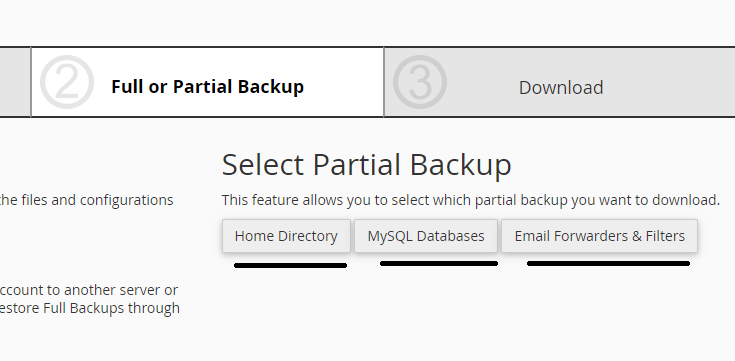
- Repeat the storage selection process as described in full backups, then generate the partial backup.
Downloading a Partial Backup
Following are the steps to describe how to download a partial backup in cPanel using the backup wizard:
- Drop down for partial backup in the Download a Full Account Backup section as described in a full backup download.
- Select the specific partial backup file you want to download.
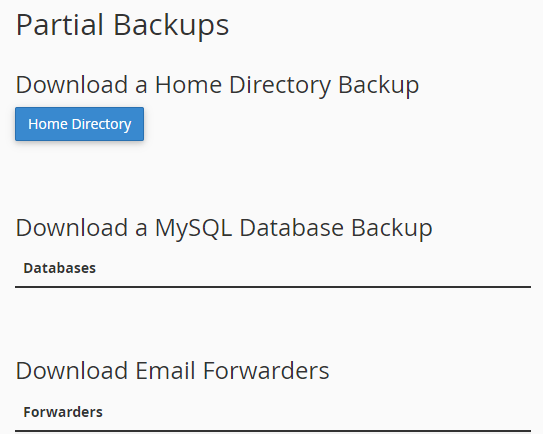
- Choose a safe location on your local computer to save the downloaded cPanel backup.
Importance of Backup
The following are the important key points to consider:
- Don’t leave your website vulnerable! Set up automated backups to run at regular intervals, ensuring continuous protection.
- Keep at least one backup copy on a separate server or storage device for maximum security against local disasters.
- Regularly perform test restores to verify your backups are functional and ensure a smooth recovery when needed.
Conclusion
Full backups generated through cPanel cannot be directly restored through the interface. Consider scheduling regular backups to ensure you have a recent copy of your data. After the backup up your cPanel from the backup wizard, you can also utilize its restore functionality.
FAQ
How do I create a full cPanel backup?
Navigate to cPanel, find Backup Wizard, and select Full Backup to safeguard your entire website data.
Can I download partial backups in cPanel?
Yes, in cPanel’s Backup Wizard then choose Partial Backup to download specific files or databases as needed.
Is it possible to automate cPanel backups?
Set up automatic backups in cPanel to ensure regular data protection.
Are cPanel backups necessary for my website?
Yes, regular backups are crucial for data recovery in case of unexpected issues ensuring your website’s continuity.