WooCommerce category pages are not just product listings. They are essential landing pages for conversions, user experience, and SEO. You can have your store stand out, guide new visitors, and highlight specific products once you customize these pages.
Why Should You Edit WooCommerce Category Pages?
WooCommerce category pages can be made visually pleasing. They can be conversion-focused and informative. Editing category pages is not just a design choice but a sales strategy as well. Some key advantages are:
Improved SEO
Search engines monitor category pages and index them. This is how you can rank well if you have images, headings, and descriptions optimized with relevant keywords.
Higher Conversions
Add promotions, popular items, and limited-time offers to category pages to drive sales.
Brand Consistency
Customize banners, colors, and fonts to ensure the store feels professional and unique.
Enhanced User Experience
Organized visual cues, clear descriptions, and layouts can lead visitors to products faster.
Using WordPress Dashboard to Edit WooCommerce Category Pages
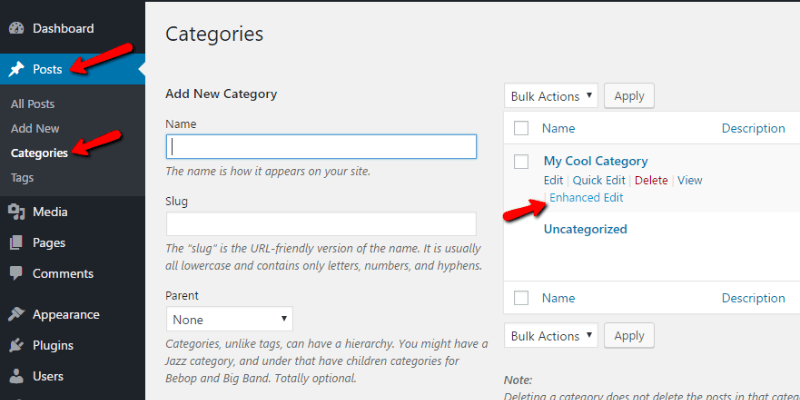
WordPress dashboard is the easiest way if you want to make quick edits, such as updating images, adding descriptions, and changing category names. Use these steps to be successful here:
- Access the WordPress admin panel.
- Go to Products and then Categories.
- Click Edit on the category you want.
- Change the Name or Slug (make it URL-friendly).
- Add a description of your choice.
- Replace or upload the Category Image.
- Click Update to have your changes saved.
Keep the keyword-rich but short description for SEO purposes.

“Managing WooCommerce Categories is now easy!”
With the help of Hostonce, managing WooCommerce categories has become as easy as spinning a coin!
How to Customize Category Page in WooCommerce
There are multiple ways to customize the category pages in WooCommerce. Hostonce will discuss some of them here, along with WooCommer category layout as well as WooCommerce category description for SEO.
Below Product Listings or Adding Content Above
Store owners use banners, promotional messages, and extra details for category pages.
You can achieve this without coding:
- Go to Products and Categories to edit pages.
- WordPress block editor can help you insert shortcodes, images, and text.
- Use Customizer to add widgets above/below products if your theme supports it.
Any small banner that promotes “New Arrivals” or “Free Shipping on Orders Over $50” can make your category page more appealing to shoppers. Visit Hostonce team for more info!
Advanced Customization Through Page Builders
Page builders such as Beaver Builder, WPBakery Page Builder, and Elementor can turn your category pages into high-quality landing pages.
Use Elementor Pro to:
- Add banners, testimonials, videos, and sliders.
- Rearrange filter sections and product grids.
- Use dynamic widgets to show products from a particular category.
- Make custom templates for category pages.
Elementor Pro steps:
- Install and activate Elementor Pro.
- Access Templates, go to Theme Builder, and then Archive.
- Select Add New and pick Product Archive.
- Use Elementor’s interface to design your layout.
- You may set conditions for display to specific categories.
- Save and Publish.
All of this and more is explained further in Hostonce domains.
Template Files to Edit WooCommerce Category Pages
If you have a developer available or are comfortable coding yourself, you can customise category pages using your skillset. It requires technical knowledge, but you can be given maximum flexibility. WooCommerce manage categories can take your online store to the next level imaginable.
Basic Process:
- Access the WooCommerce plugin folder:
swift
wp-content/plugins/woocommerce/templates/
- Find the archive-product.php file.
- Copy it to the WooCommerce folder of your theme:
swift
wp-content/themes/yourtheme/woocommerce/
- Edit the file to add custom HTML, change the structure, and modify WooCommerce hooks.
- Use CSS in the style.css file of your theme for styling changes.
Updates will lose direct changes within WooCommerce’s core files.
Plugins for Category Page Improvement
A category page can become an SEO powerhouse if you do it right. Pay attention to the best practices:
- Have H1 as a category name and set H2/H3 as subheadings.
- Category descriptions must be unique (do not copy/paste or write similar to others).
- Use descriptive alt text to optimize images.
- Use internal links to relevant products and categories.
- Exclude bloated layouts and compressed images to boost the site speed.
Is Editing WooCommerce Pages Worth It?
Your customers need a guided experience. They may even need information on WooCommerce hosting. They do not want to roam around desperately searching for options on your online store. Imagine your website as a shop where your front displays must be curated. This is more or less the same thing.
The idea of editing your category pages is worth it, as it builds trust. Customers become your clients when they understand that you are serious about your shop: an organized look is enough to capture their interest. You do not have to make permanent changes; you can run experiments with style, layouts, products, arrangements, and messages. This way, you can achieve something that is both minimal and elegant.
You will find something that reflects your brand in time. You will find a design and structure that befits your online store. It is possible only if you are passionate enough to edit WooCommerce category pages for the ease of the customers. Do not forget: there is always Hostonce knowledge base to help you out on such matters.

Conclusion
Now you know what WooCommerce is and how to manage the category pages. Every online store owner should know how to edit WooCommerce category pages. It is a simple yet efficient way to enhance your online store. Template coding, page builders, or dashboard edits: the choice is yours. Remember that your category pages are mini landing pages as well and not just product lists. Make each page engaging enough to attract customers.
Frequently Asked Questions
How to add text above products on a category page?
Go to Products and Categories to edit category descriptions. Page builders are always helpful to help you insert banners, text, or custom blocks.
Does editing category pages influence SEO?
If done well, yes, you can improve SEO like this. Add relevant images, unique descriptions, and optimized headings to enhance rankings.
Can products in certain categories be hidden?
Specialized plugins or WooCommerce settings help you to hide products without deleting them from category pages.
Are developers necessary to customize WooCoomerce pages?
Not at all. You can make changes through plugins, page builders, and WordPress dashboard even without coding.
