Security is the lifeblood of your online presence. Two-factor authentication (2FA) is a crucial measure to safeguard your digital space whether you are concerned about your personal mail account or your own website. This guide will teach you how to enable two-factor authentication cPanel to help solidify the protection your website needs.
Table of contents
Key Takeaways
- Usefulness of Two-Factor Authentication is high
- Enabling 2FA saves you a lot of trouble
- Knowing 2FA keeps you safe from unwanted access
What is the Need for 2FA in cPanel?
Website protection is the primary purpose of 2FA activation. 2FA implements an additional layer of security as it demands your username and password along with a time-based code to access your account. This act reduces the chances of unauthorized access even if your login credentials have been compromised. This is how it boosts your cPanel security:
- Even if a hacker gets your password through phishing or any other means, they wouldn’t be able to log in without the code your 2FA security generates.
- Compromised login credentials are a common tactic for hackers to access online accounts. 2FA saves your account.
- A blissful peace of mind is in the knowledge that your cPanel is secured through an extra layer of protection. Website management is further possible with confidence.

Secure your cPanel with Hostonce?
Protect your website from unauthorized access every single day. Choose Hostonce for reliable hosting and advanced security that keeps your digital world safe.
Steps on How to Enable 2FA in cPanel
This is how you enable 2FA in your cPanel account once prerequisites are met:
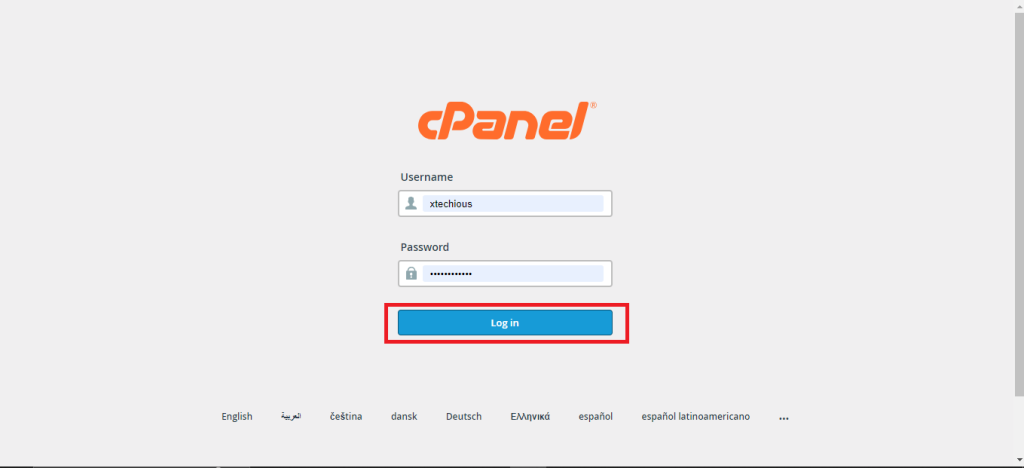
1. Log in to your page through the website of your web hosting provider. Enter your legit credentials to log in.
2. Find the “Security” section as you navigate through the cPanel interface. Varying by your cPanel version, it could be under the “Security” or “Advanced” section.
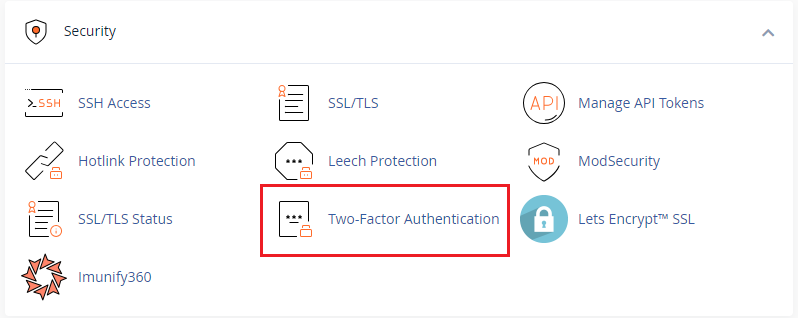
3. Enter the Security section. Go to the option labelled “2FA” or “Two-Factor Authentication”. Click on it to access the 2FA setup interface.
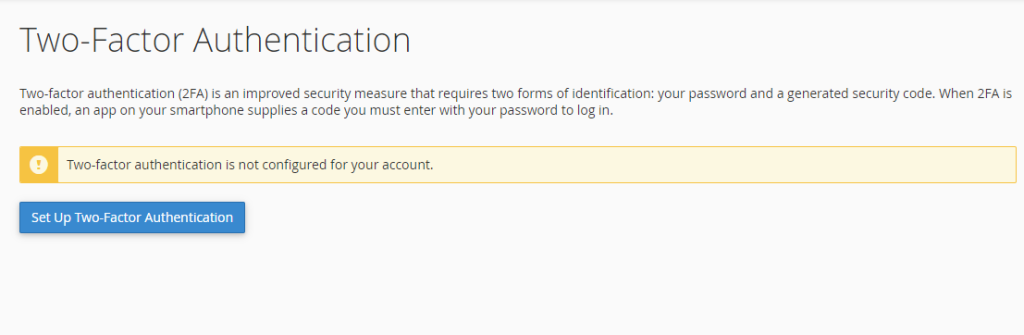
4. A setup screen will show up.
QR Code: Find a QR code that is on the screen. The code has crucial information for your 2FA app that you can link with your cPanel account.
Account and Key: You might see “Account” and “Key” instead of a QR code. These are manual entry options for the 2FA app.
5. Launch your 2FA app on your smartphone. Use the camera to scan the code. This enables the app to work with your cPanel account. In the case of Account and Key, you will have to manually enter them into the given fields of your 2FA app.
6. Your 2FA app will generate a code of six digits once the linking is complete. These codes change every 30 seconds.
7. Locate the “Security Code” field back in the 2FA setup screen of your cPanel. Your 2FA app will generate the six-digit code. Enter it and click on the “Configure Two-Factor Authentication” or similar option to complete the process.
8. A confirmation message will inform you about the successful installation of 2FA on your cPanel account.
9. Now you should verify if 2FA is working well. Log out of your cPanel account. Make a login attempt. You will be required to enter your login credentials and the code of six digits in your 2FA app. This is how you are given access to your cPanel once you enter the code.
Prerequisites for 2FA Implementation in cPanel
You must have the following things done before you enable 2FA in cPanel:
WHM Enabled 2FA
You can enable 2FA within your cPanel account whenever you want. You cannot do it if your hosting provider does not have 2FA functionality activated first in the administrative control panel and WHM for cPanel.
2FA App
You will need a trusted 2FA app on your smartphone. Authy and Google Authenticator and Microsoft Authenticator have earned their hype. These apps are readily available on iOS and Android platforms for free.
Additional Points to Ponder About 2FA
Never miss out on the following points for your own good:
- Keep a strong password for your cPanel even with 2FA enabled. Do not use the same password across all platforms.
- Your 2FA app must use the latest version. Keep it updated. App developers release updates to tackle security vulnerabilities.
- Print or download the backup codes shown in the setup process. These backup codes help you access your cPanel account in case your 2FA app malfunctions or you lose your app.
An additional note: dependable hosting sure makes a difference.
Conclusion
You should enable two-factor authentication cPanel as soon as possible. It is no longer optional. 2FA is a vital layer of protection every website owner must implement. Quite a smart way to reduce the chance of unauthorized access even if your password is compromised. Use the steps above so that your cPanel account becomes safer. Seek a solid hosting company which presents you with tools and security features that keep your online presence always protected.
Frequently Asked Questions
Why is 2FA important for cPanel security?
2FA adds an extra layer of protection as it requires a time-based code in addition to your password. Unauthorized login attempts are made impossible this way even with a compromised password.
Which apps can I use for 2FA in cPanel?
Trusted apps like Google Authenticator and Authy and Microsoft Authenticator work well with cPanel. You can find them on iOS and Android platforms.
What should I do if I lose access to my 2FA app?
Use your backup codes to log in. Consult your hosting provider to reset your 2FA configuration if those codes are not around.
Do I still need a strong password if 2FA is enabled?
Yes. 2FA enhances security for sure. The need for a strong and unique password remains essential to protect your cPanel. You need to be conscious of brute force attacks.
