One common problem WordPress users face is the “Background Request Blocked” error. When this happens, your site might stop responding properly, and you may be unable to install or update themes and plugins. This issue occurs when WordPress can’t perform background HTTP requests, which are needed to check for and apply updates. The error often appears due to incorrect server settings, firewalls, or security plugins that block these background processes.
In this guide, we’ll explain the main reasons behind the “Background Request Blocked” error in WordPress and share easy, practical methods to help you fix it.
Table of contents
How the “Background Request Blocked” Occurs in WordPress
The “Background Request Blocked” error usually shows up when WordPress can’t send or receive a request needed for plugin updates or communication with the server.

Your site tries to connect to the server for an update or task but gets blocked, which triggers this WordPress error.

Try our Ultra-Fast WordPress VPS Hosting!
Enhance your site’s speed with Hostonce WordPress Hosting. Get SSD and NVMe storage, automatic security updates, and a free SSL.
Common Reasons for “Background Request Blocked”
Several factors can cause the “Background Request Blocked” issue in WordPress. Here are some of the most frequent ones:
- Outdated versions of WordPress, themes, or plugins can lead to compatibility problems and trigger background request errors.
- Incorrectly configured
.htaccessfiles might stop WordPress from sending or receiving necessary background requests. - Server firewalls or misconfigured PHP settings may block requests made by WordPress, preventing smooth communication.
- Security plugins with strict rules can sometimes mistakenly block legitimate HTTP requests from WordPress.
- Certain server security settings might restrict WordPress from performing background updates or checks.
Each of these issues can interrupt WordPress’s normal operations and result in the “Background Request Blocked” error appearing on your site.
How to Resolve “Background Request Blocked” in WordPress
If you encounter the stated error in WordPress, follow these methods to resolve the issue.
Resolve Conflicts with Security Plugins
Sometimes, security plugins like Wordfence, Sucuri, or iThemes Security can mistakenly block WordPress’s background requests while trying to protect your site. This often prevents WordPress from installing updates or plugins properly.
To fix this issue, open your WordPress Dashboard, go to Plugins > Installed Plugins, locate your active security plugin (for example, Wordfence Security), and temporarily deactivate it.
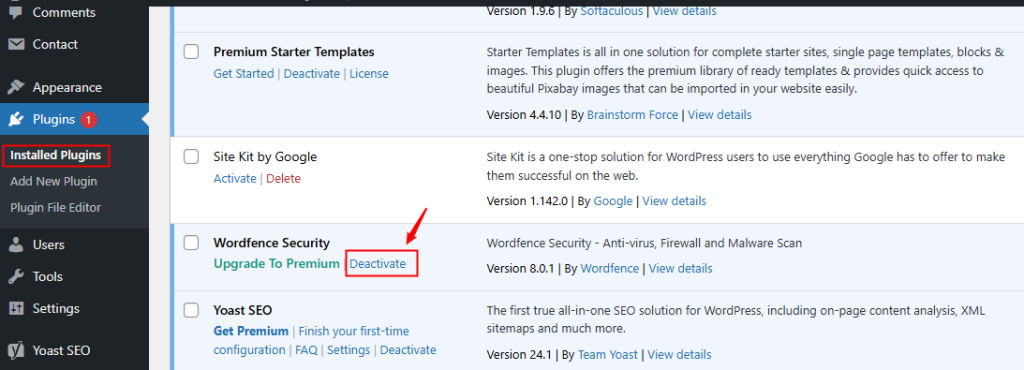
After deactivation, check whether the error message has disappeared. If the issue persists, you can adjust the plugin’s firewall settings instead of disabling it completely.
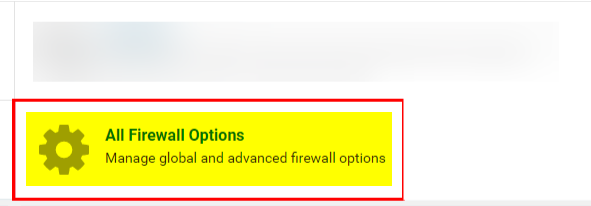
For Wordfence users, navigate to Wordfence > Firewall > All Firewall Options, and set the Firewall Status to Learning Mode:
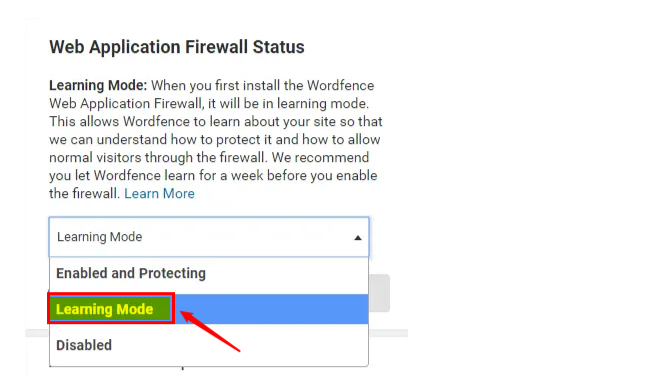
When in Learning Mode, Wordfence observes and identifies safe requests rather than blocking them automatically. This allows WordPress to perform background updates and other tasks without triggering the “Background Request Blocked” error.
Repair .htaccess Configuration Issues
If your WordPress site is hosted on an Apache server, the .htaccess file plays a key role in controlling how your website functions. However, if this file is incorrectly configured, it can interfere with WordPress background requests. This typically happens when certain rules conflict or when the file contains overly strict security directives.
To resolve this issue, open your site’s root directory using an FTP client or the cPanel File Manager, find the .htaccess file, and make a backup to keep it safe. Once backed up, delete the existing file from the server and then refresh your website; it may start functioning normally again.
After that, go to your Dashboard > Settings > Permalinks, and click Save Changes. This action forces WordPress to automatically generate a fresh .htaccess file with the correct configuration.
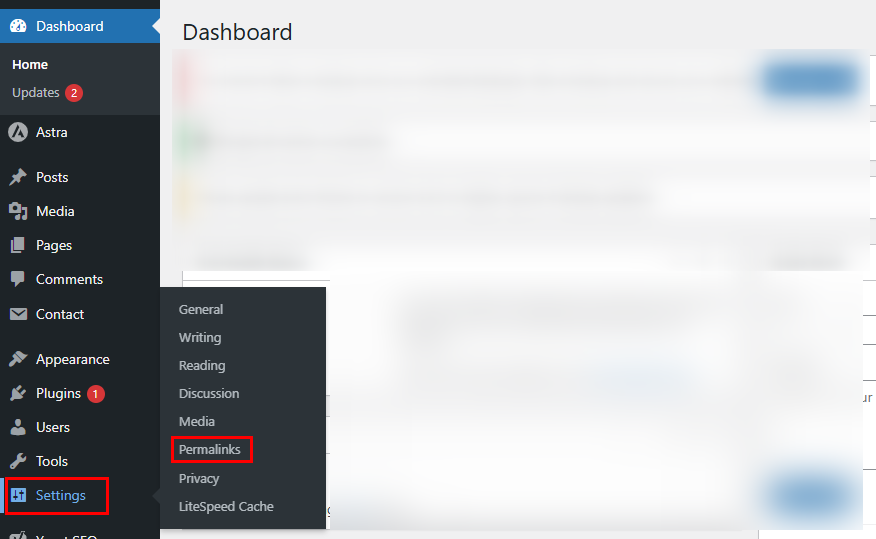
Finally, check whether the “Background Request Blocked” error is fixed. If it no longer appears, the issue was likely due to an incorrect or outdated rule in your old .htaccess file.
Keep WordPress, Themes, and Plugins Up to Date
Sometimes, the “Background Request Blocked” error appears because your WordPress core, theme, or plugins are running on older versions. Outdated components can cause compatibility problems and interrupt background communication between your site and the server.
To resolve this, make sure all parts of your WordPress setup are fully updated. Start by updating WordPress itself, followed by your themes and plugins. Once the updates are complete, refresh your website to verify that the stated error is resolved. In most cases, updating everything to the latest version helps restore smooth background requests and ensures better site performance.
Adjust Your Server Settings
Sometimes, server configurations can block WordPress background requests. This often happens when firewall rules are too strict or the server doesn’t allow outgoing HTTP requests to other services.
To resolve this, approach your hosting provider and ask if your server is blocking outgoing HTTP connections. Also, request them to check whether the firewall is preventing WordPress from connecting to external servers, such as the WordPress update server.
If your site uses a proxy, it might also interrupt background requests. Make sure your host confirms that your server setup allows outgoing requests so WordPress can run smoothly.
Conclusion
The “Background Request Blocked” error in WordPress can be frustrating, especially when it stops you from updating plugins, themes, or WordPress itself. However, this issue is often caused by a few manageable problems, such as incorrect server settings, strict firewalls, outdated files, or security plugins that mistakenly block background requests. In this guide, we explained various fixes to address the “Background Request Blocked” error.
FAQ
How can I find out what’s blocking the background request?
You can check your server logs, temporarily disable security plugins, or contact your hosting provider to identify what’s blocking the requests.
Do security plugins like Wordfence or Sucuri cause this error?
Sometimes. These plugins may block legitimate WordPress requests if their firewall rules are too strict. You can adjust their settings or switch them to Learning Mode to fix it.
Can outdated plugins or themes cause this issue?
Yes, running old versions can lead to compatibility problems that stop WordPress from performing background operations properly.
Is this problem related to my hosting provider?
In some cases, yes. If your hosting server blocks outgoing HTTP connections, WordPress won’t be able to perform background tasks. Contact your host to confirm.
How can I prevent the “Background Request Blocked” error in the future?
Keep WordPress, plugins, and themes updated, use compatible security settings, and regularly review your server’s configuration.
