When you encounter the “Installation Failed: Could Not Create Directory” error in WordPress while trying to install a new theme or plugin. This error message can be a roadblock to enhancing your website’s functionality and design. It is important to note that keep your WordPress core, themes, and plugins updated to avoid compatibility issues.
In this post, we will discuss how to fix WordPress installation error could not create directory by providing the knowledge and steps to remove this error and get your installations running smoothly.
Why Can’t WordPress Create Directories
This error occurs when WordPress lacks the necessary permissions to create new directories such as folders within your website’s file structure. These directories are often important for themes and plugins to store their files and operate correctly.
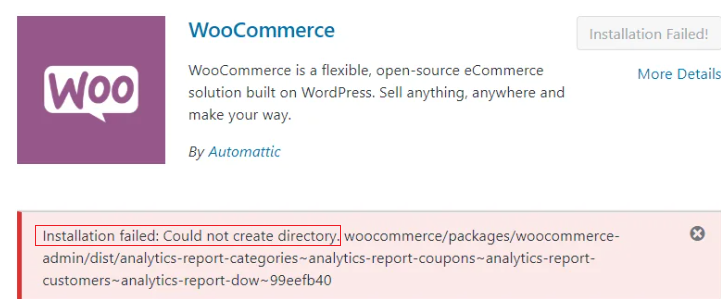
The above image shows the WordPress plugin installation directory error. Here are some common points behind this permission issue:
- File permissions dictate such as users, groups, or the public can access, modify, or create files and folders on your web server. Improper permissions on the
wp-contentdirectory or its subdirectories can prevent WordPress from creating new folders. - If your web hosting account is nearing its storage capacity, creating new directories might become impossible.
- In rare cases, a plugin might inadvertently interfere with WordPress’s ability to manage directories.
- Specific server settings or security modules might restrict directory creation, even if permissions seem correct.

Experience Lightning-Fast WordPress Hosting with Hostonce!
Enjoy SSD and NVMe storage, automatic security updates, and a free SSL to keep your site secure and speedy.
Methods to fix WordPress Installation Error Could Not Create Directory
Now that you understand the potential causes let’s dive into the solutions. We will explore different approaches starting with the easiest methods and progressing to more technical fixes.
Create a Backup
Before changing your website’s files, it is important to create a backup from cPanel. This ensures you can easily restore your website to its previous state if anything goes wrong. Most hosting providers offer backup options through their control panels. Alternatively, you can use a backup plugin like UpdraftPlus in WordPress.
Method 1: Disk Usage Optimization
A full storage quota can be problematic. Check your hosting account’s control panel to see your disk usage. If you’re nearing the limit, consider deleting unnecessary files, images, or old backups to free up space. Upgrading your hosting plan might be necessary if storage limitations are a recurring issue.
Method 2: Resetting File and Folder Permissions
This method is related to a WordPress file permission error involving adjusting the permissions on the wp-content directory and its subdirectories. You can achieve this through two main routes:
1. Using cPanel
Login to your cPanel with the provided credentials. Locate the wp-content directory and modify its permissions to 755. Subdirectories like themes and plugins should also have 755 permissions.
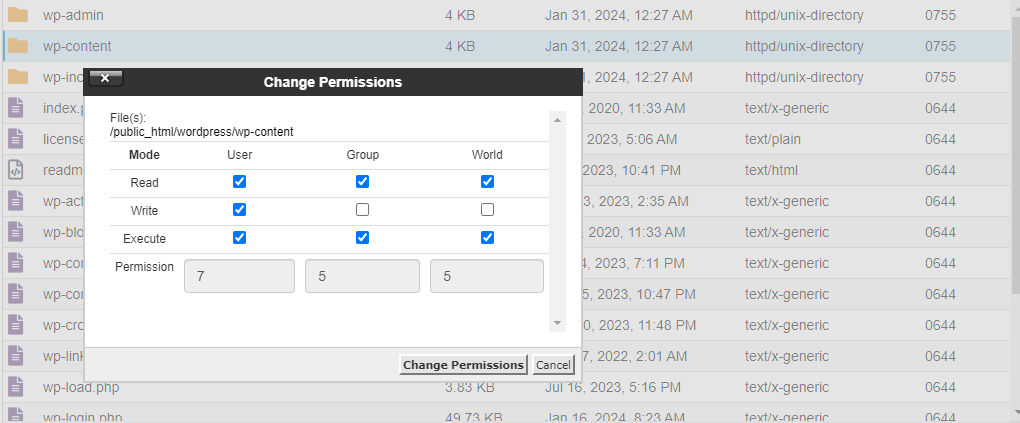
2. Using FTP
An FTP stands for File Transfer Protocol client allows you to connect to your web server and manage files directly. Popular options include FileZilla, which connects to your server using your FTP credentials. Navigate to the wp-content directory and right-click on it. Select “Change Permissions” and set the numerical value to 755. Apply these permissions recursively to all subdirectories and files within wp-content.
Method 3: Deactivating Plugins
If the previous methods didn’t solve the issue, a plugin might be causing a conflict. Deactivate all your plugins temporarily. Try installing the theme or plugin again. You can do this from the WordPress dashboard or you can change the plugin directory name to plugin.d from cPanel.
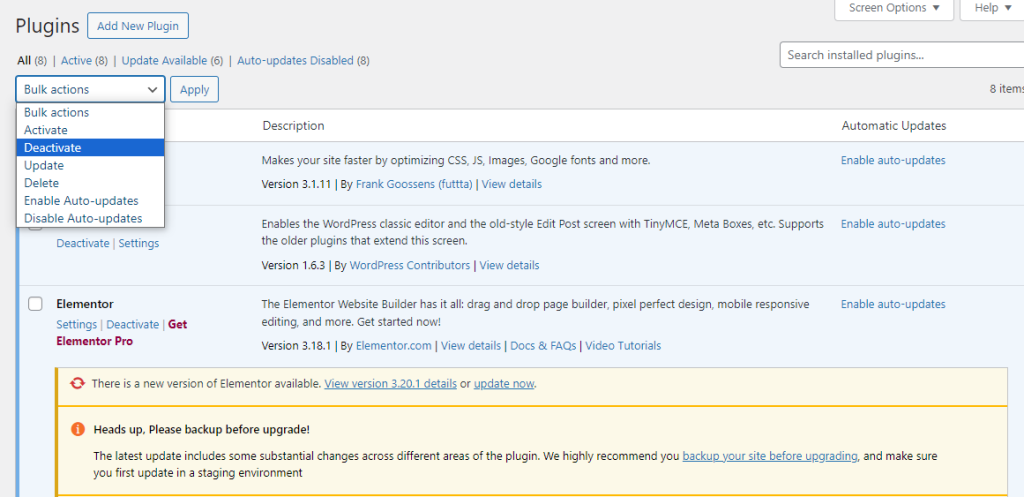
Once you find the problematic plugin consider searching for a compatible alternative.
Method 4: Checking Server Error Logs
Server error logs provide detailed information about errors occurring on your website. These logs can offer clues about what’s hidden in directory creation. Look for entries related to permissions errors or directory creation failures. The information gleaned from the logs can guide you toward a more specific solution.
Method 5: Manual Theme and Plugin Installation
If the issue persists, you can attempt a manual installation of the theme or plugin. Download the theme or plugin package from a reliable source. Extract the downloaded file and upload the extracted folder for themes or the entire folder structure for plugins to the appropriate directories on your cPanel. Here’s the breakdown for the manual theme and plugin installation:
- Upload the extracted folder containing the theme files to the
wp-content/themesdirectory on your server using your FTP client or from cPanel.
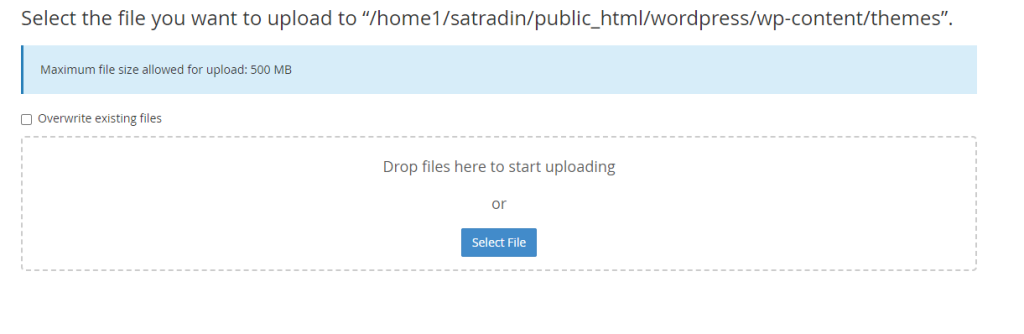
- Upload the entire plugin folder structure not just the extracted content to the
wp-content/pluginsdirectory on your server using your FTP client or cPanel.
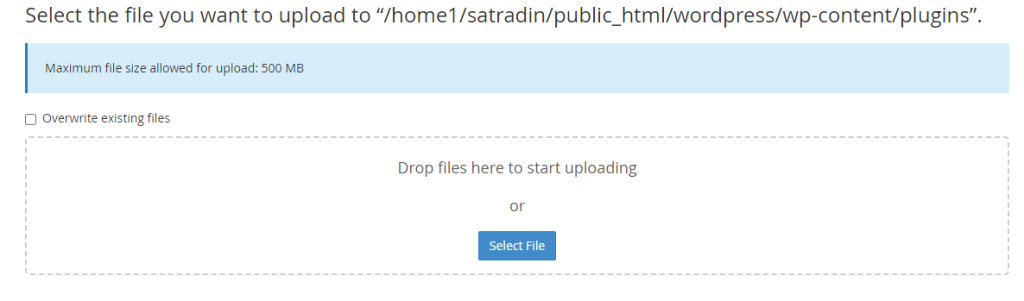
Once uploaded navigate back to your WordPress dashboard and try activating the theme or plugin. This method bypasses the standard installation process and might work if the issue lies within WordPress itself.
Preventive Measures
Here are some preventive measures to prevent WordPress could not create directory error:
- Regularly update your WordPress core, themes, and plugins to ensure they function optimally.
- Only install themes and plugins from trusted repositories like the WordPress.org theme directory or well-established developers.
- Keeping an eye on your disk usage helps prevent storage limitations.
Conclusion
The “Installation Failed: Could Not Create Directory” error can be theme and plugin failure. By following the steps outlined in this guide and applying preventative measures you can ensure smooth theme and plugin installations for a WordPress website. With a little troubleshooting and these helpful tips, you will be back to customizing your WordPress site.
FAQ
Why did the WordPress installation failed could not create a directory error occur?
This error happens when WordPress can’t create a folder during installation, often due to permission issues.
How can I fix these kinds of issues?
You can fix it by adjusting folder permissions on your server or by manually creating the directory WordPress needs.
Do I need technical skills to solve this?
A basic understanding of file permissions and access to your hosting account can help you resolve this error.
Can this error affect my website’s functionality?
Yes, it can prevent you from installing plugins, themes, or updating WordPress, impacting your site’s performance.