Greetings! Welcome to the central hub for the management of your websites: the Websites Tab in your Hostonce Account Manager. The helpful tool helps you to reset site content, add new websites, and delete websites you no longer want. Take it as a control panel of your website, which allows you access to vital tools and settings that strengthen your online presence and help it run well.
Table of contents
Functions of the Hostonce Websites Tab
You will not realize the full potential of the Websites Tab unless you are aware of its technicalities and functions. We have attempted to organize some of them for your sake:
How to Add a Site?
The process to add a site is quite simple:
- Access your Hostonce Account Manager.
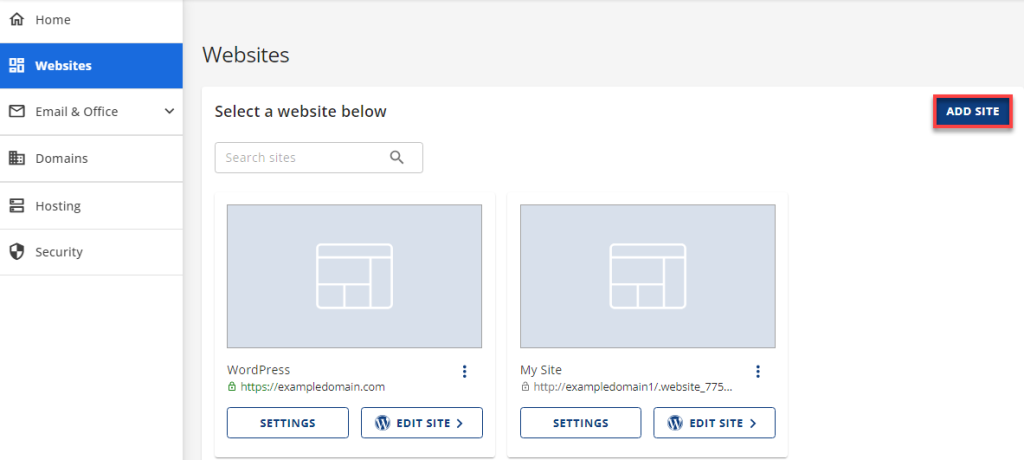
- Select Websites from the left menu.
- Choose the Add Site button.
- Select Install WordPress and then choose Continue.
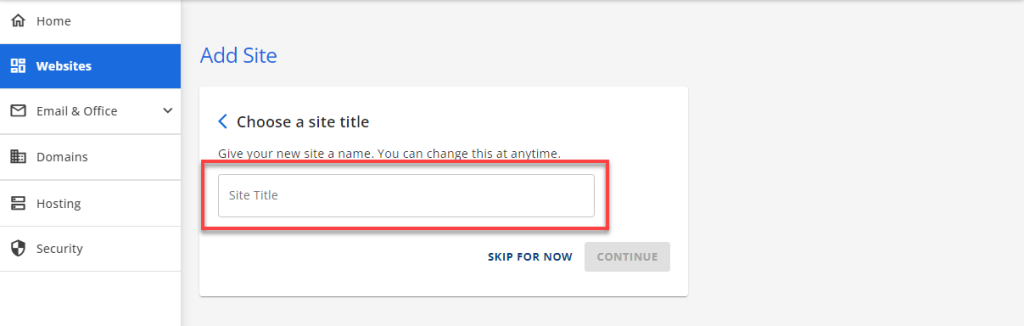
- Enter your Website Title and click CONTINUE.
- You can see the Connect a Domain window. Add the domain name that you want to use. Do not have a domain yet? Pick a temporary domain or skip this step until you find one and connect to your Account Manager. You will need a registered domain for your website to function well.
- During the creation of your website, you have the option to buy any Addon product, such as the eCommerce toolset and/or the SEO Tools.
- Click CONTINUE to, well, continue.
How to Delete Content Only?
You can reset your website through this option. Remove all your posts, pages, media, users, and comments to make your website inaccessible. Make sure you have a maintained backup before you proceed.
- Click Websites on the left. You will be taken to the Overview panel. In case you have multiple websites, click the Settings button for the one whose content you want to delete.
- Click the Advanced tab from the horizontal menu.
- Navigate to the Site Management section.
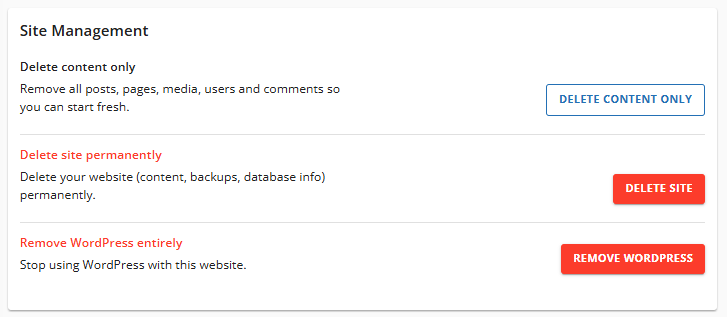
- Find the Delete content only option.
- Select the DELETE CONTENT ONLY button.
- Copy your website URL and paste it in the given field to confirm. Click the DELETE button.
You will see a confirmation message at the top showing that your content is being deleted. It is gone. Woosh!

“Website Tabs Are Saviors!”
Do not miss out on the technicalities of a Website Tab—Hostonce allows you to be ready to organize and impress through these tabs!
How to Delete Websites Permanently?
There is an option available to permanently delete your website. It includes directories, folders, databases, backups, and content. Do not forget: it cannot be undone. Must proceed with caution.
- Click Websites on the left. You will have the Overview panel now. Click the Settings button right next to the website you want to delete (if you have multiple websites).
- Choose the Advanced tab from the horizontal menu.
- Go to the Site Management section.
- You can find the Delete site permanently option.
- Select the DELETE WEBSITE button.
- Copy your website URL and paste it in the given field to confirm. Click the DELETE button.
A confirmation message will appear showing that your website is being deleted. Gone! Disappeared in a puff of smoke. Additionally, have read upon the creation of a WordPress website for beginners.
How to Remove WordPress Entirely?
This is the option that lets you stop using WordPress on your website.
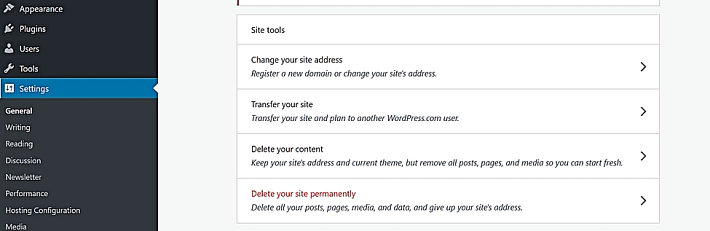
- Select Websites on the left to access the Overview panel. Click the Settings button right next to the website you want to delete (in case there are multiple websites in use).
- Choose the Advanced tab from the horizontal menu.
- Go to the Site Management section.
- You can find the Remove WordPress entirely option.
- Select the REMOVE WORDPRESS button.
- Acknowledge the deletion of existing files and make sure that you have backups saved locally or externally for crucial data, and click the REMOVE WORDPRESS button.
A confirmation message will appear showing that your website is being deleted.
If you do not know how to delete Hostonce account, then worry not! Deleting a Hostonce account is similar and as effortless as mentioned above.
Hostonce Websites Tab: The Future in Your Palm!
The Hostonce Websites Tab is practically a centralized control panel designed for website management. It allows users to manage multiple aspects of their websites without having to turn to random hosting dashboards. It makes the process of site management simple while it offers advanced and refined tools for better control of your website.
The Websites Tab is about flexibility and accessibility at its core. It does not matter if you are a beginner or an advanced user, whether you use one site or you want to manage multiple ones – this tab helps you organize everything you need in one place.
Check out this if you need a perfect domain for your website.
Summary
The Hostonce Websites Tab is your all-in-one technique for website management. Whether it is about resetting site content, adding a new WordPress site, or removing a website altogether, you can enjoy full control over your hosting environment through this option. Use a few clicks to keep your websites organized, secure, and smooth. Bonus: Do check out our scalable shared hosting plans.
Frequently Asked Questions
What are the key differences between deleting site content and deleting a website?
Content deletion refers to the removal of media, pages, and posts, as your site structure remains undamaged. On the other hand, deletion of a website means you lose everything from databases to directories to backups with no recovery option.
Is a domain needed before I add a new website in Hostonce?
Not at all. You may begin with a temporary domain. That said, make sure to connect a registered domain at some point, as that is necessary for a fully operational website. Only that kind of website is accessible to visitors.
Can WordPress be reinstalled after it is removed from my website?
Reinstallation of WordPress is possible for sure. Use the Add Site option from the Websites Tab to do so.
Is data backup necessary before I reset or delete a website?
Without a doubt. When you reset or delete your website, you lose all access to the data. Backup keeps you safe, as in you can restore site versions or the necessary files when you need them.
