
Tired of server guesswork? Turn to us as we explain the concept of WHM. Web Host Manager (WHM) is a modern interface that performs like a partner to the cPanel Control Panel. WHM offers server administrative capacity and extra features next to cPanel. Learn how you can have Hostonce WHM access.
Table of contents
Exploring Hostonce WHM (Web Host Manager)

WHM is a powerful tool for system administrators and hosting providers. It allows them to customize hosting environments, implement security protocols, create or manage cPanel accounts, and configure and manage server settings.
Our dedicated and VPS hosting plans have the option of WHM access. Using the access, you can leverage its deep operations for smart server management.

“Web Host Manager for a Unique Experience!”
Improve your WordPress website today with WHM—Enjoy seamless hosting and administration with Hostonce.
Want a Server with cPanel, WHM, and Root Access?
cPanel, WHM, and Root Access — all in one: Hostonce offers a variety of features and plans. We have Dedicated Server Hosting and VPS (Virtual Private Server) Hosting that include WHM, cPanel, and root access.
Need the Server Faster? We Are Here for You!
If you are searching for something and cannot find it, well, we feel sorry for you. And we suggest the “Find” field.
What is the find field in your browser?
Every browser can allow the find field. It allows you to search the text of your choice on a web page. These shortcuts lead you to make the “find field” appear:
- For Mac: Command + F leads to the Find field
- For Windows: Ctrl+F/Control-F is how you access the Find field
Internet Explorer / Microsoft Edge, Mozilla Firefox, Chrome, Safari on Mac, and all other browsers have this option. This is not centric or limited to a single browser.
Dedicated and VPS Hosting: Log in to WHM
You will need the root password every time you want to log into WHM. This is how you begin the operations (goes without saying, but still). The left menu can take you to the Hosting tab. Look for your Dedicated or VPS hosting package and select the Manage button.
Dedicated and VPS Hosting: Root WHM (rWHM):
Hostonce offers a whole WHM with root access for Dedicated and VPS Hosting users. If you encounter any issues, you can file a support request to the cPanel client service through our support system.
Dedicated and VPS Hosting: The System Console Access
Accessing the system console can have various reasons. Use the root username and password for server management from the command line.
The search box on the left panel shows you a list; find and expand the Server Configuration option, and click on Terminal. You will be issued a warning the first time you access the terminal section. Click on the “I understand and want to proceed” button. Now you have the terminal. Congratulations!
Password Reset
Who can refuse the need for a strong password? You will need to use passwords for a few various tasks through your account. You can use your account to reset the passwords of various portals. Use these tips to come up with a powerful password against unauthorized access:
1. Make sure the length of your password lives up to the required standard of 12 characters at least.
2. The use of symbols, numbers, lowercase letters, and uppercase letters creates a strong enough password.
3. Use complex strings only if you can remember them.
4. Update your password now and then, regularly if possible.
5. Do not use personal information in your password.
6. Avoid phrases that are common and easy to crack, like “password,” “qwerty,” “please,” or “I love Jane,” etc.
7. You do not want to use dictionary words. Hackers can use a list of words from all kinds of dictionaries.
8. Never share your passwords with anyone!
Force Password Change
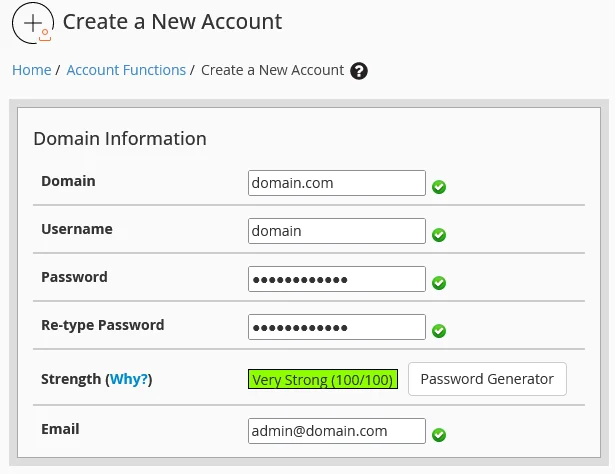
Resellers might face the need to force a password change. You will have to contact the resold account’s owner so that updating the password is easy.
Log in to your Hostonce Account Manager. Click the WHM icon. Go to Account Functions. Under it, you can find Force Password Change. Choose the accounts you want to force-change the passwords of. Select the Submit button, and your password will be changed. Bingo!
Suspension of Resold Accounts
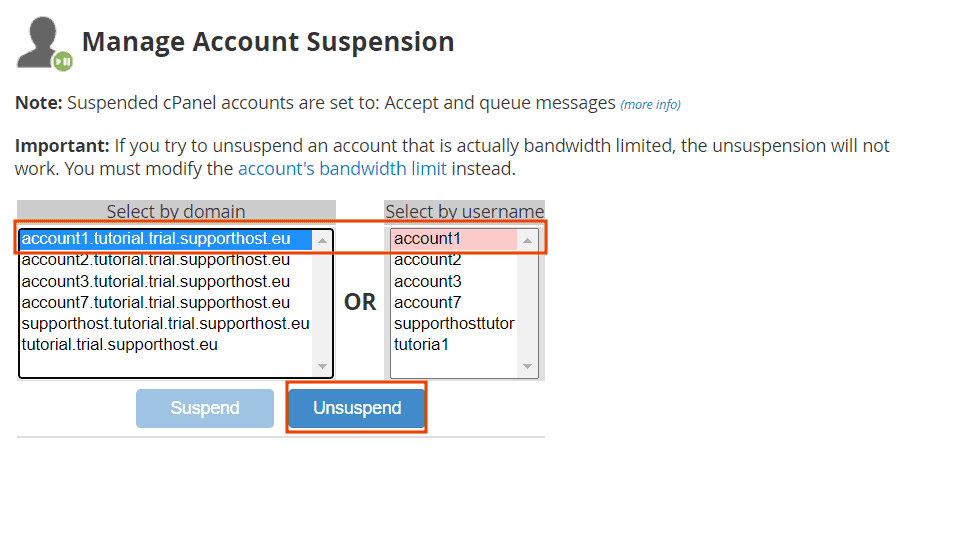
Suspension and unsuspension of resold accounts is something many want to learn about.
Just log into your Hostonce account. Go to Account Functions. You will find Suspend/Unsuspend an Account listed under that option. Choose the username or domain name you want to suspend. Select the Suspend or Unsuspend button (depending on what you want to do). Enjoy!
Dedicated and VPS Hosting: Restarting Services
The best move is to restart services that face issues on the server so that you don’t have to restart the whole server.
Log in to WHM. You may see a page called “Feature Showcase” if you log in to Web Host Manager for the first time. Locate “Exit to WHM” at the bottom of the page and click it.
Frequently Asked Questions
How to access Hostonce WHM?
Anyone who has our VPS Hosting and Dedicated Server Hosting plans gets access to our WHM.
How to fix unexpected WHM issues?
You can contact the support system of Hostonce. We will be ready and active to address and solve any issues you are having with our WHM.
How can one check the WHM status?
Access the administration dashboard of your WHM. Select the Server Status menu there. You can find Service Status; select it to check your WHM status.
Does WHM show resource usage?
Yes, it does. Log in to WHM and type “server” in the search box. Under Server Status, you will find Server Information. Scroll down and you will find the Current Memory Usage section.
