When you upload data (images, videos, files) to your website, other people can copy them via direct link and use them elsewhere online. This process is called hotlinking. It consumes your bandwidth and slows down your website. Hotlink protection cPanel is a feature that prevents this.
Table of contents
- What is Hotlink Protection?
- Why Opt for Hotlink Protection?
- A Step-by-Step Guide on How to Enable Hotlink Protection in cPanel
- A Step-by-Step Guide on How to Disable Hotlink Protection in cPanel
- Best Practices for Hotlink Protection
- Common Issues and Fixes with Hotlink Protection
- Security and SEO Advantages
- Quick Summary
- Frequently Asked Questions
What is Hotlink Protection?
Hotlink protection stops other websites from linking directly to the hosted files on your site server. The example goes that if you upload an image to yourdomain.com/images/photo.jpg, someone could insert that image on their site without hosting it. Whenever they load the page they uploaded the image to, it is your bandwidth that is used.
Hotlinking can:
- Expose your content to unauthorized use.
- Increase your hosting costs.
- Drain your server bandwidth.
- Slow down your site performance.
Enabling hotlink protection in cPanel reinforces the command that only your domain can access your files directly.
Why Opt for Hotlink Protection?
It is important to understand the significance of hotlink protection before you learn how to enable or disable it.
- Bandwidth Saving: You do not have to worry about overconsumption of your server bandwidth.
- Protects Content: Prevents file theft if you have copyrighted materials.
- Enhances Performance: Your website will not lag because of external traffic.
- Boosts SEO Integrity: Hotlinking may cause image indexing confusion or duplicate content issues.
- Stops Unauthorized Embedding: Specifically for portfolio or e-commerce sites where visuals represent intellectual property.

Boost Your Website Security with Hostonce!
Upgrade to a plan that offers malware scanning, firewall management, and DDoS protection for full mind peace.
A Step-by-Step Guide on How to Enable Hotlink Protection in cPanel
Do you want to enable hotlink protection in cPanel? These are the steps:
- Log in to cPanel. Your hosting control panel (commonly at yourdomain.com/cpanel). Use your name and password to enter.
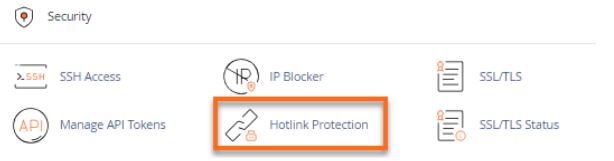
2. Use the hotlink protection tool. Find and click “Hotlink Protection” in the Security section. The location of the section depends on your hosting provider; check under “Security Tools.”
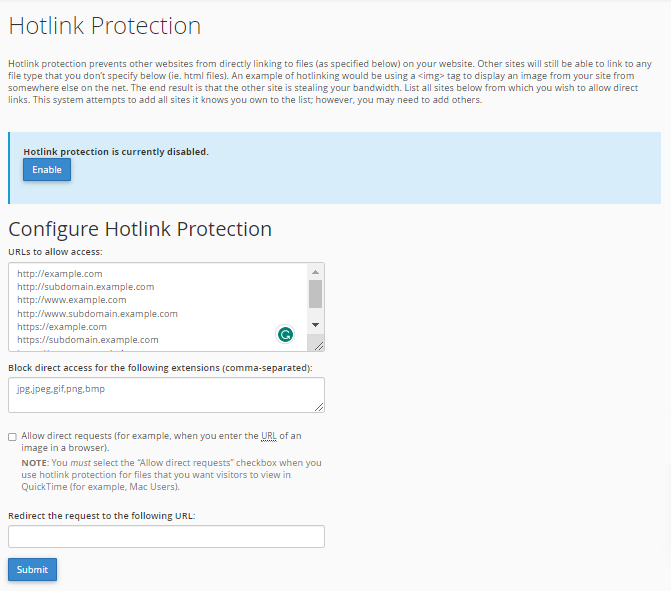
3. Enable hotlink protection. You will see “Hotlink Protection Status” labelled as an option. Click “Enable” (if it is Disabled at the moment).
4. Configure allowed URLs. Go to a section titled “URLs to allow access”. Enter your site URLs; these domains can directly use your files. For example: https://yourdomain.com or https://www.yourdomain.com. You can use other subdomains or trusted sites like CDNs if you have any (such as https://cdn.yourdomain.com).
5. Specify file types to protect. You will see “Block direct access for the following extensions.” This is how you protect the file types from hotlinking. Common extensions are jpg, jpeg, png, gif, bmp, mp4, mp3, webp, and pdf. You can modify the list however you see fit.
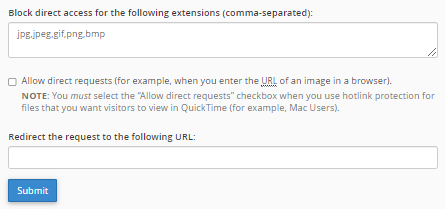
6. Redirect requests. You can redirect requests, optionally, that are from unauthorized sources. Enter a URL such as https://yourdomain.com/hotlink-warning.jpg.
7. Save the Settings. Click “Enable Protection” or “Submit” at the page bottom.
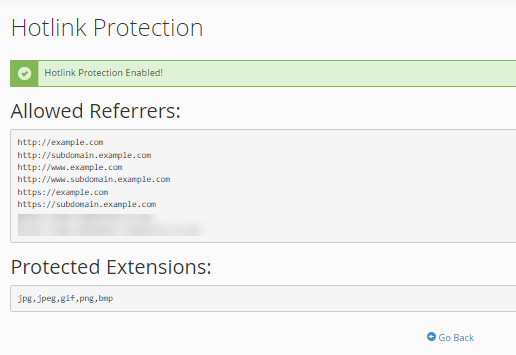
Your hotlink protection is now active! Hurrah!
A Step-by-Step Guide on How to Disable Hotlink Protection in cPanel
You might have to disable hotlink protection sometimes. Those times include when you diagnose issues, share assets with partners, or integrate with a new CDN.
- Log in to cPanel. Access your cPanel dashboard.
- Go to Hotlink Protection. Click on Hotlink Protection under the Security section.
- Disable hotlink protection. You will see an option that says “Disable.” Click on it.
- Now that hotlink protection is disabled, other websites can directly link to your files again. Disable only when it is super important. Enable it right after your task is done.
A side note: you are free to consult the Hostonce support team for any relevant queries. We are always happy to help!
Best Practices for Hotlink Protection
- Whitelist your main and subdomains always. Your own media may break if you don’t.
- Include your CDN URLs if a content delivery network is in use.
- Try not to block third-party integrations or API unintentionally.
- Test your website when you enable it to make sure your images load well.
- Monitor traffic logs to check if hotlink protection is working well.
Common Issues and Fixes with Hotlink Protection
- When images do not show on your website. It hints that you have likely forgotten to whitelist your domain.
- Blocked CDN assets. Add the CDN domain to the allowed list.
- Broken embeds in emails. Emails may not show hotlinked images if the protection is enabled; you may host images on an external service for email use.
- Failed third-party plugins. It is possible for a plugin to request images directly. If that is the case, whitelist its domain.
Security and SEO Advantages
- Stops unnecessary server load and bandwidth depth.
- Helps to maintain unique ownership for great SEO indexing.
- Keeps bots and malicious scrapers from embedding your assets.
- Builds a professional and secure online presence for your website.
All in all, enabling hotlink protection in cPanel is a small role with a big impact. Hopefully, this resolves all your questions regarding how to enable or disable hotlink protection in cPanel.
Quick Summary
| Task | Action | Outcome |
| Enable Hotlink Protection | Through cPanel > Security > Hotlink Protection | Prevents image/file theft |
| Whitelist Trusted Domains | Add your domain, subdomain, CDN | Keeps your content loading normally |
| Block File Types | jpg, png, gif, mp4, etc. | Stops hotlinking of heavy files |
| Redirect Unauthorized Requests | Optional custom image URL | Warns others not to steal content |
| Disable Protection | If needed, click “Disable” | Reverts to open access |
Visit the Hostonce knowledge base for similar helpful guides; you will be grateful to us for this free service!
Frequently Asked Questions
Should I enable hotlink protection?
You should enable hotlink protection if you host numerous media files that others embed.
Does hotlink protection break images?
Only if you do not remember to whitelist your CDN or your own domain.
How to test if hotlink protection works?
Try to embed your image URL on the other domain. It should not load.
Does hotlink protection affect SEO?
No. In fact, it can improve SEO when it prevents duplicate content.
