WordPress is a fantastic platform for building websites, but sometimes comments can become more of a headache than a benefit. Whether you’re running a business site, a portfolio, or simply want to keep your blog clean and distraction free, disabling comments can help you maintain control over your content.
In this guide, I will discuss with you seven easy methods to disable comments on WordPress. Each method comes with its own advantages, so you can choose the one that best fits your workflow.
Table of Contents
Hide ▲Key Takeaways
- WordPress allows you to disable comments globally or only on specific posts and pages.
- Plugins like Disable Comments provide a fast way to remove comment features site-wide with one click.
- Disabling comments protects your site from spam, enhances performance, and provides a cleaner user experience on non-blog websites.
- Disabling comments on media attachments prevents unwanted discussion threads that often get overlooked.
- Regularly reviewing your discussion settings ensures newly installed themes or plugins don’t re-enable comment features accidentally.
Why Disable Comments?
Before diving into the methods, let’s quickly touch on why you might want to disable comments in the first place.
- Reduce spam: Even with plugins like Akismet, spam comments can pile up.
- Professional image: Business websites often don’t need a comment section.
- Focus on content: Comments can distract readers from the main message.
- Security concerns: Fewer input fields mean fewer potential vulnerabilities.
1. Disable Comments via WordPress Settings
The simplest way to disable comments is through the built‑in WordPress settings.
- Go to Dashboard, then Settings, then Discussion.
- Uncheck the box that says “Allow people to submit comments on new posts.”
- Save changes.
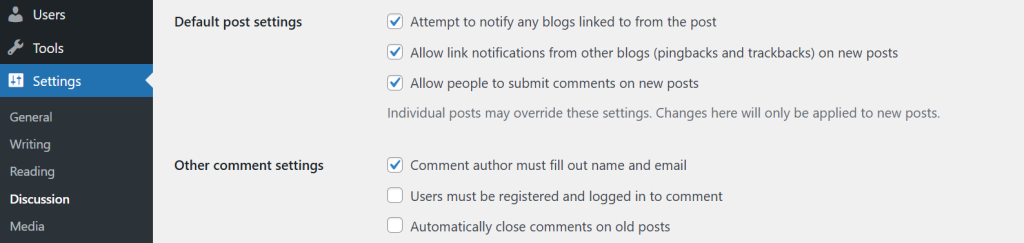
This ensures that any new posts you publish won’t have comments enabled. However, keep in mind that this doesn’t affect existing posts, you will need to edit those individually.
2. Disable Comments on Individual Posts or Pages
Sometimes you don’t want to disable comments site‑wide, but only on specific posts or pages. WordPress makes this easy.
- Open the post or page in the editor.
- In the Discussion panel (usually found in the sidebar), uncheck “Allow comments.”
- Update the post.
This way, you can selectively control where comments appear. For example, you might allow comments on blog posts but disable them on landing pages or product pages.
3. Use the Quick Edit Option
If you want to disable comments on multiple posts quickly, the Quick Edit option is a lifesaver.
- Go to Posts, then All Posts.
- Hover over a post and click Quick Edit.
- Uncheck the Allow Comments box.
- Click Update.
Repeat this for each post you want to modify. While it’s not the fastest method for bulk changes, it’s handy when you only need to tweak a handful of posts.
4. Bulk Edit Multiple Posts
For larger sites, disabling comments one by one can be tedious. That’s where bulk editing comes in.
- Go to Posts, then All Posts.
- Select multiple posts using the checkboxes.
- From the Bulk Actions dropdown, choose Edit and click Apply.
- In the bulk edit panel, set Comments, then Do not allow.
- Click Update.
This method is efficient if you want to disable comments across dozens or even hundreds of posts at once.

Experience Lightning-Fast WordPress Hosting with Hostonce!
Enjoy SSD and NVMe storage, automatic security updates, and a free SSL to keep your site secure and speedy.
5. Disable Comments Using a Plugin
If you prefer a more automated approach, plugins can handle the heavy lifting. One of the most popular options is the Disable Comments plugin.
- Install and activate the plugin from the WordPress repository.
- Go to Settings, then Disable Comments.
- Choose whether to disable comments everywhere or only on specific post types.
Plugins are especially useful if you want a one‑click solution without digging into settings or editing posts manually.
6. Disable Comments via Theme Settings
Many modern WordPress themes come with built‑in options to disable comments.
- Check your theme’s documentation or settings panel.
- Look for options under Theme Options, then Layout, then Comments.
- Toggle off comments for posts, pages, or both.
This method is theme‑dependent, so it may not be available in every case. But if your theme supports it, it’s often the cleanest way to manage comments without extra plugins.
7. Disable Comments with Code (Advanced Method)
For developers or those comfortable editing code, you can disable comments by modifying your theme files.
- Open your theme’s functions.php file.
- Add the following snippet:
<?php
function disable_comments() {
    return false;
}
add_filter('comments_open', 'disable_comments', 20, 2);
add_filter('pings_open', 'disable_comments', 20, 2);
?>
This ensures comments are disabled across your site. You can also remove comment templates from your theme to completely eliminate comment functionality.
Note: Always back up your site before editing theme files.
Expert Tip
Use the Disable Comments plugin to instantly remove comment features across posts, pages, and media if you want a complete shutdown.

Anees Asghar
Expert Web Developer and SEO Manager
Best Practices When Disabling Comments
Disabling comments isn’t just about flipping a switch, it’s about maintaining a professional and user‑friendly site. Here are some tips:
- Communicate clearly: If your audience expects interaction, consider adding a note explaining why comments are disabled.
- Offer alternatives: Encourage readers to connect via social media or contact forms.
- Stay consistent: Don’t leave some posts open for comments while others are closed it can confuse visitors.
- Monitor engagement: Track how disabling comments affects traffic and user behavior.
Final Thoughts
Disabling comments on WordPress is straightforward once you know your options. Whether you’re a blogger tired of spam, a business owner wanting a cleaner site, or a developer seeking full control, there’s a method that fits your needs.
FAQ
How can I disable comments on all future WordPress posts?
Go to Settings then Discussion and uncheck “Allow people to submit comments on new posts.”
How do I turn off comments on existing posts?
Edit each post or bulk edit multiple posts and uncheck the Allow comments option.
Can I disable comments on WordPress pages only?
Yes, open the page editor, then the Discussion tab, then uncheck Allow comments.
How do I disable comments on media files?
Go to Media Library, open each file, scroll to Discussion, and turn off comments. Plugins can bulk-disable this too.
Is there a plugin to disable comments in one click?
Yes, plugins like Disable Comments allow you to globally turn off comments with a single switch.