Learn how to manage Cloud Mail tabs, as it can change the way you organize your emails. Hostonce cloud mail help guides you to smooth email management and a clutter-free inbox.
Table of contents
Organize Your Emails via Cloud Mail Tabs
Discover how to assign, enable, and disable Tabs to streamline the email process and workflow. Use these easy configuration and installation steps to remain connected across devices and organize inbox tabs in Cloud Mail.
Enabling Cloud Mail Tabs
Your email experience can be transformed with the help of Tabs in Cloud Mail. This is how you can keep your inbox organized and enable Tabs:
- Go to your internet browser.
- Enter https://webmail.oxcs.hostonce.com/ in the address bar.
- Log in to your email.
Give your email address and the password linked to that email. Sign in to that account. Check the “Stay signed in” box so that your session remains active, in order to avoid automatic logouts.
- Start the Configure categories pop-up.
Click the settings in the top right corner (gear sign). Select the Inbox categories.
- Now that you have the Configure categories pop-up, try this:
Choose the pre-identified inbox categories. Tick the box that links to a particular category from the list. Also, use the Name input field to change the name; this is how you rename the categories. It is essential to note that some categories are pre-identified, hence you cannot disable or rename them.
- Click the Activate categories button. Go to the Inbox category bar; it shows the tabs below the menu bar on the right side.
Disabling Cloud Mail Tabs
Your email experience can be transformed with the help of Tabs in Cloud Mail. This is how you can keep your inbox organized and enable Tabs:
- Go to your internet browser.
- Enter https://webmail.oxcs.hostonce.com/ in the address bar.
- Log in to your email.
Give your email address and the password linked to that email. Sign in to that account. Check the “Stay signed in” box so that your session remains active, in order to avoid automatic logouts.
- Start the Configure categories pop-up.
Click the settings in the top right corner (gear sign). Select the Inbox categories.
- Now that you have the Configure categories pop-up, try this:
Choose the pre-identified inbox categories. Tick the box that links to a particular category from the list that you want to disable.
- Click the Disable categories button.
Visit https://hostonce.com for more tips.

“Managing Cloud Mail Tabs Easily!”
Hostonce supports you to manage cloud mail tabs as easily as imaginable—the smooth management of tabs is just your trust-in-us away!
Assigning Incoming Email from Inbox to Cloud Mail Tabs
Your email experience can be transformed with the help of Tabs in Cloud Mail. This is how you can keep your inbox organized and enable Tabs:
- Go to your internet browser.
- Enter https://webmail.oxcs.hostonce.com/ in the address bar.
- Log in to your email.
Give your email address and the password linked to that email. Sign in to that account. Check the “Stay signed in” box so that your session remains active, in order to avoid automatic logouts.
- Choose the Inbox panel on the left panel.
Emails not assigned to the Inbox category can be found in the General tab.
- Drag an email down from the list view to a tab in the Inbox Categories Tabs bar. Drop it there.
There is an alternate way. Choose the email you have to assign. Go to the toolbar and select the Set category button. Scroll down the drop-down menu to click the category you want to assign the email.
- If you plan to move only the specific email to the tab, click the X button in the top-right corner to close the pop-up window. Or click on the “Move all messages” button.
Why Choose Cloud Mail Categories Tabs?
Cloud mail tabs are not just a visual tool; they are a productivity upgrade used to minimize inbox mess. The separation of emails into different categories helps you keep track of what is more important. For instance, there could be a Work tab for the office, a Personal tab for your reminders or friends and family, and a VIP tab for what you need urgently. This management allows you to keep what you need close while other messages remain accessible for afterward.
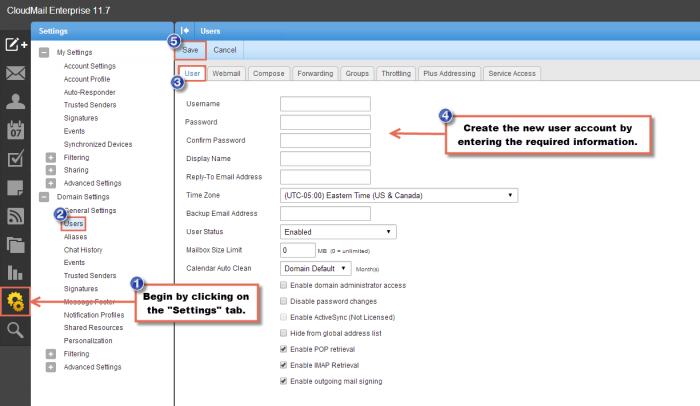
Here is further information on Hostonce email tab settings.
Troubleshooting Usual Tab Issues
We have highlighted solutions to common Tab problems you could face.
- Tabs Resetting After Logout
Check the “Stay signed in” option to avoid resetting tabs after every logout. Use this option always in case of a private device.
- Emails in the Wrong Tab
Choose the right tab to drag and drop the email into. Go to the toolbar to use the “Set category” option. Cloud Mail may start to auto-sort similar messages or recognize patterns.
- Tabs Not Appearing
Enable the Inbox Categories feature in your settings. If you logged in from a new device after clearing your browser cache, re-enable the preferred categories.
While on the matter, do check out these cloud plugins to further streamline your management.
Long-Term Tab Management Practices
There are the best long-term tab management practices that you should follow.
Empty Non-Essential Tabs
Tabs like Updates or Promotions fill up quickly. Clearing them means your mailbox storage remains in check.
Weekly Review Tabs
Spare some time every week to check each tab for unimportant or unread messages. Delete or archive the needless ones.
Use Tabs in Connection with Search
The search bar is your friend forever, whenever you want to find misplaced or old emails.
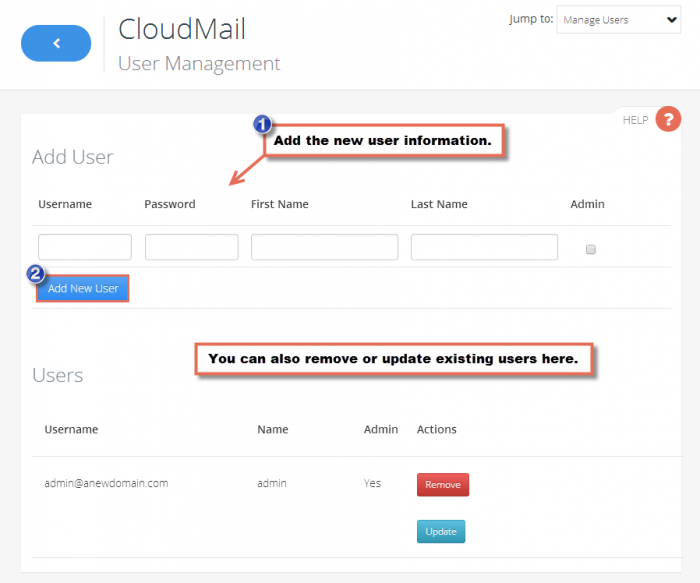
Remember: Hostonce knowledge base is there for similar information in case you want to be informed further. A look into how you can add new users:
Frequently Asked Questions
Do tab settings sync with all devices?
Definitely. If you are using the same Cloud Mail account, then your category assignments and tab layout will remain the same across all browsers and supported devices.
How does disabling a tab affect emails?
The act of disabling a tab moves emails back into the main inbox view or “General.” They are not deleted.
Can multiple categories be assigned to a single email?
Not at all. A single tab can only have a single email at a time. You can switch emails between tabs.
Is the storage limit affected by tabs?
Tabs cannot reduce or increase the storage limit. They are just available for organized view. Archiving or removing emails is still a must-do if you want to free up space.
