Encountering the PR_CONNECT_RESET_ERROR can be a frustrating experience when browsing the internet. This error message typically appears in Mozilla Firefox, indicating a connection issue between Firefox and the website’s server. The “PR_CONNECT_RESET_ERROR” can particularly prevent you from accessing websites.
In this post, we will discuss how to fix PR_CONNECT_RESET_ERROR and troubleshooting steps and provide the knowledge to resolve this issue.
Understanding PR_CONNECT_RESET_ERROR
Before diving into solutions let’s understand what is PR_CONNECT_RESET_ERROR. This suggests the TCP connection was abruptly closed during the handshake process between your browser and the server. It is generally caused by network connectivity issues or server problems, but it can also be due to incorrect settings or extensions in Firefox.

Try Hostonce’s Dedicated Servers for Ultimate Performance!
HostOnce gives you full control, powerful hardware, strong uptime, and top-level security. It’s a great choice for high-traffic websites and demanding applications.
Troubleshooting Steps
Following are the troubleshooting steps on the topic of the error code: PR_CONNECT_RESET_ERROR:
Check Your Internet Connection
Start with the basics and make sure your internet connection is stable. Try loading other websites or using a different device on the same network to check if the issue is isolated to one site or if it’s a broader connectivity problem.
Restart Your Router or Modem
A simple restart of your networking equipment can sometimes resolve temporary glitches affecting your connection.
Disable VPN or Proxy
If you’re using a VPN or proxy service, disable it temporarily to see if it is causing the error. Some websites may block traffic from certain VPNs or proxies.
Update Firefox
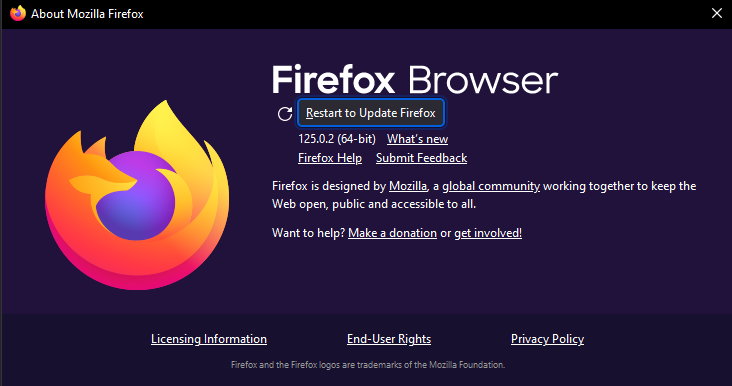
Make sure your Firefox browser is up to date:
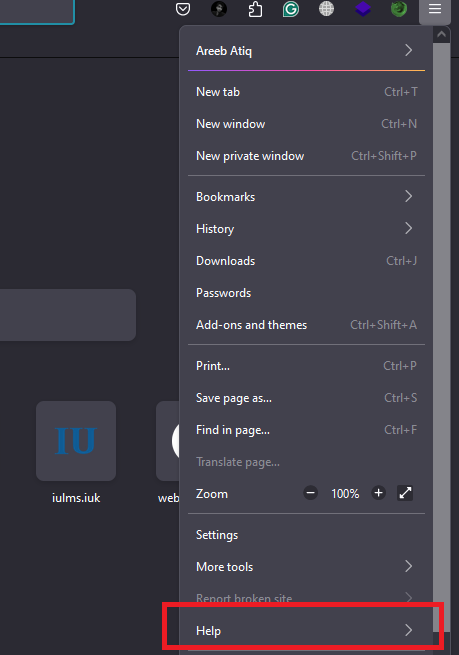
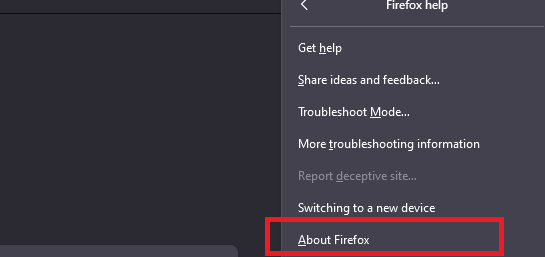
Click on the menu button three horizontal lines in the top-right corner of Firefox. Select “Help” and then “About Firefox.”
If updates are available, they will be downloaded automatically.
Clear Browser Cache and Cookies
Corrupted cache or cookies might cause connection issues:
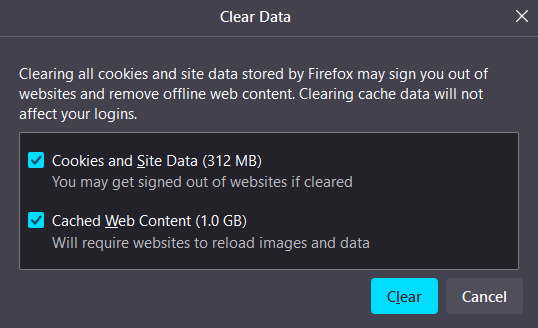
Click on the menu button in Firefox. Go to “Setting” then “Privacy & Security.” Scroll down to “Cookies and Site Data” and click “Clear Data.”

Choose what to clear and confirm by clicking “Clear.”
Check Firefox Network Settings
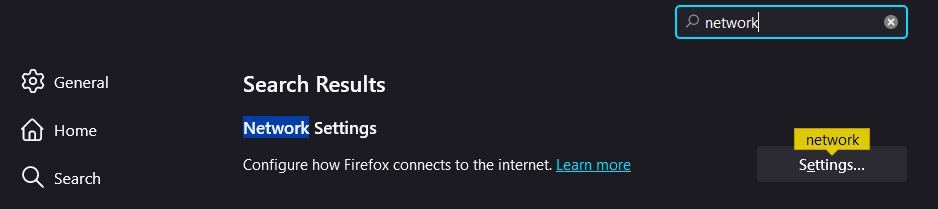
Sometimes incorrect network settings within Firefox can lead to problems. Click on the menu button and select “Settings”. Find “Network Settings” and click on “Settings”.
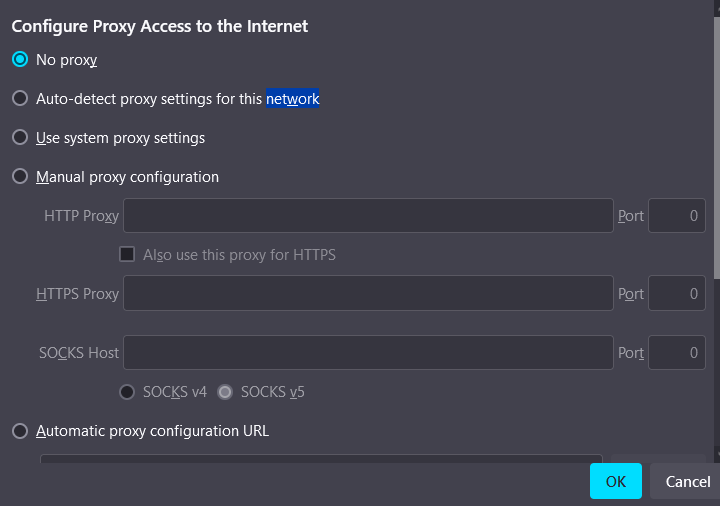
Choose “No proxy” if any other option is selected, or ensure your proxy settings (if used) are correct. Click “OK” to save changes.
Disable Firefox Extensions
Extensions may interfere with how the web page fails to load. Click on the menu button and choose “Add-ons and Themes”. Go to “Extensions” and disable all extensions. Restart Firefox and see if the problem persists.
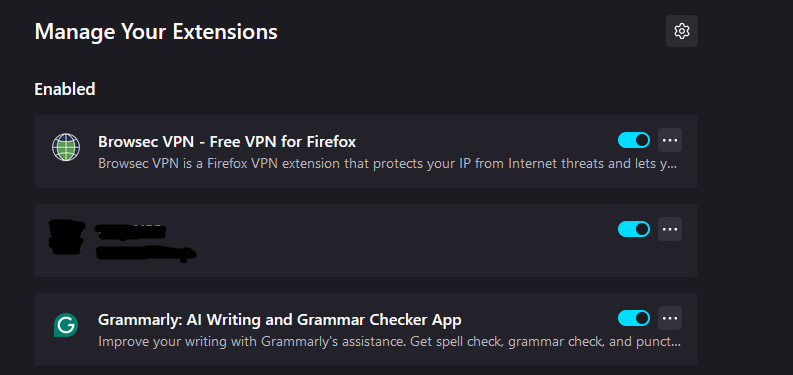
If disabling all extensions fixes the issue, re-enable them one at a time to pinpoint which extension is causing the problem.
Check Your Antivirus and Firewall Settings
Your antivirus software or firewall could be mistakenly blocking your browser from accessing certain websites:
- Temporarily disable your antivirus or firewall.
- If the error disappears, add Firefox as allowed and an exception in your antivirus and firewall settings.
- Re-enable your protection software immediately after testing.
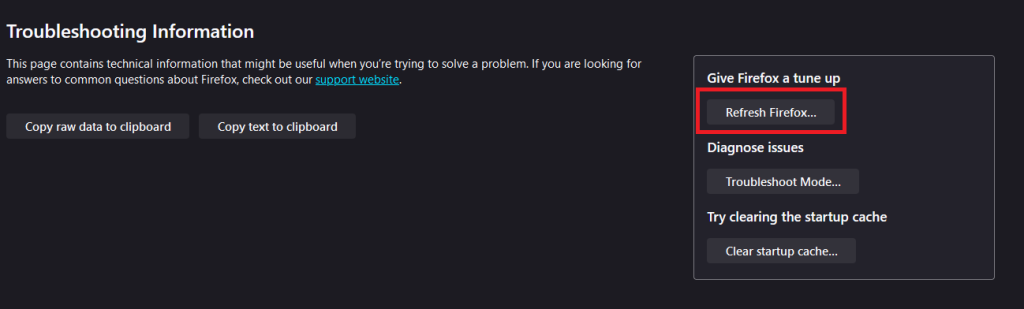
Reset Firefox
If all else fails, resetting Firefox might help:
1. Type about:support in the address bar.
2. Click on “Refresh Firefox” on the right side of the page or Confirm by clicking on “Refresh Firefox” again in the pop-up window.
Advanced Troubleshooting
If the above steps don’t resolve the issue, here are some further options:
- Update Software: Ensure your browser and security software are up to date. Outdated software can sometimes lead to compatibility problems.
- Try a Different Browser: If you’re encountering the error in a specific browser, try accessing the website using a different one. For example, Google Chrome, Firefox, and Edge to isolate the problem.
- Flush DNS: Your computer uses a Domain Name System (DNS) to translate website addresses into numerical IP addresses. Flushing the DNS can sometimes resolve connection issues.
Conclusion
The PR_CONNECT_RESET_ERROR is usually not a complex problem despite its technical-sounding name. By systematically going through these troubleshooting steps most users can solve their issues without needing advanced technical knowledge. Remember to always maintain online safety practices by not disabling security software for long periods and ensuring any changes made in settings should be noted for future reference.
FAQ
What causes PR_CONNECT_RESET_ERROR?
This error can happen due to network issues or browser settings.
How do I fix PR_CONNECT_RESET_ERROR?
Try clearing your browser cache or restarting your router.
Can antivirus software cause this error?
Yes, sometimes antivirus programs can interfere with connections.
Does using a VPN affect PR_CONNECT_RESET_ERROR?
Yes, using a VPN might trigger this error due to network configurations.
What if the error persists after trying fixes?
Contact your internet service provider for further assistance.