You are not alone in facing the 500 Internal Server Error of WordPress. HTTP Error 500 or Internal Server Error 500 is a common issue WordPress webmasters have to deal with. This quick guide to fixing the error discusses 11 methods. Let us have a look!
Table of contents
- Fixing 500 Internal Server Error in WordPress
- 1. Using Hostonce AI Troubleshooter
- 2. WordPress 500 Internal Server Error Because of Bad Plugins
- 3. WordPress 500 Internal Server Error Because of Theme Installation
- 4. WordPress 500 Internal Server Error Because of a Corrupted .htaccess File
- 5. Inadequate PHP Limit
- 6. Flawed PHP Version
- 7. Enabling Error Display
- 8. WordPress Debugging
- 9. Restore a Backup of Your Website
- 10. Re-upload WordPress Files
- 11. Contact Your Hosting Provider
- Frequently Asked Questions
Fixing 500 Internal Server Error in WordPress
There are different causes and solutions to fix this error. 11 of them are:
1. Using Hostonce AI Troubleshooter
Facing a 500 error on your website? Use the AI Troubleshooter on hPanel to troubleshoot the error. The tool will scan the whole website for errors, find the root cause, and suggest solutions.
- Open the hPanel of your website and go to WordPress and AI Troubleshooter (beta) from the sidebar on the left.
- Let the AI Troubleshooting complete the process. It will inform you when the issue was detected (if it detects).
- After that, it will suggest potential solutions. Select the Fix my website button to let the AI Troubleshooter fix the WordPress 500 error.
- If the error is still there, use the Try another solution button to drive AI to another solution.
2. WordPress 500 Internal Server Error Because of Bad Plugins
WordPress HTTP error 500 occurs due to a new plugin. If a new update or installation has resulted in the error, then you can fix it by deactivating or removing the plugin. There are two ways to get this done.
If WordPress is accessible from your hPanel, go and select Security.
- Go to the list of Installed Plugins. Change all the Plugins to Inactive.
- Make every plugin Active one by one and test your website each time.
- You will know which plugin is causing the problem.
If you cannot access your dashboard, you can use File Manager to disable or remove plugins.
- Login to Hostonce hPanel. Go to File Manager under the Files area.
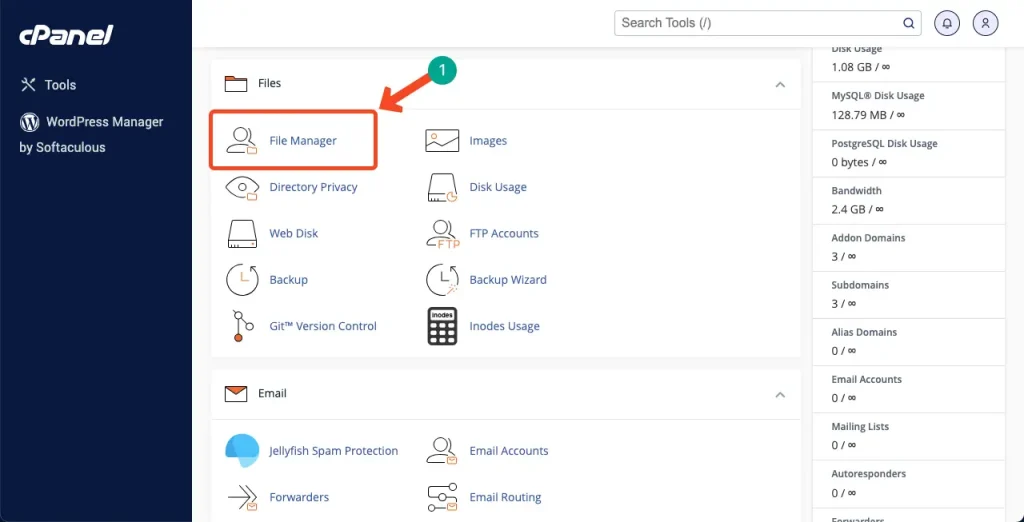
- Go to the public_html folder and select the wp-content directory.
- Locate the bad plugin in the Plugins folder. Right-click to Rename.
- Add disabled after the plugin name to turn it off, to rename its directory.
- Refresh your site to see if it works.
3. WordPress 500 Internal Server Error Because of Theme Installation
A new update or theme can result in the error. Try to change the WordPress theme.
- Go to phpMyAdmin in the hPanel.
- Head to the wp_options table once you open it.
- Go to the template and stylesheet rows.
- Select Edit and change the template and stylesheet value. Use a default theme like Twenty Twenty to do so. Press Go to save changes.

Still seeing the 500 Internal Server Error?!
Let the experts handle it! Get your WordPress site back online in minutes with Hostonce’s AI Troubleshooter — scan, detect, and fix errors automatically!
4. WordPress 500 Internal Server Error Because of a Corrupted .htaccess File
Check the given .htaccess file and ensure it is not corrupted.
- Look for .htaccess in the public_html folder of the File Manager. Rename the file to disable it.
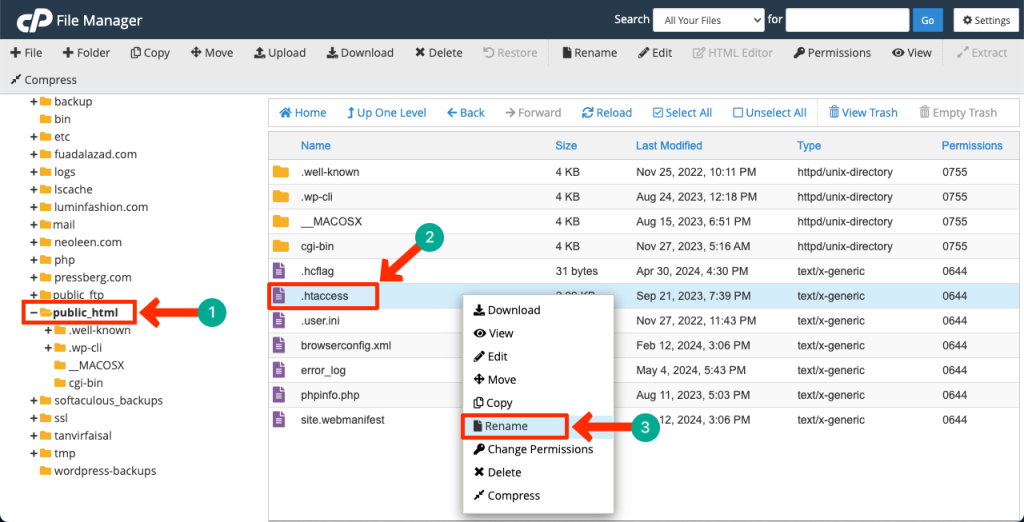
- Create a new .htaccess file once that one is disabled.
- Right-click the file and choose Edit.
- Copy-paste the default .htaccess code into the new one.
- Click Save. You have a new .htaccess file.
5. Inadequate PHP Limit
A memory limit or an inadequate PHP value can lead to this error in WordPress. Plugins and scripts need a specific amount of memory to work. Manually edit the .htaccess file to increase the PHP limit. We suggest adding the following lines:
php_value upload_max_filesize 128M
php_value post_max_size 128M
php_value max_execution_time 300
php_value max_input_time 300
php_value memory_limit 256M
Refresh your website once you are done. This solution will work if the error relates to low PHP values.
6. Flawed PHP Version
Incompatibility is a huge flaw here, which can cause this error. Certain scripts and plugins require a particular PHP version to work well. You can change the PHP version via hPanel.
Log in to the PHP configurations under the Advanced tab. Try to downgrade or upgrade. Save the settings and refresh the website. If changing the PHP version does not resolve the issue, it is time to move to the next option.
7. Enabling Error Display
Enabling an error display makes it easy for you to locate a particular issue on your website. Navigate to the PHP Configuration on your hosting control panel. Go to the PHP Options. Check the log_errors and displayErrors columns. Scroll down and Save.
For an alternative, you could create a separate error log file and use the .htacess file to generate entries.
8. WordPress Debugging
You can use the special debugging system to troubleshoot issues. All it requires of you is to enable the WordPress Debug feature.
9. Restore a Backup of Your Website
Restoring the backup of your website is a reasonable option. WordPress functions like wp_update_post() and wp_insert_post to aid the re-upload process. Use the All-in-One WP Migration plugin to create and restore a backup.
- Go to the Plugin section to install and activate the plugin.
- Select the Backups tab.
- Select Generate a new backup to export your files. Download the exported files.
- Delete your current website and install a new WP site and the All-in-One Migration plugin.
- Choose the Import feature. Upload the backup. Proceed with restoration.
10. Re-upload WordPress Files
Replacing the core WordPress files can help you fix the 500 error.
- Download the latest WordPress version and unzip it.
- Delete the wp-content folder and the wp-config-sample.php file to avoid overwriting data.
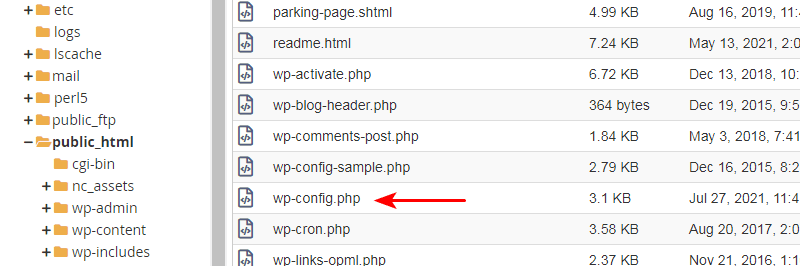
- Move all the core WordPress files to the location of your website.
- Wait for the process to finish.
11. Contact Your Hosting Provider
If nothing else works, there is always this option to consult your hosting provider. They will know how to better check the server logs and find the root cause to fix the error. Contact the hosting provider support team and get some backup.
You may check out the information on Hostonce knowledge base for similar guides. We are happy to help!
