Are you setting up a new store or managing a current one? Either way, it is better to know how to import WooCommerce products from CSV as well as how to export WooCommerce products to CSV. WooCommerce reduces errors, saves time, and streamlines the workflow.
Table of contents
- CSV File and Its Importance for WooCommerce
- How to Import WooCommerce Products from CSV
- How to Export WooCommerce Products to CSV
- WooCommerce Bulk Product Upload and Export Tips
- Issues with Importing and Exporting WooCommerce Products
- Advanced Product Import and Export Tools
- Summary
- Frequently Asked Questions
CSV File and Its Importance for WooCommerce
CSV (Comma-Separated Values) files are text files for storing tabular data. The data includes product names, descriptions, prices, categories, and SKUs. This format is universally compatible and pretty easy to edit in common tools like Google Sheets, Microsoft Excel, or a simple text editor. A fair enough reason for WooCommerce to be using this format.
CSV files in WooCommerce enable you to:
- Back up your catalogue to avoid data loss.
- Edit the bulk of existing product data (e.g. stock levels or pricing).
- Transfer products between stores accurately and quickly.
- Upload various products at once instead of adding one by one.
The platform reads all product data when you import WooCommerce products from CSV. It creates and updates products in your store online automatically. It is similar to how you export WooCommerce products to CSV; you can download copies of the store’s product database for migration or backup.
How to Import WooCommerce Products from CSV
The process of importing WooCommerce products is quite simple. Follow this method:
1. Prepare a CSV File
Ensure your CSV follows WooCommerce format before you upload the file. Each column is designed to represent a product attribute like:
- ID
- Name
- Type (simple, variable, grouped)
- Regular price
- Sale price
- SKU
- Categories
- Images
- Stock
You can use a spreadsheet editor or manually create this file. WooCommerce provides a sample CSV template as well that you can download and customize however you want.
2. Access the Import Tool
Go to the WordPress dashboard and navigate to WooCommerce. Go to Products. All Products. And finally, go to Import.
Click Choose File. Your CSV file is now selected. Click Continue.

Boost store productivity now!
Import WooCommerce products from CSV and keep your catalog updated perfectly. Use Hostonce support to manage WooCommerce products like an expert you are!
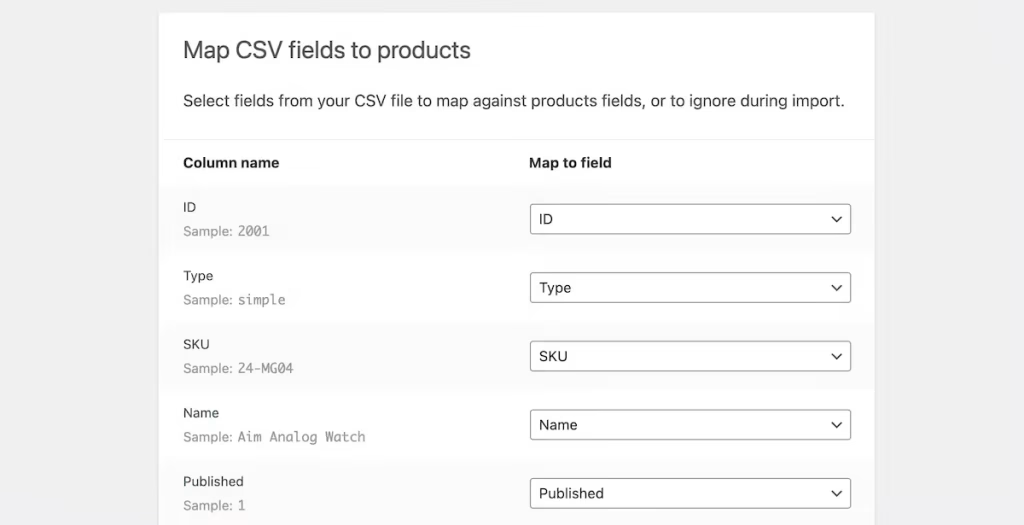
3. Map Your Columns
WooCommerce will make a move to map your CSV columns to the product fields. Go to the dropdown menu to manually select the right attribute if a column doesn’t match.
4. Run the Import
Click Run the Importer once mapping is complete. WooCommerce will start to upload your products; you will see a progress bar. You will receive a success message when it is done. The message will have all details about the number of products that were imported successfully.
How to Export WooCommerce Products to CSV
The platform boasts a built-in tool perfect for the case when you want to export products from WooCommerce. Do not forget these steps:
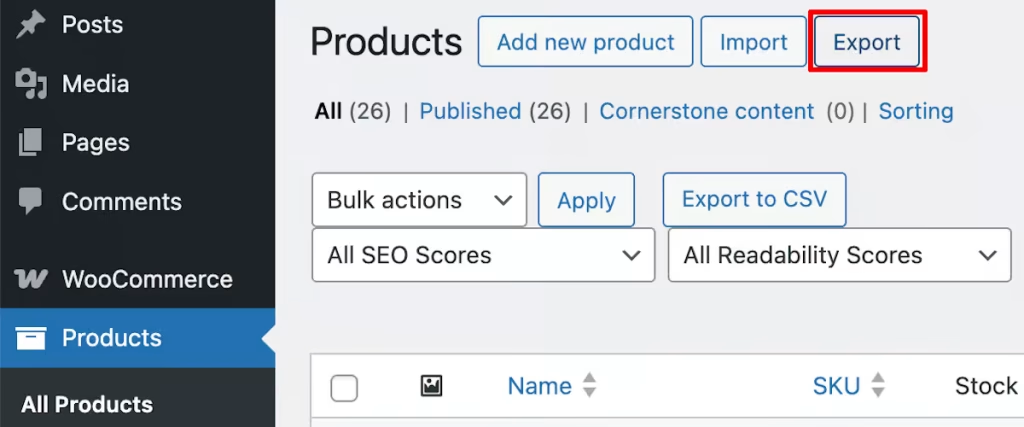
1. Use the Export Tool
Go to your WordPress dashboard. Navigate to WooCommerce. Find Products. All Products. Export.
2. Select What to Export
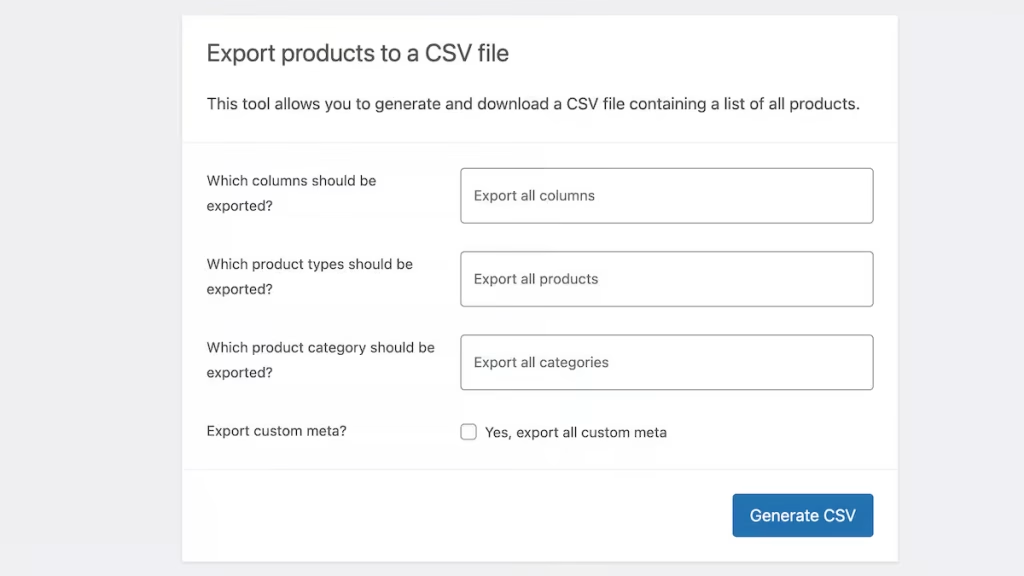
WooCommerce enables you to export products or filter them through:
- Product type (simple, variable, grouped)
- Product status (published, draft, pending)
- Product category
You can select the columns you want to export in CSV. It depends on the data you need.
3. Generate and Download CSV
Click on Generate CSV. The file will be downloaded to your computer. You can view it in Google Sheets or Excel. You can edit the file or transfer it to another site.
This is the best choice for data backup, sharing with marketing teams and suppliers, and WooCommerce bulk product export.
WooCommerce Bulk Product Upload and Export Tips
Bulk actions are vital if you manage a big inventory. These are some of the best practices to smooth the process of WooCommerce bulk product upload and export:
- Always work with the default CSV format in WooCommerce. Do not abandon standardized CSV formats.
- Misnamed headers result in import errors. Column headers must be kept consistent.
- Export the product data as a backup CSV. Backup your store.
- Use full links for images to ensure accurate uploads. Optimize image URLs.
- Import 10 products before you conduct a full import in case you are a beginner at bulk uploads. Test small batches first.
To upload products to WooCommerce CSV with these practices means a high chance at success.
Issues with Importing and Exporting WooCommerce Products
Even though the import/export system of WooCommerce is reliable, you may still issues like:
- Inaccurate column mapping. Make sure to double-check column names and formats.
- Partial imports. Severs often limit memory; divide big CSV files into small ones.
- Encoding errors. Save CSV files in the UT-8 format to prevent specific character issues.
- Missing images. Image URLs should be accurate and publicly accessible.
Your product management workflow becomes efficient when you address these problems early.
On the subject of workflow management, you might want to check out our VPS hosting package.
Advanced Product Import and Export Tools
Several plugins extend the built-in import and export features of WooCommerce. The notable ones are:
- WP All Import & WP All Export
- Product CSV Import Suite
- Store Exporter Deluxe
Summary
Every online store owner should know the valuable skills that are to import WooCommerce products from CSV and export WooCommerce products to CSV. Putting it into practice avoids errors and saves time: management of bulk data, automated repetition, and seamless migration of data. Everyone wants it, no?
Did you like this piece of information? Visit Hostonce blogs for more interesting bits of knowledge.
Frequently Asked Questions
Can WooCommerce products be exported to CSV for backup?
Yes. WooCommerce enables you to export all products to a CSV file. Go to Products and then to Export menu.
What plugin should be used for bulk product upload?
WP All Import and the Product CSV Import Suite are quite notable for handling bulk uploads and complex product data.
Why does the product import fail?
Formatting errors, memory limits, and incorrect column mapping are the usual suspects. Always check that your CSV matches the WooCommerce structure and is UTF-8 encoded.
Can automatic imports and exports be scheduled in WooCommerce?
Definitely. Plugins like Store Exporter Deluxe or WP All Import Pro enable you to schedule and automate frequent product imports and exports.
