Did you know that more than 40% of all websites run on WordPress? If you want to experiment, learn, or build a site safely, the best place to start is to install WordPress on localhost. This lets you test features, customize themes, and try plugins without touching your live website. In this guide, we’ll show you how to set it up step-by-step using simple methods that work on any computer.
Table of contents
Methods to Install and Run WordPress Locally
You can install and configure WordPress on your computer using several tools. XAMPP is a free option that works on all major operating systems. It provides everything you need, including Apache, MariaDB, PHP, and Perl. If you use Windows, WAMP is another good choice because it includes Apache, PHP, MySQL, and phpMyAdmin for easy database management. macOS users can try MAMP, which sets up a local server environment with just a few clicks and works for both Mac and Windows.
You can also try running WordPress in Docker containers, which keeps everything organized and prevents it from mixing with the rest of your system. Another simple option is Local by Flywheel, a user-friendly app that lets you create and manage local WordPress sites without any complicated setup.

Experience Hostonce Affordable WordPress Hosting!
Try Hostonce’s secure and affordable WordPress VPS to help your website grow quickly and meet your specific needs.
Setting Up WordPress Locally Using XAMPP
XAMPP is a common tool for setting up WordPress on your PC. It makes it easy to build and install a complete WordPress site on localhost without any complicated setup.
First, we need to download XAMPP for our respective operating system from the official Apache Friends website:
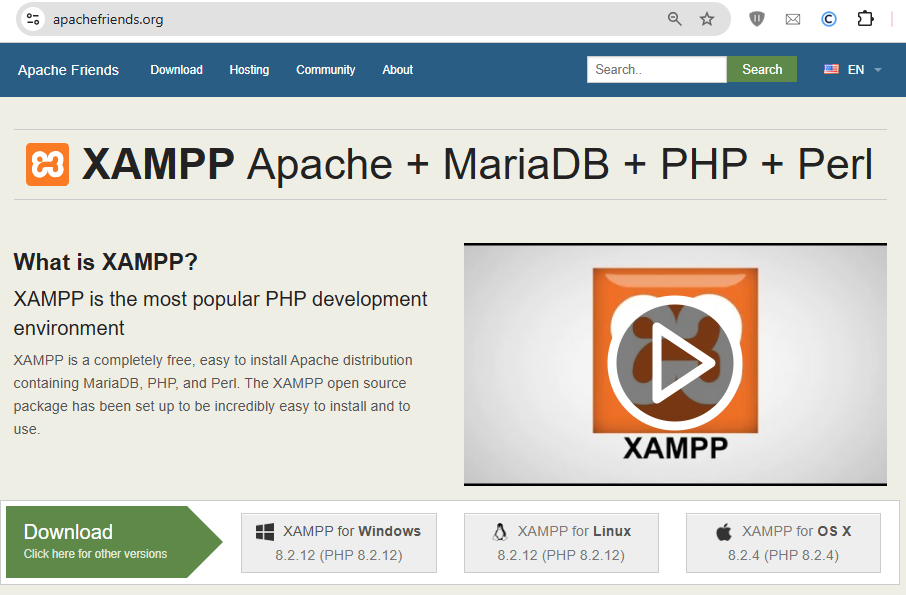
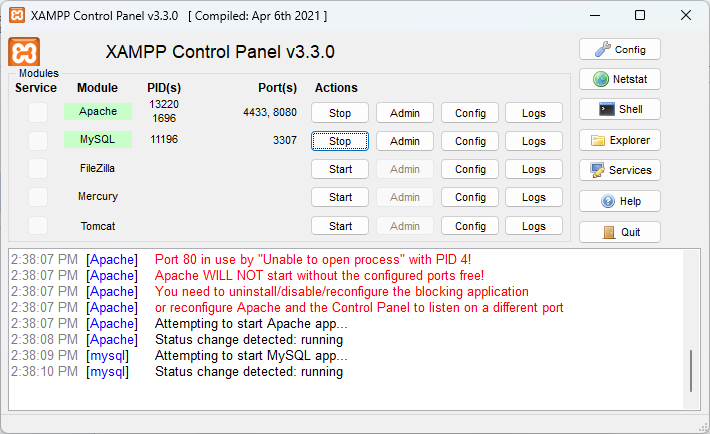
Once XAMPP is successfully installed, open it and start the Apache and MySQL modules:
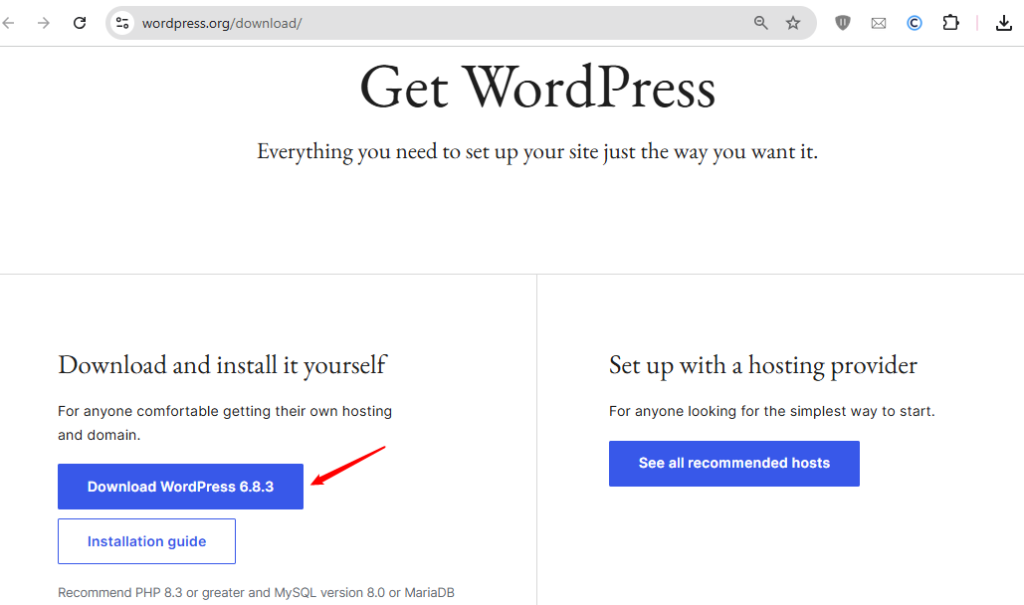
After this, navigate to the official WordPress website to get the latest version of WordPress:
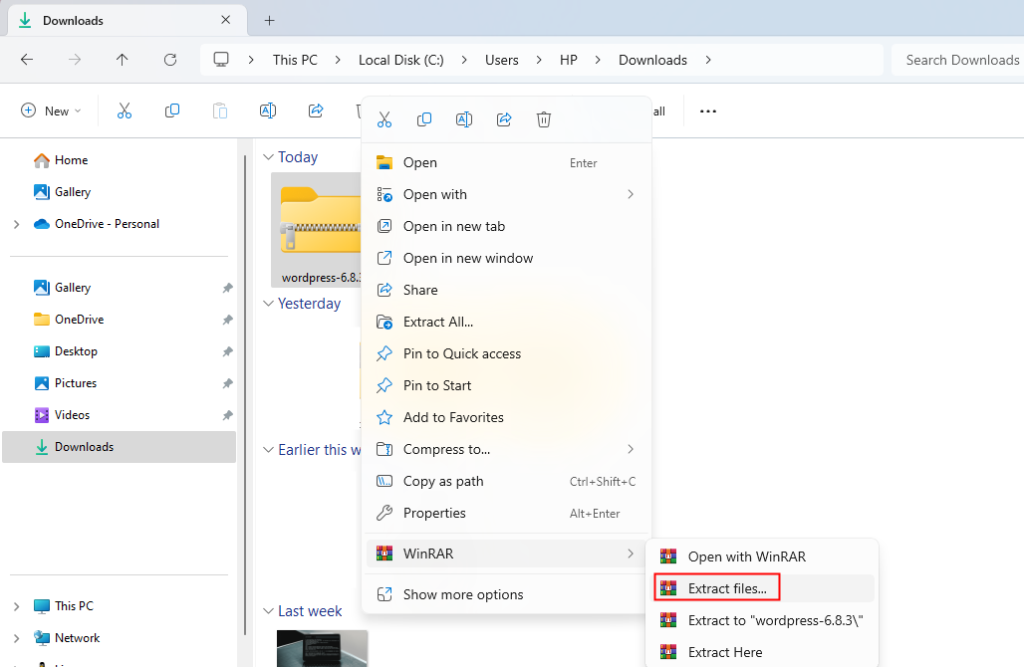
Now extract the WordPress’s recently downloaded .zip file:
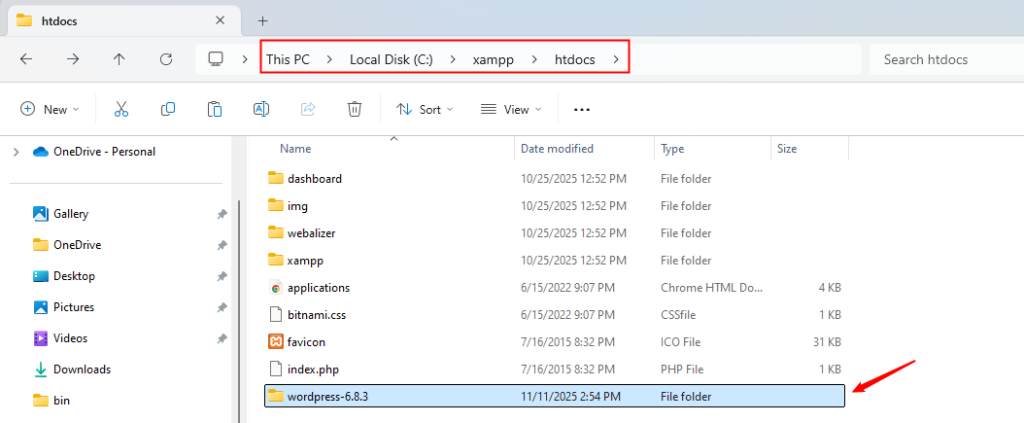
Next, move the unzipped WordPress folder into the htdocs directory. This places your WordPress files in the web server’s root folder so your local server, such as XAMPP, can detect and run the WordPress site:
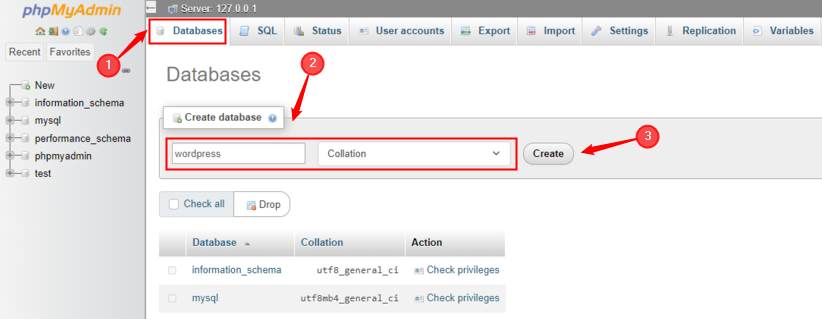
Now, set a local database in phpMyAdmin to link it with your WordPress installation:
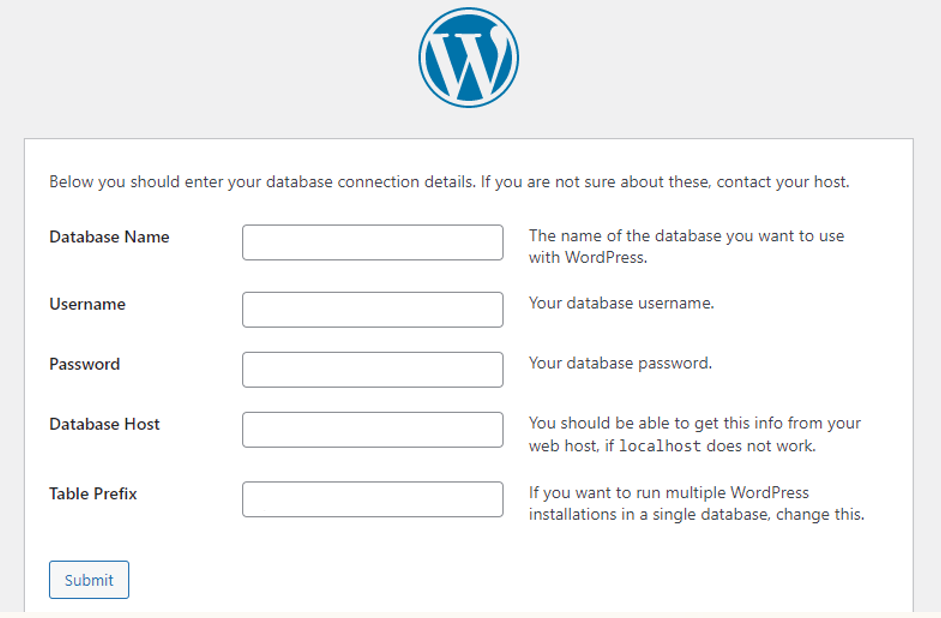
Now fill in your database connection details, such as the database name, username, and host. Once you’ve added all the details, press the Submit button to move forward with the WordPress setup:
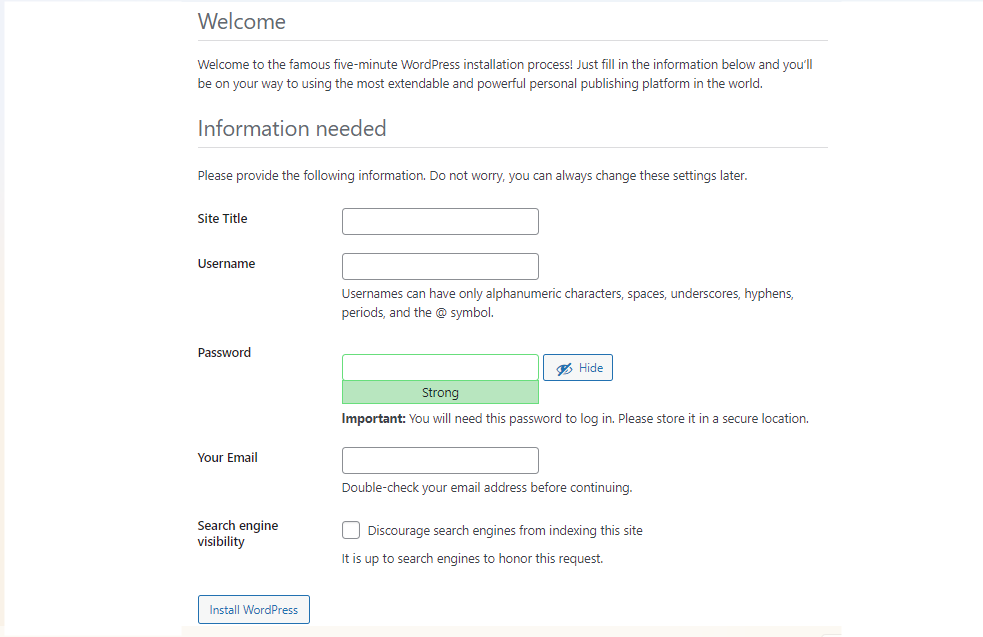
Now open the WordPress folder in your browser using localhost. You’ll see the WordPress setup screen. Enter the required details, such as your site title, username, and password. After entering your details, select Install WordPress to wrap up the installation procedure:
Once WordPress is set up on your local machine, make sure everything is working as expected. For this purpose, open your browser and visit “http://localhost/your-wp-folder-name”.
If the setup went well, you should see the WordPress starter screen or your site’s main page. Go through a few pages to confirm they load without issues, and then sign in to the WordPress dashboard using the username and password you created during setup.
This step ensures that your database connection, files, and server are all configured correctly before you start customizing or testing your site.
How to Install WordPress on Localhost Using Docker
Another effective method to install WordPress locally is by using Docker containers. First, create a folder to store your WordPress Docker setup and navigate to it using the following command:
cd C:\wordpress-docker

Inside your project folder, create a file named docker-compose.yml and add the following content:
services:
  wordpress:
    image: wordpress:latest
    container_name: wordpress-site
    ports:
      - "8000:80"
    environment:
      WORDPRESS_DB_HOST: db
      WORDPRESS_DB_USER: root
      WORDPRESS_DB_PASSWORD: example
      WORDPRESS_DB_NAME: wordpress
    volumes:
      - wordpress_data:/var/www/html
    depends_on:
      - db
  db:
    image: mysql:5.7
    container_name: wordpress-db
    environment:
      MYSQL_ROOT_PASSWORD: example
      MYSQL_DATABASE: wordpress
    volumes:
      - db_data:/var/lib/mysql
volumes:
  wordpress_data:
  db_data:
This setup creates two separate containers, one dedicated to WordPress and the other to MySQL. Next, launch Command Prompt, move into your project directory, and enter the command below to pull the required images and start the containers in the background:
docker-compose up -d

When your containers are up and running, open your browser and visit “http://localhost:8000”:
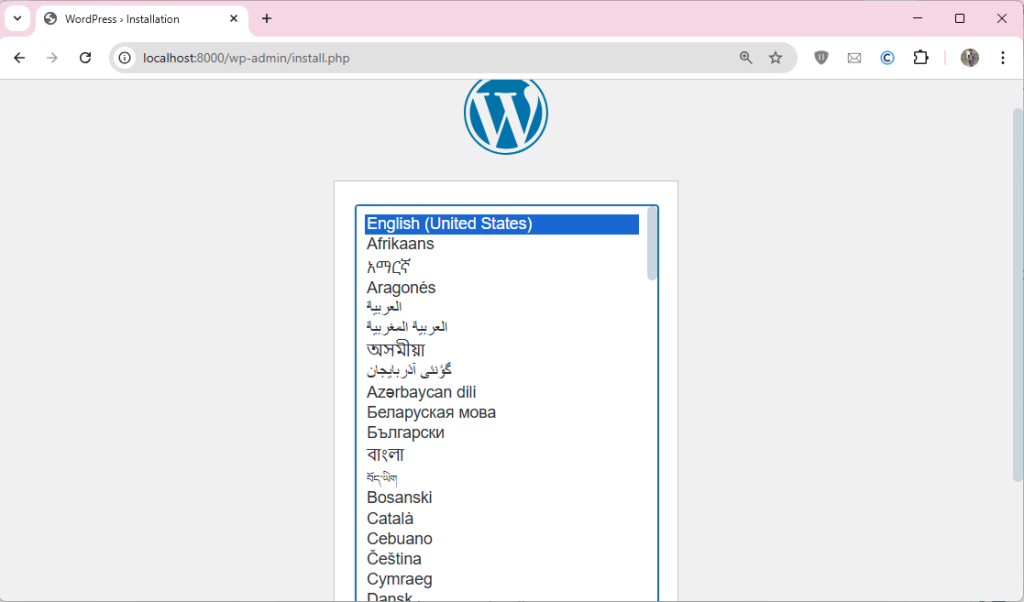
You’ll be navigated to the WordPress setup page, pick your preferred language, then provide details like your site name, password, etc. After entering everything, select the Install WordPress option to finish the setup:
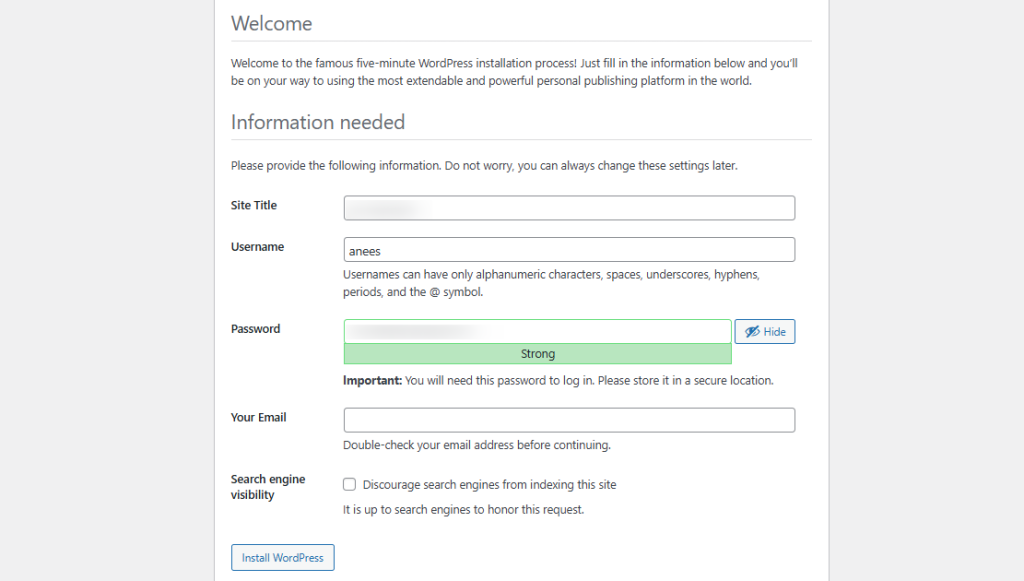
After this, your WordPress site will be ready and running locally inside Docker:
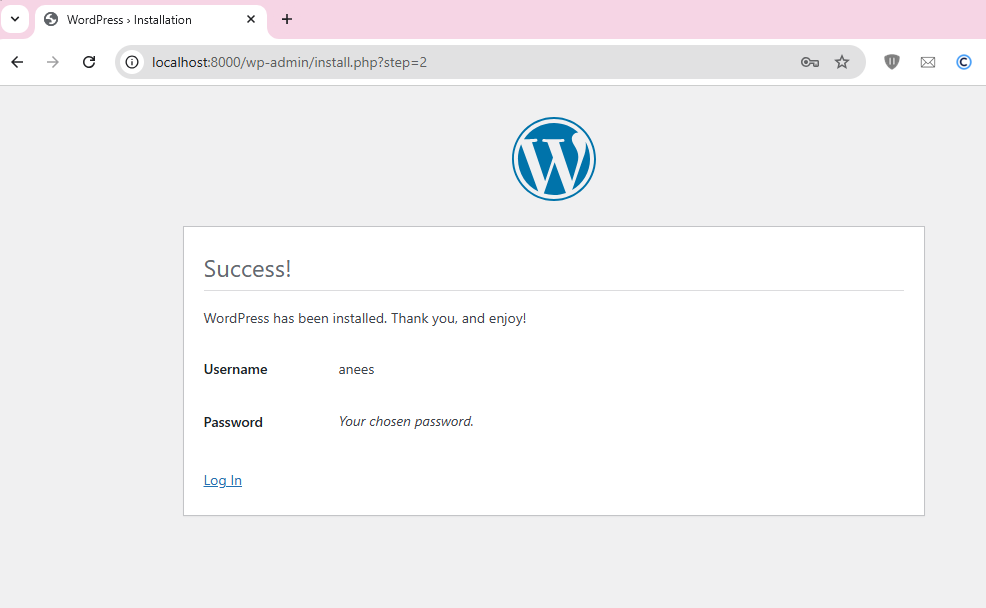
Click the Login button to open your WordPress site and start managing it:
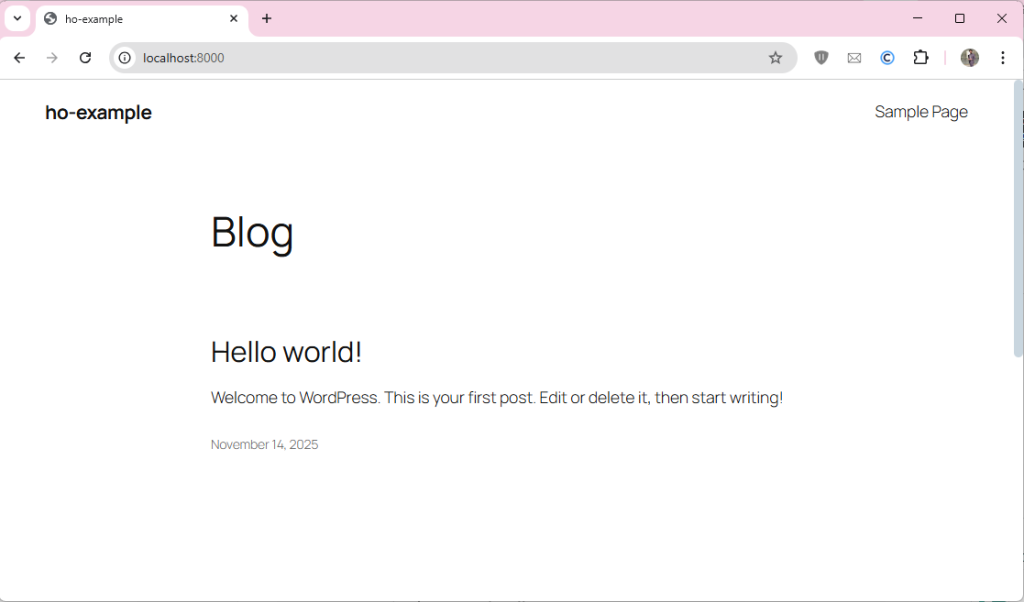
After working on WordPress locally, you can install it using Hostonce’s easy one-click setup to take your site live and ensure a smooth experience.
Wrapping Up
Setting up WordPress on your local machine provides a secure and effective environment to experiment, practice, and build websites without impacting a live server. Tools like XAMPP, WAMP, Docker, and Local by Flywheel make the setup process simple and flexible across different operating systems. In this article, we provided step-by-step instructions to create a fully functional WordPress site on Localhost.
FAQ
Why should I install WordPress locally?
Local installations let you experiment with themes, plugins, and settings, learn WordPress, and troubleshoot issues in a controlled environment without paying for hosting.
Can I run WordPress locally on any operating system?
Yes. Tools like XAMPP and Docker work across Windows, macOS, and Linux, while WAMP is specifically for Windows and MAMP is optimized for macOS (but also works on Windows).
Can I test plugins and themes on a local WordPress site?
Yes. Setting up WordPress locally lets you safely test any plugin or theme without risking your live site.
Is installing WordPress locally suitable for beginners?
Local installations are perfect for beginners to learn WordPress, practice customization, and understand how themes, plugins, and databases work.
