Comments help engage with readers, but not every WordPress site needs them. In certain situations, comments may lead to problems like spam or potential security threats. Many website owners prefer to disable comments for these reasons. WordPress makes it simple to manage this feature. In this write-up, we’ll demonstrate how to enable or disable comments in WordPress. We’ll also include screenshots to make the process easier to follow.
Table of contents
Why You Should Enable/Disable Comments
WordPress gives you flexible settings to manage comments according to your site’s needs. You can choose to enable or disable comments for all published posts and pages, apply the setting only to future posts, or control it individually for specific articles, pages, and even media files. This flexibility is helpful because not every section of your website requires visitor interaction.

Experience our Blazing-Fast WordPress VPS Hosting!
Boost your site’s speed with Hostonce WordPress Hosting. Get SSD and NVMe storage, automatic security updates, and a free SSL.
For example, blog posts or news articles often benefit from reader feedback, while static pages like “About” or “Contact” typically do not. Disabling comments on media files can also prevent unnecessary spam. By identifying where comments add value and where they may cause problems, you can adjust your WordPress settings to better align with your site’s purpose.
Manage Comments for Future Posts in WordPress
WordPress lets you decide whether future posts should have comments enabled by default. This is helpful if you want all upcoming posts to allow discussions or if you prefer to keep comments turned off site-wide without editing each post manually.
To adjust this, log in to your WordPress and open the General Settings.
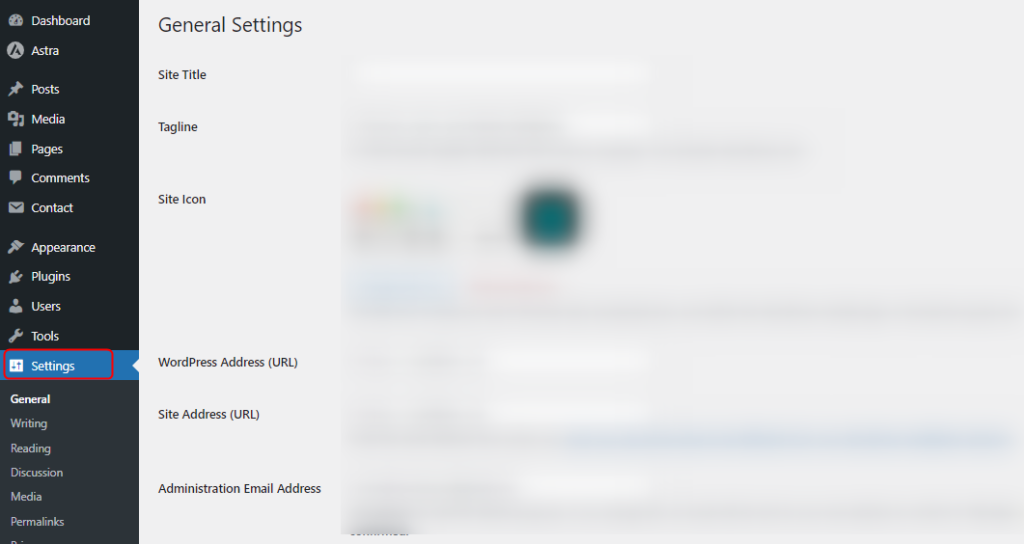
From there, select Discussion to access the comment options. You’ll find a checkbox labeled “Allow people to submit comments on new posts”. Check this box to enable comments on all new posts automatically. Or uncheck it if you want comments disabled for future posts.
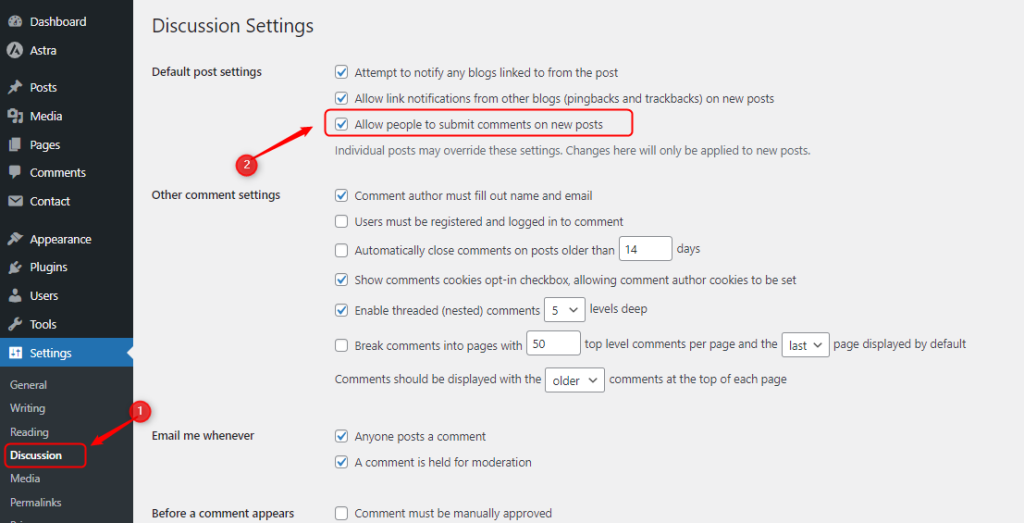
Note that this setting only affects/applies to posts published after the change. Existing posts will keep their current comment settings unless you edit them individually.
Manage Comments on Specific Posts in WordPress
WordPress lets you easily turn comments on or off for specific posts. It lets you decide which posts visitors can comment on. You can keep comments open on posts that need discussion and turn them off on others.
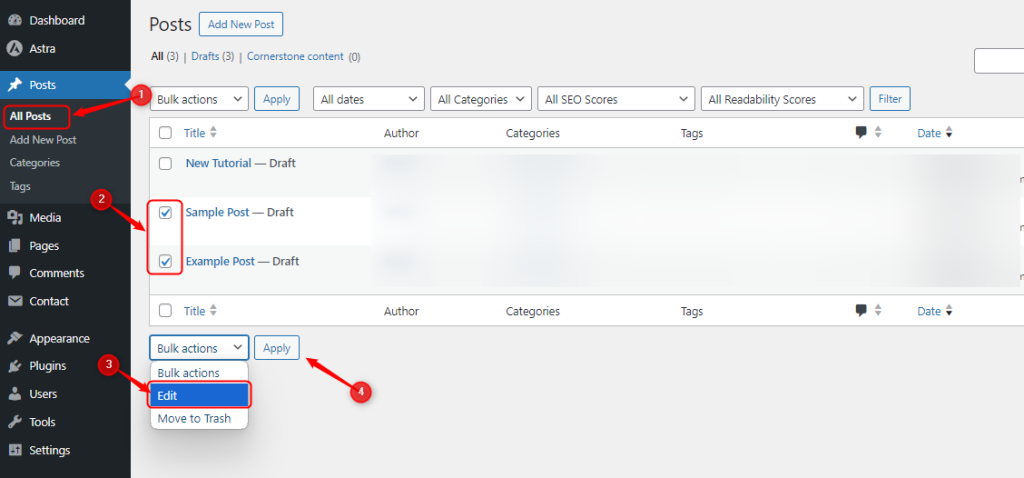
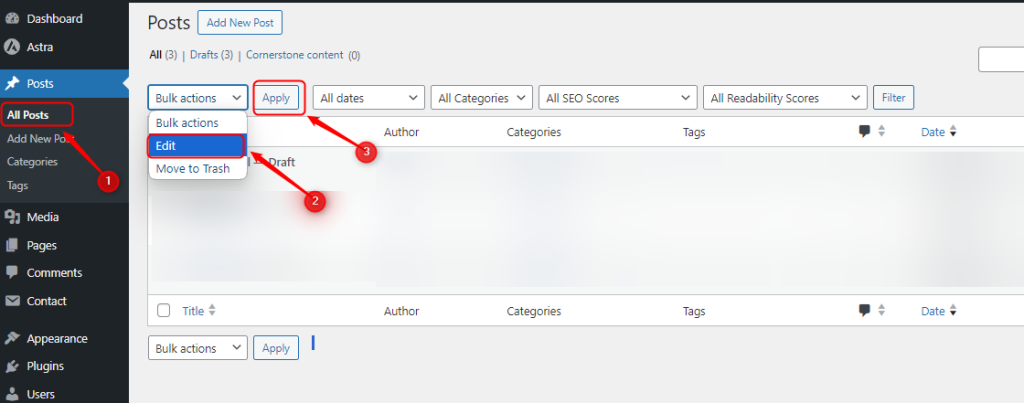
To do this, go to the Posts section in your WordPress dashboard, click All Posts, and then select the posts you want to edit by choosing Edit from the dropdown menu. Finally, click Apply to update the comments settings.
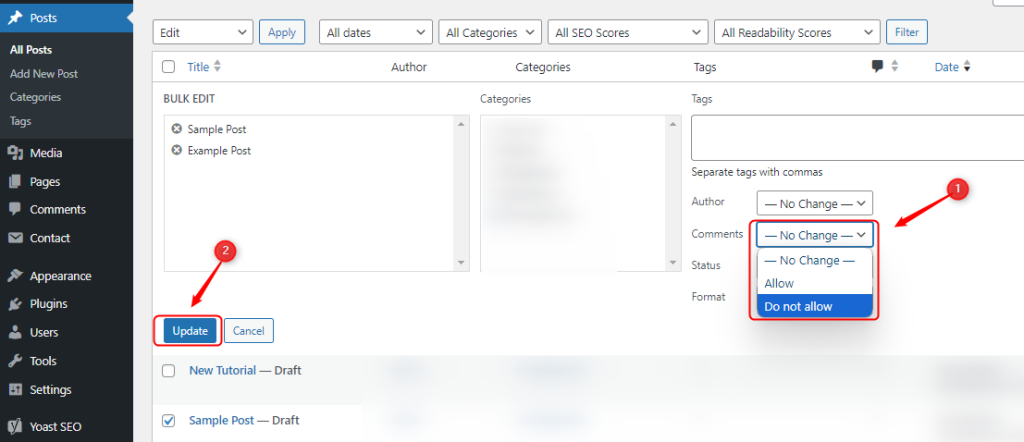
In the post editing options, open the Comments dropdown menu, choose Allow if you want to turn on comments, or Do not allow to turn them off. When you’ve finished adjusting the settings, click the Update button to confirm and save your changes.
Manage Comments for All Existing Posts
To turn comments on or off for all existing posts in WordPress, first select all the posts on the current page. From the Bulk Actions dropdown, choose Edit, and then click Apply:
Next, open the Comments dropdown menu and select Allow to enable comments or Do not allow to disable them. Once you’ve selected your preferred option, click the Update button to apply the changes.
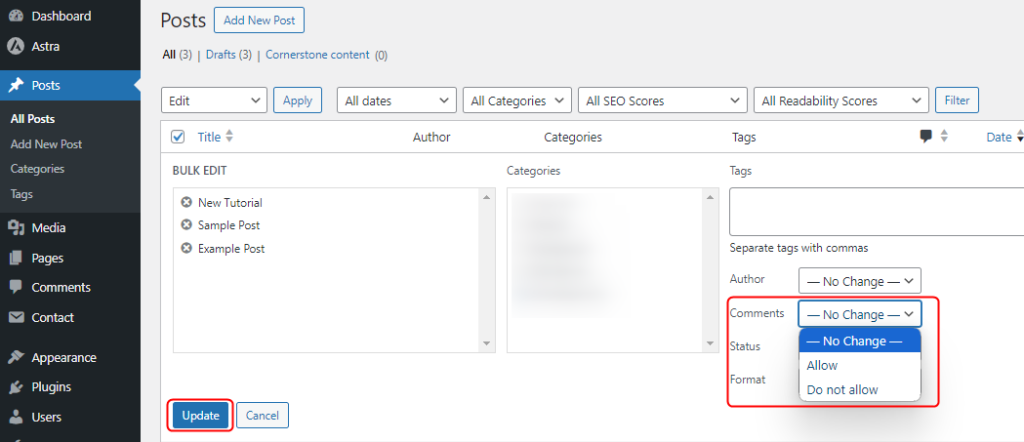
Remember, this action only affects the posts shown on the current page. If you have posts spread across multiple pages, repeat the same steps on each page to update all posts.
Manage Comments on an Individual Post
WordPress lets you control comments for each post separately. To manage them, go to the Posts section in your WordPress dashboard, open the post you want to edit, and then locate the Discussion panel in the editing area.
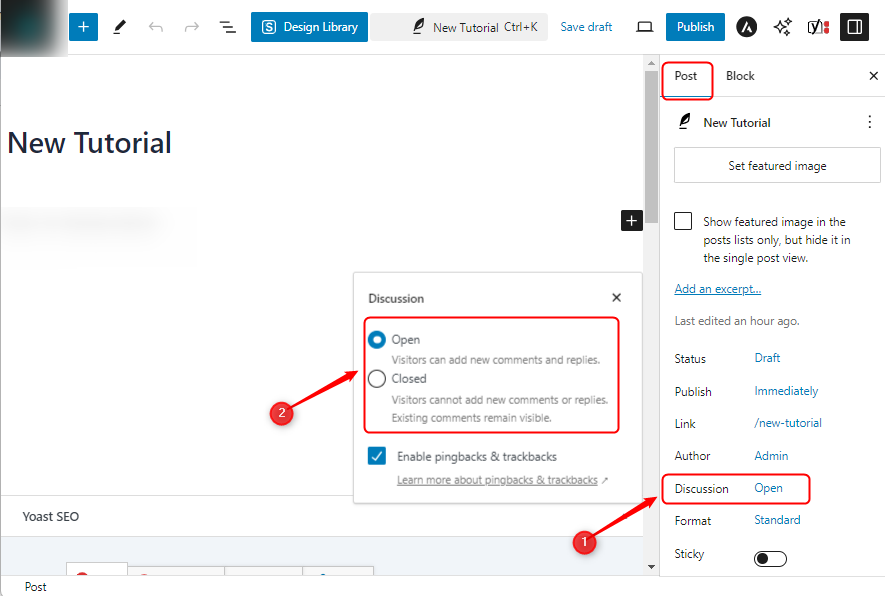
Choose Open to allow comments on the selected post, or select Closed to turn off the comments section.
Managing Comments on Media Files
When you upload media files to your WordPress site, the platform automatically generates a separate page for each file. These pages can also accept comments, similar to regular posts or pages. You can also control comments for media files.
To manage comments on media files, go to the Media section, open the Library, and choose the media file you want to manage, then click the Edit button.
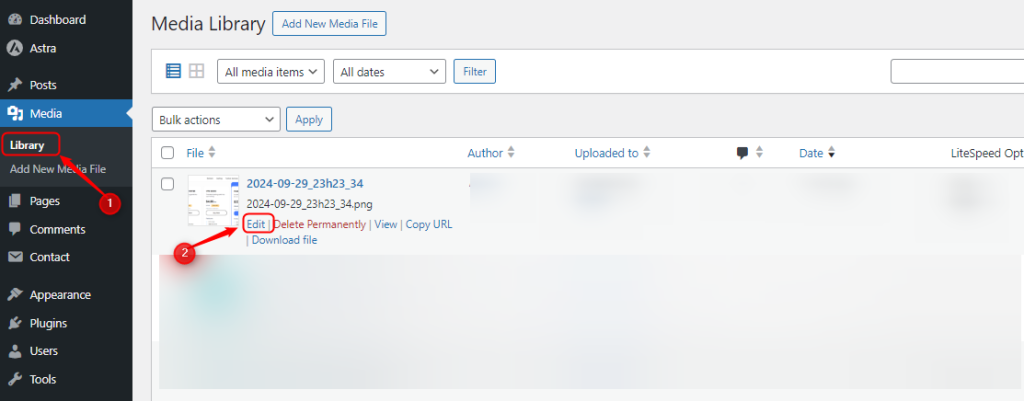
Next, locate the Discussion panel. Check the box to turn on comments for the selected media, or uncheck it to turn them off.
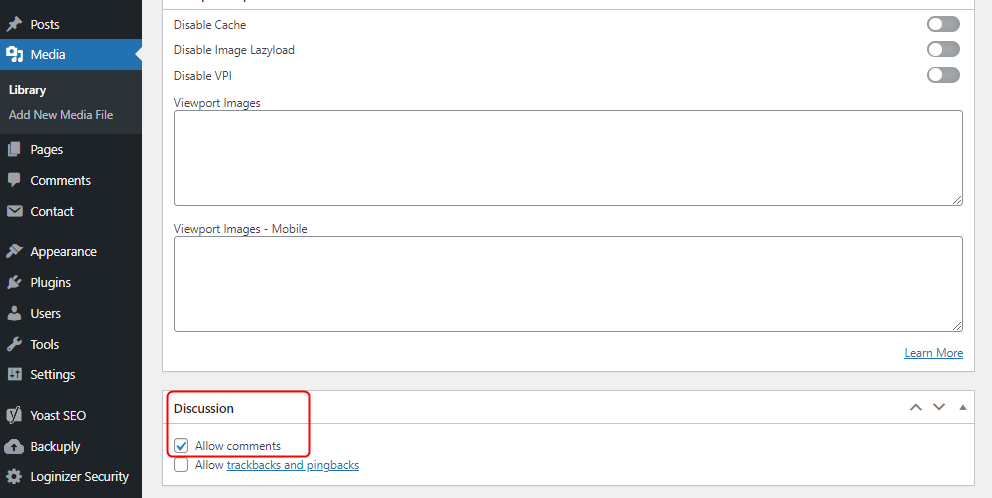
Note: If you don’t see the Discussion panel while editing, click on Screen Options located at the top right side of the screen. A list of available panels will appear; make sure the Discussion checkbox is selected. Once you enable it, the Discussion panel will become visible, allowing you to manage the comment settings for that media file.
Ready to boost your site’s speed and security? Learn how to migrate your website to Hostonce and switch effortlessly.
Conclusion
In WordPress, comments allow visitors to engage with your content, but they can also lead to spam and slightly slow down your site. Turning off comments not only helps reduce spam but also makes your website lighter and more optimized. You can enable or disable comments for new posts, specific posts, existing posts, or even media files, giving you complete control over how discussions work on your site. In this guide, we covered each option with clear steps and screenshots.
FAQ
Is it possible to enable comments on certain posts while keeping them disabled on others?
Yes. WordPress lets you enable or disable comments for individual posts. You can keep comments open on posts where feedback is helpful and turn them off on others.
Does disabling comments affect old comments already posted?
No. Disabling comments stops new comments from being added, but the existing ones will still appear unless you manually delete them.
Can I stop comments on media files?
Yes. Go to Media > Library, select a file, click Edit, and in the Discussion panel, uncheck the option to allow comments.
