Accessing large databases can invariably make even the most seasoned professionals anxious because of their vast interfaces, rows of unending data, and overwhelming workflows. Still, in every aspect of technicalities, the simplest tools often proved the most powerful in their outcomes, and the same can be said in the world of databases when working with MySQL. MySQL’s command line is the simplest and most direct approach to execute a task.
When starting with MySQL, one of the initial and most critical steps is to properly selecting the cursor database. Quite valuable in appearance, selecting the database is important because without it, any queries executed will be blind, and every command will be pointless. Be it a personal project, business software, or even a simple practice session, having the database setup and ready to go at the command line is beneficial and fast in dealing with issues.
This material will be out from any suggestive and impressionable advice; instead, we will stick to what really needs to be said and guide you step by step for a streamlined and effortless workflow.
Understanding MySQL and Databases
Before diving into the command line, let’s clarify what a database is in MySQL.
- MySQL is an open-source relational database management system (RDBMS).
- A database in MySQL is a container that holds tables, views, stored procedures, and other objects.
- You can have multiple databases on a single MySQL server, each serving different applications or purposes.
Selecting a database means telling MySQL which one you want to work with for your current session. Without selecting a database, you can’t run queries on tables or perform most operations.
Prerequisites
To select a database via the command line, make sure you have the following:
- MySQL is installed on your system
- Access to the MySQL server (local or remote)
- Username and password credentials
- At least one database created
If you haven’t created a database yet, you can do so with:
CREATE DATABASE hostonce_db;
Now let’s move on how to select database in mysql command line.

Register Your Hostonce Domain in Minutes
Our quick and beginner-friendly guide helps you secure your perfect domain name without any hassle. Get started and launch your online presence today!
Selecting a Database via Command Line
The following are the steps described below while selecting a database via the command line:
Open Your Terminal
Depending on your operating system:
- Windows: Use Command Prompt or PowerShell
- macOS/Linux: Use Terminal
Log in to MySQL
Make sure MySQL is installed and added to your system’s PATH.
Use the following command to log in:
mysql -u username -p
Replace username with your MySQL username. After pressing Enter, you’ll be prompted to enter your password.
For Example:
mysql -u root -p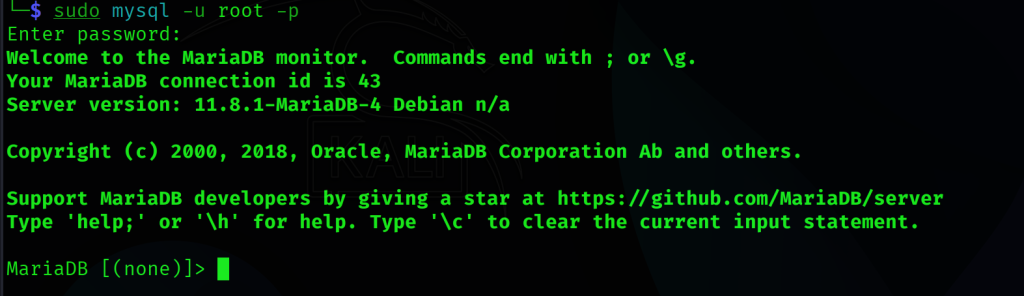
Once authenticated, you’ll enter the MySQL shell, indicated by the mysql> prompt.
View Available Databases
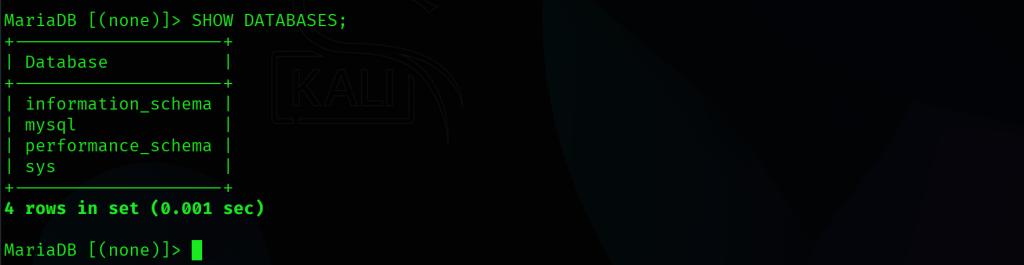
To see a list of all databases on the server, use:
SHOW DATABASES;
This will return something like:
+--------------------+
| Database           |
+--------------------+
| information_schema |
| mysql              |
| performance_schema |
| sys                |
+--------------------+
Select Desired Database
Use the USE Command to select a database:
USE hostonce_db;
If successful, MySQL will respond with:
Database changed

Now, any queries you run will apply to hostonce_db.
Confirm the Current Database
To verify which database is currently selected, run:
SELECT DATABASE();This will return:
+-------------+
| DATABASE()  |
+-------------+
| hostonce_db |
+-------------+
What Happens When You Select a Database?
When you use the USE command, MySQL sets the specified database as the default for your session. This means:
- All subsequent queries will apply to that database unless specified otherwise.
- You don’t need to prefix table names with the database name.
- The selection lasts until you exit the session or change the database.
Common Errors and How to Fix Them
The following are some common errors encountered and how to fix them:
Error: Unknown Database
If you try to select a database that doesn’t exist:
USE nonexistent_db;You will get:
ERROR 1049 (42000): Unknown database 'nonexistent_db'Fix: Check the spelling or create the database first:
CREATE DATABASE nonexistent_db;Error: Access Denied
If your user doesn’t have permission:
ERROR 1044 (42000): Access denied for user 'user'@'localhost' to database 'db_name'Fix: Grant privileges using an admin account:
GRANT ALL PRIVILEGES ON db_name.* TO 'user'@'localhost';
FLUSH PRIVILEGES;
Advanced Tips
You can run a query on a specific database without selecting it:
SELECT * FROM hostonce_db.users;This is useful in scripts or when working with multiple databases.
You can specify the database when logging in:
mysql -u username -p hostonce_dbYou can also use scripts to automate the task. For instance, create a .sql file:
USE hostonce_db;
SELECT * FROM users;
Run it via command line:
mysql -u username -p < script.sqlThis is great for batch operations or backups.
Best Practices
The following are some best practices for managing databases via the command line:
- Avoid hardcoding passwords in scripts.
- Use meaningful names and consistent naming conventions.
- Drop databases you no longer need to reduce clutter.
- Always test queries in a development environment first.
Conclusion
Selecting a database in MySQL via the command line might seem like a small step, but it’s foundational to everything that follows. Whether you’re building applications, analyzing data, or managing servers, mastering this skill gives you control on the server side.
FAQ
How do I select a database in MySQL using the command line?
Use the USE database_name; command after logging into MySQL.
Do I need special permissions to select a database in MySQL?
Yes, you need at least USAGE permission on the database to select it.
Can I list all databases before selecting one?
Yes, run SHOW DATABASES; to view all available databases.
What happens if I select a non-existing database?
MySQL will return an error saying the database doesn’t exist.
Is selecting a database the same as connecting to it?
Not exactly, you are already connected to the server, and USE sets the default database for queries.