
The NET::ERR_CERT_COMMON_NAME_INVALID error occurs when a browser is unable to verify the SSL certificate of a website. As a result, a secure connection is not established. Misconfiguration of the certificate on a server usually results in this issue.
| Error code | NET::ERR_CERT_COMMON_NAME_INVALID |
| Error type | SSL Connection Error |
| Error variations | Your connection is not privateYour connection isn’t privateThis site is not secureWarning: Potential Security Risk Ahead |
| Error Causes | Invalid SSL certificateMisconfigured proxy settingsAntivirus or Browser extensions issuesMisconfigured redirectsOperating system issues |
Table of contents
How to Fix the NET::ERR_CERT_COMMON_NAME_INVALID Error?
There are multiple potential causes of the NET::ERR_CERT_COMMON_NAME_INVALID error. And there are as many potential fixes. We will discuss the nine approachable methods you can use to solve this issue.
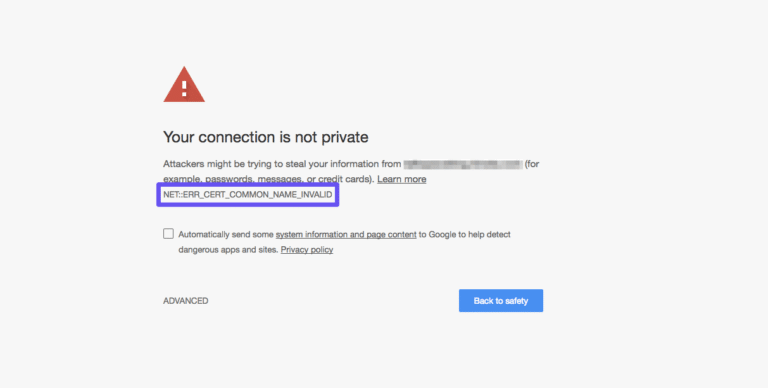
1. Verify that Your SSL Certificate is Correct
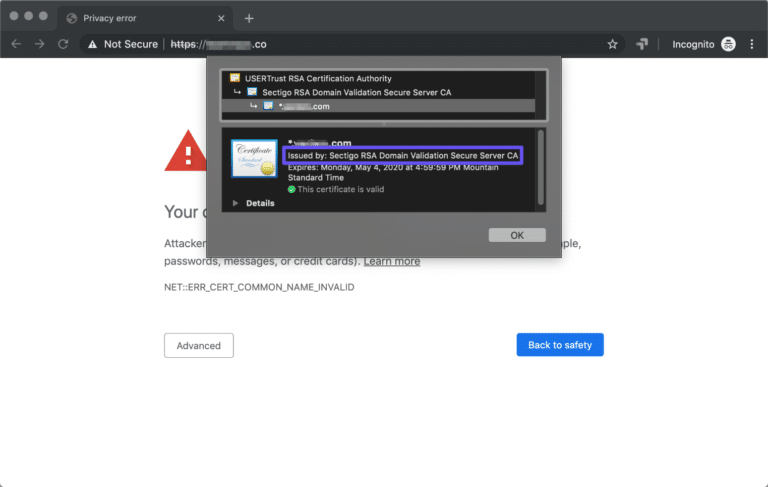
The most frequent cause of the NET::ERR_CERT_COMMON_NAME_INVALID error is that your site’s domain does not match the usual names on your SSL certificate. Determine if your certificate is misconfigured by viewing it.
Get started! Click on the Not Secure warning in the address bar. A menu pops up. Select Certificate (Invalid). A small window opens where your SSL certificate details are given. If the domain listed here does not match the one you want to reach, your certificate is misconfigured. The best solution? Remove the certificate and install a new one.
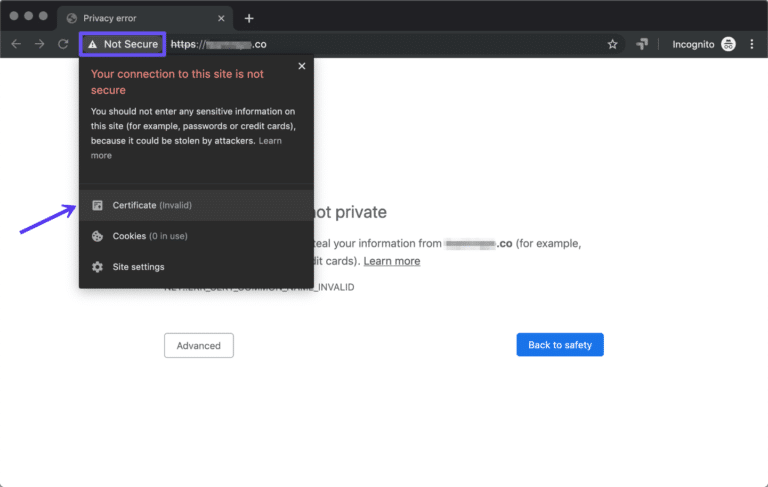
The error gets a little complex when it is a wildcard SSL certificate. This certificate does not have a common name listed; instead, it uses a subdomain level, such as *.something.com. A wildcard certificate means that it does not cover the subdomain you want to access.
If the site you access has a SAN (subject alternative names) certificate, you will have to look further into how to verify the certificate, as it can vary by the issue.
2. Find Misconfigured Directs
In case you find redirects interfere with your SSL certificate, there are a couple of solutions at hand. One is to correct the version of the domain by changing the common name on the certificate.
You may get another certificate for the domain you are redirecting from, or acquire a SAN certificate that covers both domains. When it comes to wildcard domains, you will have to list each subdomain that you plan to encrypt instead of redirecting between them.
You can use Redirect Detective to check if your site is redirecting visitors. It will give you a fair idea of how to fix this error.

Fix the errors and savor a great experience!
Similar errors can be bothersome and tire you out if they are recurring—Hostonce brings similar articles to help you fix the errors!
3. Ensure Your Site Address and WordPress Address Match
It is possible to accidentally switch your web address to HTTPS even without installing an SSL certificate, more so in WordPress. It can result in the NET::ERR_CERT_COMMON_NAME_INVALID error, which can be fixed simply.
Access your WordPress dashboard and navigate to Settings. Go to General. Make sure that your site address and WordPress address match.
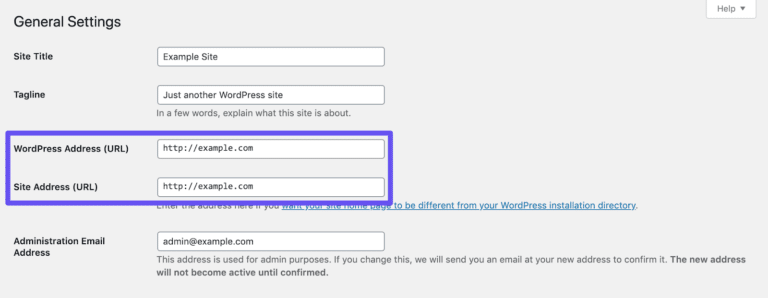
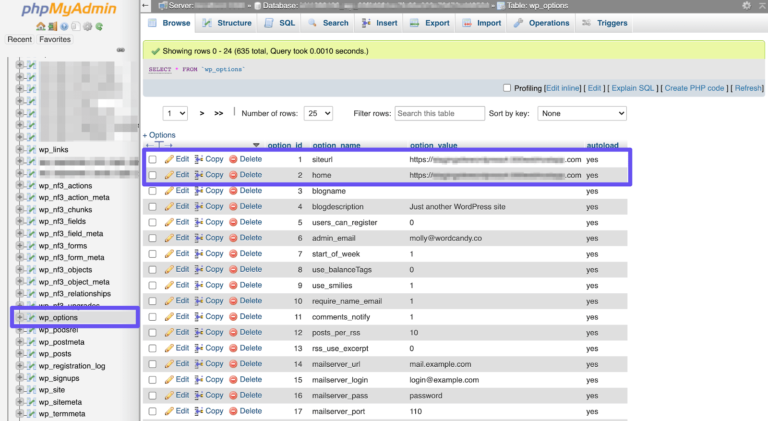
If the issue persists even after the switch, then you will likely have to change the addresses in your database through phpMyAdmin. Search for the home and siteurl rows there. Edit the addresses how it is needed and then recheck if you can access your site now.
4. Is Your Site Using a Self-Signed SSL Certificate?
That is an important question. An SSL certificate from a reputable source is signed by a recognized Certificate Authority (CA). Self-signed certificates are created by users and not backed by a CA.
Self-signed certificates lack security in comparison to the certificates that a CA recognizes. Given that there is no full protection with such certificates, browsers usually label sites with self-signed certificates as “not secure.” It leads to the NET::ERR_CERT_COMMON_NAME_INVALID error.
If your site uses a self-signed certificate, the best option is to contact whoever developed your website and ask them to remove the certificate. If you installed the certificate yourself, then authenticate it with your browser.
5. Clear Your Browser Cache and SSL State
If everything is correct in the configuration of your certificate, but the NET::ERR_CERT_COMMON_NAME_INVALID error still pops up, then you should clear your SSL state. Browsers can cache SSL certificates at times to boost loading speed.
This process depends on the operating system and browser you use.
6. Assess Your Proxy Settings
The purpose of a proxy server is to route web traffic so that anonymity for origin servers and clients can be retained. Misconfigured proxy settings can restrict web access and result in a set of issues, including SSL errors.
Reset your proxy settings to prevent these problems. The process varies if you use a Mac or a Windows computer. It does not matter which OS you use. Using Google Chrome, go to Settings > Advanced > System > Open your computer’s proxy settings.
On Windows, it takes you to the Internet Properties window. Go to the Connections tab, choose the LAN Settings button, and select Automatically detect settings. But if you are on macOS, it takes you to the Network settings window. Click on the Proxies tab and select Automatic Proxy Configuration.
7. Troubleshoot for a Browser Extension Fight
Browser extensions are not always sweet to each other. Some of their fights may disrupt your site’s HTTPS connection, resulting in different errors.
To check if a similar error is around, use an incognito window to open your site. If you can successfully access your site in incognito mode, then it is likely a browser extension problem. Remove or fix that extension.
8. Look into Your Antivirus Settings
There are times when antivirus software can interfere with the HTTPS connection. Check these settings to determine if HTTPS scanning is enabled or disabled.
Ensure that you do not keep your antivirus disabled for an extended period, as it poses a significant security risk.
9. Update your Operating System and Browser
Errors can pop up on an outdated operating system when you try to access websites on it. It is always a smart move to remain updated, whether you are on Windows, Linux, or macOS.
Similarly, make sure that your browser is updated to the latest version.
If there are still any queries left, you can contact our support team.
Summary
NET::ERR_CERT_COMMON_NAME_INVALID error is a tricky one to fix. Narrow down a few steps, and you can resolve the problem quickly. This is how you can prove your site’s credibility to your visitors and offer them a good experience.
Do not forget to revisit us if you want a budget-friendly Windows hosting!
Frequently Asked Questions
How to check the misconfigured SSL certificate?
You may click on the “Not Secure” warning in the address bar of your browser and view the certificate information.
Do redirects cause the NET::ERR_CERT_COMMON_NAME_INVALID error?
Misconfiguration of redirects between domains or subdomains can and does trigger the issue.
Can a self-signed SSL cause the error?
It is possible. Browsers call self-assigned certificates “untrusted,” which results in the error.
Does clearing browser cache or fixing SSL state help?
Definitely. Cached SSL data can cause problems. Clearing it or fixing the SSL state solves the issue.
