
The NET::ERR_CERT_DATE_INVALID error occurs when “your connection is not private.” You will receive this message whenever you face the error. These are a few variations you can come across:
- Your connection is not private
- Safari can’t verify the identity of the website
- Warning: Potential Security Risk Ahead
- Your connection isn’t private
How to Fix the NET::ERR_CERT_DATE_INVALID Error?
Now you know how the NET::ERR_CERT_DATE_INVALID error appears on some popular browsers. This error can have multiple causes; let us guide you to ten solutions that can help resolve the issue.
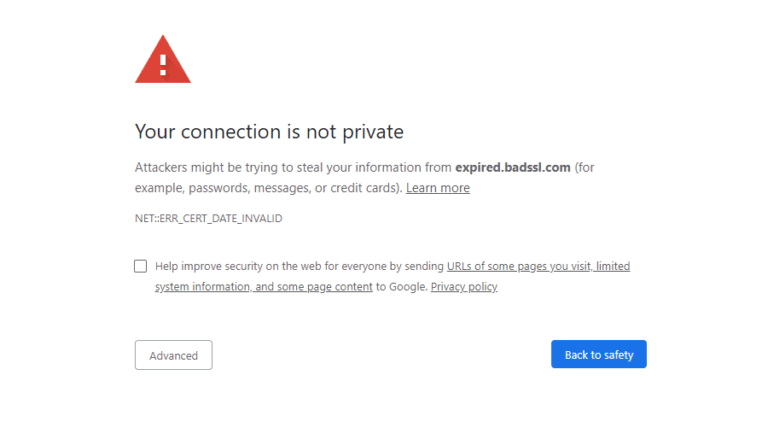
1. Page Reload
A trick as old as time and the simplest one at that. Refresh your page. Close and restart your browser as well before you access the same page. There are times when things do not run well. Do not troubleshoot prematurely; give the quick fix a shot first.
2. Avoid Public Wifi
About time you checked your internet connection. Public wifi increases the possibility of not having a private connection. You may want to be safe and sign off.
Use a Virtual Private Network (VPN) to see if the error remains. If the error occurred while you were using VPN, then turn it off and try accessing the website then. It is possible for a VPN to be the culprit at times.

Get the errors fixed, enjoy the experience!
Unexpected errors can be troublesome and frustrate you if they are recurring—Hostonce brings similar articles to help you fix the errors!
3. Check Your Date and Time
Did you know that your browser uses your device clock to verify if a site’s SSL certificate has expired or not? The NET::ERR_CERT_DATE_INVALID error can appear if the time is set incorrectly. It can happen if you travel across time zones. Ensure that the date and time on your device are accurate.
4. Is Your Certificate Expired?
SSL certificates can expire. You may need to have your certificate reissued if the error appears on your own website. Have a check on the duration of your certificate.
If your own certificate has expired for sure, renewing it should fix the NET::ERR_CERT_DATE_INVALID error. Your host can get it done for you, or you can use your control panel to do it yourself.
Some hosting providers’ control panels do not offer an option for you to renew a certificate. You will have to use the command line to perform the renewal. Seek Certbot’s help.
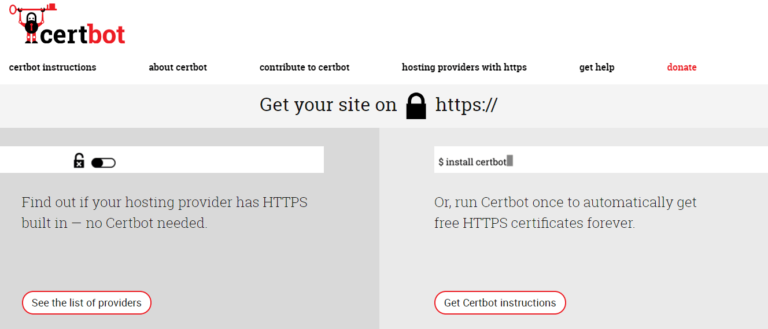
Install and run Certbot first. It renews a certificate by default whenever the certificate expires. Convenient, isn’t it?
5. Update Your Browser and Operating System
Ensure that your operating system is updated to the newest version. Older versions do not support updates as they become obsolete in time. There are some bits of SSL certificates that do not work anymore on older operating systems. The older version will give you errors like NET::ERR_CERT_DATE_INVALID more often.
The same can be said about outdated browsers. Keep your browser updated. Even when your browser is updated, then uninstalling or reinstalling it can help a lot.
6. Disable Your Antivirus
Certain settings in antivirus software can result in the NET::ERR_CERT_DATE_INVALID errors. Disable your antivirus and access the website again. Make sure to force fresh. If your antivirus is the issue, you can reach out to the support team if the issue remains after updating.
7. Check Browser Extensions
Third-party extensions on your browser can eventually cause problems. In this case, you will have to check each extension one by one and then try to access your web page. You might have to uninstall an extension if it causes the error.
Clearing cache and cookies is helpful in multiple aspects.
Visit your website in an incognito mode. If it remains inaccessible even in that mode, then you may use a different browser. If either of the two work, then there is a high possibility that clearing the browser cache will fix the error.
With your cookies and cache cleared, try to reopen your browser and load your site again.
9. Clear the SSL Cache
Clear your SSL cache if your browser cache does not work. The SSL cache stores credentials for sites you visited so that you can save time when you connect afterward.
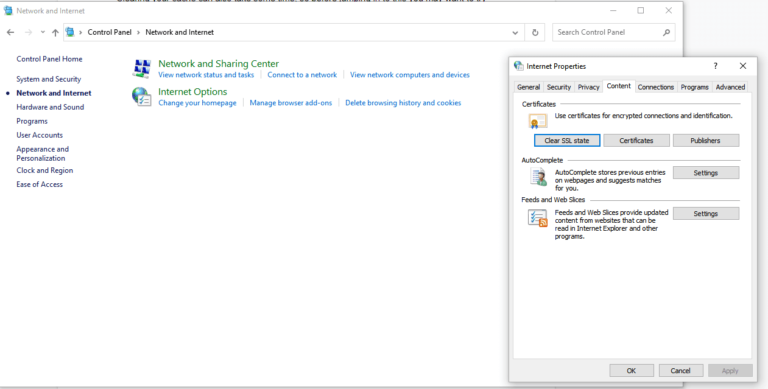
If you want to clear the SSL state, go to the Control Panel and select Network and Internet. Go to the Content tab to find the Clear SSL state button.
Using macOS, delete an SSL certificate from an untrusted source. Navigate to Finder, go to Go > Utilities > Keychain Access. Then, go to Certificates, which is located in the Category section. Find the one you want, click on Edit and Delete.
10. Change Your DNS Server
Your Domain Name System (DNS) server might result in the NET::ERR_CERT_DATE_INVALID error. You can change it from or to Google’s Public DNS, varying by your current setup. Write down your current settings before you make changes to your DNS settings.
Want to change DNS settings? Open the Control Panel. Click on Network and Internet > Network and Sharing Center, and go to Change adapter settings. Right click on the connection and select Properties.
If you are using Google’s Public DNS already, then you can return to your ISP’s DNS servers. Just remove Google’s DNS and do check Obtain DNS server address automatically.
Visit our support team for similar guides on relevant topics.
Summary
There are various causes of the NET::ERR_CERT_DATE_INVALID error. This is why troubleshooting the error can be specifically frustrating. Either way, this problem should be resolved quickly. Use one of the solutions above and the error will indeed be fixed.
Check our services out if you want to get a perfect domain now!
Frequently Asked Questions
Why is the NET::ERR_CERT_DATE_INVALID error on trusted sites?
The issue could be with your operating system, outdated browser, the device’s false date and time, expired SSL cache, or extensions causing conflicts.
How to fix the NET::ERR_CERT_DATE_INVALID error on browsers?
Refresh the page. Check your system lock. Clear cookies and SSL cache. Disable antivirus temporarily. Update your OS and browser.
Can VPN or public Wifi cause this error?
Certain VPN connections or public Wi-Fi networks interfere with SSL validation. Disconnect from the VPN or switch to a secure private connection.
What if the error shows up on my website?
Your SSL certificate might be misconfigured or expired. You can renew it through your hosting panel or use a tool like Certbot to renew certificates by default.
