When your WordPress website becomes overloaded, it can slow down page loading, disappoint your visitors, and even affect your search rankings. You might notice issues like frequent crashes, slow response times, or your site struggling to handle many visitors at once. These are signs that indicate your website needs optimization.
In this guide, we will discuss several solutions to reduce the load on your server, improve site performance, and provide a smoother experience for your users.
Table of contents
Optimizing an Overloaded WordPress Website
Let’s explore the common reasons that cause a WordPress site to become overloaded. We will discuss simple, effective ways to optimize an overloaded WordPress website for faster loading and smoother user experience.
Switch to a Reliable Hosting Provider
The performance and reliability of your WordPress website largely depend on the quality of your hosting provider. If you’re using a cheap shared hosting plan, your site may slow down or struggle to handle traffic spikes because resources are shared with many other websites.

Experience our Ultra-Fast WordPress VPS Hosting!
Improve your site’s speed with Hostonce WordPress Hosting. Get SSD and NVMe storage, automatic security updates, and a free SSL.
To fix this, consider upgrading to a more powerful hosting option like VPS or dedicated hosting, which provides better performance and more control over your server.
Selecting a web host specifically set up for WordPress performance, such as Hostonce or Ultahost, can also make a huge difference. It allows your site to load quickly, remain safe, and manage higher traffic without performance drops.
Enhance Site Speed by Compressing Images
Large, uncompressed images are one of the main reasons a WordPress site slows down. When you upload high-resolution images without optimization, they take longer to load and put extra strain on your server, which affects your website’s overall speed.
To fix this, always compress your images before or during upload to reduce their file size without losing quality. You can easily accomplish this by using tools like Smush or Imagify plugins. It’s also a good idea to convert your images to the WebP format, which keeps them sharp while using less storage space. Plugins like WebP Express can help with that.
Finally, make sure your images are responsive and properly scaled for different devices to ensure fast loading and a smooth browsing experience.
Deactivate or Disable Unused Plugins
Having too many plugins or using ones that aren’t well-coded can slow down your WordPress site. Some plugins load extra scripts or use more server resources than needed, which can make your website run sluggishly.
To improve performance, go through your plugins and deactivate or delete the ones you don’t really need.

You can identify resource-heavy plugins using tools such as Query Monitor or P3 Profiler. Additionally, ensure that the plugins you keep come from trusted developers and are regularly updated. Outdated plugins not only affect your site’s speed but can also lead to security issues and compatibility problems. Keeping them updated helps your site stay fast, secure, and stable.
Choose a Lightweight and Optimized Theme
The theme you select significantly affects your website’s load time and overall efficiency. Heavy themes filled with unnecessary features, scripts, or styles can slow down your site and put extra load on your server.
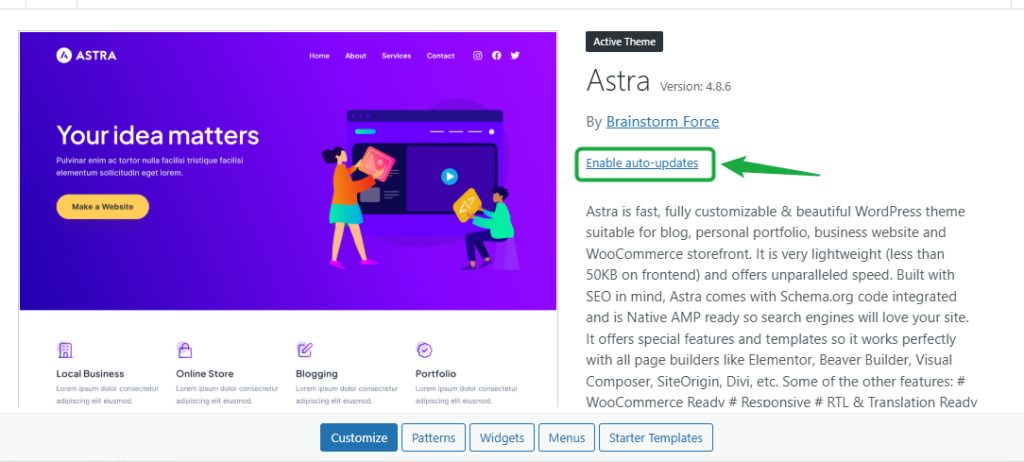
For better performance, consider using a fast and lightweight theme such as Astra, GeneratePress, or OceanWP. These themes are built for speed and use fewer resources, helping your website load faster and run smoothly.
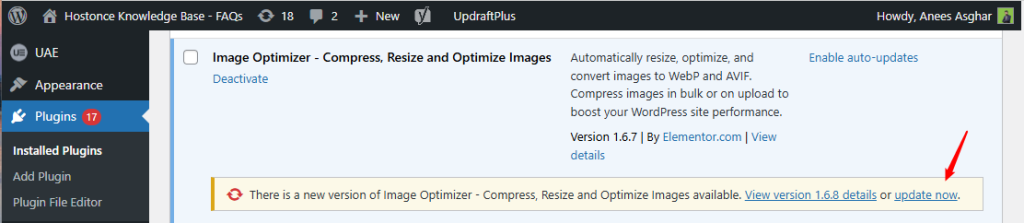
Always keep your theme updated, as outdated versions can lead to compatibility problems and reduce your site’s speed. You can refresh your theme manually or turn on automatic updates to ensure smooth performance.
Maintain and Clean Your WordPress Database
As your WordPress site grows, its database collects a lot of extra data, such as post revisions, spam comments, and leftover settings from deleted plugins. As time passes, this unnecessary data can make your website slower and reduce its overall efficiency.
To maintain smooth performance, try using tools such as WP-Optimize or Advanced Database Cleaner to clear out unused data and organize your database.
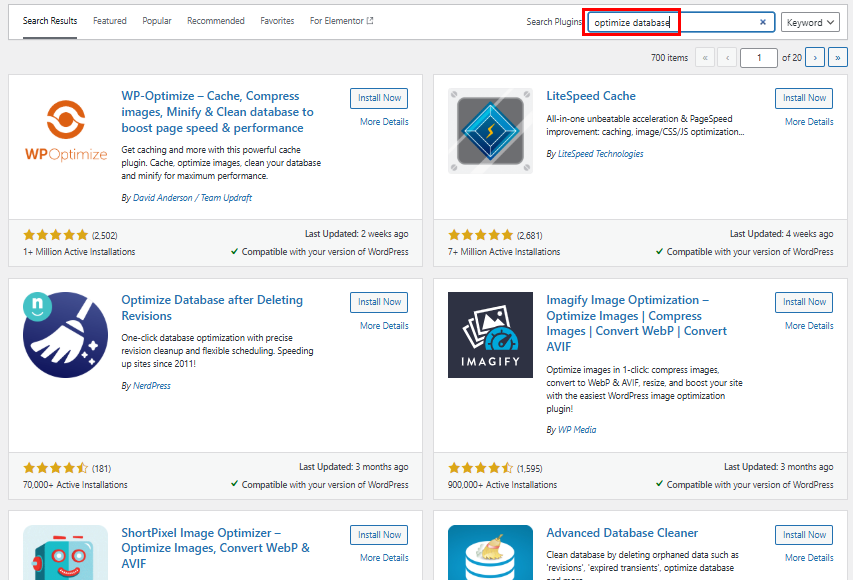
You can also manually enhance your database performance through phpMyAdmin by optimizing its tables for improved speed and efficiency. Regularly cleaning your database helps your site load faster and keeps it performing at its best.
Manage and Reduce Heavy Traffic Load
Sometimes, your WordPress website might become slow or unresponsive when the incoming traffic exceeds the capacity of your hosting plan. When your site isn’t optimized for high traffic, the server struggles to keep up with all the requests, leading to performance issues.
To handle this issue, you can use a Content Delivery Network (CDN) like Cloudflare. A CDN stores your site’s static files like images, CSS, etc., and delivers them from servers closest to your visitors to speed up load times. This helps reduce pressure on your main server and speeds up loading times for users around the world.
You can also turn on caching and file compression to ease the load on your server and keep your website performing well, even when traffic increases. These optimizations help keep your website fast, stable, and accessible no matter how many visitors it gets.
Minimize the Use of External Scripts
External scripts like social media widgets, embedded videos, or ads can slow down your WordPress site by adding extra requests that your server must process. The higher the number of external scripts your website loads, the longer it will take for your content to appear. As a result, your website’s performance slows down, and the server load increases.
To speed things up, try to limit the number of external scripts and only keep the ones that are truly important. For instance, you can use lightweight ad networks instead of heavy third-party ones or host your media files locally instead of embedding them from external sources. Cutting down on external resources allows your website to load quickly and operate more efficiently.
Good Practices to Boost the Website’s Performance
To keep your WordPress website running smoothly and deliver a better user experience, follow these practical tips and optimizations:
Enable Caching
Caching improves your site’s loading speed by saving static copies of your pages and displaying them to visitors without repeatedly fetching data from the server. This lowers the server’s workload and allows your web pages to load faster for visitors. You can install caching tools like W3 Total Cache or WP Super Cache to reduce server load and enhance your website’s speed. Also, enable browser caching so that files like CSS, JavaScript, and images are stored in visitors’ browsers for quicker repeat visits. Additionally, object caching can store database queries in memory, making data retrieval faster and reducing repetitive requests.
Minify CSS, JavaScript, and HTML
Minifying your CSS, JavaScript, and HTML files decreases their size by stripping out extra spaces, comments, and other unneeded characters. This helps your pages load faster and decreases the number of HTTP requests. Tools like WP Rocket or Autoptimize can automatically compress and combine your website files, simplifying optimization and improving performance.
Limit Post Revisions
By default, WordPress saves every edit you make as a post revision. Gradually, your database can become crowded, which may decrease site speed. To prevent too many post revisions from consuming space, limit them by inserting this line into your wp-config.php file:
define('WP_POST_REVISIONS', 3); // Limits to three revisions per post
Turn Off Pingbacks and Trackbacks
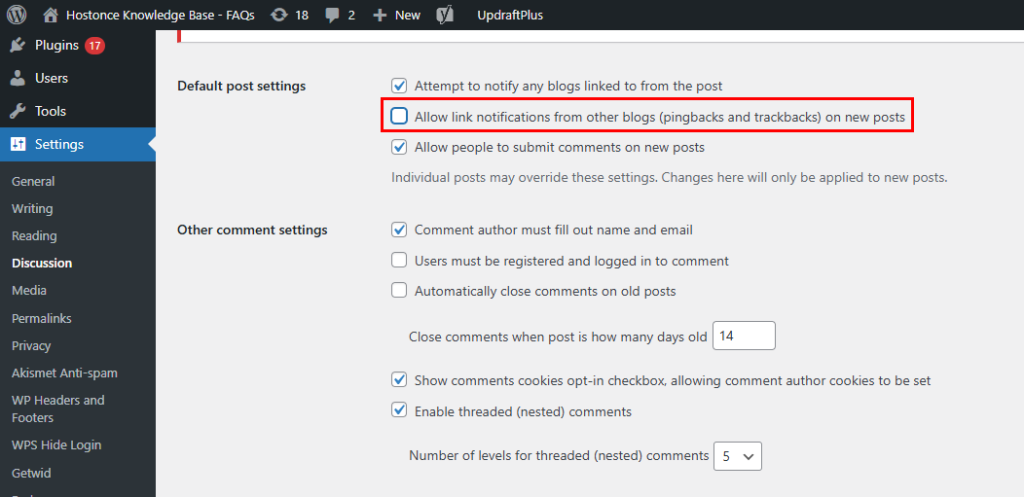
Pingbacks and trackbacks are WordPress functions that alert you when another website links to your posts. Yet, they may create additional server calls, which can slow down your website and increase page load times. To prevent this issue, it’s recommended to turn off pingbacks and trackbacks directly from your WordPress dashboard.
To prevent this issue, you should turn off pingbacks and trackbacks directly from your WordPress admin panel. You can do this by going to Settings > Discussion and unchecking the options related to link notifications. It reduces unnecessary server activity and also keeps your site running smoothly.
That’s it! By following these optimization tips, you can fix an overloaded WordPress website and make it faster, more reliable, and better optimized for your visitors.
Conclusion
An overloaded WordPress site can reduce your website’s speed, frustrate users, and negatively affect your search engine rankings. However, you can improve your site’s performance with a few simple optimizations. For instance, you can switch to an upgraded hosting plan, compress images, enable caching, use a CDN, remove unnecessary plugins, and clean up your database. In this article, we demonstrated each of these fixes to optimize an overloaded WordPress website.
FAQ
What’s the best way to improve my WordPress site’s speed?
You can improve speed by compressing images, using a caching plugin, enabling a CDN, cleaning your database, and upgrading to a reliable hosting provider optimized for WordPress.
Do plugins slow down a WordPress site?
Yes, installing an excessive number of plugins or using those with inefficient code can cause your website to run sluggishly. It’s best to deactivate or remove unnecessary plugins and keep only those that are lightweight, well-coded, and regularly updated.
What plugins can help improve my website?
Popular optimization plugins include WP-Optimize (for database cleanup), Smush or Imagify (for image compression), W3 Total Cache (for caching), and Autoptimize (for minification).
