It’s possible to get locked out of your WordPress admin dashboard because you could forget your password. Usually, you would click on the “Forgot My Password” option and reset your password through email. Unfortunately, this method proves difficult if you have no access to the email account.
You can manage your WordPress database directly with phpMyAdmin. With its access, you can change the password for your admin user and regain access to your site.
This guide will cover how to reset WordPress password phpMyAdmin so you can once again access your site.
Getting Started
Important considerations include:
- Resetting a password through phpMyAdmin requires some technical knowledge sometimes it is mentioned in your hosting plan documentation.
- Before proceeding to reset a WordPress password from phpMyAdmin, make a backup of your database to ensure you can restore your website to a functioning state in case anything goes wrong.

Experience Lightning-Fast WordPress Hosting with Hostonce!
Enjoy SSD and NVMe storage, automatic security updates, and a free SSL to keep your site secure and speedy.
Resetting WordPress Password Using phpMyAdmin
Following are the steps to resolve WordPress forgot password using phpMyAdmin:
1. Access phpMyAdmin:
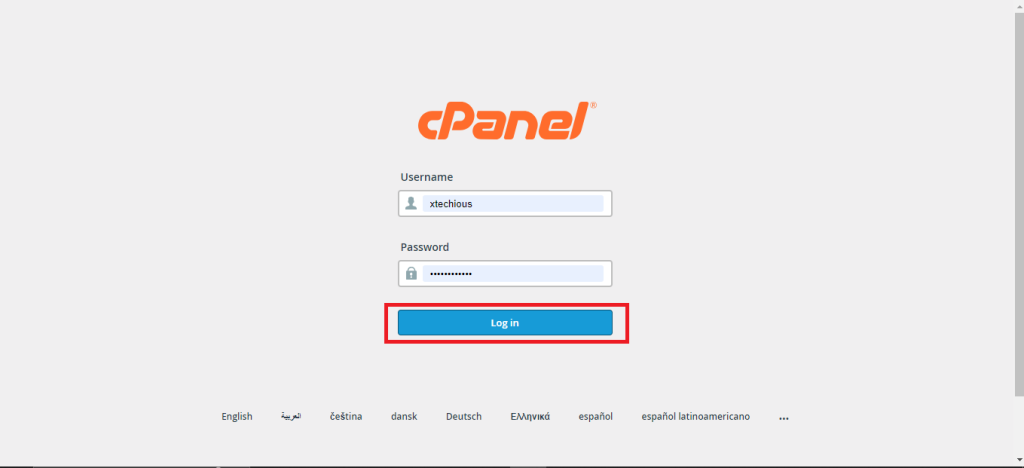
Log in to your web hosting control panel. In my case, I am using cPanel. Next login cPanel with provided credentials
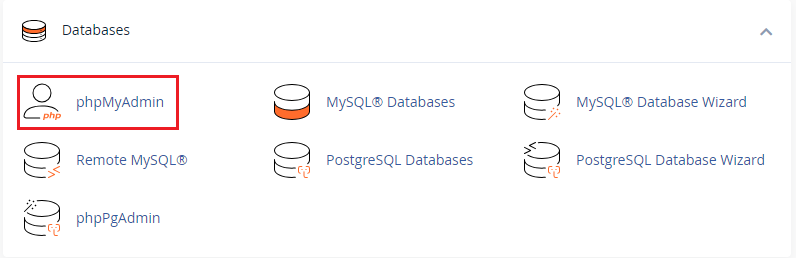
Locate the section for databases and access phpMyAdmin.
2. Identify Your WordPress Database:
Within phpMyAdmin, you will see a list of databases on the left-hand side.
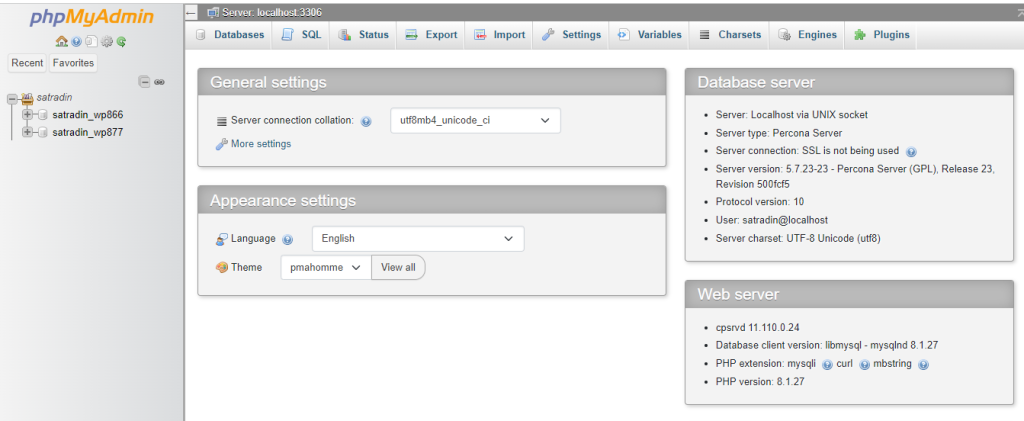
The name of your WordPress database typically starts with a prefix followed by “wp_” under your database name.
3. Locate the wp_users Table:
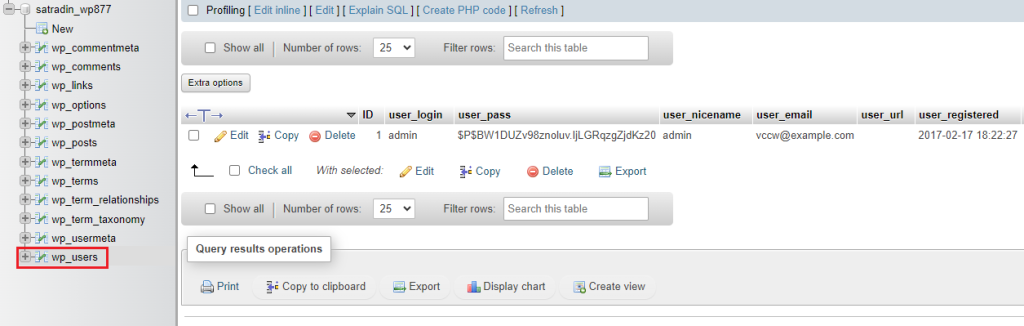
Click on your WordPress database name in the left panel. This will display all the tables associated with your website. Look for a database table named wp_users or something similar with a prefix.
4. Edit the User Record:
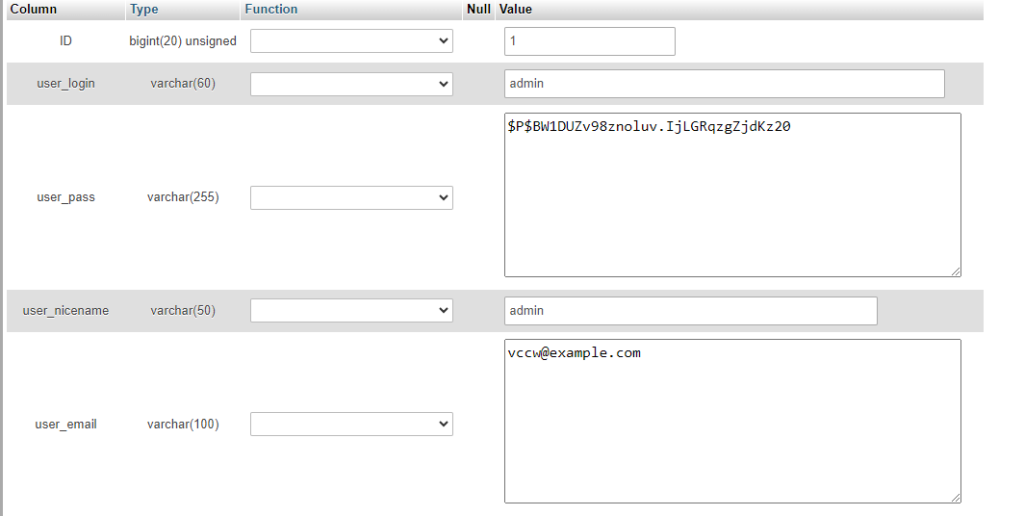
Click the “Edit” link next to the username whose password you want to reset. This will open a form containing user information.
5. Update the Password Field:
Locate the field named user_pass in the wp_user table. You will see a long encrypted string that is not the actual password.You need a WordPress password decrypt. Delete this value and enter your new desired password in the field.

6. Set the Password Encryption Function:
Next to the user_pass field, there’s usually a dropdown menu labeled “Function” or similar. Select MD5 from the dropdown menu. This ensures the password is stored securely using the MD5 hashing algorithm.

7. Save the Changes:
Once you have entered your new password and selected MD5 scroll down and click the “Go” button at the bottom of the form. This will change the WordPress password using phpMyAdmin.

8. Log In to Your WordPress Dashboard:
Now that your password is reset you should be able to log in to your WordPress admin dashboard using your new password.
Additional Notes
Following are the additional notes to the WordPress reset password database using phpMyAdmin:
- Choose a strong and unique password for your WordPress admin account.
- Consider using a password manager to generate and store complex passwords securely.
- Enable two-factor authentication for your WordPress login to add an extra layer of security. This requires a verification code from your phone or another device in addition to your password when logging in.
- Regularly update your WordPress core files, themes, and plugins to address any security vulnerabilities.
Conclusion
By following these steps, you can successfully reset your forgotten WordPress password using phpMyAdmin and regain access to your WordPress administration panel. Remember to back up your database first and choose a strong, new password for increased security.
FAQ
Can I reset my WordPress password without using phpMyAdmin?
Yes, you can use the “Lost your password?” link on the WordPress login page to reset it via email.
Why would I need to reset my WordPress password from phpMyAdmin?
If you can’t access your email or the “Lost your password?” link doesn’t work, phpMyAdmin offers an alternative method.
Is it difficult to reset a WordPress password using phpMyAdmin?
It’s straightforward if you follow step-by-step instructions from our guide, but it’s important to handle database operations with caution.
Will resetting my WordPress password affect my website’s data?
No, resetting your password won’t affect your website’s content or settings, as it only changes the login credentials.