When you need to restore a website it generally involves replacing the current website files and database with copies from a previous time known as a backup. You might mistakenly delete content, update a plugin causing issues, or introduce errors in the code. Restoring the website from cPanel features a user interface called the backup wizard or backup option that can protect your website.
In this post, we will discuss how to restore cPanel backup but ensure you have a recent backup before proceeding. It is important to create regular backups of your website to ensure a smooth recovery in case of unexpected issues.
Prerequisite
cPanel offers both full and partial backups. You need to confirm whether you have a full backup which includes files, databases, and emails, or a partial backup separated directories and and domain email forwarders. If your backup is not already on your local machine download it from the server using the “Download a Full Website Backup” or “Download a MySQL Database Backup” options in the Backup Wizard.
Restoring the website using cPanel
Restoring a backup can overwrite existing files and data. Be sure you are aware before proceeding and that you are restoring the correct backup file for your website. Following are the two methods of cPanel restore website:
Method 1: Use the Backup Wizard option
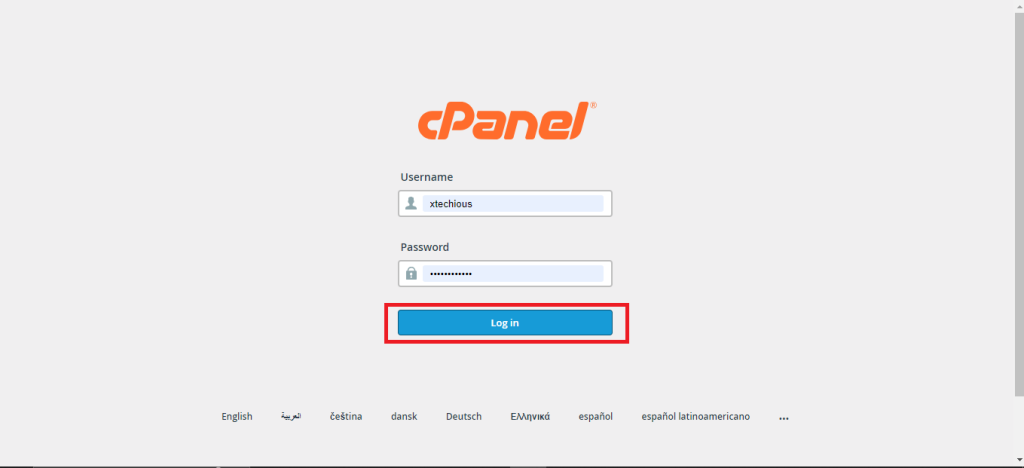
- Login to your cPanel you can access your cPanel account using your hosting provider’s login credentials.
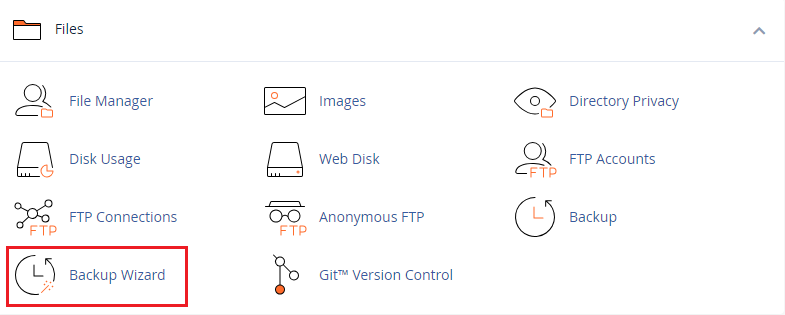
- Navigate the “Backup Wizard” icon, typically under the “Files” section.
- Click the “Restore” button instead of “Back Up.”
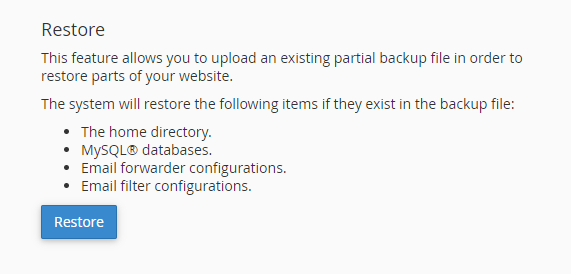
- Choose the restore type: Select the appropriate option based on your backup type. Here are the common options:
- Home Directory Backup: Restore files from cPanel in your website’s root directory.
- MySQL Database: Restore database from cPanel such as SQL file.
- Email Account Backup: Restores specific email accounts.
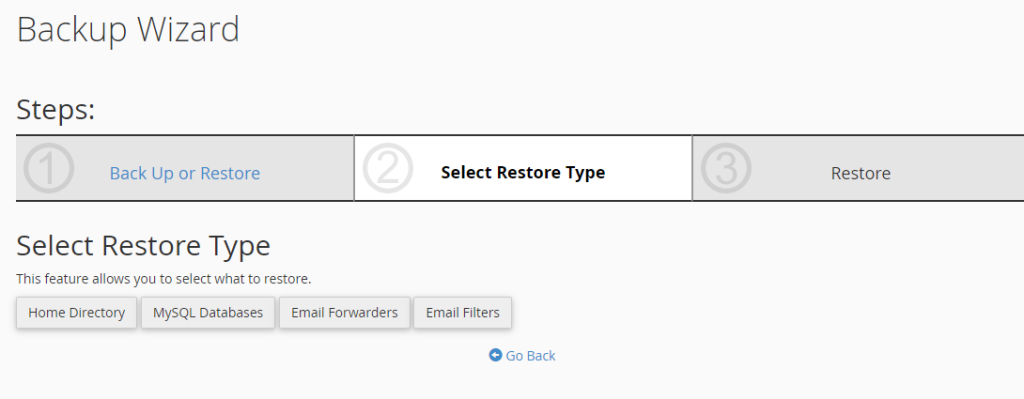
- Upload the backup file by clicking “Choose File” and select the downloaded backup file from your computer.
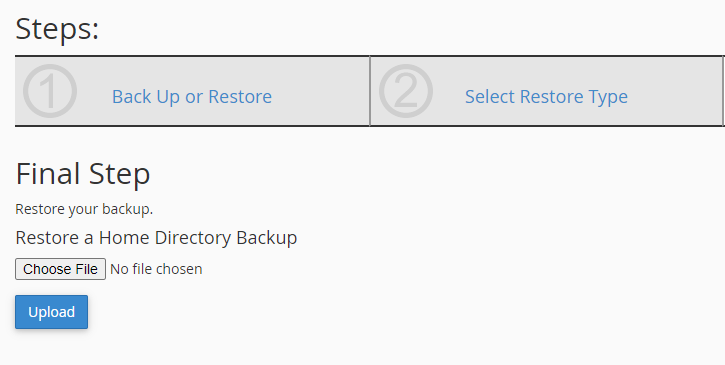
- Click “Upload” to begin the restoring website from backup. The duration depends on the size of your backup.

Try Hostonce’s Dedicated Servers for Ultimate Performance!
HostOnce gives you full control, powerful hardware, strong uptime, and top-level security. It’s a great choice for high-traffic websites and demanding applications.
Method 2: Use the Backup option
- Follow the same steps as the wizard option until you reach the cPanel dashboard screen.
- Locate the “Backup” option section usually under the “Files” section.
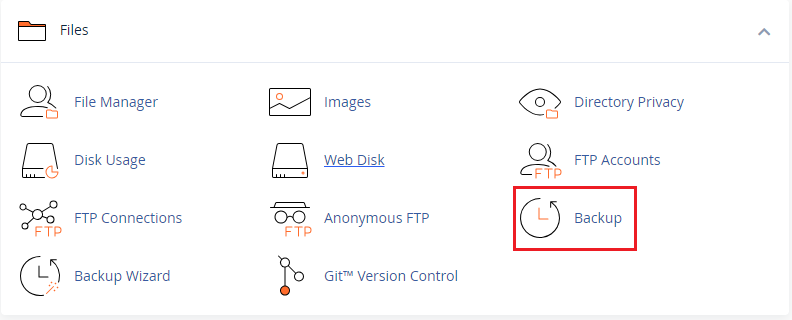
- Choose restoration type:
- Home Directory Backup: Restore website files only by choosing the “Restore a Home Directory Backup” option. Upload the relevant zip file.
- Database Backup: If you have a separate database backup of a SQL file proceed to “Restore MySQL Databases Backup” and upload the file.
- Email Backup: For specific email accounts handling two options related to “Restore Email Forwarders” or “Restore Email Filters”.
- Full cPanel Restore: For a complete restoration of a website include all mentioned above.
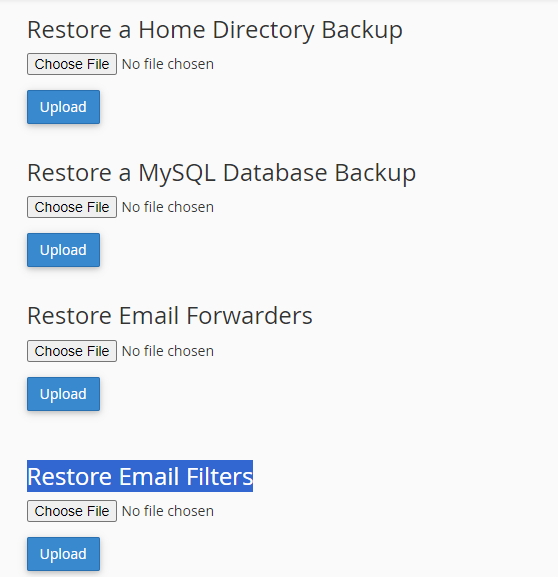
- Upload the chosen backup file and proceed with the extraction.
- Watch the restoration progress and refresh your website to confirm the successful restoration.
Additional Steps
When you restore your website using cPanel or any other hosting provider panel there are two steps required before restoring the backup:
- MySQL Database: Create a new database user with credentials identical to the pre-backup ones. Assign all privileges.
- Emails: For specific needs navigate to Mail within the uploaded backup folder and copy contents to your cPanel’s Mail section.
Important Considerations
Following are some important considerations when you restore the website using cPanel backup:
- Backup compatibility: Ensure the backup file matches your current cPanel version.
- Data loss potential: Restoring might overwrite newer data. Consider backups before the incident.
- Specific steps: Consult the documentation for detailed instructions and potential variations in cPanel interfaces.
Conclusion
Regular backups are crucial for restoring your website in case of emergencies. Practice restoring from backups frequently to ensure smooth execution when needed. Restoring your website from a cPanel backup involves identifying your backup type, locating the file, accessing your cPanel, finding the restore option, and following the specific instructions for your backup type. Remember to back up your website before proceeding and ensure you are restoring the correct file.
FAQ
How do I back up my website using cPanel?
Access cPanel then navigate to the backup section and create a full website backup.
Can I restore my website without technical skills?
Yes, our step-by-step guide simplifies the process making it accessible to users with basic knowledge.
Is it essential to regularly back up my website on cPanel?
Yes, routine backups are crucial. They safeguard against data loss making recovery easier in case of issues.
Will restoring my website from a cPanel backup affect my recent changes?
Yes, the restoration process reverts your website to the backup state so any changes made after the backup will be lost.