
Rsync, short for “remote sync,” is one of the most powerful tools available in Linux for file synchronization and transfer. You are backing up data, mirroring directories, or syncing files between servers. Rsync offers speed, efficiency, and flexibility.
This article will discuss with you everything you need to know to master the rsync command in Linux, from basic syntax to advanced use cases.
What Is Rsync
Rsync is a command line utility for efficiently transferring and synchronizing files across different systems or locations. It uses a delta transfer algorithm, which means it only transfers the differences between source and destination files, making it faster than traditional copy methods.
Key Features
The following are the rsync command Linux key features described below:
- Incremental file transfer
- Compression and encryption support
- Preserves file permissions, timestamps, and symbolic links
- Works locally and remotely via SSH
- Supports exclusion and inclusion patterns
Installing Rsync
Most Linux distributions come with rsync pre-installed. To check if it’s installed:
rsync --versionIf it is not installed, you can install it using your package manager:
Debian/Ubuntu
sudo apt install rsync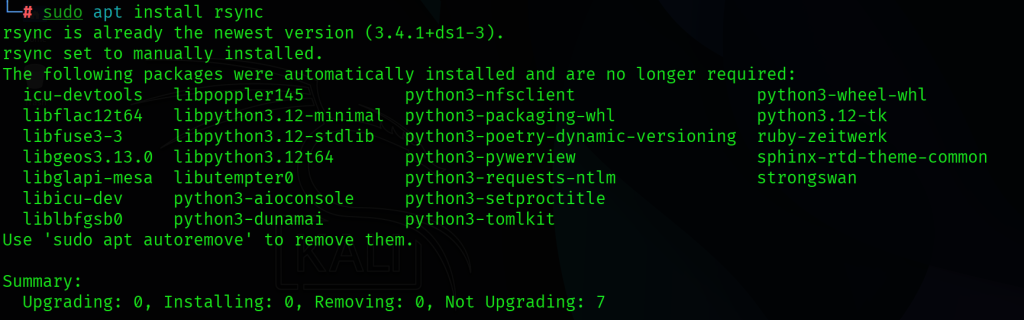
Red Hat/CentOS/Fedora
sudo yum install rsyncArch Linux
sudo pacman -S rsync
Hostonce’s Shared Hosting offers fast, secure, and scalable NVMe SSD hosting with easy customization, strong uptime, and great value.
Basic Syntax
The basic syntax of the rsync command in Linux:
rsync [options] source destination- source: The file or directory you want to copy
- destination: Where you want to copy it to
rsync Linux examples:
rsync -av /home/user/docs/ /backup/docs/
This command copies all files from /home/user/docs/ to /backup/docs/ with the following options:
-a: Archive mode (preserves permissions, symbolic links, etc.)-v: Verbose output
Advanced Rsync Techniques
1. To sync only new or changed files, you can use the following:
rsync -av --update /source/ /destination/2. For bandwidth limiting, type the following:
rsync -avz --bwlimit=1000 /source/ user@remote:/destination/Limits bandwidth to 1000 KB/s.
3. For partial transfers and resumes, use the following:
rsync -av --partial --progress /source/ /destination/4. If you want to create a log file of your desired output, use the following:
rsync -av /source/ /destination/ >> rsync.log 2>&1Troubleshooting Tips
The following are the troubleshooting tips rsync Linux command:
- Permission denied: Check file permissions or use
sudo. - Connection refused: Ensure SSH is running on the remote host.
- Unexpected deletions: Use
--dry-runbefore--delete. - Slow transfers: Use
-zfor compression and--bwlimitto manage bandwidth.
Final Thoughts
Rsync is an important tool for file synchronization in Linux. Its flexibility, speed, and efficiency make it powerful for system administrators, developers, and power users alike. Whether you are backing up your home directory, deploying a website, or syncing servers, mastering rsync will save you time.
FAQ
What is the rsync command in Linux?
Rsync is a tool for fast and efficient file synchronization and transfer.
How do I install rsync on Linux?
Use your package manager, e.g., sudo apt install rsync on Ubuntu.
Can rsync copy files between servers?
Yes, rsync can transfer files over SSH between remote systems.
How do I sync directories with rsync?
Use rsync -av source/ destination/ to sync folders.
Does rsync preserve file permissions?
Yes, using the -a (archive) option preserves permissions and timestamps.