Nobody wants to enter a messy shopping center where frustration comes before products. An online shop is no different. You will have to organize your products so that the customers can find easily what they want. I will aid you in the process of displaying WooCommerce show categories on shop page.
Table of contents
- The Importance of WooCommerce Categories
- The Significance of Displaying Categories in WooCommerce
- Setting Up WooCommerce Product Categories
- Category Creation in WooCommerce
- WooCommerce Category Display Type
- Organizing WooCommerce Categories
- SEO Optimization of WooCommerce Product Categories
- Common Pitfalls in Displaying WooCommerce Product Categories
- Frequently Asked Questions

The Importance of WooCommerce Categories
WooCommerce helps you sort products in an organized way. Categories and subcategories are used to simplify the process that should feel straightforward. Let me guide you through the steps that can help you to show categories in WooCommerce.
Product categories are large groupings of products on the basis of their shared features or characteristics. For instance, if you run a book store, your categories must include History, Fiction, Self-Help to specify genres for the readers.
Every category may have its own subcategories where more specifics are allowed. For example, in the History section, you could American History, Pakistani History, or Chinese History.
This is how you create a more user-friendly and organized store. It attracts customers and builds a positive image of your brand.

“Display WooCommerce Categories Brilliantly!”
With the help of Hostonce, show WooCommerce categories on shop page in a way that wins your customers!
The Significance of Displaying Categories in WooCommerce
There are many reasons why displaying categories in WooCommerce is crucial.
Fast Purchase
Clear categories invite customers, which helps them to decide and buy quickly, boosting sales.
Fine Marketing
Categories highlight products, which makes it easy to promote seasonal items and other sales.
SEO-Friendly
Relevant categories increase the visibility of your store in search engine results, gaining further organic traffic.
Good Organization
Grouping of products by categories keeps your store clean and friendly, enhancing the experience.
Easy Navigation
Categories allow customers to locate what they want quickly. Saves time and hassle, increasing the user value.
Setting Up WooCommerce Product Categories
You have to learn how to create product categories before you want to display them.
Before you launch a store, you will have to decide on Parent Categories. You will use these categories to define product groups. Then you will organize them further in Subcategories.
For an apparel store, your parent category could be Men’s Wear and subcategories could include Shirts and Pants.
Category Creation in WooCommerce
Creating a product category is quite a simple task. Just pay a little attention:
- Access your WordPress Dashboard
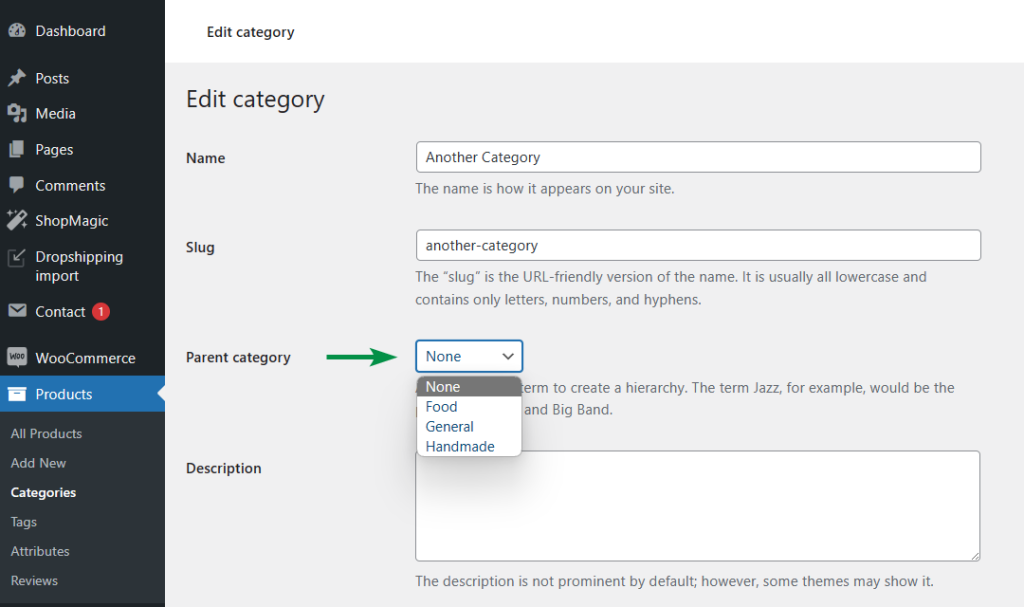
- Find Products and then Categories in the left menu.
- Enter the Category Details
- Name: Add a thematic name for your parent category. Example: Wear.
- Slug: This is a version of your name that is URL-friendly. WooCommerce generates one by default if you leave it blank.
- Parent category: Do nothing if it is a main category. If you have to add it as a subcategory, then go to the dropdown menu to choose a Parent Category.
- Description: Give a brief summary of what the category has.
- Display Type: Decide what customers see first when they view the page.
- Subcategories: Show subcategories instead of separate products.
- Save Categories
- Select Add New Category and it will show up on the right.
- Your new ‘Wear’ category is created.
Congratulations! You just learned how to create a category in WooCommerce.
WooCommerce Category Display Type
After the creation of WooCommerce categories, the next step is to display them. The two main ways to get this done are the Easy Approach and the Code Approach. Easy Approach uses the built-in system of WooCommerce and requires no coding. Code Approach requires coding for better customization.
Easy Approach
This type is usually considered user-friendly.
- Access the WordPress Dashboard.
- Visit Products and then Categories.
- Enter name, slug, parent category (if any), description, and thumbnail (optional).
- Select Add New Category.
Go for this type when you want to set up your store without coding or when you have to maintain categories visually.
Code Approach
Use this type if you want to customize WooCommerce through coding. Developers prefer this the most.
Code Example (via PHP)
wp_insert_term(
‘Wear’, // Category Name
‘product_cat’,
array(
‘description’ => ‘Top wear of all types’,
‘slug’ => ‘Wear’,
‘parent’ => 0
)
);
Use this type of approach when you want to add categories via code e.g. during bulk import or theme setup.
Organizing WooCommerce Categories
Woocommerce show categories on shop page are possible only through an organized way. It does not just make store management effective, it increases user engagement as well. There are some business storage practices that can help you organize the categories and subcategories:
- Your category names should be simple and easy to understand.
- Do not have too many main categories.
- Your subcategories must be specific and relevant to the main categories.
- You should categorize products on the basis of their functionalities and features.
- Optimize the categories.
- Review your organization of categories and make changes if necessary.
- Make sure your store has a mobile-friendly and responsive design.
- Enable breadcrumbs so that your users can navigate through product pages, categories, and subcategories.
Feel free to check out our similar blogs to understand the subject matter better.
SEO Optimization of WooCommerce Product Categories
This is how you can optimize your WooCommerce hosting or product pages in a SEO-friendly way:
- Conduct a proper keyword research.
- Optimize names of your categories and subcategories.
- Create SEO-focused URLs.
- Craft keyword-rich and unique descriptions for all categories.
- Use high-quality images and optimize them well for fast loading.
- Use internal links.
- Make sure to add schema markup to your category pages.
- Use SEO plugins, such as Rank Math or Yoast SEO, for the optimization of your WooCommerce store.
Common Pitfalls in Displaying WooCommerce Product Categories
Users run into usual issues when they want to display product categories (like how they have issues with ecommerce hosting and similar). We want to discuss some of them so you can avoid or solve them in no time:
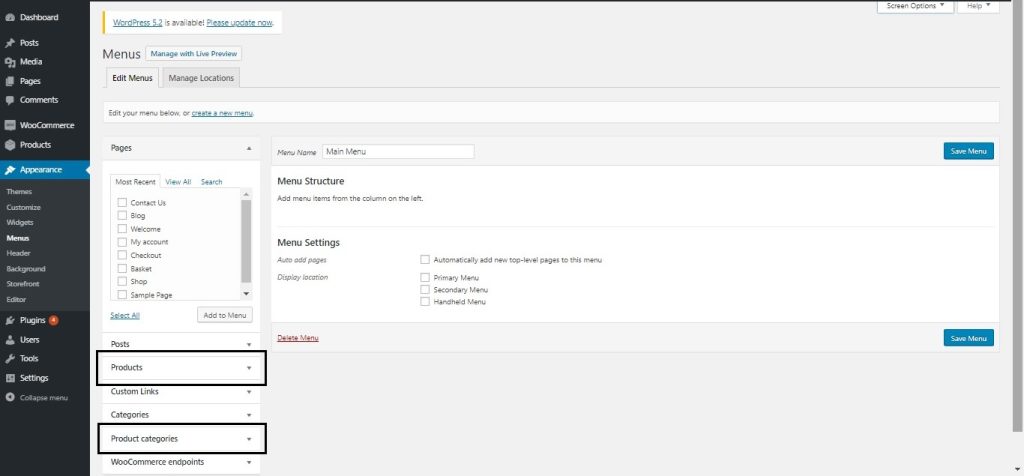
It happens often that categories do not show up on the menu even if they are identified. This is how you resolve this issue:
- Use the WordPress Dashboard to go to Appearance and then Menus.
- Go to the ‘Screen Options’ tab and ensure the “Product Categories” box is checked.
- Product categories can be seen in the top-right corner now. Click “Add Menu” once you are done selecting the categories.
Issue 2: Category Images Not Showing Up
There are times when category images are invisible on your WooCommerce store. You can fix it:
- Go to Categories from Products.
- Click “Edit” below the category name you want.
- Go to the “Thumbnail” section as you scroll down and click “Upload/Add image” so that you can set a category image.
- Save changes.
Issue 3: Wrong Order of Categories
You might face the wrong order of the product categories.
- Again Products and Categories.
- Simply use the drag-and-drop feature to adjust categories however you want.
- Save changes.
Issue 4: Category Pages Not Indexed
Some users have reported their category pages not being indexed. How do you play with search engines, then? There are two viable solutions:
- Go to your plugin settings and check if your category pages are set to “no index.” If they are set like that, change them.
- Go to Settings and then Reading. Analyze the “Search Engine Visibility” setting. Uncheck the “Discourage search engines from indexing this site” option.
Do not forget to contact the support team of Hostonce for further information!
Frequently Asked Questions
How to fix categories not showing on the shop page?
Go to the “Customize” option. Select WooCommerce and then Product Catalog from there. Check if you need to set it to show categories. If so, be done with it.
Can images be added to categories?
It is possible. You may edit categories and upload images in the Thumbnail section.
How do we differentiate between categories and subcategories?
Categories are main grouping of your products. For specifics of those products, you create subcategories.
Can SEO plugins be used for categories?
Yes. SEO plugins like Rank Math or Yoast are in common use for the optimization of categories.
