The WordPress 429 error is quite a nuisance in the world of website management. The error causes issues for your website and visitors. Ignoring this error results in bad site performance and reputation. This guide helps you understand what this error is, why it occurs, and how to fix it.
Table of contents
429 Too Many Requests WordPress
The WordPress 429 error shows up when a server detects numerous fast requests from the same place. Server settings, traffic overload, bad themes and plugins, or unreliable firewalls are why this error occurs. It is frustrating for visitors to face this error; you might lose them this way.
It may hurt your reputation how your website is displayed in search engines. Understand one thing: fixing this error as soon as possible is what you should focus on.
Decoding the HTTP 429 WordPress Error Code
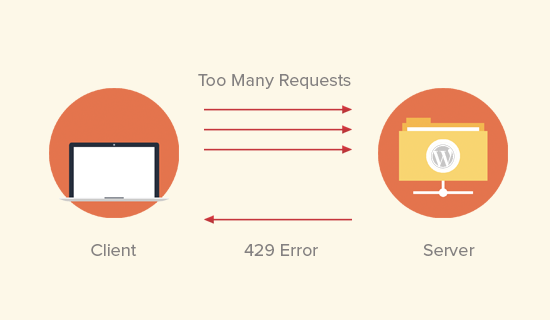
The 429 Too Many Requests WordPress error occurs when there are too many requests too fast for the server to handle. When the visitors ask your website for specifics like data or web pages, there is a limit to how much a server can manage at once. The server or services you use, such as hosting providers or CDNs, set this limit.
The server shows the “429” code once you cross this limit. The server is basically apologizing that it cannot answer too many questions at the same time. The “Too Many Requests” is a simple message that explains the issue.
Impact of the Too Many Requests WordPress Error
You should fix 429 error WordPress as soon as possible to avoid harm that impacts your website.
- Slow loading. Too many requests can slow down your website, hurting SEO and upsetting visitors. Ooo, bad!
- Users may leave your website and never return again, ultimately costing you lost engagement and money.
- SEO problems. Google cares about user experience and site speed. Frequent 429 errors can lower the search engine ranking of your website.
No website owner wants this issue to affect their investment. Imagine lost visitors and money. It is in your best interest to fix the WordPress 429 error as soon as possible. You do not want to be late on this for the reasons aforementioned. Our trusted hosting service has stepped up to help you fix the error. Carry on with the guide!
Run WordPress Site smoothly! Do not let the WordPress 429 error slow your progress — contact Hostonce support team today to have your website perform at its best! Best WordPress Hosting!

Fix Problematic Errors with Hostonce Now!
WordPress errors can be painful to deal with but here is the good news: Hostonce can help you fix all of them in no time!
Solutions to Fix the WordPress 429 Error
About time you learned how to fix the WordPress 429 error. Without any further ado:
1. Identify and Disable Bad Plugins
- Use your credentials to log in to your WP admin panel.
- Go to the “Plugin” section in your dashboard.
- Deactivate plugins one by one.
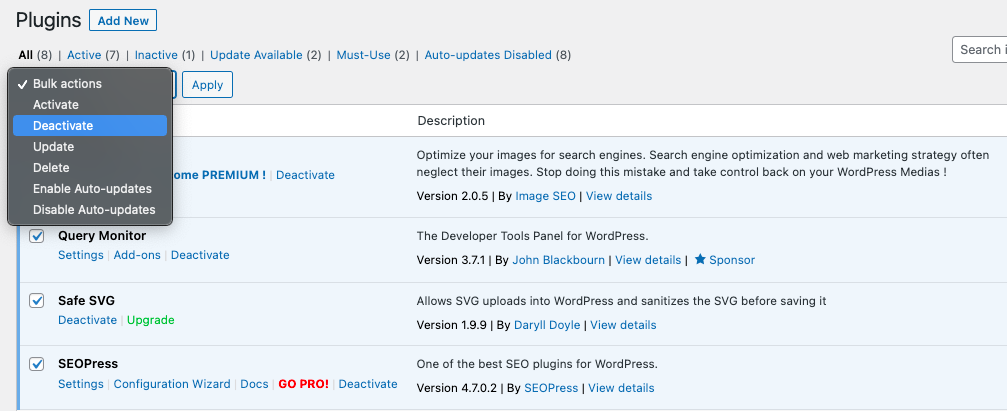
- Recheck your website if the error is still there.
- If the error disappears after deactivating a particular plugin, that plugin is the culprit.
- Re-enable every other plugin except the one that is the trouble.
- Look for alternate plugins or contact the developer of that plugin for support.
2. Set the Request Rate Limit
- Access your server settings depending on your hosting environment. This may involve your hosting control panel or using FTP.
- Check if your server configuration, firewall settings, or security plugins have any rate limit settings.
- Set the rate limit per requirement to manage your web traffic while keeping up protection against abuse.
3. Optimize Your Site for Efficiency
- Use online tools or image compression plugins to compress and optimize images.
- Use responsive image tricks to serve right-sized images based on the user’s device.
- Combine JavaScript and CSS files to minimize the number of HTTP requests.
- Store static assets locally on users’ devices via browser caching.
- Install a cache plugin such as WP Super Cache or W3 Total Cache to make static HTML versions of your pages. It reduces the load on your server.
4. Check for DDoS Attacks
- Review your website server logs and traffic patterns.
- Search for sudden spikes in traffic that result in a Distributed Denial of Service (DDoS) attack.
- Use a DDoS-protected VPS or implement DDoS mitigation measures, such as a rate limit on your server.
- Use a web application firewall (WAF) to filter out bad traffic.
Do these steps and check your website to make sure the WordPress 429 error is fixed. Remember that solutions can vary as every site is different. Completing each of these tasks means that you have done your part to fix the WordPress 429 error, and now the website should run well. A side note: follow Hostonce articles and be more informed on how to deal with such errors.
Conclusion
Fixing the WordPress 429 error might be tough, but it is not impossible. Keep your themes, plugins, and site updated. Choose a good WordPress hosting and security to ensure maximum performance for the user. A healthy WP website testifies to your dedication to your audience.
Frequently Asked Questions
What causes the 429 Too Many Requests error in WordPress?
DDoS attacks, faulty plugins, misconfigured firewalls, and server rate limits are common causes.
How do I fix the WordPress 429 error quickly?
Disable plugins one by one. Check server rate limits. Use caching for server load reduction.
Can DDoS attacks trigger the 429 error?
Yes. Malicious traffic from DDoS attacks or bots can overwhelm your server, resulting in this error.
How can I prevent the WordPress 429 error in the future?
Use a WAF. Keep themes and plugins updated. Set rate limits. Pick reliable hosting.
