
Website speed is an important factor in user experience and SEO. One of the most effective ways to improve performance is by leveraging browser caching through Expires Headers.
In this article, we will discuss with you what Expires Headers are, why they matter, and how to add them to your WordPress site using both plugins and manual methods.
What Are Expires Headers
Expires Headers are HTTP response headers that tell a browser how long to cache specific resources (like images, CSS, JavaScript). When a user visits your site, their browser stores these files locally. On subsequent visits, the browser loads them from the cache instead of downloading them again, resulting in faster page loads.
How They Work
The server sends an Expires header with a future date. The browser stores the file until that date. After expiration, the browser fetches a fresh copy from the server.
Why Add Expires Headers
Add Expires Headers WordPress offers several benefits:
- Expires headers reduce load times for repeat visitors.
- Expires headers help fewer requests to the server.
- Faster sites rank higher in search engines.
- Visitors enjoy smoother navigation.

Register Your Hostonce Domain in Minutes
Our quick and beginner-friendly guide helps you secure your perfect domain name without any hassle. Get started and launch your online presence today!
Expires Header Verification
Before making changes, use tools like:
- GTmetrix: Shows caching issues under “Browser Caching.”
- Google PageSpeed Insights: Highlights missing or misconfigured headers.
- Pingdom Tools: Offers detailed performance reports.
Methods to Add Expires Headers in WordPress
You can add Expires Headers using plugins or by editing server files. Let’s explore both.
Method 1: Using a Plugin
WP Rocket is a premium caching plugin that automatically adds Expires Headers.
Go to your WordPress dashboard, navigate to the Plugins section
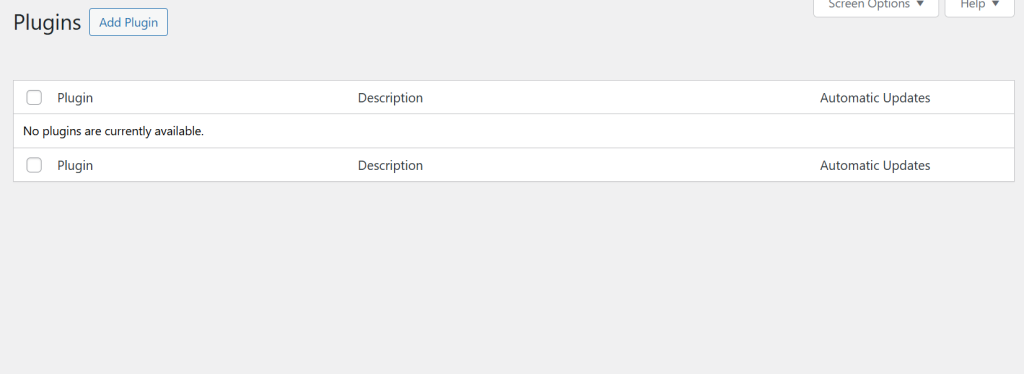
Click Add New Plugin, search for “WP Rocket”. Click Install, then Activate the plugin.
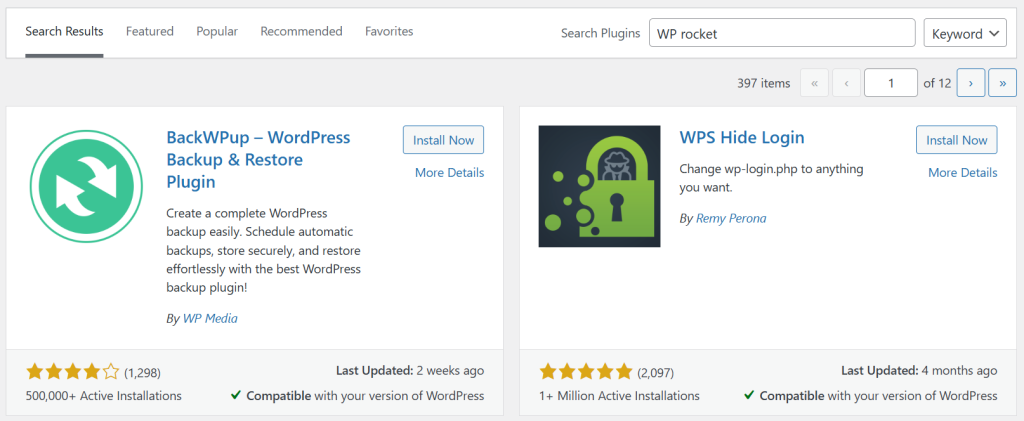
It modifies your .htaccess file to include Expires Headers.
You can use other plugins like W3 Total Cache, which offers browser caching settings. Another option is LiteSpeed Cache, which works well with LiteSpeed servers. Lastly, Autoptimize focuses on optimizing CSS, JS, and HTML.
Method 2: Editing .htaccess File
If your host uses Apache, you can add Expires Headers directly. But first, always back up your .htaccess file before editing.
Access your site via FTP or File Manager. Locate the .htaccess file in the root directory. Add the following code:
<IfModule mod_expires.c>
  ExpiresActive On
  ExpiresByType image/jpg "access plus 1 year"
  ExpiresByType image/jpeg "access plus 1 year"
  ExpiresByType image/gif "access plus 1 year"
  ExpiresByType image/png "access plus 1 year"
  ExpiresByType text/css "access plus 1 month"
  ExpiresByType application/javascript "access plus 1 month"
  ExpiresByType text/html "access plus 1 week"
</IfModule>
ExpiresActive On: Enables the module.ExpiresByType: Sets expiration for each file type.
Method 3: NGINX Configuration
If your server uses NGINX, you will need to edit the configuration file.
Access your server via SSH. Edit the nginx.conf file. Add the following lines:
location ~* \.(jpg|jpeg|gif|png|css|js|ico|svg)$ {
  expires 30d;
  add_header Cache-Control "public";
}
Restart NGINX after saving changes.
Final Thoughts
Adding Expires Headers is a simple yet powerful way to boost your WordPress site’s performance. Whether you prefer plugins or manual configuration, the benefits include faster load times, better SEO, and happier visitors.
FAQ
What are Expires headers in WordPress?
They are HTTP headers that tell browsers how long to store files before reloading them from the server.
Why should I add Expires headers?
They help improve site speed, reduce server load, and enhance SEO rankings.
How do I add Expires headers in WordPress without a plugin?
You can edit your .htaccess file or server configuration to add them manually.
Can I use a plugin to add Expires headers?
Yes, caching plugins like WP Rocket or W3 Total Cache can add them automatically.
Do Expires headers affect SEO?
Yes, faster loading times from caching can positively impact search engine rankings.