A website homepage is the first sight you experience when you visit a website. The same goes for a WordPress site. Visitors are likely to spend more time browsing your website if they find the homepage meaningful enough. WordPress home page change of your website can turn your visitors into customers.
Why Change Home Page WordPress?
Most WordPress themes enable your homepage to display recently uploaded pages by default. It can become an issue if your live site does not have a blog or if you are not willing to set it as the website’s initial content.
Having a custom home page in WordPress can be advantageous. It is extra helpful when there is a promo on your online space. Displaying it on the front can generate positive results: many visitors and sales.
Customization of the first page allows you a better chance of achieving your goals. Set the content that you want your visitors to see the most as your home page.

Facing Issues Changing WordPress Home Page?!
Follow this Hostonce guides to change your WordPress settings into a presentable shape and turn every visit into an opportunity!
How to Change WordPress Home Page
There are four easy methods to change the WordPress home page of your website. All of those can be done via the WordPress admin dashboard. You are free to choose whatever floats your boat.
1. Setting a Post as a Homepage
WordPress allows you the option to set any post as your homepage. This works to your benefit if you do not want to make your homepage from scratch. Be ready with a WordPress post beforehand. This is how you can change your homepage with a WordPress post:
- Design a post you want to set as your homepage. Select Stick to the top of the blog box. This is how it always appears at the top of the blog post list.
- Save the changes by clicking Update.
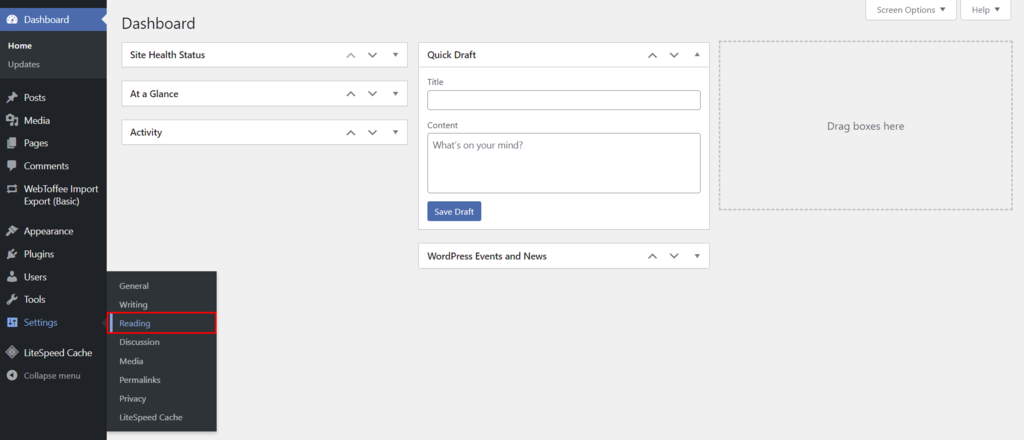
- Go to Settings and then Readings from your website dashboard.
- Leave the “Your homepage displays” option to its default value. Display the latest blog posts. Set the number of your choice at the “Blog pages show at most” to just 1. Set it to show a full text.
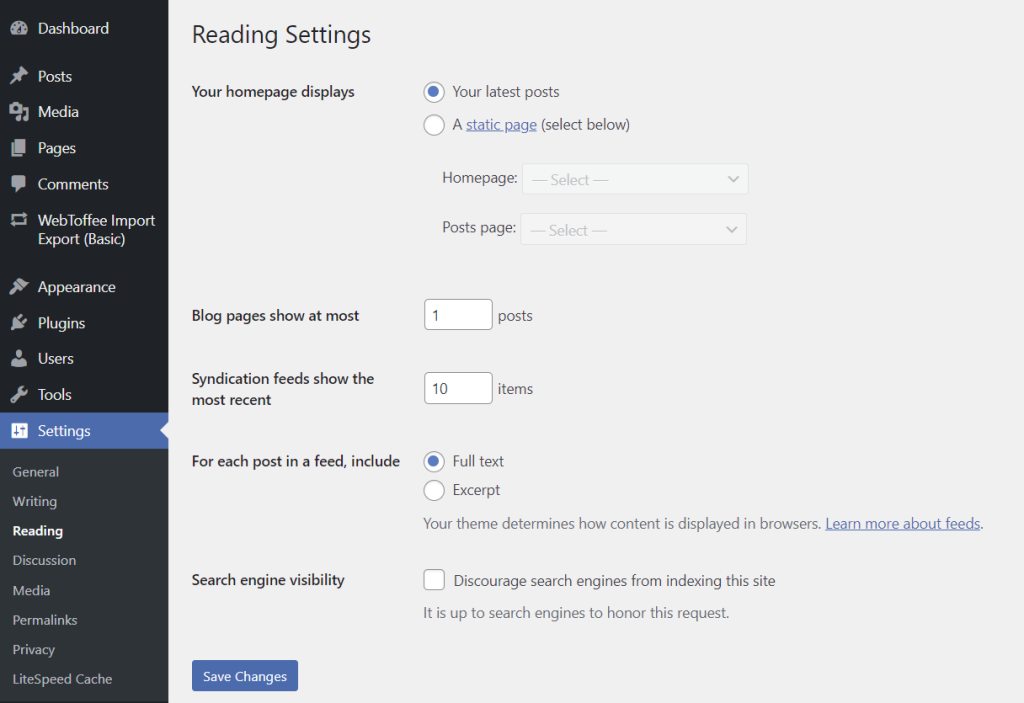
- Save Changes. Now the post of your choice should be displayed as your WordPress homepage. You can replace the post anytime.
2. Custom WordPress Template as the Home Page
A custom WordPress template gifts you with flexibility in design choice. Many WordPress themes have pre-built blog page templates you can change and reuse for multiple purposes. Create a custom homepage template to change the design and content however you like. Only make important changes.
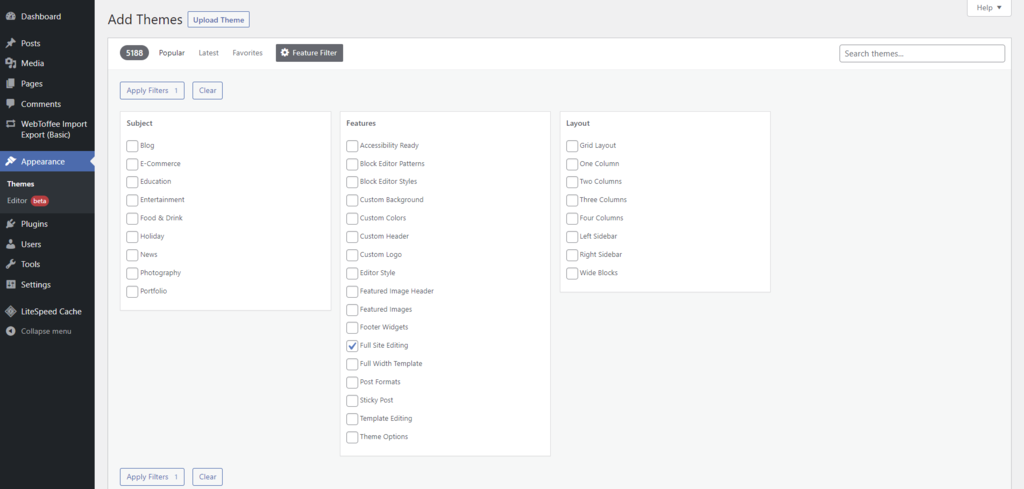
Use the WordPress Site Editor to implement this method. Your theme should support full site editing for it to work. Make sure to follow the given steps:
- Go to Appearance and then Editor. Access them on your website dashboard.
Your current theme may not support this feature if you cannot find the WordPress Site Editor.
- The top left corner of the page will have the WordPress symbol. Click on it. Select Templates and use the Add New button in the right corner.
- Select the Front Page option.
- You will be redirected to the WordPress Theme Editor. Design your and change your homepage however you wish.
- Hit Save once you are done making your home page.
- A new custom page will appear if the process goes successfully. Use the Site Editor to modify the template if you want to update the look of your home page.
3. A Static WordPress Home Page
This method is recommended for websites that do not require frequent updates. A static homepage will not change unless you manually update it. The steps to a static page are:
- Navigate to Pages on your dashboard. Go to Add New.
- Make the new static page however you want and then hit Publish.
- Go to Settings and then Reading. Choose the “A static page” option for the “Your homepage displays” setting.
- Click on the drop-down menu. Pick the new static page.
- Keep the default settings of other sections unchanged. Click Save Changes.
4. Edit the Homepage Through Theme Customizer
You can use the Theme Customizer to change and edit the home page. It is the easiest way to change the home page.
- Navigate to your website dashboard. Go to Appearance and then Customize.
- Click on the blue pencil icons or use the customization tools from the left menu tabs. This is how you change the given website elements.
- Click on the Publish button to save the changes once you are done.
Changing the home page in WordPress is an easy task! All it demands is some attention and will.The built-in customizer has limited options for basic modifications. Our recommendation is to install a page builder plugin.
Additionally, trusted WordPress hosting can improve many things for you. Contact the Hostonce support team for further information; we are more than excited to help you out!
Frequently Asked Questions
How to change the front page in WordPress?
Simply create a new page or choose an existing one if you want to replace your current homepage. Go to Settings and Reading. Select a static page. Set the new page as your homepage. Save the settings to apply the change instantly.
What is the difference between a static page and a blog page in WordPress?
A static page displays fixed content that doesn’t change unless you edit it manually. On the other hand, a blog page automatically shows your latest posts. They update each time you publish new content.
Can I set a post as my homepage in WordPress?
Yes, you can. Create or select a post and check “Stick to the top of the blog.” Adjust the reading settings to display only one post on the homepage. This works best if your site focuses on a single featured article or announcement.
Why is my homepage not updating in WordPress?
Clear your browser cache and any WordPress caching plugins if your homepage is not showing recent changes. Double-check that the correct page is selected as the homepage under Settings and then Reading. Ensure you have saved and published all edits if you are using a page builder.
