Quite a frustrating thing to deal with when you are stuck on a login page. How lucky for us that this issue is solvable. Let us uncover the methods we can use to solve the WordPress login issue.
Table of contents
Key Takeaways
- WordPress Login Redirect Loop Fix has three ways
- Clearing Cookies and Browser Cache helps a lot
- Try deactivating themes and plugins
Three Ways for WordPress Login Redirect Loop Fix
WordPress login redirects are common. It is a weird situation where you enter correct login credentials and struggle against repetitive redirecting to the WP-Admin page. There are multiple causes for this. We will consider those and move on to methods that can fix the WordPress login loop issue.
WordPress uses cookies for the purposes of session management and user authentication. Website caching is enabled for faster loading.
Cookies and cache are essential, yet they can be the main culprits of the login loop issue. The problem often has a recurring scenario. Your browser cache and cookies use old WordPress files or carry old information. That is when this error shows up.
These are the solutions you can use to clear browser cache and cookies in common web browsers.
Google Chrome
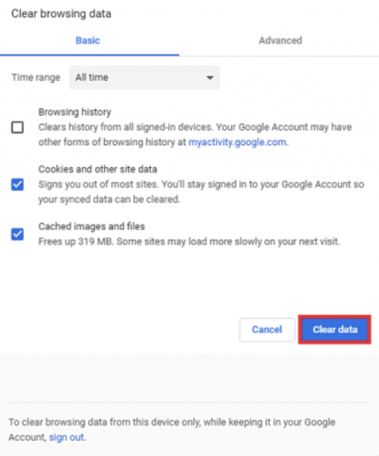
1. Click the menu on the top right. Select History. Press Ctrl+H as an alternative.
2. Select Clear browsing data from the column on the left.
3. Tick the options of Cookies and other site data + Cached images and files once the dialog box appears. Set All time as the time range. Click Clear data.
Mozilla Firefox
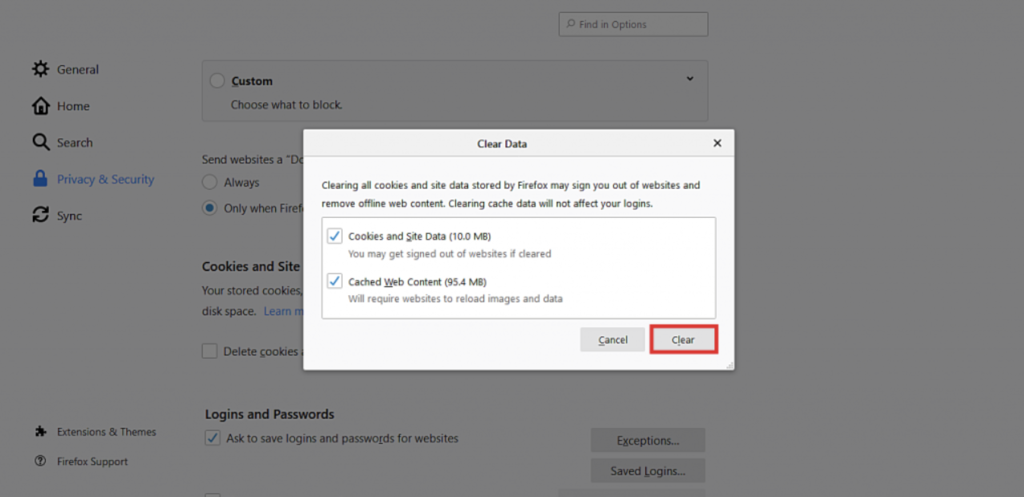
1. Go to the top right corner and select the hamburger button. Go to Options and then Privacy & Security.
2. Look for the Cookies and Site Data section. Select Clear Data.
3. Check the Cached Web Content and Cookies and Site Data. Click Clear.
Safari
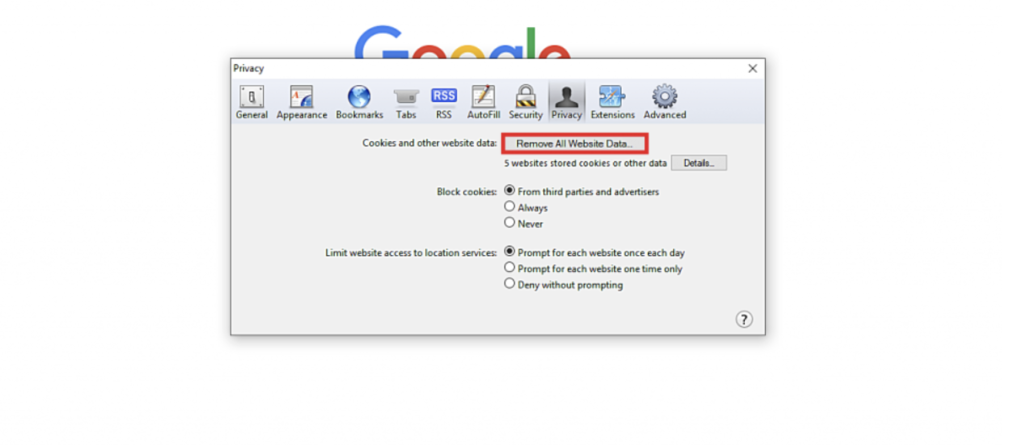
1. Go to Preferences and then Privacy. Press Command+ as an alternative.
2. Select Remove All Website Data. Click Remove Now.
Microsoft Edge
1. Click the three dots in the right corner. Select History.
2. Use the Clear history link. You have the Clear Browsing Data menu.
3. Tick the options of Cached data and files and Cookies and saved website data. Click Clear.

Ready for the finest WordPress management?
Host your site with Hostonce and enjoy faster performance with expert support and easy troubleshooting!
2. Restoring Default .htaccess File
The WordPress login loop issue can occur due to a corrupted .htaccess file. Just replace the faulty file with the working one if that is the case. This is how you can restore the .htaccess file:
- Use a File Manager or an FTP to access the root folder (public_html) of your website.
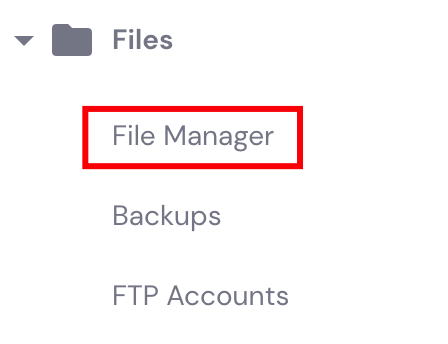
- Find the .htaccess file. Delete it. Or you can disable the file by simply renaming it to something else.
- Make a new .htaccess file for your WordPress website.
3. Deactivating Plugins and Themes
Corrupted or conflicting plugins are another usual cause of the WordPress login redirect loop issue. Deactivate the faulty plugin. You are good to go.
Deactivate your WordPress plugins to troubleshoot the redirect loop issue. Here is the process:
- Use a File Manager or an FTP to access the wp-content directory of your website.
- Just rename the plugin folder to something else. This deactivates all plugins.
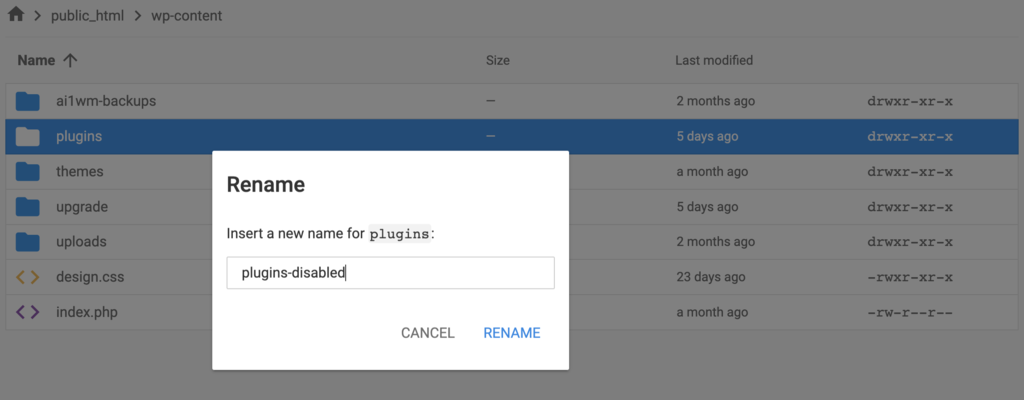
- Change the plugins folder back to its original name. WordPress reaccesses your plugins even when they are still inactive.
- Log in to the WordPress dashboard. Go to Plugins. Installed Plugins. Activate all of them.
- Log out of WordPress. Return to File Manager.
- Open the plugins directory. Disable plugins and rename the corresponding folders. Log in to your site after you disable a plugin every time. You will find the one troublemaker.
Plugins are not always the issue. Deactivate your faulty WordPress theme this way:
- Use phpMyAdmin to access the MySQL database of your website.
- Click Browse alongside the wp_options table. The prefix of the table may vary.
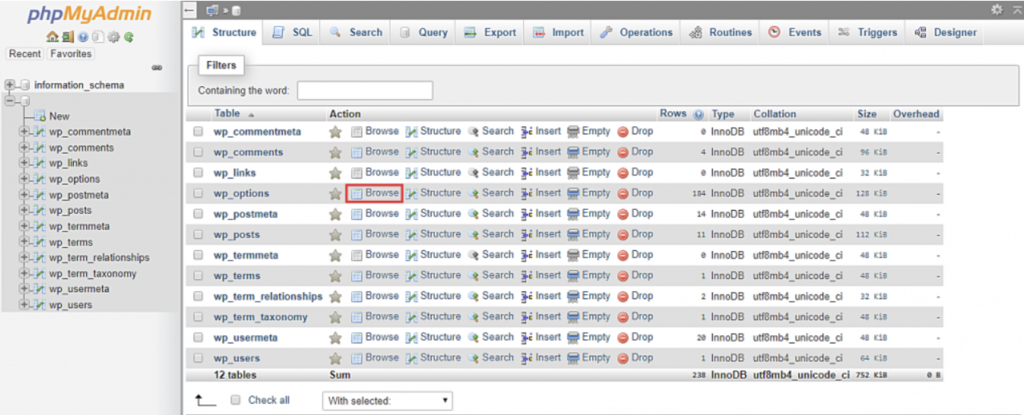
- Check the Show all option to expand the content of the table.
- Locate the stylesheet and template rows. Double-click the theme name and rename the values to twentyseventeen.
- Is the login successful now? It proves that your current theme is causing the WordPress login loop error.
Looking for trusted functional domains? You know how to approach us.
Conclusion
The WordPress login loop issue is common but it is no big deal. This issue is rather fixable with the right steps. Clear your browser cache and cookies. Restore a clean .htaccess file. Deactivate troublesome plugins and themes. This is how easy it is to regain access to your WordPress dashboard. These simple methods resolve the majority of redirect loop problems without any technical knowledge required.
Reach out to our expert hosting support in case you find trouble along the way!
Frequently Asked Questions
Will clearing my browser cache and cookies fix the login loop?
Yes. Outdated or corrupted browser data is so common that it should be your first guess. Clearing cookies and cached files often resolves the problem in no time.
How to fix WordPress login redirect loop?
Fixing the WordPress login redirect loop is possible with certain methods. Clear your browser cache and cookies. Restoring the default .htaccess file. Deactivating faulty plugins or themes. Check if the issue persists or not. Contact your hosting provider to check for problems related to servers.
Is it safe to deactivate all plugins at once?
Yes. Rename the plugins folder to disable all plugins without having to delete them. You can reactivate them one by one to identify the problematic one. Not much of an issue once you see how it solves the issue with ease.
Can my hosting provider help with WordPress login loop issues?
For sure. A trusted provider like Hostonce can assist with file access and plugin conflicts and server-level problems that cause login redirects. This immediate and precise action ensures your site stays accessible and running.
