
You lose visitors every minute your website lags. How do you stop the conversion drop? Hostonce answers this question with helpful WordPress optimization techniques. Stay patient, read the full guide, and you will have learned a lot by the end.
WordPress Optimization Tips and Ideas
You can now optimize websites with these ideas and tips Hostonce guides you on. Additionally, this write-up explains how you can speed up your website when you reduce the CPU consumption of a PHP script.
WordPress has a high demand at the moment. It is quite a popular tool for websites and blogging. The cherry on top is that it integrates with CMS applications and other tools. Good WordPress optimization of your website means you will deliver a desirable experience of a speedy website to your visitors.
Ask yourself if you have a backup of your current website. Make sure to create a backup account first before you make changes. This is how you have data in case the need arises to restore your website. The commonest recommendation is to upgrade to the latest WordPress version. Those versions have optimized codes best suited to reduce the CPU consumption.
Permalink structure may seem tricky. Do not begin with the author, tag, category, and post name fields. You could use /%year%/%postname%/ or /%post_id%/%postname%/ instead. Do not let 301 redirects stress you, for WordPress handles the permalink change automatically.

“Optimize Your Website Easily!”
Optimize your WordPress website today with little effort—Hostonce guides you to the path of smooth optimization.
CPU and WordPress Cache
About time you learned the management of WordPress caching. Use these points for successful management:
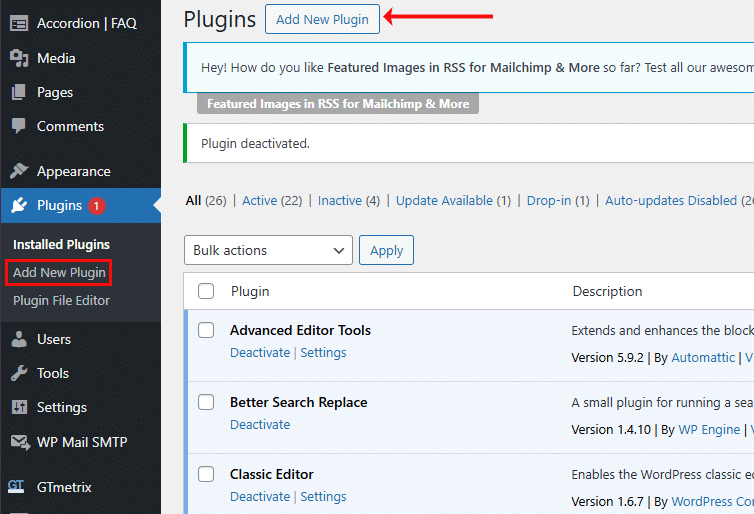
- Install W3 Total Cache or WP Super Cache. Go to Plugins in your account and use the WordPress Dashboard for this action.
- Check the themes. Many themes are CPU-intensive.
- There should be no errors in the Error Log during the page loads.
- Functional dynamic image resizing will have you disable this.
- If nothing works, then there is always the option to contact the theme provider.
- Find out which plugins are CPU-intensive and disable them.
- All relevant plugins (YARPP, WordPress Related Posts) put a high load in most cases.
- Auto-posters and WPRobot3 cause pressure on the CPU and should be disabled if there is no other choice.
- WordPress statistics software (such as StatPress) must be disabled as the CPU usage is a lot with these plugins. Google Analytics is a fine alternative instead.
- Any other plugins that are active and not of your need should be disabled as well.
Access the plugins this way:
Stop Spambots
Spambots are non-human visitors on your website. You should know how to manage spambots. In case you don’t know, this is how:
- Use a captcha trick, like SI Captcha, to prevent non-human spam comments.
- If you have many blogs on your WP account, then you need to lower the rate at which web spiders crawl on those blogs. High crawl rates mean more load on the server as bots attempt to index your website, which can affect WordPress optimization.
Image Compression Plugins of WordPress
The best way to optimize images is to compress them before uploading to your WordPress site. Set up pixels and inches that are appropriate for your site. Make sure you compress the images without losing their quality. The longer the image, the more load it puts on the CPU. WP image compression plugins are quite useful in this regard. You will not regret using them. Some of the best ones are:
WP-Optimize
ImageRecycle
ShortPixel Image Optimizer
Imagify
Optimole
Smush
Make sure the plugin you choose is compatible to operate with the latest WordPress version as Hostonce suggests.
SEO Optimization of Your WordPress Website
Optimization of websites is important to attract more traffic, enhance visibility, and improve user experience. Some of the most effective key strategies are:
SEO Plugins: Have an SEO plugin like All in One SEO or Yoast SEO. These plugins will assist you in optimizing the content, guiding you on on-page SEO factors and generating sitemaps.
Mobile Optimization: Ensure that your site is mobile-friendly and responsive. A mobile-friendly site is crucial to boost SEO rankings as Google implements mobile-first indexing.
Enhancing Site Speed: Speed matters a lot in SEO. Minimize plugin use, optimize image sizes, use cache plugins to speed up loading times.
High-Quality Keywords and Content: Publish high-quality content with rich keywords daily. Do not stuff keywords and write confusingly. Build a proper structure, add headings, and make sure your work offers user value.
SEO-friendly URLs: You can use SEO-friendly permalinks in WordPress to use slugs that include your keywords for pages and posts.
Site Security: You can achieve this with HTTPS. Install an SSL certificate to convert your website to HTTPS. Security builds visitor trust and is crucial for rankings.
Monitor Performance: Use Google Search Console and Google Analytics to track the performance of your website, identify areas where improvement is needed, and observe what visitors need from your website.
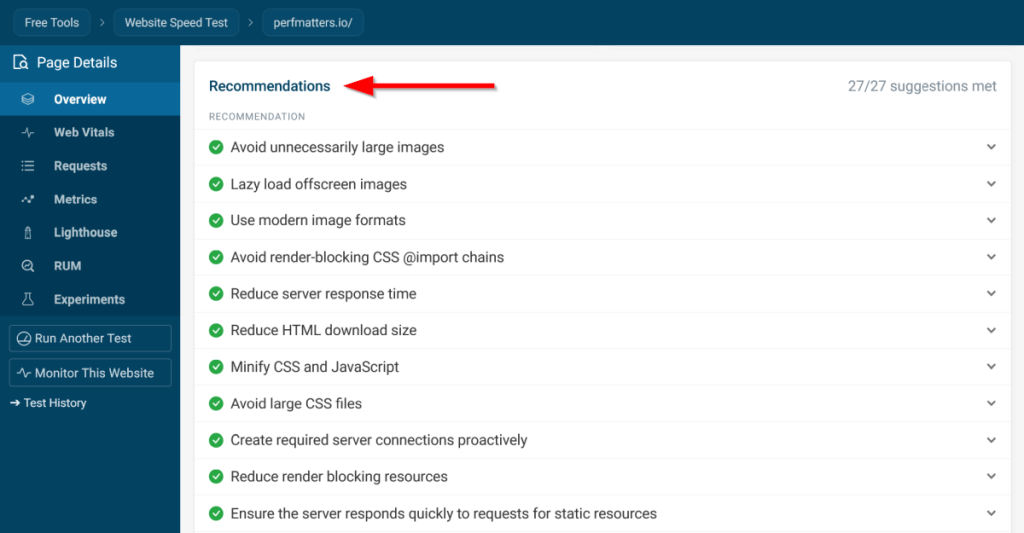
Incorporate these practices and have WordPress optimization lead you to the best hosting and website experience. Check this out for further recommendations:
WordPress Optimization for Conversion
Client conversion is all that matters. The optimization for the sake of conversion involves strategic moves to persuade your visitors into specific actions. These actions include filling out a form, signing up for a purpose, and making a purchase. But how to convert? These points answer that question:
1. Compelling and Clear CTAs: Make sure that your call-to-action buttons are clear and prompt action. These could be “Buy Now” or “Sign Up” or any other.
2. Seamless Navigation: Your site’s navigation should be simplified so visitors face no trouble finding what they are looking for. This not only reduces bounce rates but also increases the conversion chances.
3. Speed Optimization: Visitors remain engaged when a website loads fast. Optimize images, reduce plugin use, and use caching plugins to improve your website’s loading speed.
4. Responsiveness: Your site should offer a seamless experience in its responsiveness. Remember that nobody wants to remain stuck when navigating your site.
5. Visual Content: Use attractive visual media (images, videos, etc) relevant to your services and products to capture attention and boost conversions.
6. Social Evidence: Show reviews and testimonials regarding your website. Social evidence builds trust and motivates others to seek your services.
7. Testing: Be regular with A/B testing. Page layouts, CTAs, and headlines must be checked for their functionality. This move maximizes the conversion rates.
Keep all of this in check for the best WordPress optimization.
A Curious Case of Smart WordPress Optimization
Clara Reed had a website about fitness. At the start, it ran well. Issues occurred past a certain point. Her site would crash often. Page load time doubled and bounce rate dropped by 50%. Something was wrong. Clara found herself depressed as she had no idea about the problem.
It took Clara a lot of hassle to hear of Hostonce’s guide on WordPress optimization techniques. The guide that changed the direction of her website was going. Clara is not just grateful; she has become a firm believer in how far SEO optimization can take your digital platform.
Clara’s success is not a voodoo trick or shady magic; it is simply a curious case of smart WordPress optimization. You can be like her in case you feel your site’s responsiveness is down, its speed is slow, and bounce rates are not what they are supposed to be. Optimization is a bigger factor than you would like to acknowledge.
Conclusion
The digital handshake of your website is what wins your visitors. Make sure your site’s performance leaves a lasting positive impression on your users. Advanced WordPress optimization is the key to increasing your brand’s relevancy and remaining active in the competition. Check out how well-optimized Hostonce is; this is why you may contact us for any query you have regarding WordPress optimization.
Frequently Asked Questions
How time-consuming is the migration process?
A small website would need only a few hours to migrate. Large sites — the ones with big databases, custom apps, and large media files — require a day or two to migrate fully.
Does Hostonce help to migrate website?
Yes, for sure! If you cannot handle the migration on your own, you can reach out to us for help. We can get you out of the risk and save you the hassle.
Do websites break after migration?
Mishaps are common during the migration. This is not something to worry about. If something is wrong, clear your browser cache and check your configuration. Re-upload missing files if you notice any. Do not forget: the support team at Hostonce is always around to help you out with such issues.
Do visitors notice the migration?
Most of the visitors do not notice if the migration is handled properly. During the process, which lasts for 48 hours, some visitors may see your old website while everyone else sees the new one.
