



A default .htaccess WordPress file is a configuration file that enhances the security of more than 500 million websites worldwide. WordPress is known to have a market share of 43%, with over 70 million posts published monthly on the CMS. Studies show that WordPress websites with incorrect .htaccess configuration are 10x more vulnerable to attacks and experience 30% slow load times. For users on multisite networks, this invaluable file is perfect for handling routing in subdirectories and subdomains.
This step-by-step guide for beginners and WordPress site owners discusses the best editing practices, common htaccess issues when editing this file, and the importance of htaccess modifications for boosting a WordPress site’s performance. The .htaccess file is a powerful tool that can help you optimize your WordPress and web server for better ranking on search engines.

What Is WordPress CLI (And How Can You Use It)?
By Festus Nkopuruk on May 16, 2026Key Takeaways
- The .htaccess file is hidden by default in WordPress, and it can be used for managing permalinks, performance, redirects, and security from different attacks.
- Correct configuration of .htaccess files demands constant testing, automatic backups, and knowledge of key directives to prevent redirect loops, server errors, and 404 pages.
- htaccess file is typically made for the Apache web server, with key directives like Redirect, RewriteEngine, <Files>, RewriteBase, and caching/compression rules having specific WordPress functions.
- The htaccess file provides routing traffic for WordPress Multis. This allows WordPress users to control subdomains/subdirectories, regulate redirects, and protect uploads.
- A broken htaccess file transfer protocol can lead to serious damage to the entire WordPress site.
Table of Contents
- What is .htaccess File in WordPress?
- Understanding Key Directives in the .htaccess File
- How to Edit the Default WordPress .htaccess File Safely
- Step 7: Regenerate a new .htaccess file if your website breaks
- The Importance of .htaccess File for WordPress Sites
- 8 Ways to Use .htaccess File in WordPress Multisite Setups
- Common Errors Caused by a Broken .htaccess File
- Final Verdict on htaccess File in WordPress
- FAQs
What is .htaccess File in WordPress?
The hypertext access or htaccess file is hidden in your WordPress site functionality, and it is designed to control the behavior of a website. The htaccess file automatically handles how users customize WordPress’s core files, increase site speed, and block unwanted IP addresses.
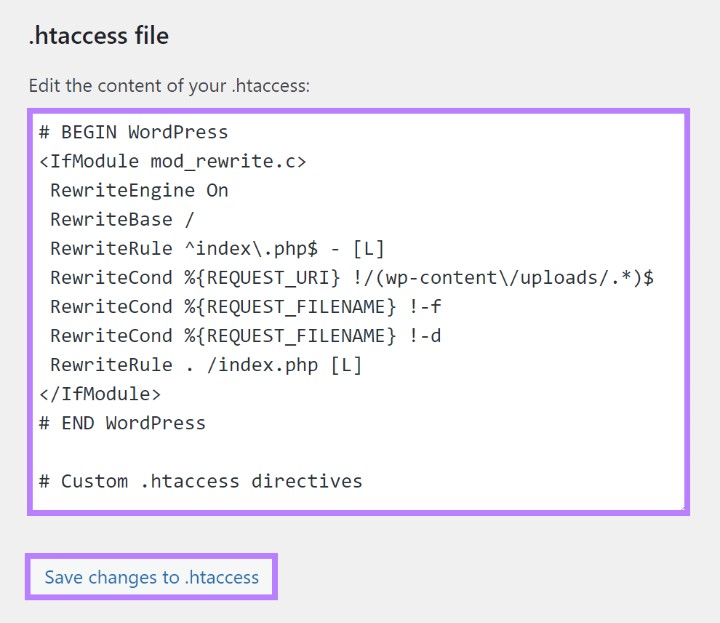
Let’s say an administrator updates a permalink structure, a part of the file is between: # BEGIN WordPress # END WordPress. For many shared hosting users, the .htaccess file is located inside the root directory.

Don’t let a misconfigured .htaccess break your site
Every second your site is misconfigured, your traffic reduces. Hostonce gives you managed WordPress hosting with 24/7 customer service to guide you in every step.
Understanding Key Directives in the .htaccess File
The .htaccess file functions through WordPress directives. Directives are powerful commands that show a web server how to handle URLs and enhance performance. Understanding the concept of these directives is vital for customizing how your website functions without using plugins. As a WordPress user, we have listed out the key directives to note when using these PHP files:
1. RewriteEngine for enabling URL rewriting
This directive activates the engine of Apache mod_rewrite, a place that grants WordPress the permission to create permalinks like example.com/my-blog-post/ that are clean and SEO-friendly. For instance, WordPress permalinks cannot function without this directive.
2. RewriteBase for setting the base URL path
The RewriteBase directive has the ability to define the root directory. When it comes to rewriting rules, WordPress uses this directive to ensure that every URL in a subdirectory installation functions properly.
3. RewriteRule for controlling how URLs get processed
This is the main core of the .htaccess file in WordPress. For instance, a default WordPress site can have a directive like: RewriteRule . /index.php [L]. With this instruction, WordPress chooses the content to show; every request is sent to index.php, and [L] stops the server from processing future rules. RewriteRules can be used to manage custom URL structures, pretty permalinks, redirects, and multisite configurations.
4. Redirect and RedirectMatch for adding URL Redirects
These directives are designed to control redirects at the server level, fix broken links, and perform URL website migration. A simple redirect can look like this: Redirect 301 /old-page/ /new-page/ while a Regex redirect is RedirectMatch 301 ^/old-folder/(.*)$ /new-folder/$1
5. <Files> for protecting certain files
<Files> directive limits a user’s access to important WordPress files such as wp-config.php. This type of directive can be executed as <Files wp-config.php> Order allow, deny Deny from all </Files>
How to Edit the Default WordPress .htaccess File Safely
You get complete control over the performance, redirects, and security of your WordPress website when you edit the file. When it comes to safe editing of .htaccess files, the following steps are applicable:
Step 1: Back up your site before editing
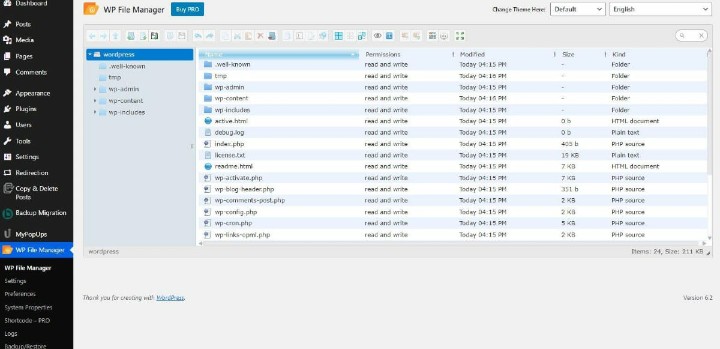
Creating a backup solution for your file before performing any changes to your site is very important. You can back up by using the File Manager to download a copy or using FTP/SFTP. You can always create a backup to restore your site after making errors during configuration
Step 2: Locate the .htaccess file
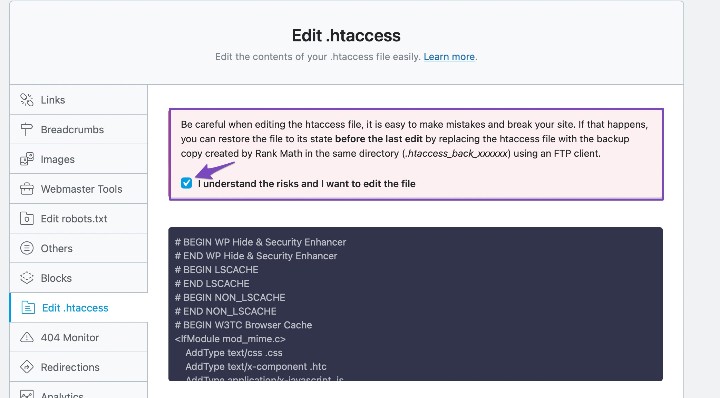
The .htaccess file is located in /public_html/ /www/ /your-domain.com/ and it can be seen with an FTP client or your File Manager. Hostonce users can view this file from the File Manager on their hosting dashboard. Remember that a file that begins with a dot can be hidden by default.
Step 3: Use a plain-text editor
One of the major reasons for incorrect file configuration is that users try to use MS Word to edit .htaccess file. Never edit the file with such a program; you can use Windows Notepad, File Manager editor, nano (SSH), VS Code, or Sublime Text to prevent formatting errors.
Step 4: Do not edit inside the auto-generated section of WordPress
WordPress controls the area between # BEGIN WordPress # END WordPress. To fix WordPress and prevent losing any changes, always put your custom rules below or above the area.
Step 5: Create new rules
When adding security rules, redirects, or caching directives, you can do this by adding each section one by one, saving the file, refreshing your website, and checking several pages. Following this method will prevent several errors from piling up, thereby making it easy to troubleshoot.
Step 6: Test-run your website after editing
To ensure that you have fixed the WordPress issue, you can check your blog posts, homepage, web cached content, admin dashboard, and redirects. If there is any mistake, you can always restore your backup and start again.
Step 7: Regenerate a new .htaccess file if your website breaks
If you notice that the file is broken and you can’t seem to detect the issue, it is advisable to regenerate a new one inside your WordPress. You can do this by going to your settings, clicking on permalinks, and then saving changes. This method is perfect for fixing 500 errors, redirect loops, 404 errors, and broken permalinks. Furthermore, make use of Google PageSpeed Insights to analyze and track different errors on your site.
Step 8: Know the best time to stop editing .htaccess
Stop editing the htaccess file when you don’t understand the concept of directives, your hosting provider is using NGINX, there is no backup, and you are editing your live website during peak times. It is advisable to contact a web developer or expert if you don’t know how to proceed.
The Importance of .htaccess File for WordPress Sites
The .htaccess file is very important in hosting environments that use Apache web servers. Although hidden by default, this file dictates how a WordPress site functions in terms of security, URLs, and performance. Here is why this file is very important for every WordPress website:
- Enables SEO-Friendly Permalinks: .htaccess file is exclusive for WordPress to manage pretty permalinks and produce clean URLs. Instead of a site to look like this: https://yourdomain.com/?p=224, it can look like https://yourdomain.com/sample-post/ thanks to this file. This unique feature is perfect for WordPress SEO ranking, sharing links, readability, and social media previews.
- Controls Essential Redirects: The work of redirects is for fixing broken links, controlling URL changes, and maintaining SEO ranking. The .htaccess file is for HTTP to HTTPS redirects, 301 permanent redirects, old URL to new URL, and 302 temporary redirects
- Strengthens Website Security: Before a WordPress site loads, most security rules are directly applied via .htaccess because they function at the server level. Additionally, the file manager can be used to restrict directories, limit access to sensitive files, deactivate directory browsing, stop injection attacks, and image hotlinking.
- Helps Boost Website Performance: Using performance directives can greatly increase the speed and performance of WordPress sites. With these rules, you can improve Core Web Vitals and reduce server loads by stopping slow crawlers, setting browser caching rules, compressing GZIP, and using static file expiration headers.
- Manage WordPress Multisite Functionality: For Multisite networks in WordPress, the .htaccess file can control the structure of blog/site directory, subdomain/subdirectory routing, and network-wide rewrite rules.
- Serves as a Centralized Control Point: The .htaccess file works like a centralized control point rather than requiring the installation of several WordPress plugins. Users can manage redirects, performance tuning, security settings, and URLs from one place.
8 Ways to Use .htaccess File in WordPress Multisite Setups
WordPress heavily depends on rewrite rules when running in multisite mode because it ensures that every website in the network can function properly. Moreover, here are 8 ways to use the file in multisite setups:
1. Routing Traffic to the Correct Sub-Sites
A Multisite network can correctly route online visitors through special rewrite rules. For high-traffic multisite using subdirectories, the default WordPress rules can be RewriteEngine On RewriteBase / RewriteRule ^index\.php$ – [L] # route all requests to WordPress RewriteRule . /index.php [L]. On the other hand, multisites on subdomains function by activating a wildcard subdomain in hosting and using htaccess to control every sub-site’s routing through a catch-all rule.
2. Enforcing Network-Wide Redirects
The .htaccess file in multisite can be applicable to redirects in the whole network instead of a single one. For instance, you can redirect domain mappings, force every sub-site to use HTTPS, and redirect old URLs to new ones. For instance, RewriteCond %{HTTPS} !=on RewriteRule ^(.*)$ https://%{HTTP_HOST}/$1[R=301,L] is perfect for the secure loading of every sub-site.
3. Protecting Network Files and Sensitive Directories
A multisite can install specific subfolders and several upload directories. With the help of .htaccess, you can secure sensitive multisite directories by using # Protect wp-config.php <Files wp-config.php> Deny from all </Files>. You can also stop illegal access and prevent DDoS attacks across every subsite with Options -Indexes.
Why pay per client when you can host them all?
Scale your web design or development business effortlessly. Hostonce reseller hosting delivers premium resources at wholesale prices with full branding control.
4. Securing the Uploads Directory for All Sub-Sites
The structure of every sub-site in a multisite setup is wp-content/uploads/. For instance, using # Prevent PHP execution in uploads folder <Directory /wp-content/uploads/> <Files *.php> deny from all </Files> </Directory> can protect sub-sites from malware designed to execute PHP in uploads.
5. Custom Rules for Individual Sub-Sites
Although multisites have one .htaccess, a WordPress website owner can create custom rules for each sub-site by matching patterns. Let’s say you want to restrict the folder of a certain subsite, you can use RewriteRule ^site2/wp-admin – [F]. This feature is necessary when handling large networks with different security demands.
6. Multisite Network File Handling and Rewrite Rules
In order to correctly serve uploaded files, WordPress Multisites make use of specialized rewrite rules. The default multisite rule is RewriteRule ^files/(.+)$ wp-includes/ms-files.php?file=$1 [L].
Quick Tip
Before editing your .htaccess file, rename the original to .htaccess_backup. If anything breaks, simply rename it back to get instant recovery without needing a plugin or hosting panel.
7. Domain Mapping and Custom Domain Support
If there is a domain mapping like site1.com, site2.net in your multisite, you can use .htaccess to control URL routing, redirects from the main domain to the mapped domain, and enforce HTTPS.
8. Performance Optimization for the Entire Multisite Network
Another way of using .htaccess is by applying directives for compression and caching in every site. Use ExpiresActive On ExpiresByType image/jpeg “access plus 1 year” to enable browser caching and AddOutputFilterByType DEFLATE text/html text/css text/javascript to enable GZIP compression.
Common Errors Caused by a Broken .htaccess File
A misconfigured .htaccess file will alter the core functions of WordPress and lead to errors. To prevent such scenarios, we have listed the common errors that prevent online success when there is a broken htaccess file.
- 404 errors on all pages and posts: Non-functional permalinks can lead to incorrect URL routing by WordPress. Caused by missing rewrite rules and can lead to 404 Not Found or tag and category pages not loading.
- 500 Internal Server Error: A common error leading to server misconfiguration. The best solution for this error is temporarily changing the name of the file to allow WordPress generate a new one.
- Blank White Screen (White Screen of Death): An incorrect .htaccess file can cause this error by preventing PHP from functioning correctly. Also, major symptoms of this error include website loading as a blank page and error messages not showing.
- Admin Login Issues: When .htaccess file is broken, it can prevent windows hosting users from accessing/wp-admin/ and/wp-login.php. This type of error occurs when redirects or security rules unintentionally prevent access.
Expert Tip
Always place custom .htaccess rules outside the # BEGIN WordPress / # END WordPress block. WordPress automatically overwrites anything inside it when you save permalink settings, silently erasing your changes.

Final Verdict on htaccess File in WordPress
The .htaccess file is very important in fast WordPress hosting because it dictates the behavior of a website. From controlling permalinks and redirects, you now understand why this file is necessary in boosting performance and security. We have also discussed the key directives and how you can safely edit the file for better optimization. For single-site owners or users running a multisite network, knowing how to properly configure .htaccess is an essential skill.
FAQs
How do I safely edit the default .htaccess WordPress file?
To edit the default .htaccess WordPress file safely, you will need to create a backup, use a File Manager, and avoid making any changes between # BEGIN WordPress and # END WordPress
Where is the default .htaccess WordPress file located?
It is usually located in the root directory of your WordPress installation (/public_html/). If hidden, enable “show hidden files” in your File Manager or FTP client.
What common errors can a broken .htaccess file cause?
A corrupted .htaccess file can trigger errors like 404 pages on pages and posts, 500 Internal Server Error, admin login issues, white screen of death, and redirect loops.
How can I regenerate the .htaccess file if it’s missing or broken?
You can regenerate it by going to WordPress Dashboard → Settings → Permalinks and clicking Save Changes. WordPress will automatically create a fresh default .htaccess WordPress file with the correct rewrite rules.
Working with Properties and Key-Value Pairs in Theme.json
By Festus Nkopuruk on August 7, 2025
Hostonce is the #1 WordPress Host
Ranked by 930+ customers in G2's Best Software Awards.