

Would you like to know how to limit permissions to users on your WordPress website without affecting security? Maybe you’re wondering how to create custom WordPress user roles as a WordPress admin? We will show you how to create new user roles and gain control over your WordPress site. In a world where more than 1.1 million WordPress websites are created every year, the WPFront User Role Editor plugin is used by over 100 million site owners to assign a specific role to different users.
As a shop manager or user on WordPress multisite networks, understanding user management and WordPress roles can help you manage your website. This article will discuss everything you need to know about default WordPress roles and how to manage the capabilities of each user role. In addition to that, we will be focusing on how to add new user roles manually, limit access to your WordPress site, and best practices for managing user accounts.
The WordPress wp_is_mobile() Function: Is It Still Useful in 2026?
By Javeria Riaz on August 12, 2025Key Takeaways
- Several default user roles, like Editor, Administrator, Contributor, Author, and Subscriber, are the different user roles in WordPress
- Customized roles offer more flexibility for websites by introducing specialized responsibilities and organization.
- You can assign and custom user roles in WordPress by using a basic security concept called the Principle of Least Privilege (PoLP).
- Using custom user roles with specific security practices like 2FA authentication and strong passwords can protect your website from illegal access.
- To ensure the capabilities of each user role, always audit and review your additional user roles to keep access updated.
What Are WordPress User Roles?
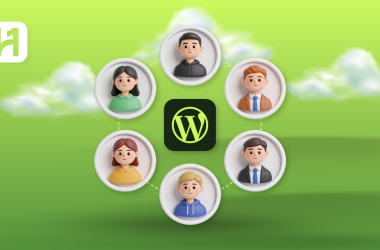
WordPress user roles are used to define the level of access to a WordPress site. Every user has an appropriate role or access, like managing plugins, uploading content, and changing settings. For example, a WordPress owner can create custom user roles or grant user permissions based on the job specification.
When a role is assigned to a user, the relevant capabilities move automatically to the user. Powerful user role management is very important for online stores, bloggers, or large websites with multiple users. As you read further, you will learn the different roles like Editor, Super Admin Role, and Contributor.

Start smart, scale easily
Enjoy consistent uptime, simple controls, and scalable resources designed to support your growing website. Hostonce shared hosting gives you an affordable and reliable foundation to manage your user roles.
Why WordPress User Roles and Capabilities Matter
WordPress user roles and capabilities matter because they regulate how users can access a website without hurting the security and performance. The following reasons explain the importance of assigning user roles on WordPress:
- Better security with limited access: Every extra access granted to a new user can lead to a security attack. Also, by assigning user roles using plugins, you can reduce any malicious attacks on your site.
- Fewer accidental changes that affect performance: Assigning the right WordPress user role and management can prevent performance problems by letting each user focus on the job they are hired to do.
- Better stability on WordPress multi-sites: WooCommerce websites, business sites, and blogs usually need user roles to prevent conflicts or overlapping responsibilities and maintain stability.
- A strong background for hosting security: When you change user roles or manage them poorly, it can affect the security of your site. By using WordPress hosting, you’re sure of getting maximum protection against user access.
Complete Breakdown of Default WordPress User Roles and Permissions
| User Role | Can Create Content | Can Publish Content | Can Edit Others’ Content | Can Manage Plugins & Themes | Best Use Case |
| Administrator | Yes | Yes | Yes | Yes | WordPress website owners who have full control |
| Editor | Yes | Yes | Yes | No | Content managers and editorial teams |
| Author | Yes | Yes (own posts only) | No | No | Regular content writers uploading their own content |
| Contributor | Yes | No (needs approval) | No | No | Guest authors and new contributors |
| Subscriber | No | No | No | No | Registered users or people with limited access |
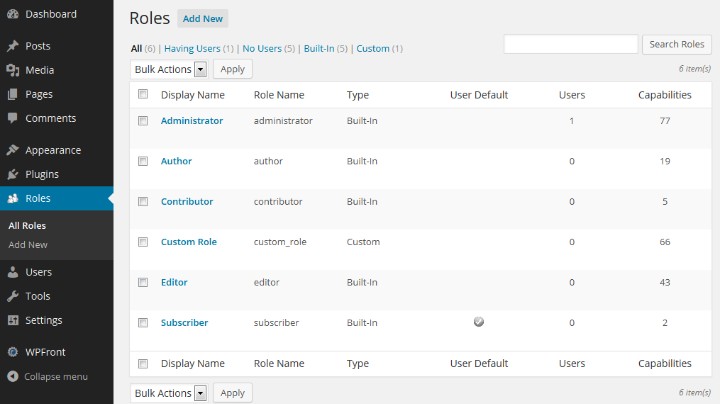
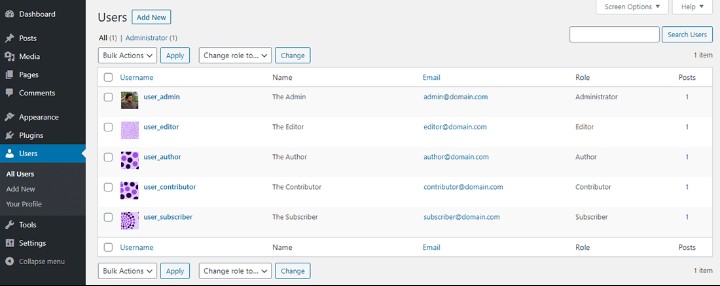
The various user roles in WordPress help to maintain daily access and activity. To further help you understand the roles of each user, we have listed the different user roles and their capabilities in WordPress.
1. Administrator
The Administrator is someone who has complete control of the website. The role of an administrator is to install and remove WordPress plugins, change settings, manage users, and perform every aspect of the website. Also, this user role is perfect for developers, website owners, and people who are in charge of the entire site.
2. Editor
The Editor role is mainly for managing content on a website. A user with the editor role can create and remove content, moderate comments, and manage content from different users. Additionally, this role is great for editorial leads or content supervisors on a high-traffic website.
The Author role is for people who can write, edit, and upload media files for their content. Also, they do not have the power to change site settings, create pages, or edit content from other users. For example, a content SEO writer writing for a website may have the role of an author on a website.
4. Contributor
The Contributor role in WordPress is allocated for users who have the power to upload content only and submit it for review. This role is suitable for guest writers and people employed temporarily to work on a website. allows users to create content but not publish it. Additionally, just like authors, they cannot edit other users’ content or upload media.
Sell smarter with better control
Hostonce ecommerce hosting empowers you with speed, security, and role-based flexibility for seamless operations. From admins to shop managers, every user has the right access to keep customers coming back.
5. Subscriber
The Subscriber usually denotes the least privileged role in WordPress. People using these WordPress role permissions can only manage their profile from the WordPress dashboard. Also, the subscriber role is great for newsletters, Membership websites, and websites offering gated content to registered users.
Default vs Custom User Role: What’s the Difference?
| Default User Roles | Custom User Roles |
| Built into WordPress | Created by WordPress plugins or site owners |
| Fixed permissions | Permissions are fully customizable |
| Easy to assign specific roles | Requires a plugin or setup |
| Best for common use cases | Best for specific responsibilities |
When it comes to user management, options like custom user roles and default user roles come into plat. Whether you own a website or work for an agency, knowing the major distinctions can help you maintain stability and organization
1. What Are Default WordPress User Roles?
Default user roles like Editor, Administrator, Contributor, and all the roles listed above come with every WordPress website. Every role have a level of access to make task management easier. Furthermore, the essence of default roles in WordPress is to maintain stability, cover the basic needs of a domain website, and boost efficiency without requiring any setup.
2. What Are Custom User Roles?
Custom user roles usually means specified roles made by site owners for different needs. Also, with the help of WordPress plugins, custom roles are great for large websites like eCommerce, business websites, and membership platforms with over 20+ users. For example, you can create a custom role like SEO Manager for a user to manage SEO optimization settings on your website.
Expert Tip
For advanced control, use plugins like User Role Editor or Members for customizing capabilities. These plugins allow you to fine-tune the role for each user on your site, ensuring tighter security and better workflow management.

How WordPress Assigns Roles to a New User
User roles are assigned to help website owners manage the daily activities of their WordPress and prevent illegal access. Furthermore, to better understand user roles in WordPress, here are the different conditions under which roles are assigned.
1. Assigning Roles During User Creation
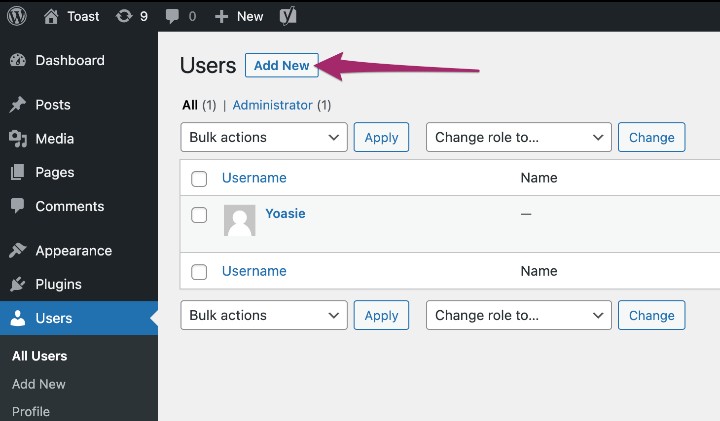
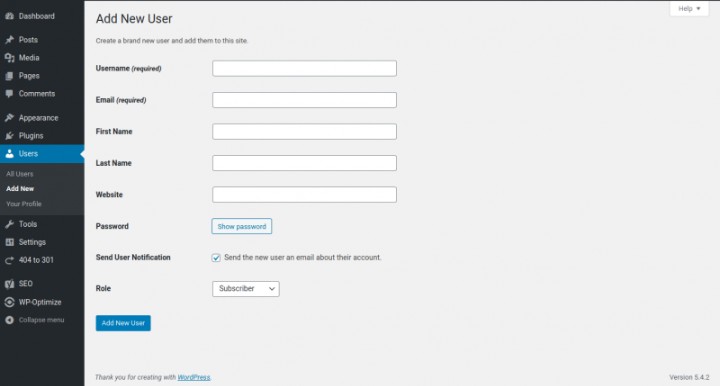
In the WordPress dashboard, users can be added manually via the Users section. Also, this allows you as an administrator, to select the user you want, and WordPress will automatically grant them the power that comes with the new role. Let’s say you want a new author on your website; you can assign the role to the user, and WordPress will grant them the capabilities connected with being an author.
2. Default Role for New Registrations
For membership websites or sites that use registration, default roles are assigned automatically by WordPress to people who register. These default role settings can be configured in Settings → General → New User Default Role. Furthermore, common roles like subscribers, authors, and contributors can be used to limit access to different users.
5 Ways to Effectively Manage WordPress User Roles
Managing user roles in WordPress is important for organization, security, and performance. If you own a website with multiple users, here are 5 ways to help you manage your users effectively:
1. Assign the Least Privilege Necessary
This level of access reduces the chances of security breaches or conflicts. For instance, you can assign authors to content publishing, administrators for site supervision, and contributors for guest visitors.
2. Review Roles Regularly
As time goes on, the role of a user can change or become inactive. Moreover, reviewing your user roles regularly can help you reduce security threats, prevent illegal access, and better manage your site effectively.
3. Use Plugins for Advanced Role Management
Although every WordPress site uses default roles, some plugins can be used for advanced role management. For example, Members or User Role Editor allow website owners to create new roles, customize permissions, and manage users without having coding experience.
4. Separate Responsibilities Clearly
You can assign user roles based on responsibilities to prevent work conflict. Also, using user management can improve workflow productivity and prevent clashes with other workers on your website.
5. Combine Roles With Security Best Practices
Role management is most effective when used with WordPress security plugins and strategies. Also, by using strong passwords and enabling security features like two-factor authentication, you can maintain the performance of your website and prevent unauthorized access in the future.
Quick Tip
Always assign the least privilege necessary when managing WordPress user roles. Do not give admin access to everyone to reduce security risks and maintain better control over your website performance.
Common Mistakes in WordPress User Roles and How to Avoid Them
Poor management of user roles can hinder a website’s growth and performance. Popular hosting platforms like Hostonce offer various features to simplify user roles for owners. Moreover, here are common mistakes encountered by most website owners and how to avoid them:
1. Giving Too Many Users Administrator Access
Granting administrator access to more than two users is one of the most common mistakes in website management and can leave a website vulnerable. The role of an administrator is the most powerful in WordPress because it provides the user with complete control.
How to avoid it: Limit the administrator role to trusted users only. Furthermore, to improve work efficiency, you can assign users to roles like contributors, editors, or subscribers.
2. Ignoring Role Audits
Ignoring role audits can be detrimental over time. Failure to perform regular role audits can confuse or encourage exploitation from previous users.
How to avoid it: Furthermore, ensure that there is a regular audit of every role and remove people who are no longer working on your website.
3. Assigning Roles That Don’t Match Responsibilities
Sometimes, a user can be given a role that does not match their job specification. For instance, granting an editor role to a content writer can lead to confusion and unnecessary editing of other users’ content on your website.
How to avoid it: Firstly, you can prevent this by matching roles to certain capabilities. Secondly, roles like contributor or author can be assigned to content creators to boost WordPress SEO
4. Not Using Custom Roles When Needed
Depending on WordPress default user roles can be limiting and reduce productivity. This mistake is risky for large enterprise websites because users get permissions that are not needed.
How to avoid it: Using WordPress plugins such as User Role Editor can help create custom roles for users.
Power your WordPress like a pro
Are you looking for optimized security and performance? Choose Hostonce WordPress hosting for seamless updates, better speed, and role-based access support.
5. Forgetting Security Measures Alongside Roles
Poor security measures like weak passwords, using outdated WordPress versions, and missing updates can affect site performance. Also, attackers can attack accounts with high-level access and distort user role management.
Final Thoughts on User Roles in WordPress
The role of users in WordPress can help boost performance and growth for online brands and websites. Also, by understanding the capabilities that comes with each role, you can better assign roles to users without compromising security or performance. As we come to a close, you will need more than default roles to promote flexibility. Additionally, you can combine the various security measures with WordPress user roles for effective management
FAQs
How do I assign WordPress user roles to new users?
You can assign roles when creating a new user in Users → Add New in your WordPress dashboard. For sites with open registration, you can set a default role under Settings → General → New User Default Role.
Can I create custom WordPress user roles?
Yes! Using plugins like User Role Editor or Members, you can create custom WordPress user roles with specific capabilities tailored to your site’s needs, such as a “SEO Manager” or “Support Agent.”
What are common mistakes when managing user roles?
Common mistakes include giving too many users Administrator access, not reviewing roles regularly, and assigning roles that don’t match responsibilities. Regular audits and careful assignment prevent security issues and workflow problems.
How do user roles affect website security and performance?
Properly assigned user roles reduce the risk of unauthorized access, accidental changes, and conflicts between users. Limiting permissions to what users actually need helps maintain security and keeps your WordPress site running smoothly.
Working with Properties and Key-Value Pairs in Theme.json
By Festus Nkopuruk on August 7, 2025
Hostonce is the #1 WordPress Host
Ranked by 930+ customers in G2's Best Software Awards.