





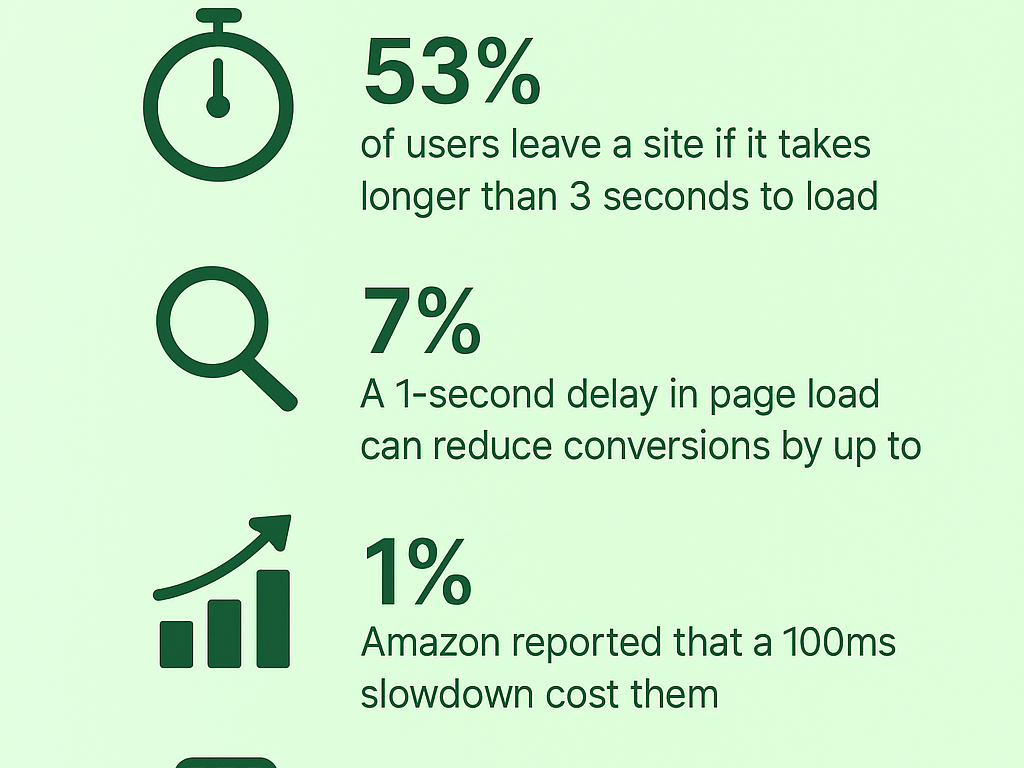
How would you like to improve pagespeed at the hosting level for your website? According to Google Analytics, 53% of online visitors exit a website that takes more than 3 seconds. An SEO tool like Google Page Speed Insights can help your website achieve a perfect 100 score.
When it comes to using third-party scripts and plugins, Google’s PageSpeed Insights is a must for every website. Join us as we discuss how you can increase your mobile score up to 100 for your WordPress site and keep your visitors happy.

How to Secure Student Data in WordPress (FERPA and GDPR Compliance)
By Festus Nkopuruk on August 9, 2025Key Takeaways
- Prioritize Core Web Vitals (LCP, INP/FID, CLS) because they heavily influence performance score.
- Always compress images, use next-gen formats (WebP/AVIF), lazy-load, and properly size.
- Minify, defer, and/or inline CSS & JavaScript to remove render-blocking resources.
- Reduce server response time (TTFB) via fast hosting, good DNS, caching, and CDN.
- Use caching and CDNs to serve static assets efficiently and reduce latency.
- Decrease the impact of third-party scripts by deferring or limiting them, especially those loaded above the fold.
- Avoid large layout shifts by specifying dimensions for images/media, preloading fonts, and reserving space to prevent visual jumpiness (CLS).
- Keep the build pipeline clean by stripping unused CSS/JS, versioning your assets, and minifying builds.
- Monitor performance continuously during development and not just after you launch.
- Don’t obsess about achieving 100/100; focus on real user experience, perceived load time, and fixing key performance bottlenecks.

Don’t Let Low Slow Speeds Hold You Back.
Maximize your website’s potential. Upgrade to our premium hosting services for faster load times and better rankings on search engines.
What is PageSpeed Insights?
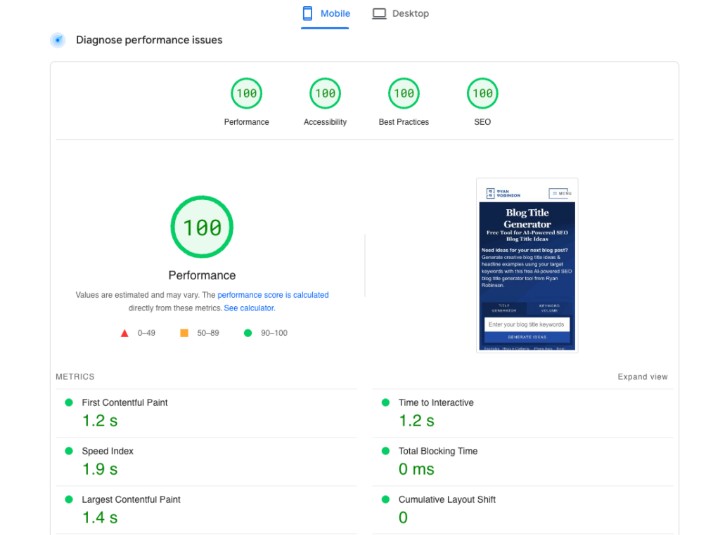
PageSpeed Insights (PSI) is an open-source tool that can measure the performance of a page on different devices, like desktop and mobile. Developed by Google, this invaluable tool gathers information from the Chrome User Experience Report (CrUX) to analyze a page on your site.
When you use PageSpeed Insights to run a performance test, the tool:
- Scores the performance of your site on desktop and mobile versions from 0 to 100
- Use third-party scripts like Largest Contentful Paint (LCP) and Cumulative Layout Shift (CLS) to simplify results and quality score into Core Web Vitals
- Points out issues such as poor caching and render-blocking of CSS files that can slow your web pages
- Provide solutions like optimizing your image file size to tackle the issues and improve your website performance.
How Google PageSpeed Insights Works
Google PageSpeed Insights mobile provides a page speed score between 0 and 100. A higher score means higher performance and vice versa. The score depends on the stability, loading speed, and response of your site. To provide the right score, Google considers factors like JavaScript and CSS file size, total blocking time, and leveraging browser caching.
- 90–100 means that your website is Good (Fast)
- 50–89 means that your site needs improvement
- 0–49 means that your site is poor (Slow)
Is It Worth Using Google PageSpeed Insights to Optimize Your Website?
Did you know that 61% of websites in the world struggle with performance? Optimizing your site to improve its performance can increase your ranking on the results page, boost user engagement, and lead to more conversions.
Google PageSpeed Insights seems to be an invaluable tool for optimizing websites, and here is why:
- According to Google, a slow page can lead to revenue losses and higher bounce rates. If you want to beat the competition and make your visitors happy, you need to improve the performance of your site
- Another key factor is SEO ranking. Google uses factors like mobile page speed to improve the online visibility of a site. So, PageSpeed Insights doesn’t just show you the problem; it offers a way out for your WordPress page.
- A website that delays by 3 seconds can lead to fewer conversions and a revenue loss of 7%. This can be detrimental for e-commerce sites
- Since more than 50% of traffic comes from mobile devices, having a mobile performance budget is one way to build loyal customers and experience.
A Step-by-Step Guide to Optimize Your Site’s Speed
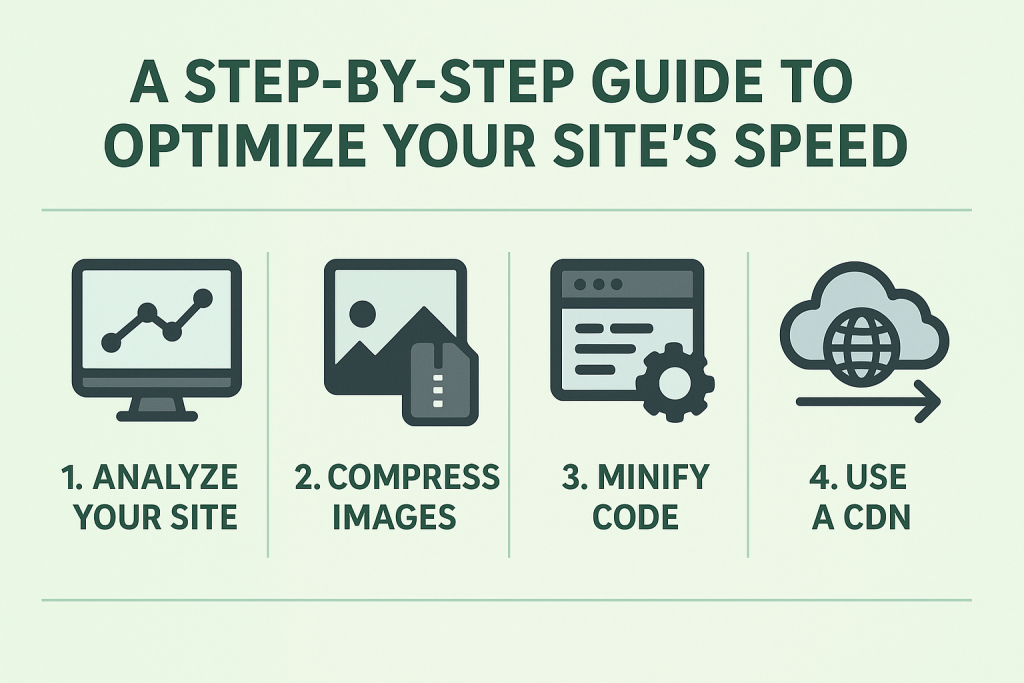
Every website makes use of Content Delivery Networks (CDN) to reduce response times. When it comes to page speed optimization, key metrics like First Input Delay, Speed Index, and First Contentful Paint are important. Here is a step-by-step guide on optimizing your site:
Step 1: Test Your Website with Google PageSpeed Insights
Analyzing your website is the first step towards online success. On your laptop, you can visit the Google PageSpeed Insights, input your URL, and run a diagnostic test. After complete scanning, you will see the performance score of your website on desktop and mobile, coupled with issues that are affecting your page load performance.
Step 2: Optimize Images to Improve Page Speed
Images are the major sources of slow website performance. To tackle this common problem. You can compress your images without affecting the quality. Third-party tools like TinyPNG enable you to reduce your image size and save in formats such as AVIF or WebP. Ensure that you have enabled lazy loading, which allows images to load only as a visitor scrolls down your page.
Step 3: Minify and Combine JavaScript and CSS
With the help of CSS and JavaScript execution, every website can style and add functionality. However, these files can be overloaded. You can minify these inline elements by eliminating irrelevant spaces and comments to increase performance. For JS files, set it to defer or async to prevent these elements from bloating the entire site.
Step 4: Leverage Browser Caching
When someone comes to your site, their browser downloads and stores files, images, CSS, and JS. With the help of caching, these downloaded files can be locally stored in their browser, without being re-downloaded each time they visit your site. Activating proper cache headers allows you to make your site faster for returning online store visitors.
Step 5: Use a Content Delivery Network (CDN)
If you have customers from different countries, loading performance can vary depending on where they are. Using a CDN tool like Cloudflare allows you to store your website on servers all over the world. This move is to reduce delays and increase optimized hosting for pagespeed.
Expert Tip
Achieving a 100/100 Google PageSpeed score requires a combination of technical optimization and strategic planning. Monitor and analyze your website’s performance regularly with tools like Google PageSpeed Insights to identify areas for improvement.

Step 6: Optimize Fonts
Just like HTML and JavaScript files, fonts can also be another factor for slow website performance. Using lightweight fonts that are modern and preloading important ones when needed should be considered. Furthermore, you can add font-display, reduce the size of the font, and make sure the text loads instantly to prevent blank text.
Step 7: Control Third-Party Scripts
Third-party scripts such as WP Rocket, GTMetrix, Google Tag Manager, and social media tools can make your website heavy. It is recommended to review your plugins and remove the unimportant ones from your site. After doing that, load them asynchronously to prevent them from reducing the loading speed of your main content.
Step 8: Enable Compression
Just like using the Lighthouse Scoring Calculator to evaluate your site, you can reduce your website files before they are sent to your visitors’ browsers. This is done by enabling Gzip compression on your server, allowing all content on your website to be compressed.
Step 9: Upgrade Hosting and Plugin if Needed
Sometimes the problem may lie with your hosting provider. You can enhance pagespeed with hosting config relevant to your website. People who use a shared hosting plan can have slow website performance. For better speed and delivery, consider using VPS Hosting or Managed WordPress Hosting.
Step 10: Retest and Monitor
After going through the steps listed above and making the necessary improvements, retest your website on PageSpeed Insights. You should see a better performance score on different devices and faster loading times. It is essential to perform constant monitoring, plugin updates, and compression to maintain your site’s performance.
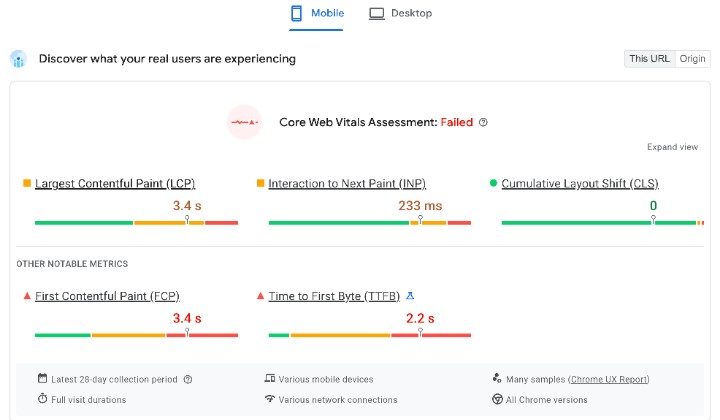
Does PageSpeed Insights Score Affect SEO Ranking?
When it comes to ranking, PageSpeed Insights is a factor used by search engines like Google. All you need to do is learn how to integrate Google Analytics with your WordPress website to better understand the performance of your site. Factors like Core Web Vitals, mobile performance, and loading speed are considered for ranking websites.
The main goal of Google is to provide the best user experience. If your site is hard to navigate, unstable, and takes time to load, it can affect your SEO ranking on search engines. For instance, if your Largest Contentful Paint (LCP) doesn’t load fast, Google can favor your competitor with faster LCP.
Benefits of Google PageSpeed Insights
| Free & Easy to Use | Anyone can test their site without paying | Beginners and pros can quickly check performance |
| Mobile & Desktop Analysis | Gives separate scores for mobile and desktop | Helps you optimize for all devices |
| Core Web Vitals Insights | Measures LCP, CLS, and INP (user experience metrics) | Improves rankings and user satisfaction |
| Actionable Suggestions | Recommends what to fix (e.g., images, CSS, caching) | Saves time by showing clear optimization steps |
| SEO-Friendly | Page speed is a ranking factor in Google search | Faster sites can rank higher and get more traffic |
| Trackable Progress | You can re-test after changes | Easy to see how your optimizations improve scores |

Why Choosing the Right Hosting Provider Matters
One of the best WordPress host-level performance tips is using a reliable domain provider for your website. A bad hosting provider can affect your site’s performance and prevent full potential, irrespective of your efforts.
A good hosting provider must have reduced server response time, which is a major criterion for getting a better PageSpeed Insights score. In addition to that, buying a shared hosting plan can affect your site during peak times, leading to downtime or slow loading times. You can upgrade your shared hosting plan to Cloud hosting or VPS hosting to reduce server response times and keep visitors happy. These plans are the best hosting for page speed score and can be the difference between you and your competitors.
Final Thoughts on Achieving 100/100 Google PageSpeed
Improving the performance of your site doesn’t have to be stressful; all you need is a good WordPress hosting plan. By following the actionable guidelines listed in this article and getting a Hostonce domain plan, you can achieve the perfect 100/100 Google PageSpeed score for your site.
If this content is relevant for your success online, we offer daily tips and insights on our Twitter (X) page. Stay updated, learn the various hosting hacks, and maximize the full potential of your website.
FAQs
2. Does hosting really affect PageSpeed?
Yes! Hosting determines how quickly your server responds. A poor host can slow down your site even if you optimize images, CSS, or JavaScript.
3. How can I improve PageSpeed at the hosting level?
You can switch to a faster hosting plan, enable caching, use a Content Delivery Network (CDN) like Cloudflare, and optimize server settings.
4. Will a higher PageSpeed score improve my SEO ranking?
Yes, having a higher PageSpeed score can increase your SEO ranking. Google considers site speed as a ranking factor. A faster site improves Core Web Vitals, user experience, and can help boost rankings.
5. Which hosting type is best for speed?
Cloud hosting or managed WordPress hosting usually offers the best speed and reliability. They handle traffic spikes better and reduce server response time.

Raising WordPress Default Memory Limit for Hostonce Clients
By Favour Brown on May 1, 2026
Hostonce is the #1 WordPress Host
Ranked by 930+ customers in G2's Best Software Awards.
