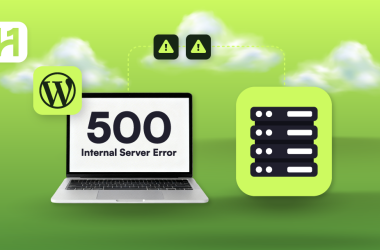

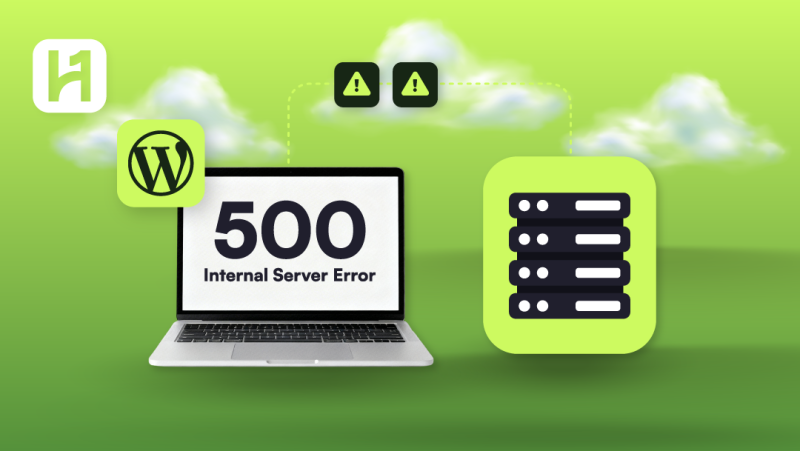
One of the most frequent and annoying problems WordPress site owners face is the HTTP 500 error, which often appears with no explanation. According to research and troubleshooting statistics, corrupt .htaccess files or conflicts between plugins and themes account for 30–40% of WordPress 500 issues. These are the main places to look into initially.
Key Takeaways
- Since the 500 error is a common server-side issue, you must address the files on your server directly rather than through the WordPress dashboard.
- A corrupted .htaccess file or incompatible WordPress themes or plugins are common causes of Internal Server Error 500. When the server attempts to handle the requests, this creates a problem.
- Retracing your actions is one of the greatest ways to troubleshoot the 500 error. Try to recall the precise incident that led to your website’s failure. Choose the best option from the list once you know exactly what went wrong.
What Is WordPress Error 500?
The generic HTTP error 500 WordPress indicates that something went wrong on the server response side. The 500 error only indicates that your hosting server ran into an issue that it was unable to resolve. This is in contrast to a “404 Not Found” error, which indicates a missing page.
6 Hot Changes Coming to WordPress 6.6
By Festus Nkopuruk on November 7, 2025In actuality, this means that when you attempt to access the admin dashboard, your WordPress website becomes momentarily unavailable to all users, including yourself.
Expert Tip
If you have access to your admin panel, try disabling all of your plugins, as conflicts between theme functions or plugins can cause internal server issues (error 500). Try manually resetting your plugins if you are unable to reach your admin panel; Dashboard access is not necessary. Reactivate each one separately until you identify the source, if that fixes the problem. To rule out a theme-specific problem, try using the default theme for your version of WordPress if that doesn’t fix the problem. If it doesn’t fix the problem, a .htaccess rule might be the cause.


Scale Your WordPress Website!
Boost your online growth and performance with high-speed WordPress hosting packages from HostOnce.
Causes Of WordPress 500 Internal Server Error
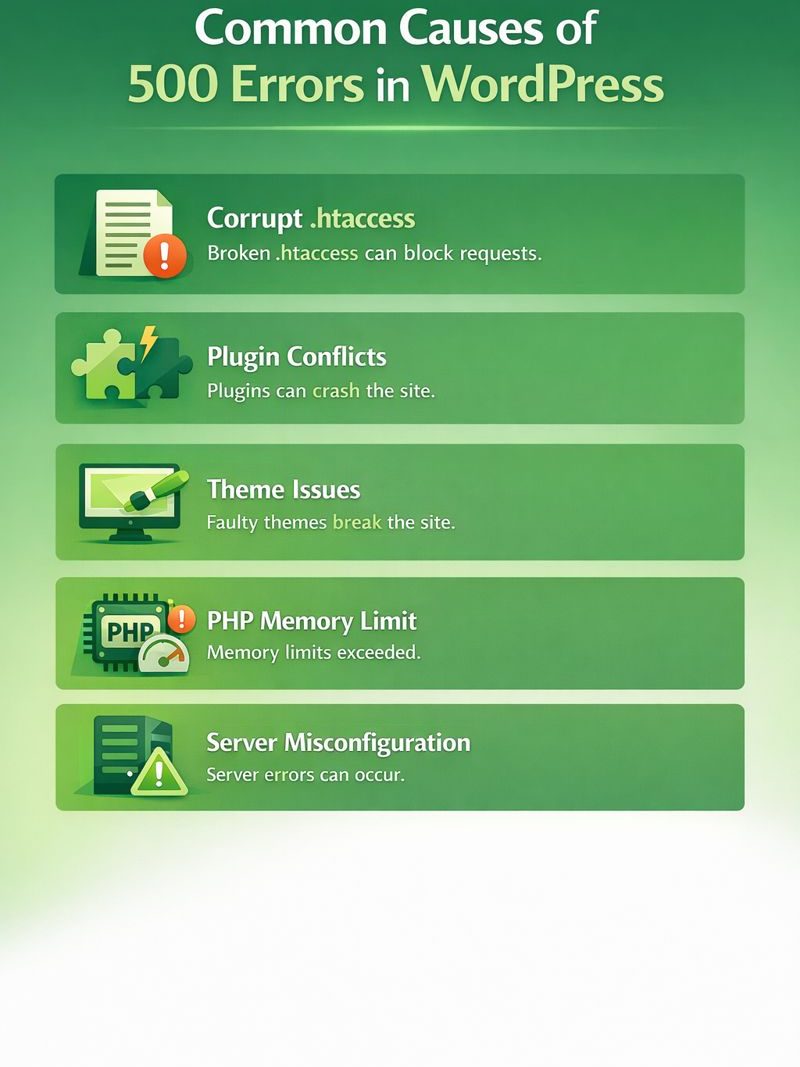
- Corrupt .htaccess file: The root reason of the internal server problem, which frequently resembles a puzzle with missing pieces, is a corrupted .htaccess file that interferes with the server’s request processing and stops WordPress from loading correctly.
- Plugin conflicts: Sometimes a malfunctioning plugin is the cause of the problem; incompatible or badly written WordPress plugins might cause the website to crash before WordPress has enough information to determine what went wrong.
- Problems with themes: Compatibility issues and unexpected internal server errors might be caused by outdated or malfunctioning themes that interfere with your configuration.
- PHP memory limit exceeded: WordPress may crash and lock you out of the admin area if the WordPress PHP memory limit is exceeded due to heavy plugins or unexpected spikes in traffic.
- Server misconfiguration: The error may appear even when the rest of the website appears to be fine due to issues with your hosting environment or server logs, making the problem particularly difficult to diagnose.
Error 500 WordPress Fixes
There are several possible causes of the WordPress 500 internal server error; a methodical troubleshooting approach is necessary. For the best possibility of a speedy remedy, follow the instructions below.
Buy Unique WordPress Domain!
Choose a unique WordPress domain and enjoy seamless speed and growth-ready hosting for your business.
But make a backup of your website before we start.
Checklist for Quick Fixes of Internal Server Error WordPress
- Refresh the page.
- Backup your WordPress website using Cloudways SafeUpdates or UpdraftPlus.
- Check error logs using cPanel, File Manager, or the hosting panel. Disable and then re-enable each plugin individually.
- Expand PHP’s RAM in wp-config.php
- Make the .htaccess file again.
- Empty the WordPress cache.
Refresh Your Page
Internal server errors can sometimes be resolved by just restarting the page, so why not start with the easiest fix?
Overload might cause a server to be down for a while, but a simple refresh usually resolves the problem. In order to resolve the 500 problem, begin by refreshing the site.
Consider this a temporary solution for the WordPress 500 error; if it doesn’t work, move on to the following stages.
Make A Backup Of Your WordPress Website
Making a backup of your WordPress website is crucial. Your website data may still be hacked even if you have put strong security measures in place, such as employing a secure hosting service or routinely updating WordPress core and plugins.
The objective is the same whether you use WordPress backup plugins like UpdraftPlus, Duplicator, or All-in-One WP Migration, or do it manually: to be safe, always make a copy of your WordPress website before resolving a 500 problem.
If the error is unique to you, clear the browser’s cache.
Your browser’s cached data may be the problem if you have verified that your website is only unavailable to you and not to anybody else. Occasionally, these files may get corrupted, making it impossible for you to properly access the website.
If you need to clear your browser’s cache for a WordPress 500 issue that only shows up on your own device, this method works best.
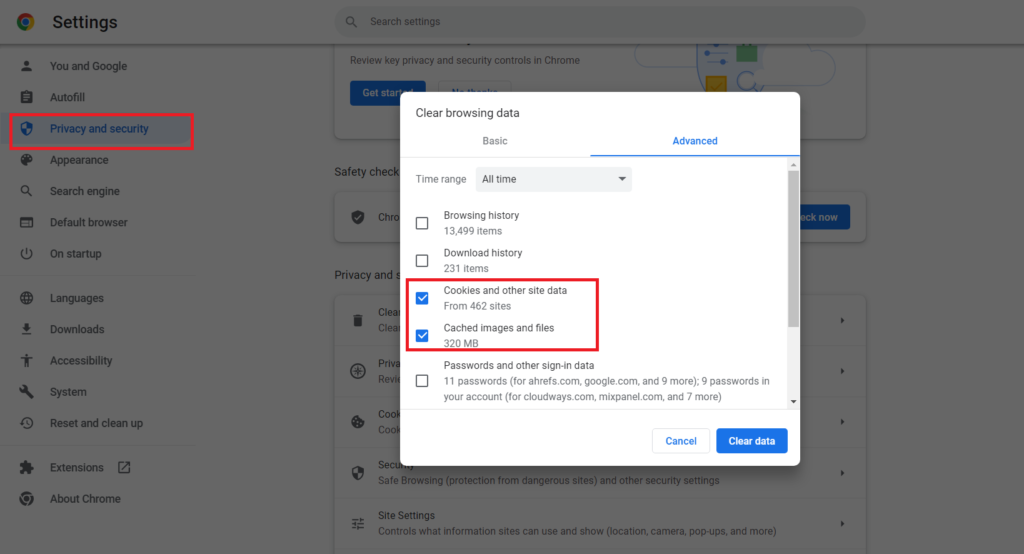
To clear your cache, follow these steps:
- Every browser has a different way of clearing its cache and cookies. This option is usually located in the history menu or settings of your browser.
- The shortcut key combination Ctrl+Shift+Delete will launch the “Clear Browsing data” menu immediately for Chrome users.
- Reload the page after deleting the data from your browser to see whether the issue has been resolved.
- You can be certain that the problem is server-side if the error persists.
Examine Your .htaccess File
The setup of your website is controlled by a crucial file in all PHP-based applications called a .htaccess file (note that this file is not utilized on servers running Nginx).
Discover Your Website Branding Now!
Get instant, data-backed WordPress website name ideas that match your brand vision. Use HostOnce’s smart AI tool to generate unique ideas in seconds.
A 500 internal server error may result from a corrupted .htaccess file. Usually, a module or a malfunctioning theme installation affects this file.
Perform an Audit of Plugins
Out-of-date or malfunctioning plugins frequently cause the 500 Internal Server Error. They may cause disputes that bring down your website entirely. If a mistake has already occurred, you may need to perform a manual audit.
This enables you to verify whether a plugin was the cause of the 500 internal server problem. If so, turn them back on one at a time to identify the offender. You must perform the audit at the server level because the problem keeps you from accessing your WordPress dashboard.
Choose The Best Hosting Now!
The first step in enhancing the efficiency of your WordPress hosting is to update the PHP version on your server. PHP 8.x and other more recent versions provide notable performance and efficiency gains, enabling your website to function more quickly and make better use of memory.
Since shared hosting was the least expensive option when you first bought a WordPress website, the second piece of advice is particularly helpful if you’re still utilizing it. Select a fresh, seasoned, and trustworthy web host. Your website will load correctly if your web servers are efficient.
HostOnce is among the top hosting companies. This is particularly crucial if you’re still using basic shared hosting, which may restrict resources and performance as your website expands.
To assist you in preventing these mistakes in the first place, think about moving to HostOnce. We provide scalable resources, automated backups, and professional assistance to make sure you have all you need to keep your WordPress website operating efficiently and error-free.
Also, consider switching to a VPS/Virtual Private Server (Try HostOnce’s VPS services) if the demands of your website exceed what shared or basic managed hosting can manage.
Conclusion
Your website should be operational once the root cause of the HTTP error 500 WordPress has been resolved. However, it’s possible that an out-of-date version of your website is still being served by your WordPress cache, which could give the impression that the issue persists. Clear your CDN cache or use caching plugins like Breeze.
This is the last step to remove the WordPress cache after resolving the 500 error, and guarantees that users won’t see a broken page.
FAQs
What is the main cause of 500 internal server error?
Improper server configuration, out-of-memory (OOM) problems, unhandled exceptions, incorrect file permissions, and other complicated considerations are only a few of the numerous potential reasons of 500 errors.
How can you fix the 500 internal server error in WordPress?
The problem will automatically be resolved if you refresh the page. Clear your browser's cache, and your issue will automatically be resolved. The first two steps are a basic solution; if your problem persists, try the next steps. Use WP-config to raise your website's memory limit
How does a 500 error affect SEO?
500 errors, which are a sign of server problems, negatively affect SEO by making websites difficult for web crawlers like Googlebot to access and crawl. When 500 series problems occur frequently, search engines may favor other trustworthy, error-free websites, which may be your rivals. This might result in lower search ranks.
Why am I getting 500 internal server error on every website?
An issue with the htaccess file is a typical reason for the "Internal Server Error." The "HTTP 500 Error" page typically appears if the file is corrupted, defines an invalid root folder, or has syntax issues.
10 Best WordPress Cookies Plugin in 2026
By Maryam Khalid on November 10, 2025
Hostonce is the #1 WordPress Host
Ranked by 930+ customers in G2's Best Software Awards.