





Given that WordPress powers 43% of all websites worldwide and that almost all WordPress themes either include or permit a functions.php file by default, it is possible that hundreds of millions of websites contain a functions.php file.
Given that WordPress powers 43% of all websites worldwide and that almost all WordPress themes either include or permit a functions.php file by default, it is possible that hundreds of millions of websites contain a functions.php file. As a result, it remains one of the most widely used files for customizing and extending WordPress functionality.

Beginner’s Guide to the WordPress .htaccess File
By Festus Nkopuruk on May 15, 2026Key Takeaways
- Functions.php is a theme functions file in WordPress that serves as a plugin for your website and is triggered by your active theme.
- All WordPress themes come with a functions.php file that employs PHP code to modify or add new functionality to a WordPress website.
- When WordPress loads the theme on every page visit in the admin and front-end of the website, it automatically loads the functions.php file (if it exists). Thus, it gives you a great deal of power to create original features around WordPress.
- When you install and activate a theme on your WordPress website, the functions.php file loads automatically.
- You can enhance your website by adding post types, taxonomies, shortcodes, and more by utilizing custom code to edit the functions.php file.
What Is The WordPress Functions.php File?
You can add unique code snippets to your WordPress website using the WordPress functions.php theme file. These code snippets can be used to add new material or code to your website or change how certain parts of it operate.
- The WordPress functions.php file is part of your theme, but it may be used for more than just theme tweaking.
- Just as with plugins, you can change any aspect of your website.
- You can make an infinite number of changes to your website since the functions.php file allows you to include custom PHP code snippets instead of static HTML.
Expert Tip
Your WordPress theme uses the functions.php file as a mini-plugin. This file is theme-specific and activates instantly when your theme loads, in contrast to standard plugins that are compatible with all themes. PHP is the primary programming language used by WordPress, and you may add custom PHP code straight to your theme using the functions.php file. This feature enables you to add new features or change current WordPress behaviors without the need to install extra plugins.

How To Edit The WP Functions.PHP File?
There are two ways to edit the WordPress functions.php file. The WordPress functions.php file can be accessed and edited in a variety of ways. Two of the most adaptable techniques that can be used at any host are as follows:
- WordPress theme code editor.
- Your own code editor and SFTP.

Optimize WP functions.php File!
Get the smoothest performance and keep your WP functions.php file optimized with HostOnce fastest WordPress hosting solutions.
1. Utilize the Theme Code Editor in the WordPress Dashboard to Edit Functions.php File
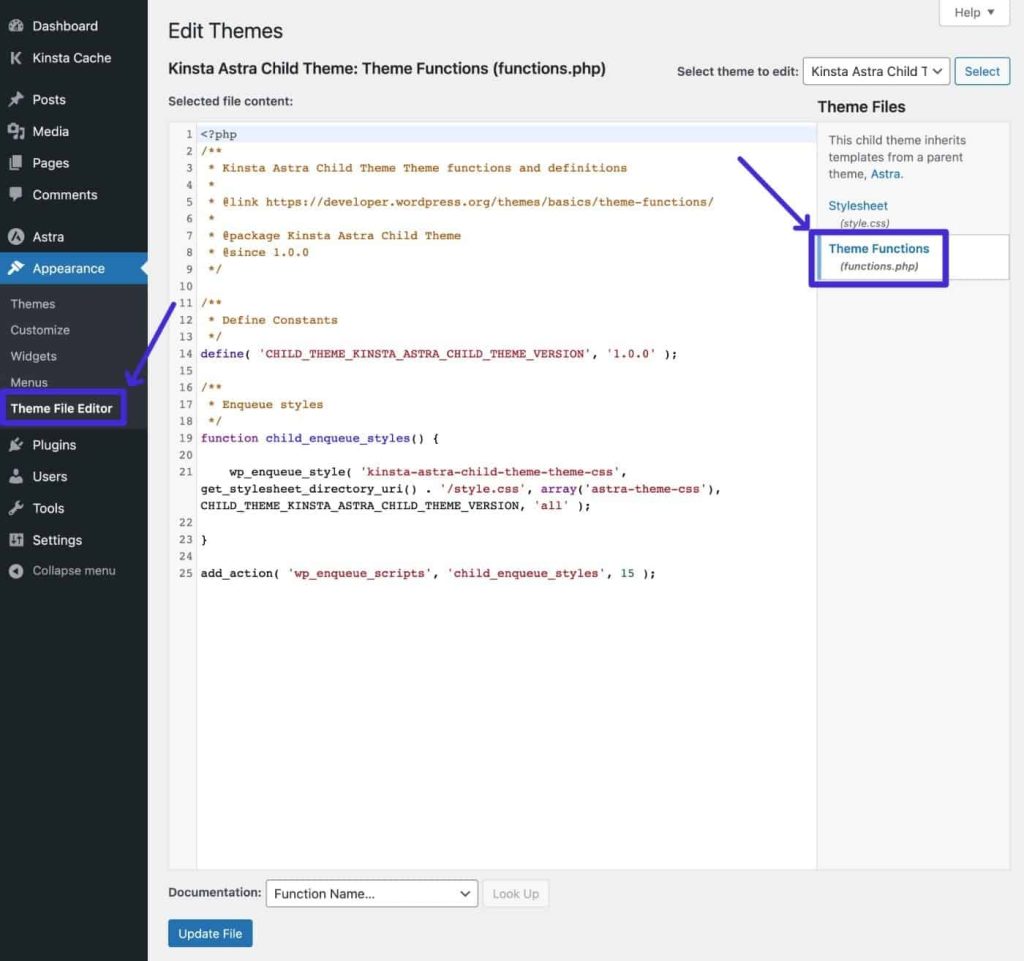
By default, WordPress allows you to modify every piece of code in your WordPress theme, including the functions.php file, from your WordPress dashboard:
- Launch the dashboard for WordPress.
- Navigate to Appearance → Theme File Editor.
- From the Theme Files list on the right, choose the Theme Functions (functions.php) file.
- In the code editor, make your changes.
- To save your modifications, click the Update File button.
| ✅ Pros | ❌ Cons |
| ✅ No additional software required | ❌ Limited error checking |
| ✅ Immediately accessible from your WordPress dashboard | ❌ No version control |
| ✅ Includes basic syntax highlighting | ❌ If the code breaks the site, dashboard access may be lost. |
That being said, in order to increase security, a lot of individuals prefer to disable WordPress’s in-dashboard file editing. You can then employ the following technique.
2. Make Use of Your Own Code Editor and SFTP For Theme Functions File Edit
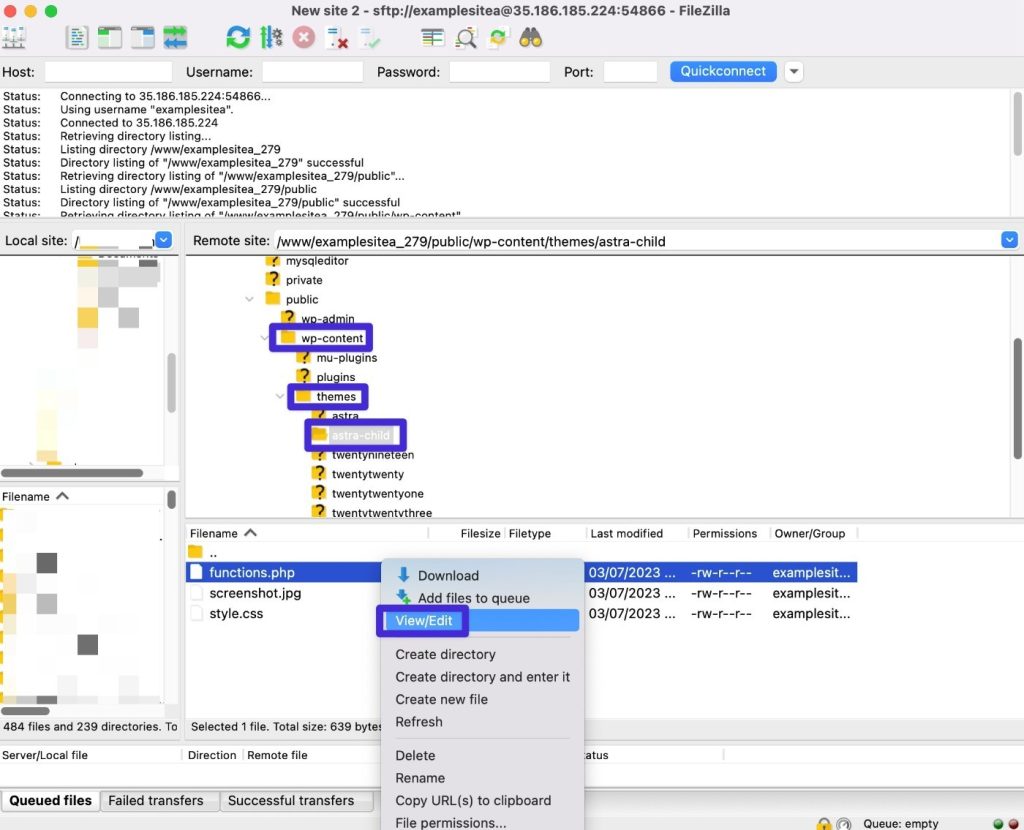
You can also use FTP or SFTP to connect to your server and make changes to the WordPress functions.php file.
Here’s how:
- If you haven’t already, download an FTP client. For reference, you use the free FileZilla client.
- Navigate to /wp-content/themes/[your-active-child-theme] using the folder structure.
- Choose Edit with a right-click on the functions.php file.
- The file should automatically open in a text editor after being downloaded to your local computer. Your code snippets can now be added to the file.
- Save your edits and close the file when you’re done.
- After that, FileZilla ought to urge you to upload the updated version to your server again.
| ✅ Pros | ❌ Cons |
| ✅ Works even when the WordPress admin panel is inaccessible | ❌ Requires additional software |
| ✅ Advanced error checking with professional-grade editors | ❌ Needs FTP/SFTP credentials |
| ✅ Allows secure local backups | ❌ More technical and complex process |
How To Use The Functions.php File?
Let’s examine a few popular custom PHP functions that you may add to your WordPress website using the functions.php file.
Include a Google Analytics Tracking Code
Adding Google Analytics tracking code to a WordPress website is one of the most popular modifications to the functions.php file. It enables you to collect important information on user behavior, traffic, and conversions on your website.
To begin, grab your special tracking code from your Google Analytics account. After obtaining the tracking code, use the WordPress editor or a WordPress File Manager to open your functions.php file and add the following code:
// Add Google Analytics Tracking Code
function add_google_analytics() {
?>
<script async src=”https://www.googletagmanager.com/gtag/js?id=YOUR_ANALYTICS_ID_HERE”></script>
<script>
window.dataLayer = window.dataLayer || [];
function gtag() {
dataLayer.push(arguments);
}
gtag(‘js’, new Date());
gtag(‘config’, ‘YOUR_ANALYTICS_ID_HERE’);
</script>
<?php
}
add_action(‘wp_head’, ‘add_google_analytics’);
Enter your Google Analytics Tracking ID instead of the YOUR_ANALYTICS_ID_HERE placeholder in the code snippet above.
Claim Your WordPress Domain Now!
Secure a unique online identity that reflects your business idea. Register your WordPress websites in seconds with HostOnce!
Make Your Own WordPress Login Error Message
You may improve user experience and give users clear guidance when login problems arise by personalizing the login error messages on your WordPress website. This code sample uses the WordPress functions.php file to generate a unique login error message:
// Create Custom Login Error Message
function custom_login_error_message() {
return ‘Your custom error message goes here.’;
}
add_filter(‘login_errors’, ‘custom_login_error_message’);
Include Support for File Type Uploads
WordPress prohibits uploading certain file types by default, including SVG images. When attempting to upload unsupported file formats, this restriction may cause the error “Sorry, this file type is not permitted for security reasons.”
Fortunately, you can change WordPress’s functions.php file to enable support for more file formats, as demonstrated in the code sample below. Make sure to substitute the file type extension you want to use instead of SVG, following the instructions in the official WordPress Codex, or Theme Functions Guide.
Optimize Your WordPress File Manager!
Boost your website’s efficiency by streamlining your WordPress file management. Take advantage of premium hosting solutions from HostOnce.
// Add File Type Upload Support
function custom_allow_file_types($allowed_types) {
$allowed_types[‘svg’] = ‘image/svg+xml’; // Replace ‘svg’ with your desired file type extension.
return $allowed_types;
}
add_filter(‘upload_mimes’, ‘custom_allow_file_types’);
Change the Sizes of WordPress Images
WordPress lets you specify unique picture sizes to meet the layout and design specifications of your website. To make sure your media material displays properly, you can make new image sizes or change the ones that already exist, can be found in the Media Settings, or Developer Handbook.
Add the following code snippet to your functions.php file in WordPress to produce new image sizes:
// Add Custom Image Sizes
function custom_image_sizes() {
add_image_size(‘custom-thumbnail’, 300, 200, true);
add_image_size(‘custom-medium’, 600, 400, true);
}
add_action(‘after_setup_theme’, ‘custom_image_sizes’);
Custom-thumbnail and custom-medium are the two specified custom image sizes. You can change the proportions to suit your particular use case.
Include Support for RSS Feeds
For content publishers and bloggers, Really Simple Syndication (RSS) feeds are a useful tool. They make it simple for users to subscribe and keep up with your material.
You may use the following code snippet in your functions.php file to begin integrating RSS feed functionality into your WordPress website, like your blog website:
// Add RSS Feed Support
function custom_add_feed() {
add_theme_support(‘automatic-feed-links’);
}
add_action(‘after_setup_theme’, ‘custom_add_feed’);
Conclusion
Remember that one important distinction between the functions.php file and plugins is that the active theme expressly links the functions.php file. Any functionality introduced via the functions.php file vanishes when you change themes unless you manually move that code to your new theme.
Additionally, this file remains a vital tool for developers to create theme-specific functionality. It keeps the theme’s code structured and manageable while enabling the development of original experiences. Many professional WordPress themes heavily utilize Functions.php to provide their unique features.
FAQs
What are functions PHP in WordPress?
The functions.php file in WordPress is crucial in determining how your website behaves and looks. You can add custom code, change themes, and improve the operation of your website with this theme functions file.
What is a function PHP file in a theme?
WordPress themes come with a template called a php file, sometimes known as a theme functions file. The functions.php file adds features and functionality to a WordPress website in a manner similar to a WordPress plugin. The file uses PHP code to add new features or modify the default ones, and it immediately activates with the current theme.
Is there another way to modify the functions.php file?
Indeed, the Code Snippets WordPress plugin offers a different method for adding or changing functions. Without actually changing theme files, the plugin offers an easy-to-use interface for adding or changing code in individual files. This approach is very useful if you want your custom code to continue working even if you switch themes.
Is editing the functions.php file safe?
It is generally safe to change the WordPress functions.php file, but care must be used. Code errors have the potential to ruin your website. Use a child theme, make backups, and adhere to basic coding techniques to reduce hazards. To maintain customizations during theme upgrades, stay away from directly modifying the parent theme.

How to Build a Gutenberg Plugin to Add Functionality to the Block Editor
By Javeria Riaz on August 12, 2025
Hostonce is the #1 WordPress Host
Ranked by 930+ customers in G2's Best Software Awards.
