
Starting around 2013, the WordPress default memory limit increased from 32MB to 40MB as part of a core update. While a WP memory limit of 128MB is usually sufficient for basic blogs, simple business sites, and minimal plugin use, sites that handle intensive operations or large media require a higher WordPress memory limit. If you own one of such websites, it is important that you increase WordPress memory limit up to 768MB or even upgrade your hosting plan for better functionality.
This article will show you what the WP memory limit is, how to raise WordPress memory limit, and how to check your WP memory limit.
How to Find and Update Your WordPress Website Login Page URL?
By Festus Nkopuruk on November 10, 2025Key Takeaways
- WordPress has a default memory limit of 40MB, and this would affect the functionality of your site as it grows.
- The WP memory limit is set in wp-config.php and determines how much server memory WordPress can use.
- Low memory can cause errors, slow performance, or trouble using themes and plugins.
- You can increase WordPress memory limit by editing the wp-config.php file, .htaccess file, or by contacting your hosting provider.
What is the WordPress Memory Limit?
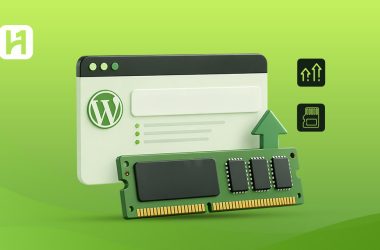
The WP memory limit is how much of the server memory WordPress is allowed to use. It is defined in your site’s wp-config.php file. The WordPress default memory limit is set at 40MB. However, there are ways through which the owner of a WordPress site can increase WordPress memory limit. You can raise WordPress memory limit manually by editing the wp-config.php file or contact your hosting provider.

Reliable Hosting Starts with Hostonce
Experience optimized WordPress hosting with higher PHP memory, faster response times, and solid reliability.
What is the Difference Between WordPress and PHP Memory Limit?
The PHP memory_limit is the maximum amount of memory that a single PHP script can consume while carrying out its function. It is determined by your hosting provider or administrator. It is the “master” or server-side limit and is defined in the server’s php.ini file.
WordPress WP memory limit tells WordPress how much of the total available server memory it can use. The WordPress memory limit is defined in your site’s wp-config.php file. The WordPress default memory limit is 40MB for single sites and 64MB for multisite installations. You can increase WordPress memory limit in the wp-config.php file.
Why is it Important to Increase WordPress Memory Limit?
As your website grows, its memory requirements increase. While your site can work with 40MB to 128MB in the beginning, this requirement will change over time. As you add things like WordPress themes and plugins, media files, and other content, your site begins to require more memory. The software itself is constantly evolving, and this increases the need for more resources.
Having a low memory setting can lead to issues with your site’s functionality. It could cause problems saving your pages and result in error messages or memory-exhausted errors. Smaller sites like blogs and small business websites can run well on low memory, but sites with more functionalities—such as online stores, news publications, and similar platforms—may require higher memory limits of up to 256MB.
Thus, for better functionality and scalability of your site, you need a higher memory limit.
A crucial fact to note is that you cannot increase WordPress memory limit beyond the PHP memory limit. For example, if the PHP memory limit is 256MB, you cannot increase WordPress memory limit beyond that.
How to Increase WordPress Memory Limit
There are many ways to increase WordPress memory limit. The most common method is editing your website files manually using an FTP client or the File Manager in your hosting control panel. You can also contact your hosting provider and request a higher limit. If you edit the website yourself, you get more control, but you must be careful to avoid breaking your site.
The steps below explain each method clearly, showing exactly what to do and where to locate the necessary files.
Quick Tip
Do not attempt to increase your WordPress memory limit yourself if you do not have any technical knowledge. Instead, reach out to your hosting provider for support, so you don’t end up breaking your site.
Method 1: Edit the wp-config.php File
Editing the wp-config.php file allows you to tell WordPress how much memory it is allowed to use. The wp-config.php file is located in your website’s root directory and it controls important site configurations.
Here’s how to do it:
- Access your website files.
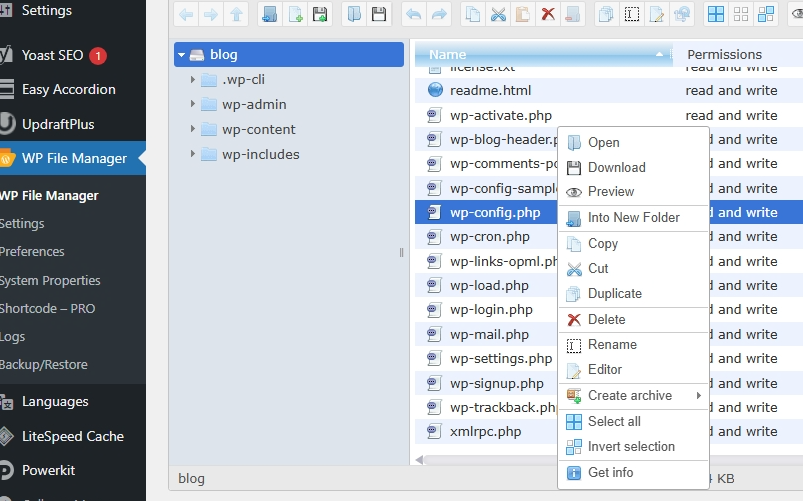
Login to your WordPress website’s admin dashboard and open your site’s File Manager. If you don’t want to make the edit through the File Manager, you can use an FTP client like FileZilla. Simply connect to your site using your FTP credentials, which you’ll find in your hosting dashboard. - Find the wp-config.php file.
The wp-config.php file is located in the main folder where WordPress is installed, usually named public_html or something similar.
- Open the file for editing.
Right-click the file and among the options that appear, select Edit. If you’re making the edit using FileZilla, download the wp-config.php file to your computer. Open it with a text editor (such as Notepad or VS Code) for editing and upload it back when done.
- Add this line of code.
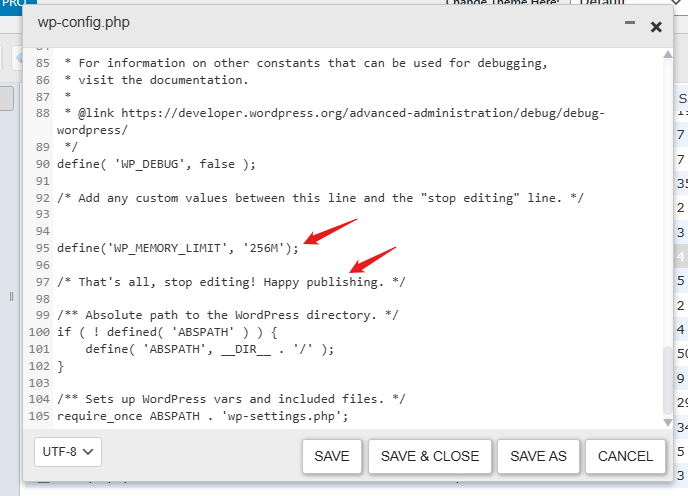
Just before the line that says “That’s all, stop editing!”, add the following line:define('WP_MEMORY_LIMIT', '256M');
This tells WordPress to allocate up to 256 megabytes of memory.
- Save the file and refresh your site.
Once saved, return to your website and refresh it. If the memory error disappears, your change worked.
Expert Tip
Increasing your WordPress memory limit can help solve immediate errors but proper website performance depends on optimization. Only install necessary themes and plugins, use caching tools to lighten the load on your server, and keep your website updated to the lates PHP version.

Method 2: Edit the .htaccess File
Another option to increase WordPress memory limit is by editing the .htaccess file.
Follow these steps to increase your website’s memory limit by editing the .htaccess file:
- Access your root directory.
Log in to your admin dashboard and open the File Manager or connect to your website using an FTP client like FileZilla. - Find the .htaccess file.
Sometimes, the .htaccess file is hidden. If it is, open your control panel settings and enable “Show hidden files.”
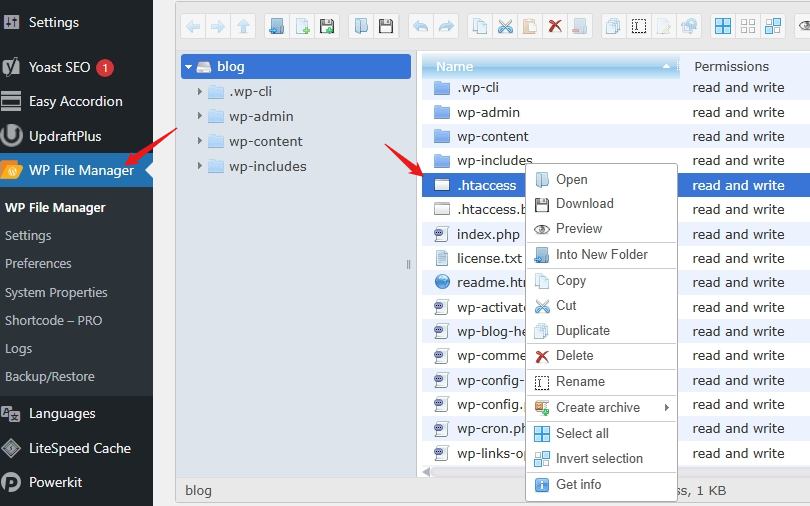
- Edit the file.
Right-click the file and select the Edit option. Once opened, add the following line outside any existing WordPress rules, below the line #END WordPress.:
php_value memory_limit 256
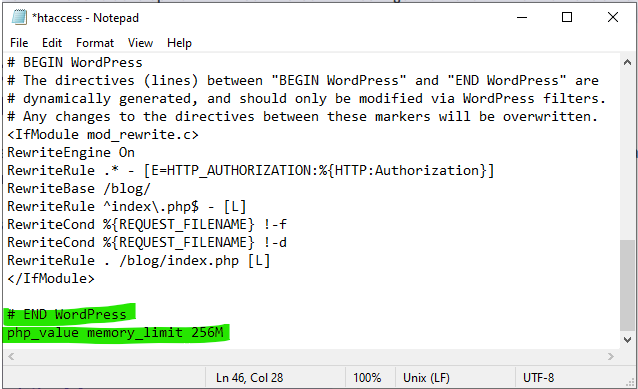
If you cannot directly edit the file from your dashboard, download it and edit it using a text editor like Notepad. Alternatively, you can use an FTP client. After adding the code, upload the file back to the File Manager and save it.
- Save and reload your website.
Once saved, refresh your site to see if the changes have been effected..
If the edit doesn’t work, your web host may have blocked PHP configuration overrides via .htaccess. In that case, you will need to contact your hosting provider to make the adjustments.
How to Check Your WordPress Memory Limit
To confirm that your attempt to increase WordPress memory limit was successful, follow these steps:
- Log in to your WordPress admin dashboard.
- Go to Tools → Site Health and click on the Info tab.
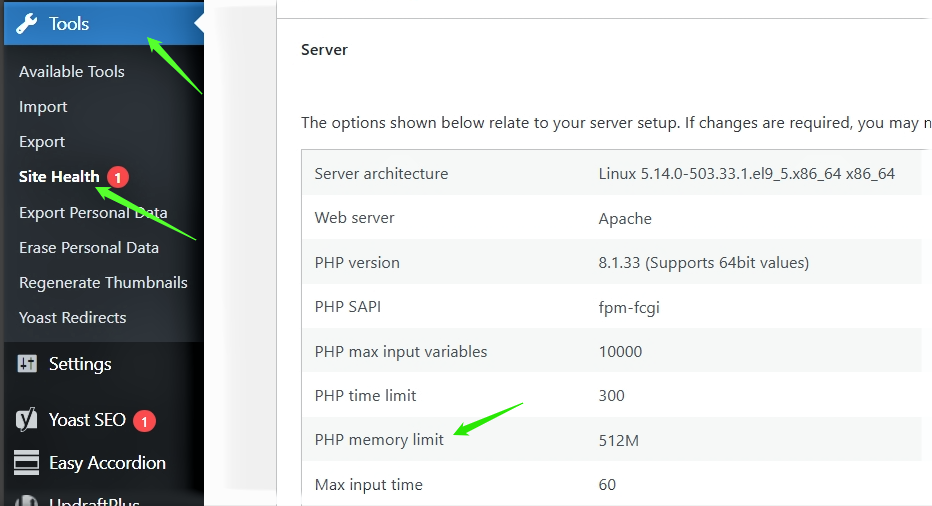
- Look for the line that says WP_MEMORY_LIMIT.
- This will show your current WordPress memory limit.
Don’t Let Poor Hosting Drag Down Your Website
Stop struggling with limits and slow performance. Switch to Hostonce for better memory, speed, and control.
Conclusion
WordPress has a default memory limit of 40MB. While this may be sufficient for new websites, it becomes inadequate as the site grows. Keep in mind that you cannot increase WordPress memory limit beyond the PHP memory limit. Increasing the WordPress memory limit allows your website to handle more complex functionalities and operate at an optimal performance level.
FAQs
Will increasing the WordPress memory limit improve site performance?
Increasing the memory limit can help your site run more smoothly by preventing memory-related errors, but it does not automatically improve speed. Performance also depends on hosting quality, optimization, and site configuration.
Is it safe to edit wp-config.php or .htaccess files?
Yes, but you should proceed with caution. Always create a backup before making changes, as incorrect edits can cause your site to stop working.
Why didn’t the memory limit change after editing wp-config.php?
This usually happens when the PHP memory limit is lower than the value you set in WordPress or when the hosting provider restricts memory changes. In such cases, you need to contact your host.
Can my hosting provider increase my WordPress memory limit for me?
Yes. Most hosting providers can increase your PHP and WordPress memory limits upon request, especially if you are on a plan that supports higher resource allocation.

How to Secure Student Data in WordPress (FERPA and GDPR Compliance)
By Festus Nkopuruk on August 9, 2025
Hostonce is the #1 WordPress Host
Ranked by 930+ customers in G2's Best Software Awards.