


Approximately 43% of all websites are powered by WordPress, which makes it a large target for various types of failures and attacks. According to security reports, over 30,000 websites are hacked on a daily basis, and WordPress websites are the most vulnerable due to outdated plugins and poor security practices. Moreover, 70% of data loss incidents stem from human error, while 60% of hacked websites are running on outdated software. These are all problems that the best WordPress backup practices are meant to solve. Given these alarming figures, it is quite clear that regular WordPress backup is a critical safety measure and not simply a luxury.
Most WordPress data loss results from malware, conflicts during plugin or theme updates, accidental deletions, corrupted databases, or hosting provider outages. Even a small configuration or routine update can result in severe loss of functionality, broken sites, or complete loss of access.
5 Best WordPress Menu Plugins Of 2026
By Aliza Irfan on November 10, 2025Without data backups, the risk of losing significant or even all its data is very high. It can result in long periods of downtime, lost income, damage to reputation, and it can even drive users away. For online stores and businesses, losing incidents can lead to loss of years of content, as well as valuable customer data. This is why it is crucial to have adequate data backups. This guide will help you to understand the most recommended and reliable WordPress plugins for data backups, as well as their most important practices, to help you protect your data during unfortunate incidents.
Key Takeaways
- In order to defend your website from hacks, failed upgrades, human errors, and hosting problems, adopting WordPress backup practices is fundamental.
- For complete recovery, a full backup should include the website files and the database.
- Implement best practices, including automated scheduling, off-site storage, a variety of backup copies, and regular testing of the restores.
- Since blogs, business websites, and eCommerce stores all have distinct needs, diverse sites require different backup approaches.
- While hosting backups should be considered a secondary backup, backup plugins provide autonomy and control.
- Incremental and real-time backups are fundamental to dynamic and revenue-generating sites.
- Backups should be protected with encryption, restricted access, and malware-free restore points.
- An unexpected issue will occur, and a proactive backup strategy will save time, revenue, and stress.
Table of Contents
- What Is a WordPress Backup?
- Types of WordPress Backups
- Best WordPress Backup Practices (Must-Follow Rules)
- Manual vs Automated WordPress Backups
- Recommended WordPress Backup Plugins (Quick Picks)
- WordPress Backup Solutions (Beyond Plugins)
- Comparison Table: Best WordPress Backup Plugins at a Glance
- How to Choose the Right WordPress Backup Solution
- How Often Should You Back Up a WordPress Site?
- Final Thoughts
- FAQ

Launch Your Website Today
No matter which path you choose, you need a strong hosting foundation to grow online. Get secure, fast, and beginner-friendly web hosting to power your digital journey.
What Is a WordPress Backup?
WordPress backup data is a backup copy of your website’s data that lets you restore your site if the unpredictable occurs. Protecting your data, settings, and functionalities from being lost or compromised due to hacks, failed updates, server failure, and human error is the primary goal of backing up WordPress data. With a dependable backup, instead of spending hours rebuilding your website, the site can be recovered in a matter of minutes.
A comprehensive backup of your WordPress site should include site files as well as the connected database. As for site files, there are themes, plugins, uploaded media, and core WordPress files, which are the building blocks to your site’s appearance and functionality. The database holds all the content that is dynamic in nature, as it contains posts and pages, comments, user accounts, settings, and order information. Omitting either your site files or database will result in a broken or incomplete restore.
Types of WordPress Backups
Full Backups
A full backup gives a copy of everything in your WordPress site, which should include all the files and the database. It is important to have one of these backups whenever you are going to do anything major on your site, like core updates, theme redesigns, migrations, or server upgrades.
Pros:
- Fully captures all site information for recovery in one single step.
- Great for migration and resolution of disasters.
Cons:
- Overall file size and storage space are increased.
- Additional time is required to complete a backup.
Incremental Backups
Incremental backups are the copious amounts of data that keep track of every change that occurs to a site and are updated by saving changes from the last backup. Rather than copy a data backup set in its entirety every time, differences are stored, and changes to the data set are marked.
Real-Time Backups
Real backups instantly record every single change to a target data set and image, including form submissions, changes, new entries, etc. These systems are ideal for sites with rapid user input.
Real-time backups cost more than others but are ideal for systems where input changes are continuous and queued.
Best WordPress Backup Practices (Must-Follow Rules)
Depending on the needs of the site, a backup strategy can be built on consistency, redundancy, and security. These best practices help ensure your WordPress backups can be restored when necessary.
- Use the 3-2-1 backup strategy, which preserves three total copies of the data: on two different types of storage and one offsite. This will keep your site protected even if your server or local system fails.
- Set automated backups according to how often changes are made to your site. Content-light blogs can run backups weekly. For more dynamic sites, business websites, and eCommerce stores, be sure to run daily or real-time backups to prevent data loss.
- Backups should always be stored offsite (e.g., in cloud storage such as Google Drive, Dropbox, or Amazon S3). Keeping local or same-server copies is risky because they can be lost when the server is compromised. Plus, they can be lost if the server experiences a crash.
- You should periodically conduct a trial backup restore to prove the backup can be restored. If a backup cannot be restored, it will be useless in case of an emergency. Therefore, it is imperative to conduct trial restores regularly.
- Try to keep previous backup versions rather than just the latest one. This will help in case you have malware or an error that is undetected for days. In that case, you can roll back to a clean version.
- Be sure to protect your backups with encryption and other security measures like strong passwords and restricted access. Backup files contain sensitive data and need to be looked after just like any other critical data.
Manual vs Automated WordPress Backups
There are fundamentally two standard WordPress backup practices: by hand and automatically. Both options are viable, but there’s a huge difference in ease and reliability.
Manual Backups
Manual backups entail using cPanel or a web hosting file manager to copy website files, and then exporting the database with phpMyAdmin. This way, you have complete control, but you need to be tech-savvy and execute the task with a lot of focus.
Pros:
- No plugins are needed
- You have complete control over the files and database.
Cons & risks:
- It will be time-consuming and more likely to be error-prone.
- It’s easy to forget or misconfigure.
- There is no automatic scheduling or version history.
Unsurprisingly, manual backups are not a long-term strategy, but are a viable option as a supplemental backup option before bigger changes.
Automated Backups
Automated backups are done using backup plugins on WordPress or on a hosting data system and run on a schedule. Saves files and databases automatically and completely eliminates any manual labor.
There are off-site storage and more restore control with plugin-based automation that is more flexible, while hosting-level backups may be more convenient, but also more likely to have restricted retention periods or be limited in restore access.
For the majority of users, automation is a perfect option to reduce the chance of human error, to keep the backup process consistent while also offering time to complete other tasks, and emergency retrieval will be much quicker.
Expert Tip
Don’t treat backups as an afterthought. The most reliable approach is to follow the 3-2-1 rule: keep 3 copies of your site, on 2 different storage types, with 1 stored offsite. If you’re using WordPress, schedule automated backups before every major update and test restore points regularly. A backup is only useful if you can actually restore it quickly without breaking your site.

Recommended WordPress Backup Plugins (Quick Picks)
1. UpdraftPlus
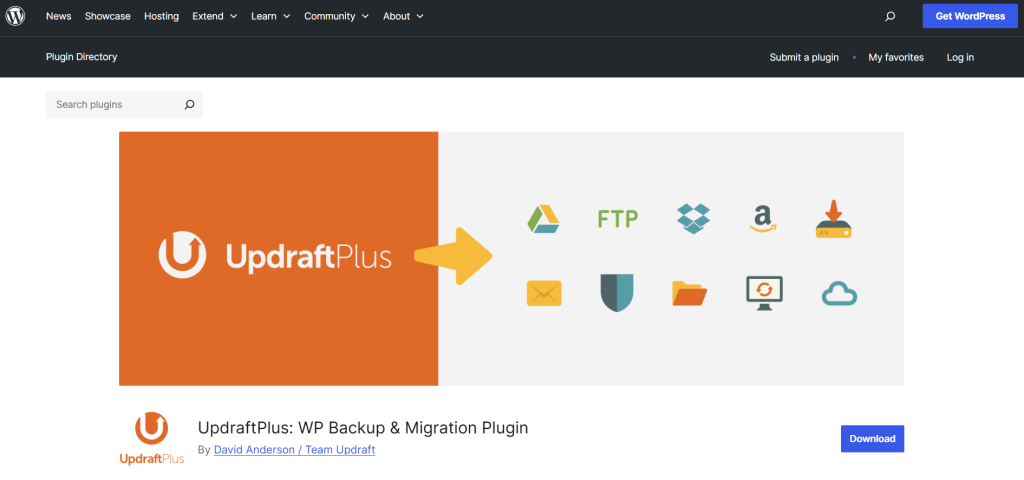
UpdraftPlus is a popular and reliable WordPress plugin that is super easy to use while still providing a more than adequate free version. Supports automated backups and a variety of cloud storage options.
Key Features:
- Scheduled or on-demand backups
- Integrates with cloud storage (Google Drive, Dropbox, Amazon S3, etc.)
- Backup restoration is a one-click process right from your WordPress dashboard.
| Pros | Cons |
| User-friendly | Additional advanced features are on the Premium version |
| Strong free version | Restore process can take a while. |
| Cloud storage options | Not very many options for real time backups |
Best For:
Reliable all-purpose backup plugin for blogs, small businesses, and novice users.
2. BlogVault
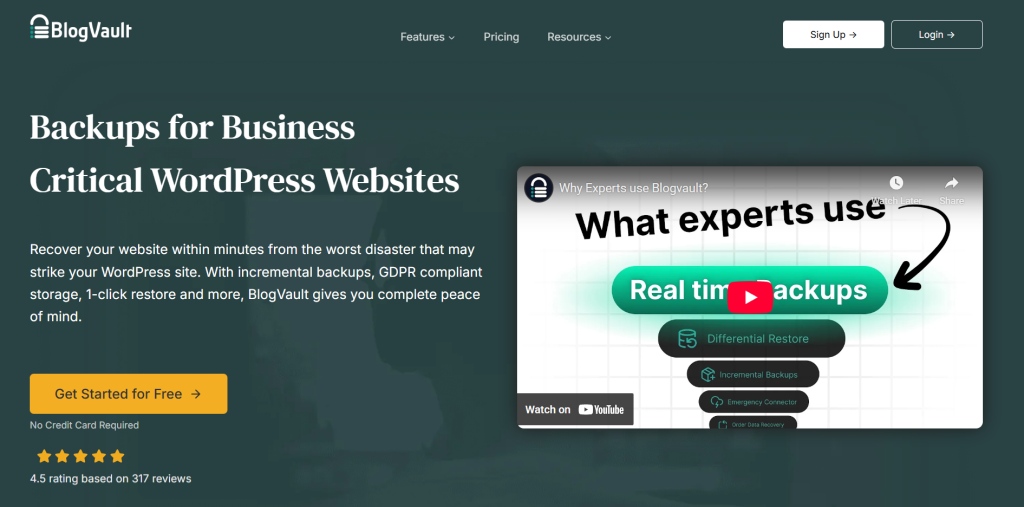
BlogVault is a premium backup solution designed for WordPress sites with high-performance needs. Uses off-site incremental backups so as not to take up too much storage on your site, plus includes staging and migration tools.
Key Features:
- Real-time incremental backups
- Off-site storage with an independent dashboard
- One-click restore and staging environment
| Pros | Cons |
| No performance impact on site | Paid solution |
| Highly reliable restores | Cost is high compared to basic backup plugins |
| Excellent for WooCommerce | Overkill for small blogs |
Best For:
High traffic WordPress websites, member sites, and WooCommerce stores.
3. BackupBuddy
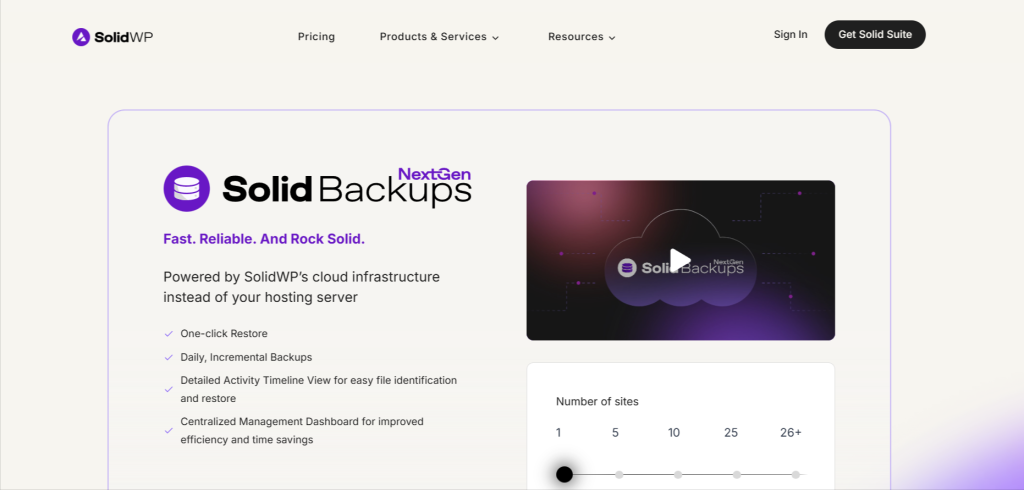
BackupBuddy is all about premium plugins that emphasize simplicity and full backup protection. Also includes built-in migration tools for easy site transfers and moves.
Key Features:
- Safe backups of files and databases
- Restores and site migrations from backups
- Backups that are automated and scheduled
| Pros | Cons |
| Simple and easy to set up and use | Paid versions only |
| Good functions for migration | Cloud storage is low |
| Support is available | Customer support is good |
Best For:
WordPress sites that are migrated often and non-technical freelancers.
4. WPvivid Backup Plugin
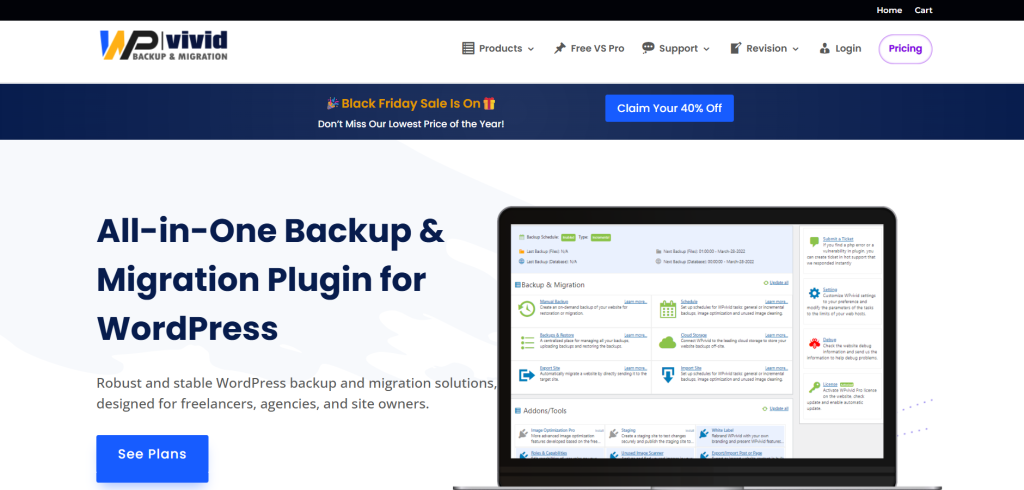
WPvivid Backup Plugin Website has many options and good backup and restoration options for Cloud-hosted sites. Premium website options also include staging and migration.
Key Features:
- Backups, restoration, and migrations
- Backups and restores can be scheduled or performed manually
- Cloud storage support, including Google Drive, Dropbox, and S3
| Pros | Cons |
| Great free version with many options | Pro version does add extra options |
| UI is very clean and simple | Restore can be slow |
| Flexible backup options | Support is limited on the free plan |
Best For:
Best for small sites, startups, and those on severely limited budgets.
5. Jetpack Backup

Jetpack Backup offers a backup service that is cloud-based and offline. The service is fully automated in real time. It is part of Jetpack and is seamlessly integrated with the ecosystem. It is focused on both reliability and ease of use.
Key Features
- Backups are saved off-site with no time delays.
- Any saved backup is available for restoration with a single button click.
- Works seamlessly with Jetpack security products.
| Pros | Cons |
| No hosting resources are engaged. | A subscription is mandatory. |
| Restores can be performed with complete reliability. | Customization opportunities are slight. |
| Provides great usability for novices. | Many of the most valuable components are associated with Jetpack. |
Best For:
Commercial online resources and clients that use Jetpack security and/or acceleration services.
WordPress Backup Solutions (Beyond Plugins)
Backup plugins are one of the more common and flexible methods for keeping a WordPress site secure. But there are more options available. Hosting-level backups, cloud storage, and staging environments are other methods of safekeeping and are usually used alongside plugins for more extensive protection.
Hosting-Level Backups
Automatic daily backups are a featured service among many WordPress hosts. These are server-level backups, and most of the time they include the website files and databases, and no action or configuration is needed on the user’s end.
Unfortunately, host backups are problematic because they usually come with several limitations. Options for restores are often slim, retention periods are commonly short, and some hosts will charge extra for on-demand restorations. Backups are usually stored on the same dedicated hosting infrastructure, which is why they should not be your only line of defense.
Cloud Storage Backup Solutions
Services like Google Drive, Dropbox, and Amazon S3 are used for storing WordPress backups. They are safe, cloud storage connects with most backup plugins for seamless automatic uploads, and these are often used to store backups.
Keeping backups stored on your servers is a major off-site storage benefit, while cloud storage is used. Your backups are protected from server crashes, hacks, or hosting account failures, which is often the case when your site’s hosting provider goes down. If this happens, and your website becomes completely inaccessible, your backup is there for restoration.
Staging and Backup Integration
WordPress provides a staging website to replicate your website with a set of plugins and themes to make temporary design and content changes without affecting your live website. It is good practice to make and apply updates on your staging environment prior to pushing changes live to your website so that you can test your changes and avoid rendering your site unusable.
Reliable backups are paramount before making core updates, adding plugins, changing themes, or moving your site. Merging staging with dependable backups gives you an option to reverse changes immediately when an unexpected issue occurs, which prevents losing data and limits your downtime.
Grow Online with Confidence
Take the next step toward building your digital presence. From hosting to tools that support your growth, Hostonce has everything you need to succeed—whether you’re starting a blog or scaling a business.
Comparison Table: Best WordPress Backup Plugins at a Glance
This table gives an overview of the most popular WordPress backup plugins so that you can make an informed decision without requiring a lot of technical know-how. It compares and provides a score based on backup method, ease of restoring, cloud integration, pricing, and the target user.
| Plugin | Backup Type | Restore Process | Cloud Storage Support | Pricing | Ideal User |
| UpdraftPlus | Full & scheduled | One-click restore from dashboard | Google Drive, Dropbox, Amazon S3, OneDrive | Free + Premium | Bloggers, small businesses, beginners |
| BlogVault | Incremental & real-time | One-click restore via dashboard | Built-in off-site cloud | Premium only | WooCommerce, high-traffic sites |
| BackupBuddy | Full backups | One-click restore & migration | Limited (via Stash or external) | Premium only | Freelancers, site migrations |
| WPvivid | Full & incremental | Manual or guided restore | Google Drive, Dropbox, Amazon S3 | Free + Premium | Small sites, budget users |
| Jetpack Backup | Real-time | One-click cloud restore | Jetpack cloud infrastructure | Subscription-based | Business sites, Jetpack users |
How to Choose the Right WordPress Backup Solution
When it comes to determining the best WordPress backup practices/solutions, it comes down to how your website functions, how often it gets updated, and how quickly you need to recover from glitches and issues.
- Blogs: For minor and personal blogs that do not attract high traffic and do not have a lot of updates, you can do scheduled complete backups that most often would do the trick, like once a week. A basic plugin would do the trick or be often enough.
- Business website: For business websites, it is crucial that you have off-site automated backups that you can do daily. Being able to quickly restore your website after it is down is a necessity, as it is crucial to your business reputation.
- eCommerce website: For online stores and membership sites, you need backups that are incremental or real-time to make sure that orders, transactions, and customer information are protected. Losing a couple of minutes of information can result in a loss of revenue.
- Budget: For small websites, there are a number of free backup plugins. However, for businesses that are growing, it would be a good idea to invest in a managed premium backup so that you get access to reliable backup restores and a real-time backup.
- Skill level: For beginners, it would be best to use website plugins and tools that have a backup and a restore feature that can be done in one click. However, advanced users can opt for website plugins that have superior customization.
How often do you need backups, and how quickly do you need to restore? For websites that are revenue-driven, it is very important to have solutions where the recovery is really quick.
How Often Should You Back Up a WordPress Site?
The frequency of backups should correspond to how often the site is updated.
Infrequently updated sites: Personal and more static blogs generally require weekly backups.
Heavily updated sites: Active blogs, news sites, and business sites should have daily backups.
Dynamic sites: Since there are customer activities and real-time orders to protect, site backups should occur continuously or at more frequent intervals.
The schedules below are recommended.
- Weekly: Passive and low activity blogs
- Daily: High activity business and content sites
- Hourly or Real-time: eCommerce and site with customer memberships
Making sure to provide a timed frequency of backups is so that the site can be restored with the least damage possible and at the quickest speed.
Final Thoughts
Backing up WordPress sites is not only a technical task but a necessity for running a reliable website. The best wordpress backup practices, including automated scheduled backups to off-site locations, storing multiple versions of backups, and routinely testing the restores, ensure your site can be recovered successfully should a hack, update failure, or human error occur. The best tools and processes to create backups available can transform unplanned issues into minor setbacks.
The most important lesson here is to be proactive rather than reactive. It is necessary to have a proper backup strategy that runs mainly in the background, avoiding any attention, rather than waiting for something to break. The strategy should be designed in a way that it will minimize the loss of data, downtime, and mental stress for all the users in case issues arise. It can also provide security for content, customers, and revenue.
Moving forward without a proper WordPress backup practice and strategy in place is problematic. Having a dependable backup strategy is the best way to prepare for the inevitable issues that will pop up. Setting automated backups and testing restore processes will allow you to recover from issues in mere minutes instead of spending the time and effort to start a rebuild from scratch.
FAQ
Are free backup plugins reliable?
Many free WordPress backup plugins are reliable for basic needs, especially for small or low-traffic sites. However, premium versions usually offer better automation, off-site storage, real-time backups, and faster restore options, which are important for growing websites.
Can backups slow down my site?
Poorly configured backups can impact performance, especially full backups running during peak traffic. Using incremental or off-site backups and scheduling them during low-traffic hours helps minimize any performance impact.
What’s the safest place to store WordPress backups?
The safest option is off-site cloud storage, such as Google Drive, Dropbox, or Amazon S3. Storing backups away from your hosting server protects your data if the server is hacked, crashes, or becomes inaccessible.
Do I still need a plugin if my host provides backups?
Yes, in most cases. Hosting backups often have limited retention and restore options. A backup plugin gives you greater control, off-site storage, and faster recovery, making it a valuable extra layer of protection.
Top 5 WordPress Booking Plugins For Your Business
By Aliza Irfan on June 3, 2026
Hostonce is the #1 WordPress Host
Ranked by 930+ customers in G2's Best Software Awards.