
What is WP-CLI? If you’ve ever felt limited while using the default WordPress dashboard or wondered if there are easier and faster ways to manage WordPress websites, WP-CLI is a tool for that purpose. With over 5.9 million installations of versions like v2.1.14 and v2.1.12, the command-line tool is regularly used by 85% WordPress users for making custom commands.
The command line interface for WordPress allows you to optimize your WordPress database, control users directly from the WordPress admin dashboard, and manage themes/plugins. This WP-CLI tutorial will show you how to use the command line, its importance, and the must-know commands that can help you manage WordPress sites directly from the command line.
Beginner’s Guide to the WordPress .htaccess File
By Festus Nkopuruk on May 15, 2026Key Takeaways
- WP-CLI is a command-line tool that lets you manage your WordPress and speed up different tasks that can take a while from your dashboard.
- WP-CLI simplifies plugin management, theme installation, database control, and bulk updates of WordPress core files.
- WP-CLI is particularly useful for developers and beginners because you can improve your workflow with basic commands.
- When you download and install the WordPress command line, you lower the probability of getting errors from WordPress plugins and WP core installs.
- Using WP CLI with SSH allows you to manage multiple sites remotely and interact with your WordPress site.
Table of Contents
- What is WP-CLI?
- Why Use WordPress CLI to Manage Your WordPress Website
- How to Install WordPress Command Line Interface
- How to Use the WordPress Command-Line Interface
- WordPress CLI vs WordPress Dashboard
- WordPress CLI Commands Every WordPress User Should Know
- Final Thoughts on WordPress Command Line Interface
- FAQs
What is WP-CLI?
WP-CLI provides a quick way for you to manage your WordPress site directly with text commands instead of opening different aspects of your WordPress site. For users who find it overwhelming to open several windows, WP-CLI enables WordPress multisite owners to create and make changes to your WordPress from one interface.
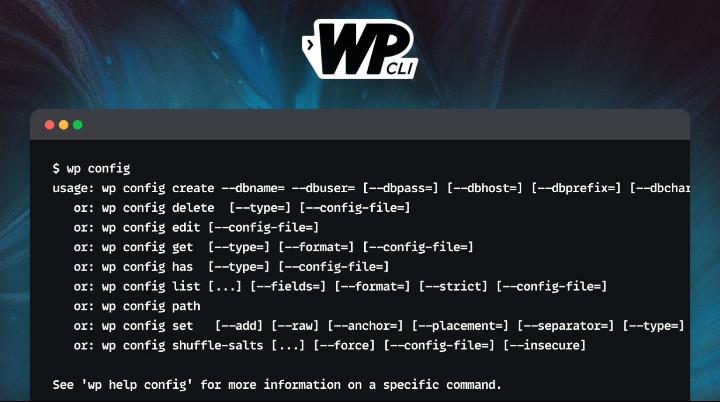
At its foundation, the command-line interface for WordPress allows you to type a command, perform different tasks from your terminal, and manage your site. One major benefit of the WP-CLI project is that it can be used by anyone who understands the basic commands. Furthermore, WP-CLI supports different versions like WordPress 6.8 and hosting environments, boosting workflow and simplicity.

Supercharge your WordPress site today
Get blazing-fast WordPress hosting with Hostonce that comes with WP-CLI preinstalled, SSH access ready, and 24/7 expert support
Why Use WordPress CLI to Manage Your WordPress Website
As your website gets more traffic and online success, using the WordPress admin dashboard can become repetitive and slow. For instance, you can open several menus, take turns updating plugins, or watch your pages take time to load. As an alternative to the WordPress dashboard, WP-CLI allows you to create and simplify your site management with simple instructions.
The speed of using the custom WP-CLI is another notable mention. Instead of opening different screens to perform tasks in the WordPress admin dashboard, you can use a single command on the command palette to speed up the process of everyday tasks. Users with multiple websites can find this feature appealing for bulk actions.
No matter the version of WordPress, WP-CLI provides unmatched consistency. For more context, a WordPress site using the command line interface will have low margins for troubleshooting and errors. Understanding WP-CLI and how to use it effectively can drastically boost productivity and performance for website owners.
How to Install WordPress Command Line Interface
Contrary to the belief that you need to be a developer to use this tool, you can download and install the WordPress command line as a beginner. Here is an overview of WP-CLI installation:
1. Check Your Hosting Environment
WP-CLI works best with a domain hosting provider. Before you can install the current version of WP-CLI, ensure that your hosting environment meets the basic conditions and fully supports SSH access. Popular hosting services like Hostonce and UltaHost offer WP-CLI installed by default to save time and effort.
2. Download the WP-CLI PHAR File
After installing on your WordPress, you will need to install the WP-CLI Phar file in the WordPress admin area. You can use the following command line: curl -0 https://raw.githubusercontent.com/wp-cli/builds/gh-pages/phar/wp-cli.phar. Note that the file you have downloaded contains the code you will need to use the WP command line on your server.
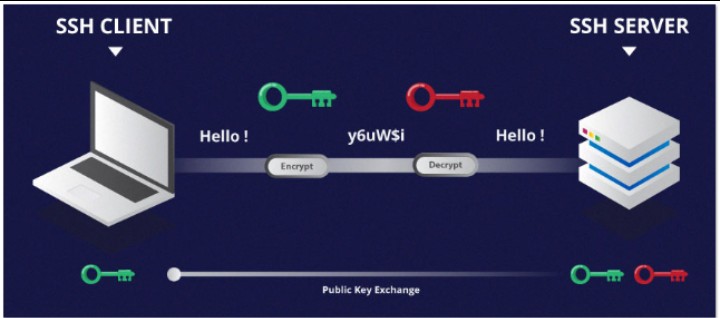
3. Make the File Executable
Ensuring the file can function effectively is the third step to take. Furthermore, to achieve this purpose, grant the file permission to perform in the WordPress admin area by using this code: chmod +x wp-cli.phar. With this WP user update command, your server will see the program as executable.
4. Move WP-CLI to a System Path
WP-CLI lets you access your server remotely on your WordPress dashboard. All you have to do is use a system path that supports WP-CLI. Furthermore, the system path should look like this:sudo mv wp-cli.phar /usr/local/bin/wp. After you have used this command, you can use the program remotely to run commands.
5. Verify the Installation
Confirming the installation process is the last step, and it is very important. You can check the running of WP-CLI using wp –info. There will be information like the PHP version, your updated WP-CLI version, and the server environment.
Take full control with Hostonce VPS
Hostonce gives you lightning-fast speeds, root SSH access, and zero downtime. Run WP-CLI commands, manage multiple WordPress sites, and scale effortless with Hostonce VPS hosting.
How to Use the WordPress Command-Line Interface
As we have discussed earlier, WP-CLI is great for everyone regardless of coding experience. It is fast, simple, and effective to use when keeping your WordPress site. The following steps will show you how to use the WordPress command line interface:
Step 1: Use SSH to link to your server
Connecting to your server via SSH is the first step for getting access. There are hosting providers like Hostonce that provide SSH access for website owners to execute different commands on their sites. Additionally, SSH access provides flexibility for using plugins, themes, and tools.
Step 2: Go to your WordPress directory
Log in to your dashboard to check if WP-CLI is installed. Navigate to the root directory of your WordPress site to show the command line the site you need help with. Note that your directory should look like this: public_html
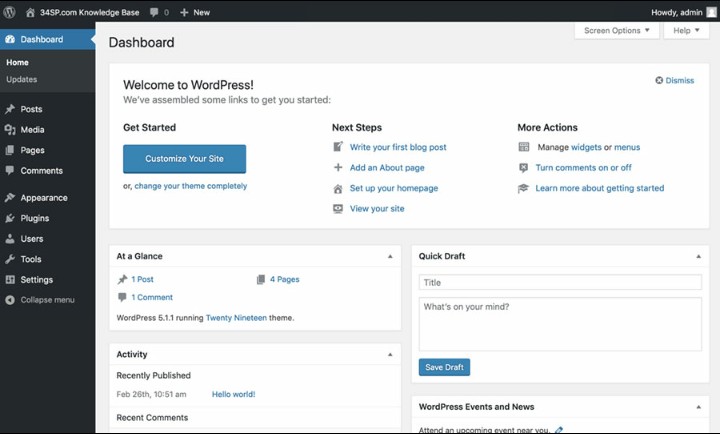
3. Check the installation of WP-CLI
Before you can start executing any commands, it is essential to check if the WP-CLI file is installed correctly. All you have to do is type: wp –info, and you will see information about the file and system. Confirming the WP-CLI installation will prevent future errors.
4. Start executing simple commands
If the installation is done correctly, you can now start writing simple management plugin commands for your site. Since the command-line interface has an intuitive structure, every command should begin with wp and include what you want to execute. For instance, you can say wp core update if you want to update your WordPress or wp plugin list to see the list of your plugins.
5. Use WP-CLI to manage bulk updates
The effectiveness of managing bulk updates makes this tool an appealing choice for CRM hosting users. You can simultaneously update all your plugins with a simple action, clear different comments, or install more than one theme. Bulk update management is a time saver for people on reseller hosting.
Expert Tip
Always test WP-CLI commands on a staging environment before running them on your live website. A single bulk command can instantly affect your entire database, plugins, or themes.

6. Troubleshoot and Fix Issues More Easily
WP-CLI is also great for detecting and solving any issues on your site. Let’s say you have an Updraft Plus plugin error that crashes your site, you can use the wp plugin deactivate –all to deactivate all plugins at once. This is faster and easier for solving troubleshooting errors when you download and install WordPress.
7. Automate Advanced Tasks as You Grow
The automation of complex tasks as your website grows can enhance workflow for people working on large ecommerce websites. For example, WP-CLI allows you to perform website migrations, execute cron jobs, and manage plugins on your website without repetition.
WordPress CLI vs WordPress Dashboard
| Feature | WP-CLI | WordPress Dashboard |
| Interface | A command-line interface for writing text | Visual interface for clicking |
| Speed | It is faster when it comes to performing bulk actions | Every action requires delicate attention, making it slower. |
| Ease of Use | Simple for people who know the commands to use | Great for beginners |
| Best For | Managing plugins or themes, bulk actions, troubleshooting, and different tasks. | Creating content, visual optimization, and design. |
| Consistency | Commands are the same | Different actions based on the theme, plugins, or browser |
| Remote Access | Can be used remotely with SSH access | Requires logging in with username and password from a browser. |
| Automation | Perfect for cron jobs, scripting, and mass updates | Automation is limited |
| When to Use | For taking mass actions, troubleshooting, and coding tasks. | For editing content, designing, and customization |
When it comes to managing a website, the dashboard is mostly used because of its simplicity, visual interface, and familiarity. Nevertheless, as a high-traffic website, you will discover that the dashboard is slowing you down. WP-CLI allows you to instantly manage daily tasks with simple instructions from one place.
Quick Tip
Before running any bulk WP-CLI commands on your live site, always create a full database backup. This single habit saves hours of recovery time and protects your site from accidental data loss or plugin conflicts.
Without discrediting the WordPress dashboard, WP-CLI isn’t designed to edit content, create pages, or customize WordPress themes. In addition, you will need the dashboard to perform visual tasks on your site. To boost the workflow and WordPress installation of your site, it is advisable to use both the dashboard and the command line together to achieve a faster and more effective result.
WordPress CLI Commands Every WordPress User Should Know
WP-CLI offers simple commands that are easy to learn for every WordPress user. Although there are hundreds of commands, we will be listing the most important ones for you to use on your website.
- Updating WordPress Core: When it comes to security, updating your WordPress can prevent any security threats like DDoS attacks. With simple commands like wp core update, you can see your WordPress’s current version and update it to the latest.
- Using WP-CLI to manage plugins: The management of plugins can now be done with WP-CLI. Using commands like wp plugin list to see all your plugins, wp plugin install plugin-name to install a plugin, and wp plugin activate plugin-name for activation.
- Managing WordPress themes: Thanks to the WP command line, users can now manage all WordPress themes at once. Moreover, you can use the WP theme list to see your installed themes, WP theme install theme-name to install a particular plugin like Wordfence Security, and WP theme activate theme-name to activate it.
- Managing Users: User management is great for adding different administrators and contributors to your website. Furthermore, you can use WP User list to see every user, update roles with wp user update username –role=editor, and use wp user create username email` to create a new user.
- Database and Maintenance Commands: Backend management is now easy thanks to WP-CLI. Also, web developers can optimize the WordPress database with wp db optimize, search the database using wp search, or export the database with wp db export without using plugins.
Experience seamless WordPress management
Scale your website effortlessly with reliable uptime and enterprise-grade security. Enjoy Hostonce windows hosting that is fully compatible with WP-CLI, built-in SSH access, and automatic updates.
Final Thoughts on WordPress Command Line Interface
WP-CLI is an effective WordPress management tool for developers and beginners. With simple instructions, you can order your website to manage plugins, optimize the database, and perform different actions instantly. Although it is faster than a dashboard, using both tools together can boost efficiency and workflow for people with multiple websites.
FAQs
How do I install WP-CLI on my WordPress site?
You can install WP-CLI via SSH by downloading the PHAR file, making it executable, and moving it to a directory in your system’s PATH. Many hosts, including Hostonce, offer WP-CLI preinstalled for easier setup.
What is WP-CLI capable of doing?
WP-CLI can handle a wide range of tasks: updating WordPress core, managing plugins and themes, creating or updating users, optimizing databases, clearing cache, and running cron jobs
Is WP-CLI safe to use on a live WordPress site?
Yes, WP-CLI is safe as long as you use commands carefully. Always back up your site before running bulk updates or database operations, and consider testing commands on a staging environment first.
Can beginners use WP-CLI, or is it only for developers?
Beginners can definitely use WP-CLI. While it’s command-line-based, starting with basic commands like updating WordPress, managing plugins, or listing users is simple, and the time savings quickly become noticeable.

How to Build a Gutenberg Plugin to Add Functionality to the Block Editor
By Javeria Riaz on August 12, 2025
Hostonce is the #1 WordPress Host
Ranked by 930+ customers in G2's Best Software Awards.