





As of February 2025, Google Analytics was being used on more than 44 million websites. This level of adoption shows that website owners are beginning to understand that they cannot improve their website’s performance if they do not know where the traffic comes from, what drives visitors away, or which content keeps them engaged.
While there are many analytics tools that can measure these metrics, Google Analytics remains one of the most trusted and widely used options available today.

How To Boost Your Email Open Rates with a Good Cold Email Subject Line
By Javeria Riaz on August 13, 2025In this post, we will explain what Google Analytics is and walk you through a step-by-step Google Analytics WordPress setup guide. You will also learn how to integrate Google Analytics with WordPress so you can start tracking your website data more effectively.
Key Takeaways
- Google Analytics is non-negotiable for WordPress site owners — without it, running your site is like running a shop without sales records. You’ll never truly know where your customers come from, what they like, or why they leave.
- GA4 (the new Google Analytics) takes tracking to the next level with event-based data, enhanced measurement, and multiple data visualizations — making it easier to refine your SEO and marketing strategy.
- Actionable insight > guesswork — integrating GA4 with WordPress isn’t just a “nice-to-have.” It transforms data into strategy, helping you refine your SEO, grow traffic, and make informed business decisions.
- Google Analytics 4 fully supports e-commerce tracking for WooCommerce and other WordPress store setups.
- Conversion tracking in GA4 lets you measure sales, sign-ups, and downloads directly from your WordPress site
- WordPress GA4 integration transforms your website management from guesswork into data-driven decision-making.
- Verification is crucial — checking your setup in real-time ensures GA4 is tracking correctly before you start relying on the data..
Introduction to Google Analytics
Google Analytics is an analytical tool that can help you track the activity of users on your website. With Google Analytics, you can see where the bulk of your website traffic comes from, which of your content users engage with the most, how much time users spend on each page, and how many new or returning visitors your website gets over a period of time.
Beyond traffic numbers, Google Analytics helps you measure the results of your SEO efforts and see how effective your calls-to-action and marketing campaigns are in driving conversions. With this insight, you can focus on the source of the bulk of your website traffic, improve pages that are not ranking well, and double down on content that already works.
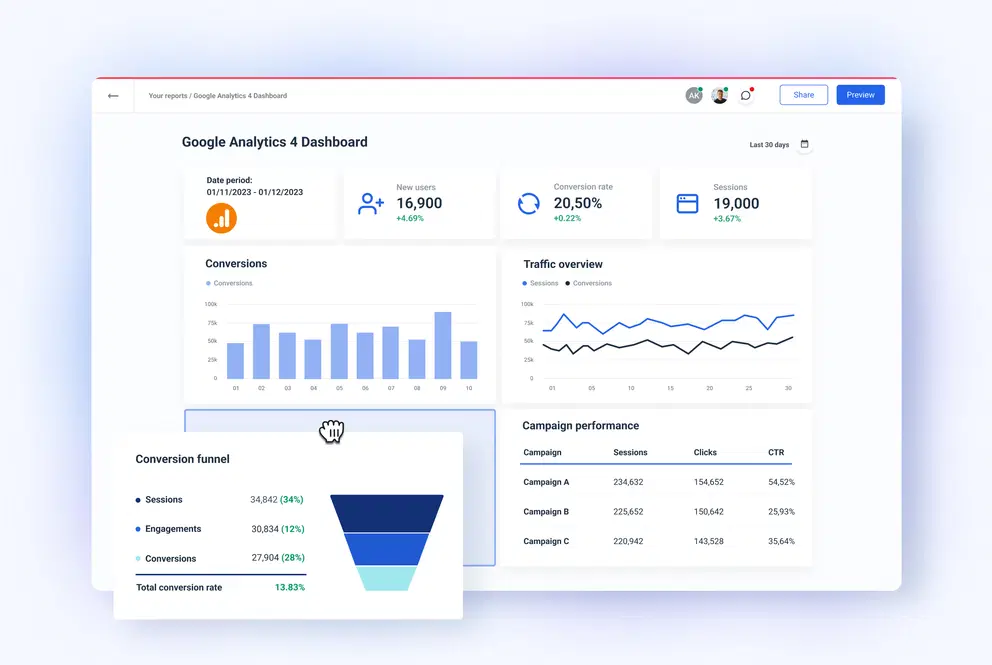
With the new version of Google Analytics, Google Analytics 4, also called GA4, the experience is even better, as it performs advanced analysis and creates multiple data visualisations. GA4 works on an event-based tracking system which ensures you do not miss out on demographic data and engagement metrics that could refine your marketing process
Here’s Why You Should Integrate Google Analytics with WordPress
Running a WordPress site without analytics is like running a shop without keeping sales records. You might know customers are walking in, but you will have no clue what they are buying, how often they return, or why they leave without making any purchase.
One small business owner on Reddit put it in this way:
“Right now we’re selling at a marketplace and sales just happen (or not). Sometimes it can be linked to social media advertising or prominent placement in Google. Most times it’s a mystery. It would be nice to be able to have some impact on what sells and when rather than chaos theory in practice. In short, a lot of trial and error, false starts and luck + lack of sleep.”
This uncertainty is exactly what Google Analytics helps you solve.
Expert Tip
A marketing campaign is only as successful as the data that drives it. If you do not understand how your customers behave online, you cannot create campaigns that convert. Use Google Analytics 4 to see where your visitors come from, what keeps them engaged, and what drives them away. With these insights, you can design marketing campaigns that are data-driven and effective.

With WordPress GA4 integration, you can gain:
- Event tracking to see what actions users take on your site—like scrolling, clicking buttons, or filling out forms.
- Insights into where visitors come from (Google SERPs, social media, referrals).
- Real-time insights into how your posts and plugins perform.
- Better SEO and improved content strategy through identifying high-traffic keywords.
- Improved content strategy by studying reports on which pages perform best and which ones push visitors away.
- Conversion tracking to measure sales, sign-ups, or downloads. This feature would serve you well if you own a WordPress ecommerce website.
With the insights gathered from Google Analytics reports, you can make informed decisions that can improve your website traffic, engagement, and conversion rates.

WordPress Hosting for Data-Driven Growth
With Hostonce WordPress Hosting, integrating essential tools like GA4 is seamless, giving you the insights you need to grow your website.
Key Requirements for Google Analytics WordPress Setup
Before we go into the Google Analytics WordPress setup guide, let us consider some essentials required to complete the process successfully. These essentials include;
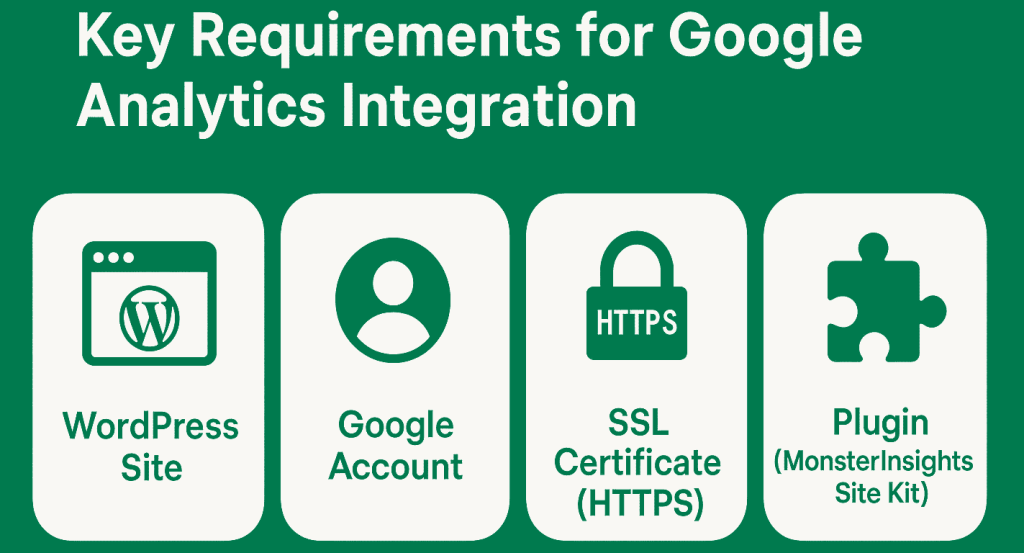
- A self-hosted WordPress site or a WordPress Site you have admin access to.
- A Google account to access Analytics. If you do not have one, sign up at accounts.google.com.
- An SSL certificate (HTTPS), which proves to Google that your site is secure.
- If you are not familiar with codes, make sure you have a plugin like MonsterInsights or Google’s own Site Kit. While web developers might prefer manual methods for website customisation, non-developers can save hours by using plugins.
For best results and integration experience, all the key requirements for the process should be in place to avoid frustrations during the integration process. Also, ensure that your website is hosted on a fast WordPress hosting provider, since GA4 tracking depends on reliable site speed and performance to collect accurate data without delays.
Step-by-Step Guide on How to Integrate Google Analytics with WordPress
To ensure a successful WordPress GA4 integration, there are two main phases: setting up your Google Analytics account and then adding Google Analytics to WordPress. These two phases can be completed in four major steps, which are:
- Creating a Google Analytics 4 (GA4) property. The GA4 property serves as a home for your website data on Google Analytics.
- Finding your Measurement ID and copying the tracking code of your GA4 property so that your site can label each visit to your website correctly and send the right information to Google.
- Adding Google Analytics to WordPress (using a plugin or a manual method) so that the tracking code loads on every page of your site.
- Verifying the setup in real-time so that you are sure your WordPress GA4 integration is active and recording data accurately.
Here is a detailed guide that would help you complete all four steps;
Step 1: Create a GA4 Property
- Go to analytics.google.com on your browser and sign in with your Google account.
- Click ‘Start measuring’ .

- Enter relevant details as required on the next screen including your site name, URL, time zone and industry category-this info helps Google provide relevant benchmarks later in your setup.
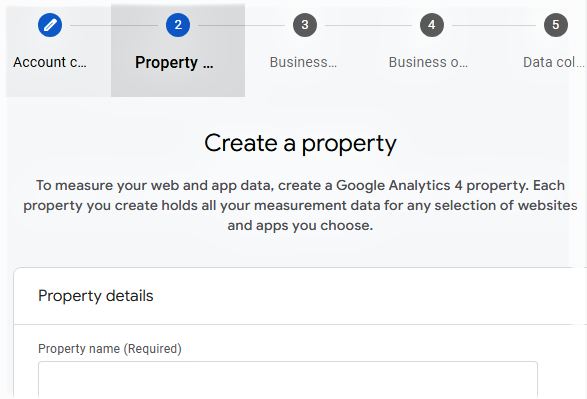
- Following the successful completion of the first three steps, Google will automatically create a GA4 property for your website.
- On the next screen, choose ‘Web’ as your preferred platform for data collection (this is for WordPress websites).
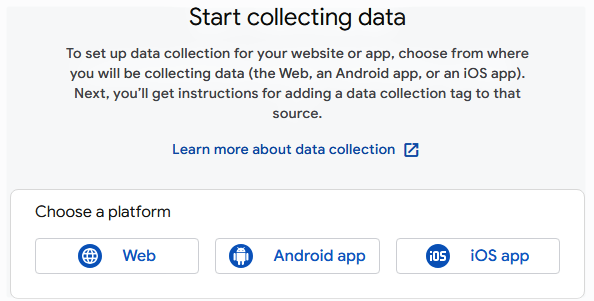
- Finally, for this step, turn on Enhanced Measurement so that basic interactions (scrolls, outbound clicks, and file downloads) are tracked without extra configuration
This initial setup takes about 5 minutes, but it is the backbone of your entire system.
Step 2: Get Your GA4 Tracking Code
- Head to your GA4 admin section.
- Go to Data Streams → Web and select your web stream.
- You would receive a prompt telling you that GA4 has not received any data from your website in the last 48 hours. Click the ‘View instructions’ button attached to that prompt.
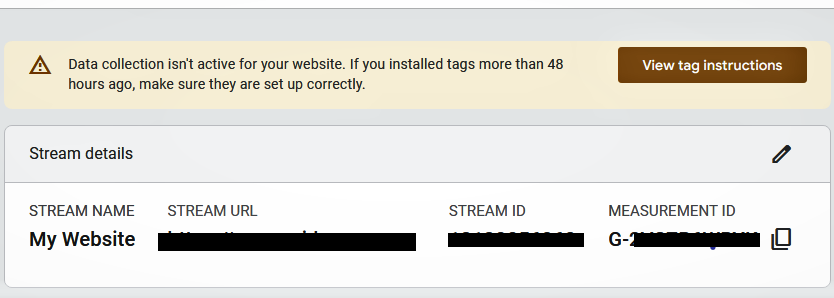
- On the next screen, click on install manually and copy the Google Tag (gtag.js) displayed on the screen.
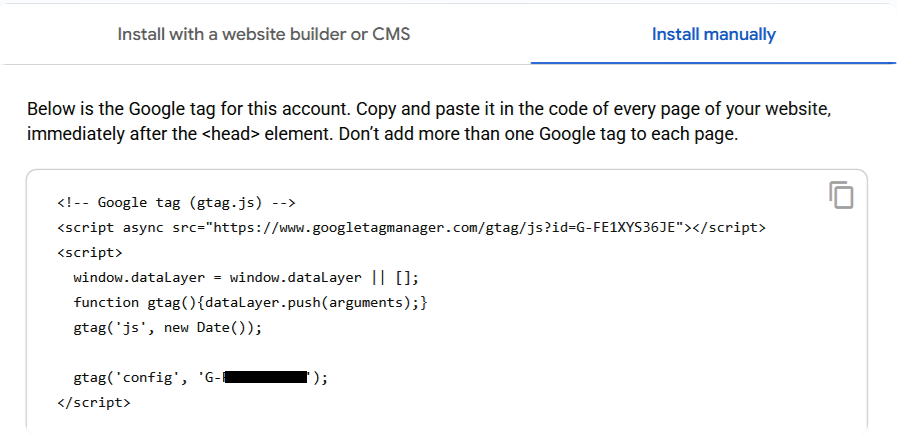
This script (the Google Tag Snippet) is what connects your pages to Analytics. It must load in the <head> of every page so that visits and events are recorded consistently.
.
You can also do this setup using the Google tag manager. Be sure to double-check that you copy and paste the full code, because incomplete codes will prevent data tracking and collation.
Step 3: Add Google Analytics to WordPress
There are two ways to safely add Google Analytics to WordPress. The first is by using a plugin, which most users find easier. The second is the manual method, best for those who have experience with coding. Choose the one that fits your comfort level.
Method 1: Using a plugin (MonsterInsights)
WordPress Plugins are user-friendly and handle your website updates automatically, so you do not have to worry about codes. There are a number of plugins you can use to integrate Google Analytics with WordPress, including MonsterInsights, Site Kit by Google, or Analify. For this guide, we will use MonsterInsights.
Want to Boost Your Website’s Performance?
With Hostonce WordPress Hosting, you can install, manage, and update essential tools and plugins to optimize your website’s performance.
MonsterInsights is popular for WordPress GA4 integration because of its ease of use and broad set of features. To install it and connect it to your Google Analytics account:
- Go to your WordPress dashboard → Plugins → Add New.
- Using the search bar on the next screen, search for “MonsterInsights”, click Install Now, when the installation is complete, click on the Activate button.

- Open the plugin’s setup wizard from the new Insights menu.
- When prompted, sign in with your Google account and allow access so MonsterInsights can link directly to your GA4 property.
- Select the GA4 property (or paste the Measurement ID where required).
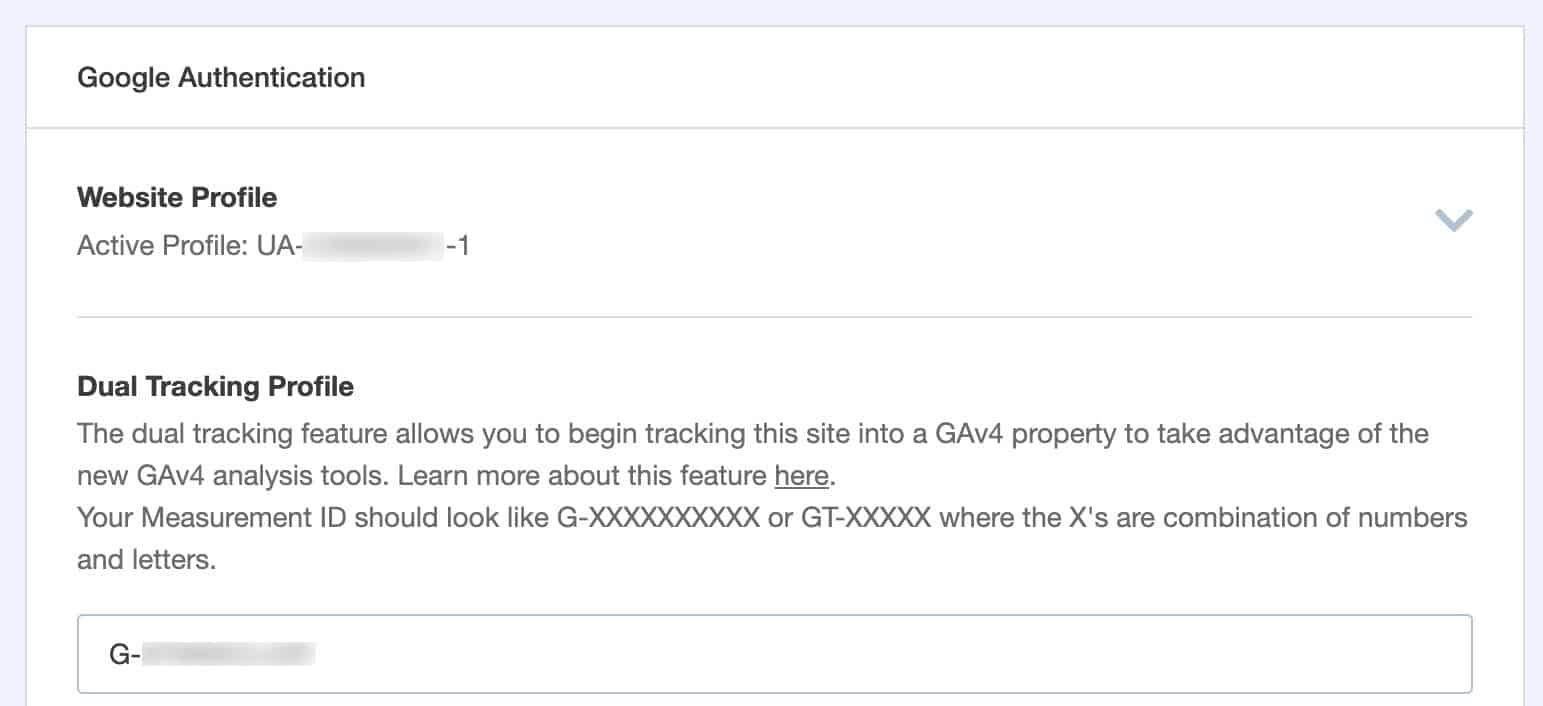
- Save your settings. MonsterInsights would automatically install your GA4 tracking code and keep it active during theme updates.
Method 2: Add the code manually
- In your WordPress dashboard, go to Appearance → Theme File Editor and open the header.php file.
- Scroll through the code until you find the line that says </head>.
- Paste the Google Analytics tracking snippet just above this line. This ensures the code sits inside the <head> section of your site.
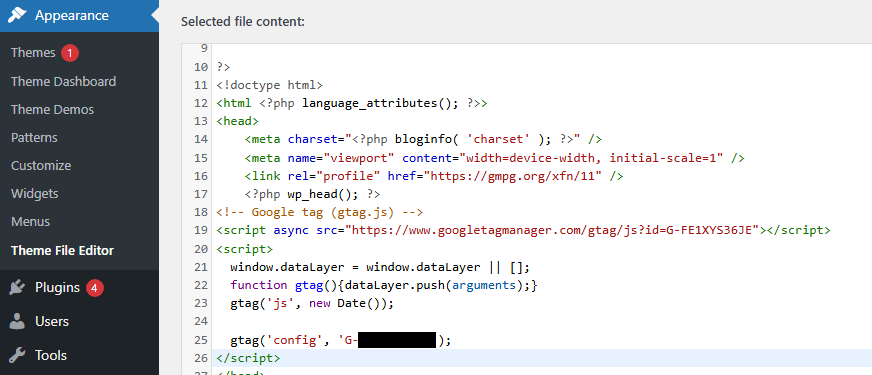
- Click Update File to save your changes.
To prevent your code from being erased when your theme updates, consider using a safe method like the Insert Headers and Footers plugin or a child theme
.
Note that only one of these methods is required for integrating Google Analytics into your WordPress website. Installing multiple Analytics plugins or pasting the code twice can cause duplicate tracking and inflated numbers in your reports.
Step 4: WordPress GA4 Integration Verification
- Log into your GA4 account, go to Reports → Real-time.
- Open your website in another browser tab or on a different device and navigate through a few pages.
- Within moments, the Real-time report should show at least one active user.
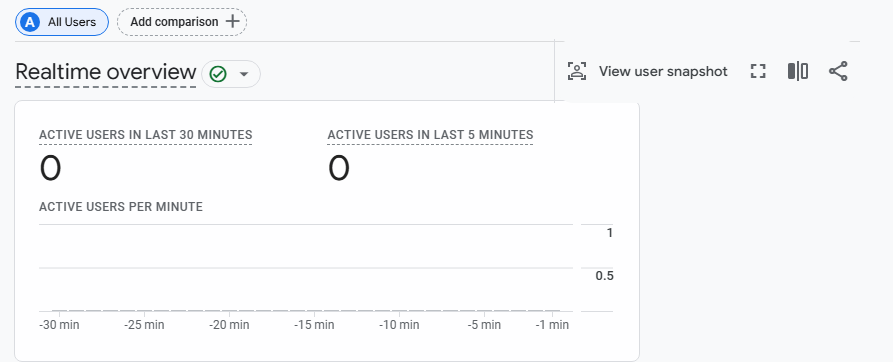
- If there is no activity, try any of these troubleshooting options:
- Clear the website cache to ensure that old cached pages are not preventing the GA4 tracking code from firing.
- Double-check that the GA4 tracking code is correctly placed inside the <head> section and that it is installed only once.
- If you are using a plugin, confirm that it is connected to the correct GA4 property.
Want to know how your visitors use your site?
Hostonce makes it easy to connect WordPress with analytic tools, helping you stay ahead with reliable insights. Get started with Hostonce shared hosting plan.
Conclusion
Google Analytics is more than just a nice tool to have—it is the key to understanding your visitors and making smarter decisions about your website. To onboard you on this amazing experience, the step-by-step guide in this article will show you how to integrate Google Analytics with WordPress, whether you are a tech expert or not.
Add Google Analytics to your WordPress website today and enjoy a data-driven content strategy, improved user engagement, and better insight into what works on your site.
Do not have a WordPress website yet? Create one now with Hostonce fast hosting solutions. Once your site is live, connect it to Google Analytics to start making informed, confident decisions.
How to Achieve 100/100 Google PageSpeed: Host-Level Optimizations
By Festus Nkopuruk on November 6, 2025FAQs
Is GA4 free to use?
Google Analytics offers a free version that possesses a lot of tools for analysing site and app data. However, it also has a premium paid version for larger enterprises with larger volumes of data.
How long does it take before I see my site's data?
Real-time reports show activity instantly, but standard reports, which cover detailed metrics like user demographics, traffic sources, and page performance, typically take 24–48 hours to become available.
Can I track e-commerce with GA4?
Yes. GA4 allows advanced tracking for WooCommerce and other WordPress e-commerce sites.
What happens if I was using Universal Analytics?
Universal Analytics is no longer supported. All sites should now use GA4.

Hostonce is the #1 WordPress Host
Ranked by 930+ customers in G2's Best Software Awards.