Updating your HostOnce account information is a way to ensure that you will get all your billing notifications. A fine way to keep control over your hosting and domains and invoices.
Steps for Updating Your Account Information
Step 1: Visit the Billing System
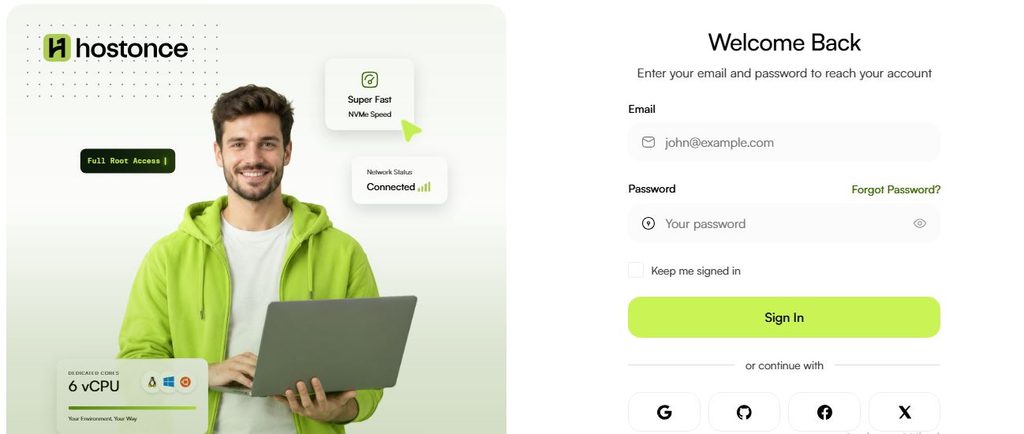
Visit bill.hostonce.com using your registered e-mail ID and password.
Step 2: Find the Account Settings
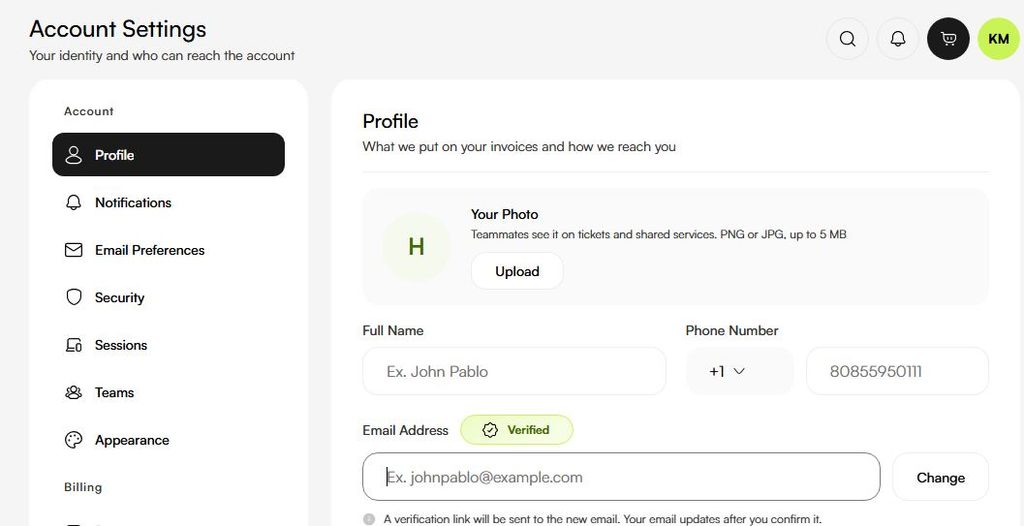
Look for your account profile or personal information within the customer portal.
Step 3: View Your Account Information
Click on the appropriate button to see your current account information.
Step 4: Edit the Details
Modify the fields you want to change. Name and contact details or billing address and other details. Use only your information.

Coolest Hosting Just a Click Away!
HostOnce is rising as a trusted hosting platform! Reach out to us now for a superior and secure experience!
Step 5: Save Your Modifications
Click the save or update button on the web page. In case of any authentication, follow the instructions given in the portal.
Step 6: Verify the Updates
Go back to your account info. Verify that your updates have been saved correctly.
Changing Your Account Password
If you already have a strong and unique password, there is no need to change it. You will need to do so immediately if there is a chance that other people may have access to it.
- Open the HostOnce Billing System.
- Click on the Account Settings or Profile section.
- Find the password or security settings.
- Type your old and new password in case the password change form is present.
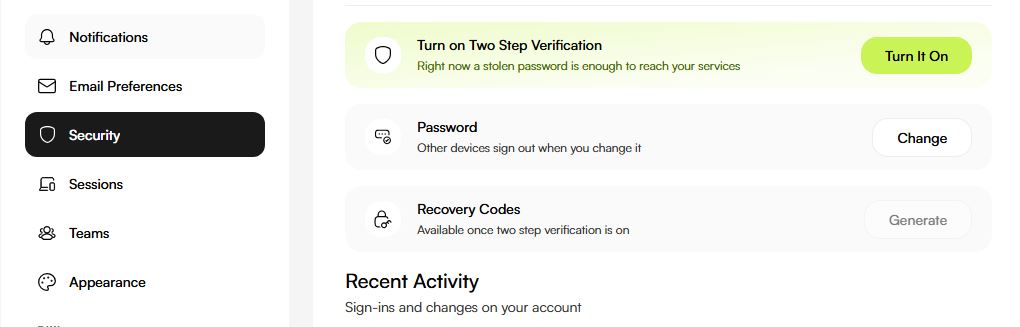
- Enter the new password if confirmation is required.
- Click the button displayed to make the changes.
- Ensure that you receive a notification of the successful change.
- Select a unique password which is not used on any other website. A password manager program will be helpful here.
What If You Have Forgotten Your Password?
- Access the HostOnce Billing Portal.
- Locate the password recovery facility on the login page.
- Follow the instructions provided.
- You will receive an email to change your password if you are receiving one.
Please contact the HostOnce support team if you do not find any facility for creating a new password.
Steps to Enable Two-Factor Authentication
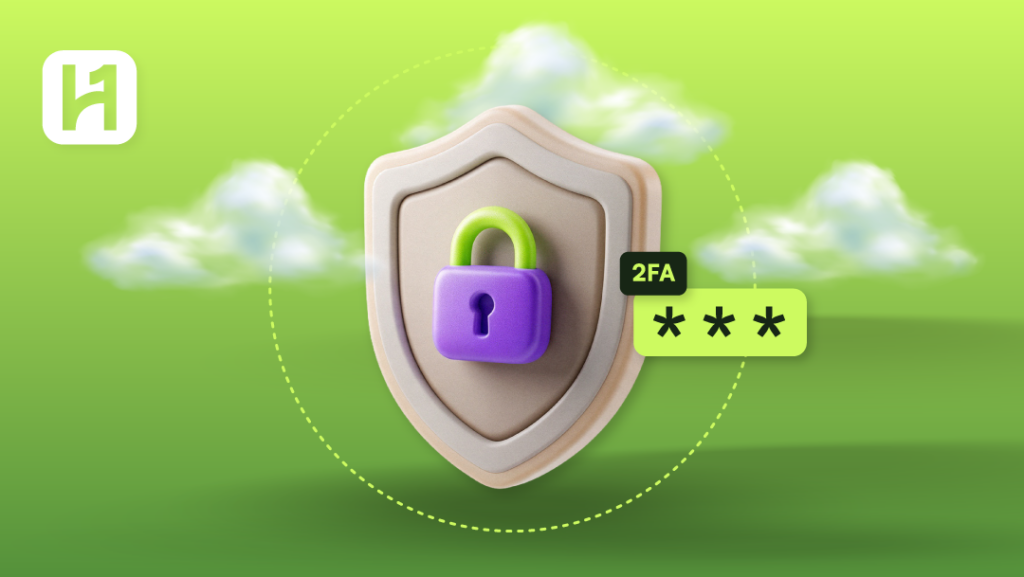
Two-factor authentication simply refers to the addition of another layer of security during login to your account. It can be through an authenticator app or some other process based on the website’s support for the same.
Log in to your billing account at HostOnce.
- Access your account settings.
- Search for the two-factor authentication/ 2FA facility.
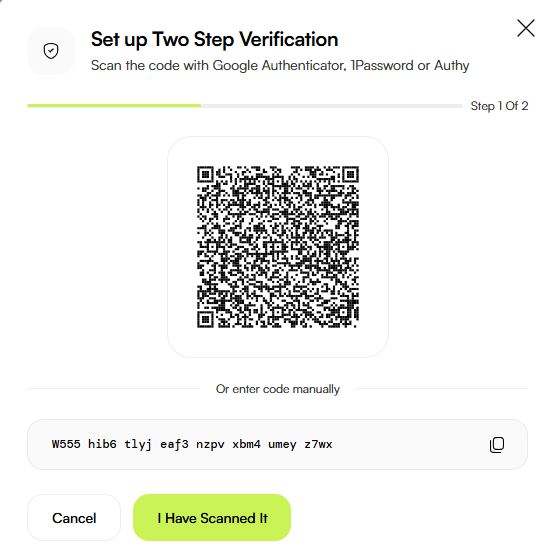
- Follow the instructions given by the portal.
- Verify as requested by the portal.
- Ensure that the portal shows 2FA is enabled.
- Save any recovery code provided during this process in a secure place separate from your password.
- Do not make the assumption that HostOnce supports a specific authenticator app.
Steps to Disable Two-Factor Authentication
- Access your HostOnce account.
- Enter the account security settings.
- Locate the two-factor authentication setting.
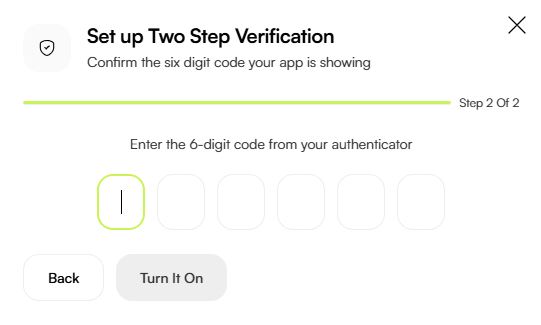
- Confirm your identity as per instructions from the portal.
- Review your account security settings to verify that the change is completed.
Turning off 2FA will make your account vulnerable. Try to keep 2FA turned on. More so when it provides access to your servers and domains or billing and other crucial services.
Use the account recovery procedure provided by the portal if you do not have access to your 2FA.
FAQs
Can I change the email address for my HostOnce account?
Use the available option to change it in the account settings. Contact HostOnce customer support otherwise to learn the procedure.
Should I use the same password for HostOnce and my email account?
It is not recommended to use one password for both accounts. This is because your email account is crucial, since it will help in password resets.
What is two-factor authentication?
Two-factor authentication is a means of verifying a user’s identity by asking for a second form of identification in addition to the password.
What if I lose my 2FA recovery codes?
You can contact HostOnce support via an authorized method and go through the process of recovering your account. Do not give out your password or any codes to unauthorized people.
Will changing my account password change my VPS password?
No. The billing account password is normally different from the operating system password for your VPS.

Muhammad Usama has had impactful journey of almost a decade exploring the wonders of writing. He is always excited to share relevant knowledge with the community. Usama enjoys reading books and travelling in his free time.