You may contact HostOnce customer service for assistance regarding hosting services, VPS problems, domain management, billing, payments, and other issues related to your account. According to HostOnce, customers are able to create a support ticket through their billing account. Customer service representatives of HostOnce are available 24/7.
Steps to Open a Support Ticket
Step 1: Log in to your Account
Sign in to your HostOnce Client Area by providing your registered email ID and password.
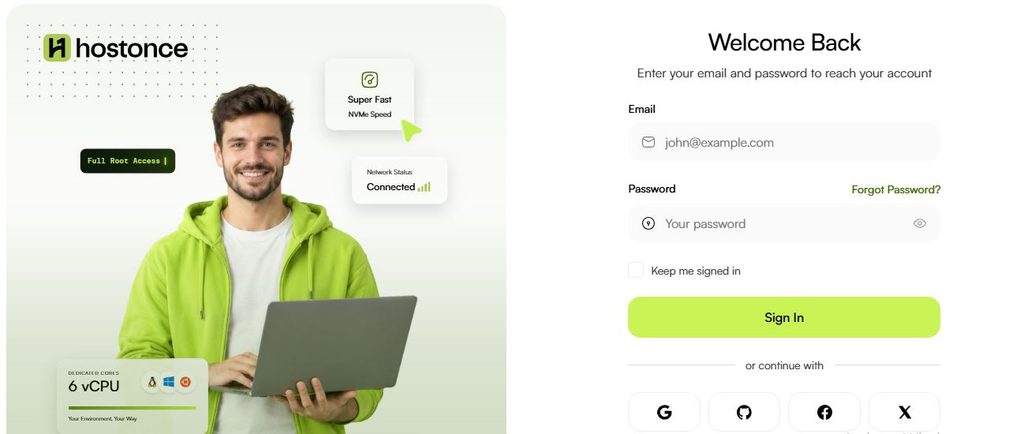
Go to the support/ticketing section inside your billing account. Click on the ticketing tab if one is present. The actual menu title and its location should be verified by comparing it to the existing billing system prior to posting these steps.

A Step Closer to Success!
HostOnce is the gateway to lots of dreamy options! Don’t trust us just yet? Try us and wait for the pleasant surprise!
Step 3: Select the Matching Service or Issue
Go for the category which suits your problem the most.
Example issues are as follows:
- Technical issue: the website is down or the server is broken.
- Billing issue: you need some clarification regarding your invoice or your payment.
- Domain issue: your problem is related to the domain itself or some of its settings.
- Account issue: you cannot log in to your account or have trouble managing it.
This is a list of issues you may experience; however, these are not the names of the categories in the HostOnce ticket form.
Step 4: Add a Proper Subject
Add a short title that will describe your problem.
Example subjects are as follows:
- Website Not Working
- Issue with Invoice Payment
- VPS Server Connection Problems
- Domain Name Servers Assistance
Step 5: Describe the Problem
Tell what happened and what the support team has to do for you. Provide some necessary details.
Example:
Subject: Website Not Working
Message:
Hi HostOnce Support,
The website is not working right now. The affected domain is example.com and the problem started today. I am getting an error while trying to open the website.
Thanks.
Use your domain name instead of example.com in the above example.
Step 6: Attach the Evidence
You can attach a screenshot of the error if the ticket form allows attaching a file.
Do not include your password and private keys or other confidential information in the ticket.
Step 7: Submit the Ticket
Make sure all the information is correct in your message. Submit your ticket using the available submit button on the form.
Step 8: Look for a Response
Visit your billing account and find the ticket or a reply if there is a ticket history section on the portal. Please check your email account to receive notifications from the support department.
In case the support requires additional information, provide this information. Try to continue the conversation via the same ticket whenever possible.
FAQs
Is HostOnce customer service available round-the-clock?
Yes. HostOnce customer service is certainly available round-the-clock.
What information should I provide in a ticket?
A description of the issue. The service or domain that is affected. The error message. The reference number if it was provided.
Can I get in touch with HostOnce if I am unable to access my account?
Yes. Visit the HostOnce Contact page to use the contact options available.
How do I follow up on my current ticket?
Look into your billing account for your ticket and any responses, and check your registered e-mail for alerts. The exact ticket tracking features should be verified from the live portal.
How soon will HostOnce get back to me?
HostOnce claims that most tickets have a prompt response, and urgent matters are given priority. However, it does not assure a response time on its contact page.

Muhammad Usama has had impactful journey of almost a decade exploring the wonders of writing. He is always excited to share relevant knowledge with the community. Usama enjoys reading books and travelling in his free time.