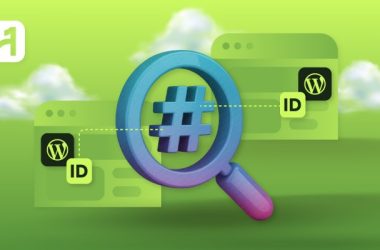

Did you know that every page or post created on a WordPress website has an ID number? There are over 500 million WordPress users in the world, and it can be difficult to find the WordPress post ID for your site unless you know where to look. With WordPress powering 43% of all sites and having more than 64,000 themes, knowing how to find WordPress post ID is a necessity for all WordPress admins.
In this beginner-friendly guide, we will list out the 5 methods or ways to get post IDs. Furthermore, we will also look at why it is important to find your WordPress page ID and common troubleshooting problems to note when finding post IDs and pages. Additionally, you don’t need to be a web developer to find a post ID on your site, and we will show you how to get the most out of your post ID and page ID WordPress settings.
7 Smart Ways to Use AI in WordPress Development
By Javeria Riaz on October 18, 2025Key Takeaways
- Every page, post, and piece of content on WordPress has a unique ID number
- IDs are very important for custom development, WordPress plugins, redirects, and shortcodes
- The easiest way to find a page and post ID is by looking for the ID in the URL.
- Plugins can be used by every WordPress user to add a post ID column for easy access
- Web developers or people with coding experience can find a WordPress page ID by using WP-CLI or PHP functions
- Plugin conflicts or changes to the admin UI are the major reasons why it is difficult to find WordPress post IDs
What Are Post and Page IDs in WordPress?
An ID is a unique number assigned to each post or page in WordPress. IDs can come in handy because they allow the system to retrieve, organize WordPress plugins, and manage content on the website correctly. Whether you are creating posts, media files, pages, or categories, they all come with an identification number for easy access. Post ID and Page ID WordPress settings are useful during scenarios like:
- Adding shortcodes that require WordPress IDs
- Creating custom redirects or menus as a WordPress admin
- Also, using plugins like Show IDs by 99 robots or page builders
- Creating custom queries during stages like theme development

Create, Publish, and Grow With Confidence
Boost your WordPress site’s speed, reliability, and security with Hostonce WordPress hosting. Enjoy effortless website management and smooth performance designed for growing online businesses.
5 Ways to Get Post and Page IDs in WordPress
Page ID or Post ID is very useful in keeping your WordPress structured and organized. Also, there are many ways to find the page ID of a WordPress site. We will be looking at the 5 easiest ways to locate WordPress IDs.
1. Get a post or WordPress page ID from the Dashboard URL
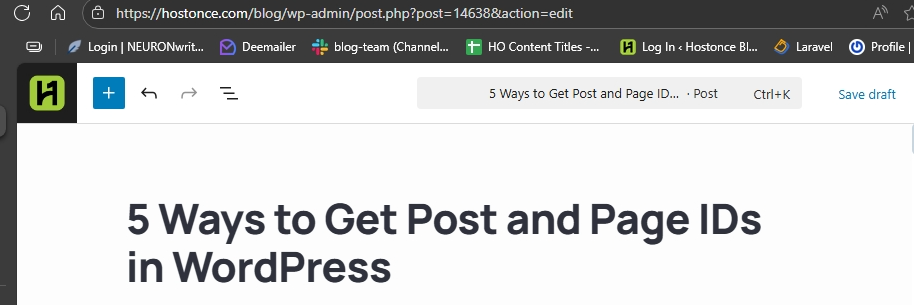
When it comes to getting page ID and post ID, this is the simplest method that is commonly used. For instance, when a page or post is opened inside the WordPress 6.8 editor, the ID can be seen from the URL. Here is a walkthrough on the whole process:
- Log in to your WordPress dashboard and click on pages or posts
- Hover your mouse over any content item in the dashboard
- In your browser search bar, you’ll see a link that looks like https://yourwebsite.com/wp-admin/post.php?post=287&action=edit
- Moreover, you’ll find the ID number in the URL of your browser. In the example above, the current post ID is 287
2. Use the “Quick Edit” option in the WordPress dashboard
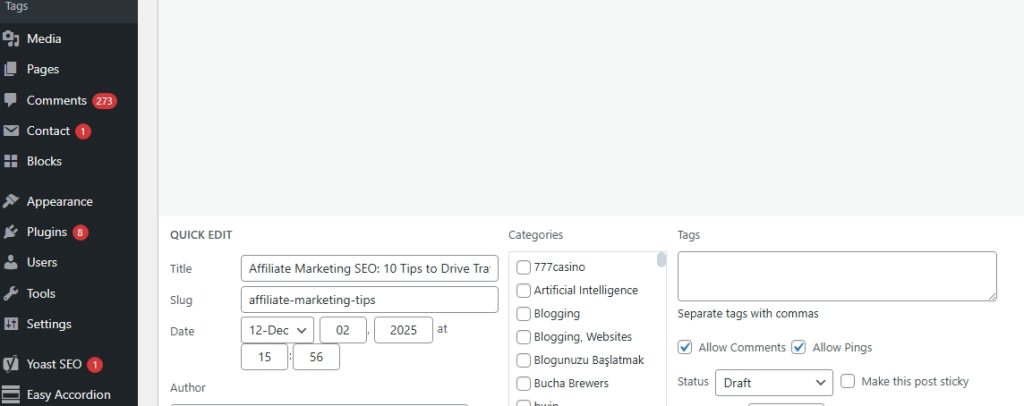
The second easiest method is via the “Quick Edit” option from your WordPress dashboard. You can get a post’s ID or its content by ID when you hover your mouse on the post titles. Most themes on WordPress use metadata to show the ID you need. In addition, here is how to get the ID with this method:
- Click on Pages or Posts from your dashboard
- Hover your mouse on the page or post title
- Then click on “Quick Edit.”
3. Install a plugin to automatically find WordPress post IDs
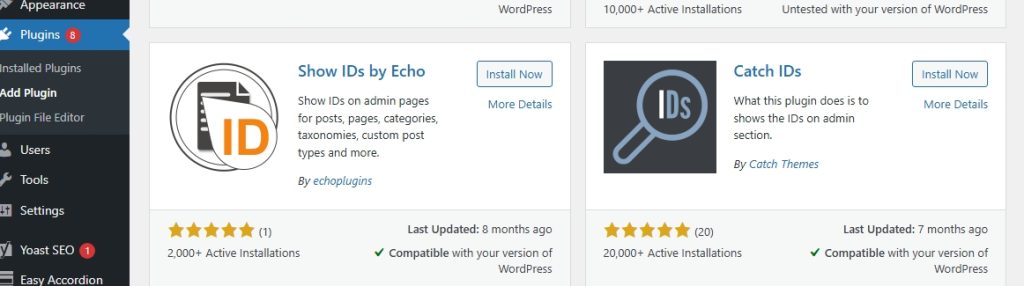
WordPress plugins like Show IDs and Admin Columns can also fetch post IDs and make them visible every time. This method is recommended for large enterprise websites, ecommerce businesses, or people handling hundreds of pages who constantly want to know the ID of every content without stress. In addition, here is how to get the ID with this method:
- Install the WordPress plugin from your dashboard and activate it
- Click on Posts>>All Posts or Pages>>All Pages
- A new category or tag ID will be added to the table.
Every page has a unique number in WordPress, and you can get an array of post IDs with functions like WordPress get post URL. Also, most web developers retrieve WordPress IDs using template tags or functions. Furthermore, below are popular functions you can use to access your WordPress IDs:
- get_the_ID(): This WP function aims to return a current post or page ID in the loop
- $post->ID: A global variable that can be used to access the current IDs of a post or page
- get_queried_object_id(): This function is great for templates, pages, and archives. Additionally, it is used to return the ID of the current queried object.
Quick Tip
The quickest way to find a post or page ID in WordPress is to hover over the “Edit” option in your dashboard. Look at the URL preview in your browser, and you’ll see something like post=123. Keep in mind that number is the unique ID for that content.
5. Retrieve Post or Page IDs from the WordPress Database (Advanced)
Retrieving IDS from WordPress database via SQL queries is an advanced method for web developers and experts. Moreover, this option is great for fixing broken links, searching for bulk IDs in large websites, and getting IDs after website migration. To get started, you’ll have to:
- Visit the control panel of your domain hosting
- Go to phpMyAdmin
- Scroll through the wp_posts table.
Turn your WordPress site into high-converting store
Stop losing sales to slow loading times and grow your store with confidence. Choose Hostonce’s ecommerce hosting and let your customers enjoy a seamless shopping experience.
Common Reasons You Need WordPress Post or Page IDs
WordPress IDs for posts and pages are very important in keeping your website organized and building custom options. You can use the post ID to correctly get the post and page you want. Whether you’re a developer or beginner, here are the major reasons why you need the post IDs:
- IDs allow you to display posts correctly on page builders and plugins. For example, Form plugins and gallery shortcodes depend on IDs to load the right content.
- WordPress plugins such as RankMath require the IDs of a page or post for redirects. This is useful in changing the structure of permalinks, updating posts that are old posts, and redirecting pages that are deleted pages.
- You need the post or page ID to create custom menus from your dashboard. Additionally, you can use them to show a post or add a specific page.
- Web developers use WordPress IDs for displaying custom loops or template files
- Some WordPress plugins allow you to manage the visibility of your page. For example, membership plugins or content restriction tools specifically use IDs for this purpose
- Popular website builders like Elementor and Divi make use of IDs for locating dynamic widgets, applying templates, and assigning theme builders.
Expert Tip
Many display errors in WordPress usually come from referencing the wrong page or post ID. Also, plugins like Show IDs, Admin Columns, or Reveal IDs add a column to show every page and post ID from one view. Some custom themes allow you to save important post IDs in dedicated options panels.

Why You Can’t Find Post ID in WordPress
Page and post IDs can come in handy when accessing advanced customization options. If you can’t find the IDs from your WordPress dashboard, you might want to consider the following reasons.
- The Gutenberg plugin editor hides IDs by default. To solve this issue, you will need to use a plugin such as “Show IDs” or check the URL of your browser while editing.
- Another reason is theme modification. Your WordPress theme can remove ID columns from the layout to boost performance. The best way to fix this problem is by using the default WordPress theme or a plugin.
- Plugins designed to simplify the WordPress dashboard usually hide IDs. You can deactivate the plugin to check if it works.
- Specific post types don’t show IDs by default unless they work with plugins. For Hostonce users, you can check the plugin settings to understand what’s going on.
- Unauthorized users not logged in as a WordPress admin cannot see the IDs. On the other hand, ensure that you are given permission as an admin or editor to access the WordPress IDs.
Get affordable, fast, and dependable hosting!
Start your website journey with Hostonce today and enjoy strong security, 24/7 customer support, reliable performance, and fast-loading speeds perfect for small businesses and beginners
Conclusion on WordPress Post and Page IDs
WordPress post and page IDs are very important for configuring plugins, shortcodes, and custom queries. Remember that WordPress IDs allow you to manage all the content of your website effectively without error. If you are having issues finding your post and page IDs, you can consider our common troubleshooting issues or follow us on Twitter (X) to speak with an expert professional for assistance.
FAQs
Why is my WordPress post ID not showing anywhere?
Your theme or plugins may hide admin columns, or you’re using the block editor, which doesn’t display the ID visually.
Can I display my WordPress post ID on the front end?
Yes. Add <?php echo get_the_ID(); ?> inside your theme template to show the WordPress post ID on the site.
What plugin can I use to reveal all post and page IDs?
Plugins like Reveal IDs, Show IDs, and Admin Columns display IDs directly in the admin list table.
Are post and page IDs the same in WordPress?
They are both unique identifiers, but each ID belongs to a specific content type, posts, pages, or custom post types keep their own entries.
The WordPress wp_is_mobile() Function: Is It Still Useful in 2026?
By Javeria Riaz on August 12, 2025
Hostonce is the #1 WordPress Host
Ranked by 930+ customers in G2's Best Software Awards.